
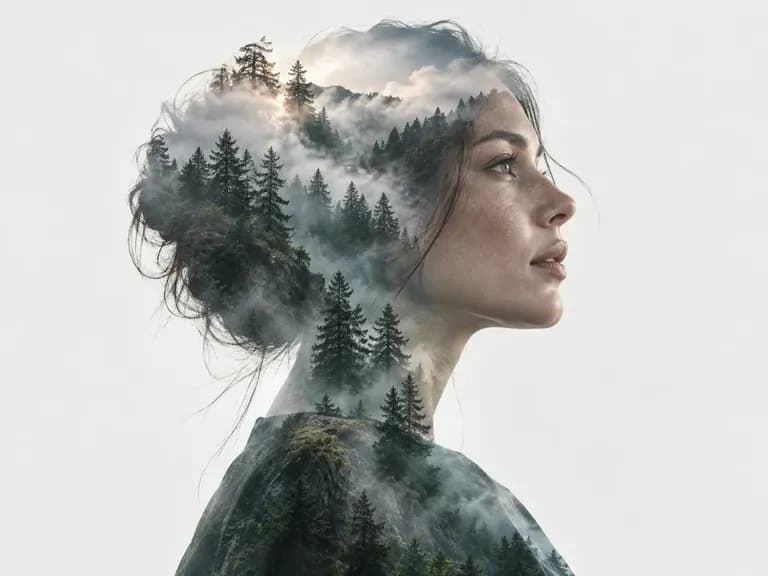
Two images
Bring both images
Upload one source image and one image to blend. Both are required; an optional region reference can help explain where they should combine.
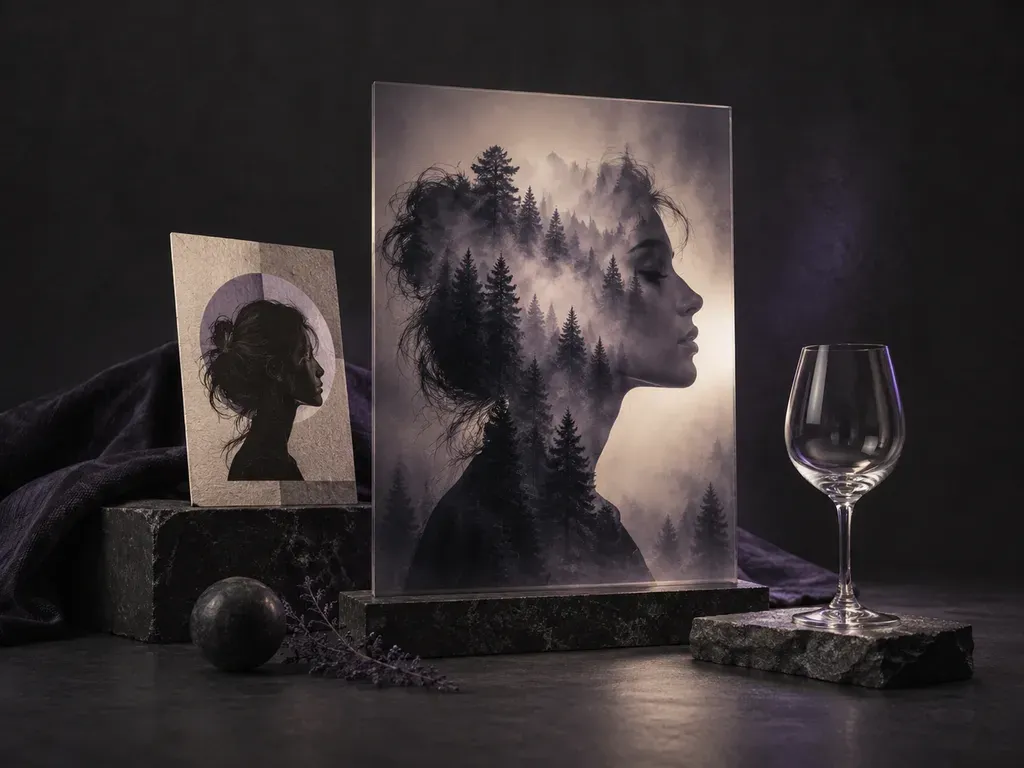
Upload a source image and a second image, describe how they should combine, and create one blended picture.
An AI photo blender uses two images as references to generate one combined picture. Describe the region and style of the blend, such as a portrait mixed with a forest scene. The result is a finished image; this tool does not remove backgrounds, create transparent cutouts or export editable masks.
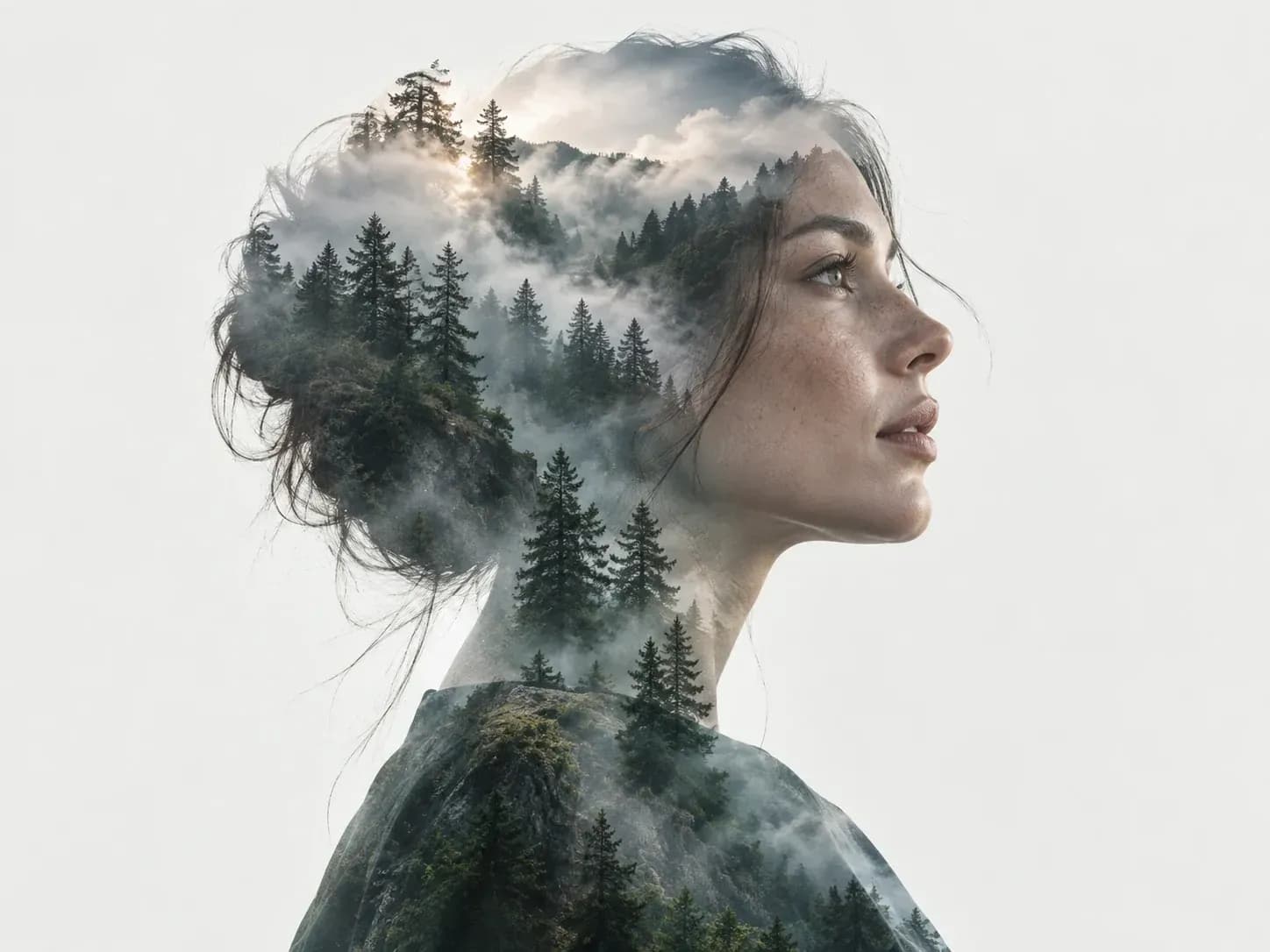
Choose the source images, describe their relationship and review the combined result.
Upload one source image and one image to blend. Both are required; an optional region reference can help explain where they should combine.
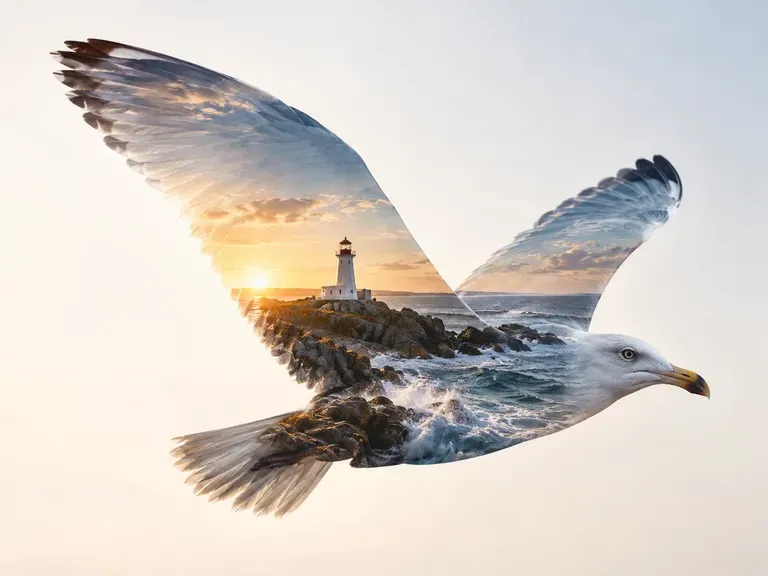
Request a gradient transition, a geometric shape blend, subject integration or a double exposure look.
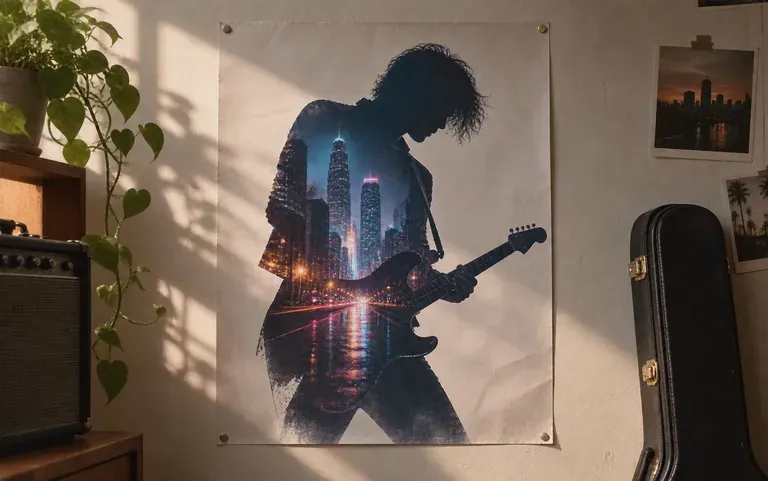
Receive one blended image by default. Generated details can shift, so check the subjects, lettering and composition before using it.
Pick a source image and the second image you want to combine with it.
Add each image to its matching field. A region annotation is optional.
Say where the images should meet, which content should remain recognizable and which blend style you want.
Create the composite, then compare it with both originals. Request another version only when you want a further edit.
For creative composites made from two source images.
Combine a portrait with a landscape to explore a double exposure concept.
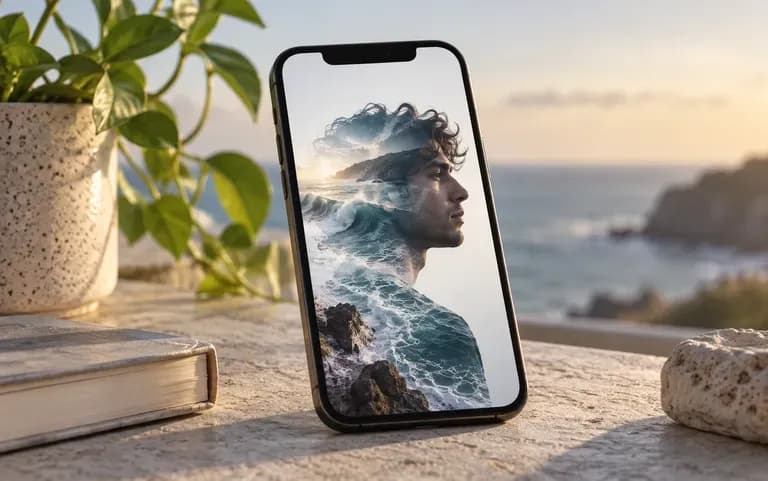
Blend a selfie with a second scene for a new profile or post image.
Combine a band photo with city or landscape imagery for a poster concept.
Examples of visual directions for a finished composite; they do not demonstrate transparent cutouts or editable masks.