Two-image input
Pair Any Subject and Texture Photo
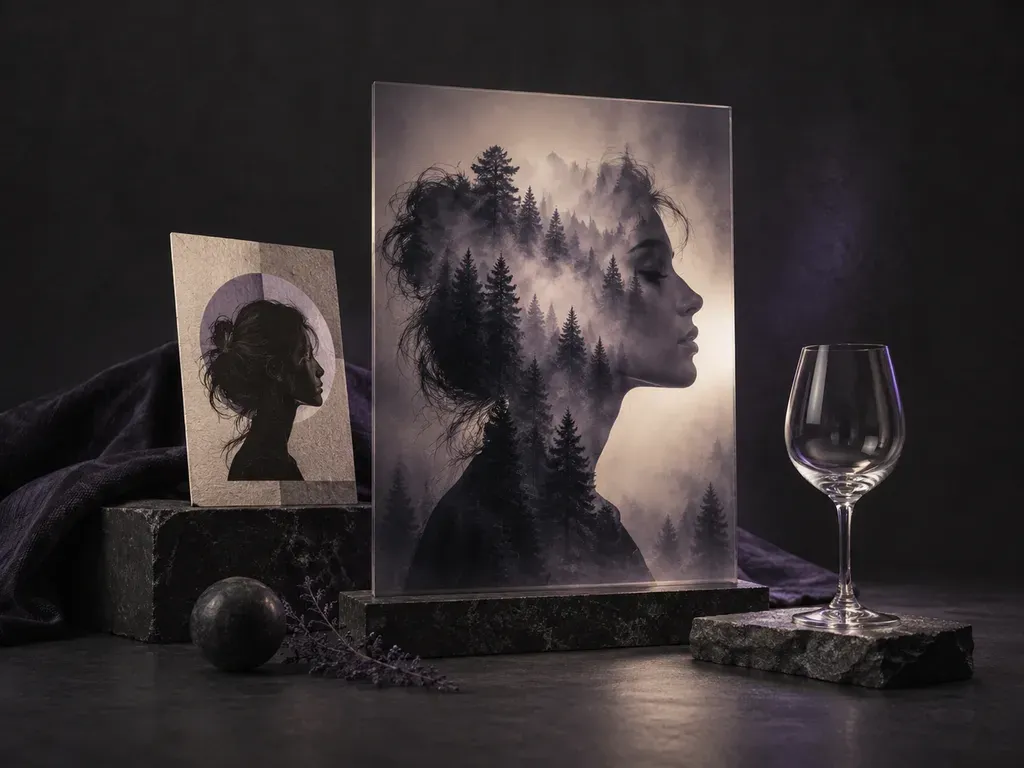
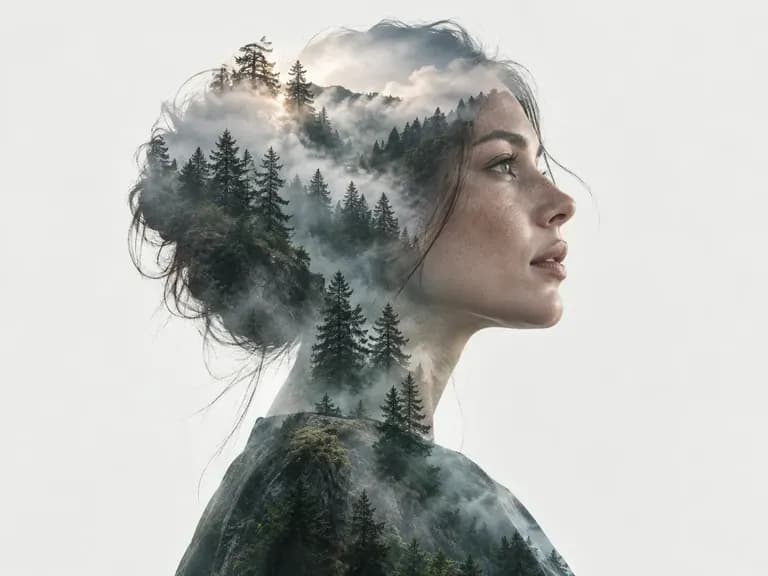
Upload a portrait, performer shot, or silhouette alongside a second photo such as pine woods, coastal waves, or neon streets so the composite draws directly from your own files.
Upload a primary subject photo and a second texture or scene image, mark the target area, and describe how they should combine. Virse's image masking tool and AI photo blender merges both uploads into a double exposure, silhouette mask, or soft gradient composite.
An AI image masking tool uses the shape, tonal values, or selected region of one photo to control where a second image appears. Built for two-image creative composites on your Virse canvas, this online image masking tool controls three parts of a blend:
• Silhouette containment: Keep woodland foliage, ocean surf, or city lights inside the contours of a portrait or animal outline.
• Transition softness: Specify whether the boundary between both photos fades gradually or follows a crisp geometric edge.
• Tonal and color harmony: Match highlights, shadows, and color casts so both uploaded photos read as one cohesive artwork.
Three controls that make two-image masking and photo blending faster than manual layer stacks.
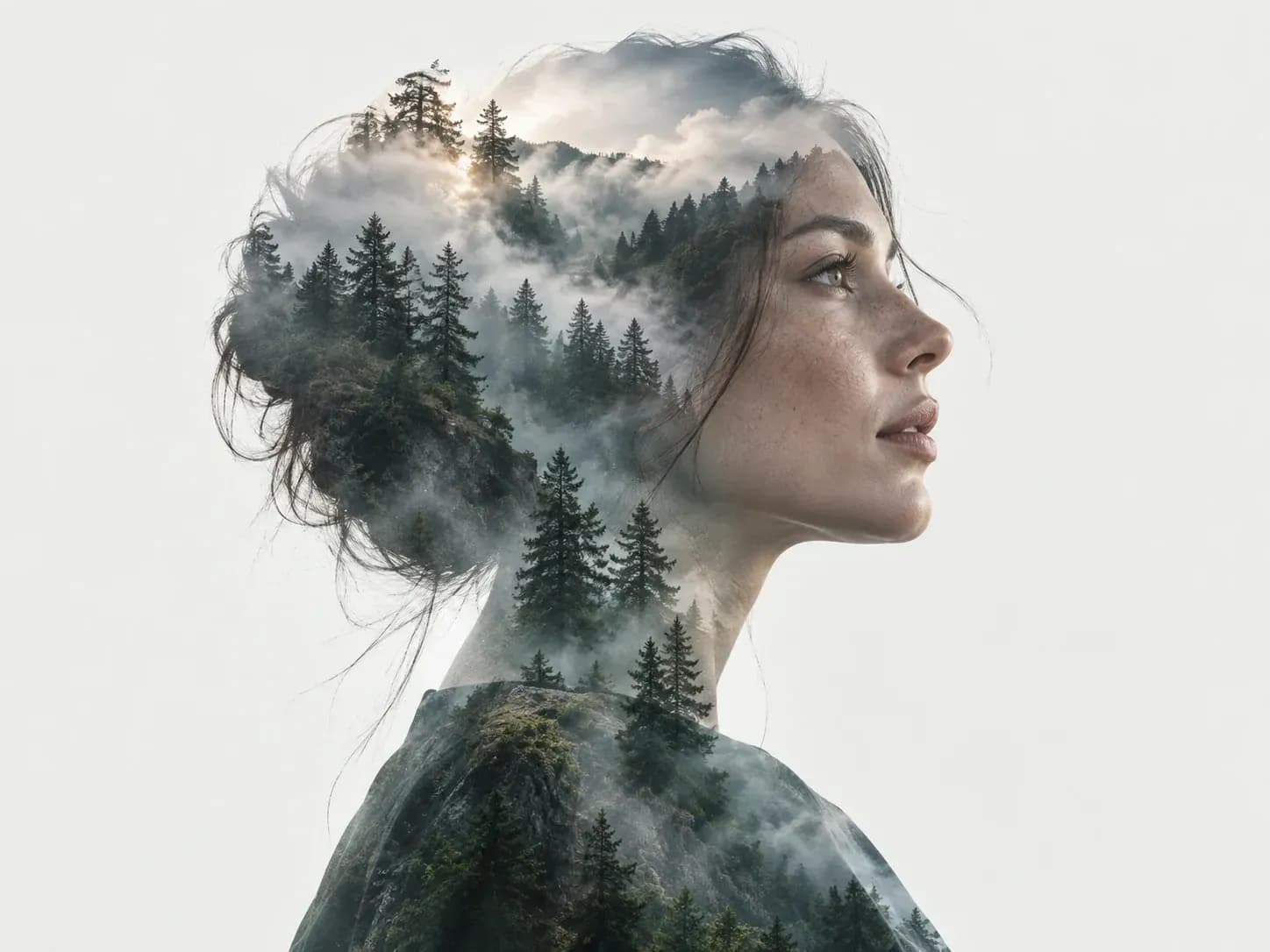
Upload a portrait, performer shot, or silhouette alongside a second photo such as pine woods, coastal waves, or neon streets so the composite draws directly from your own files.
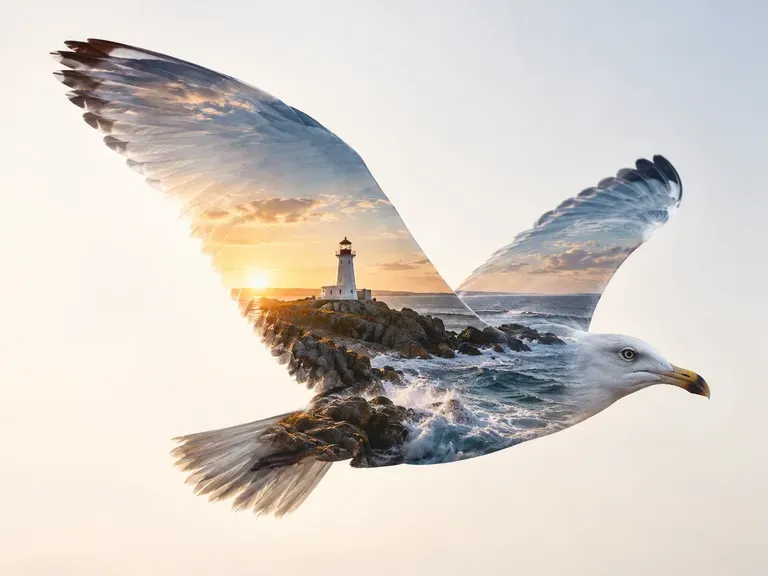
Highlight the area where the second photo should appear and state whether you want a silhouette mask, a left-to-right gradient transition, or a centered geometric shape blend.
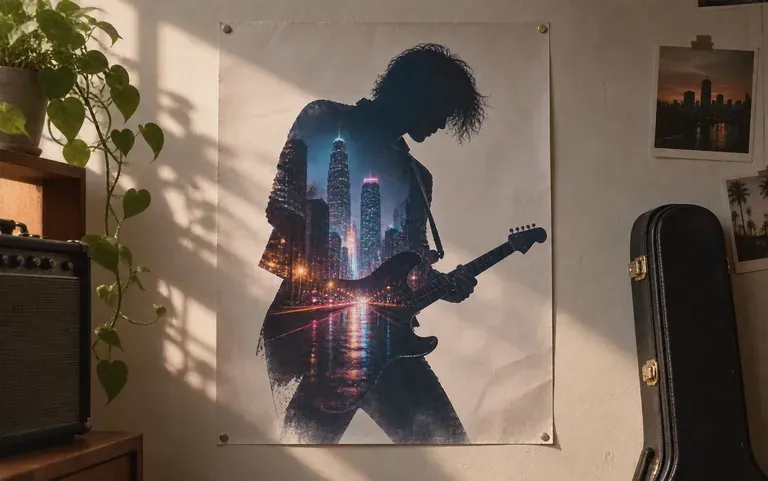
Virse reconciles edge contrast and color temperature between both uploads, returning a single flattened image ready for album covers, social avatars, or campaign posters.
How blending two photos with an AI image masking tool compares with building multi-layer clipping masks by hand.
Manual Desktop Layer Masking
Virse AI Image Masking Tool
Choose the main image that provides the subject outline, portrait structure, or base composition for your composite.
Upload the texture, nature scene, or architectural photo you want to mask into or transition across the first image.
Optionally annotate the blend zone, then write a brief naming the mask style, placement, and lighting mood.
Run the tool to produce your merged image on the canvas, then adjust the prompt to test tighter or softer transitions.
Specific placement notes tell the model which areas stay clear and where the second image shows through. Copy any of these three briefs:
• Portrait double exposure: "Blend the side-profile portrait with the misty pine forest so trees fill the dark hair and coat silhouette while keeping the face clear."
• Silhouette shape mask: "Contain the uploaded ocean surf photo inside the flying bird silhouette with crisp wing edges and soft seafoam highlights."
• Poster gradient blend: "Merge the stage performer on the left with nighttime city lights on the right using a smooth diagonal mist transition and amber rim light."
Four design roles that combine portraits, silhouettes, and environmental textures for campaigns and cover art.
Combine studio portraits with woodland canopies, mountain ridges, or starry skies to create expressive double-exposure prints without manual hair masking.
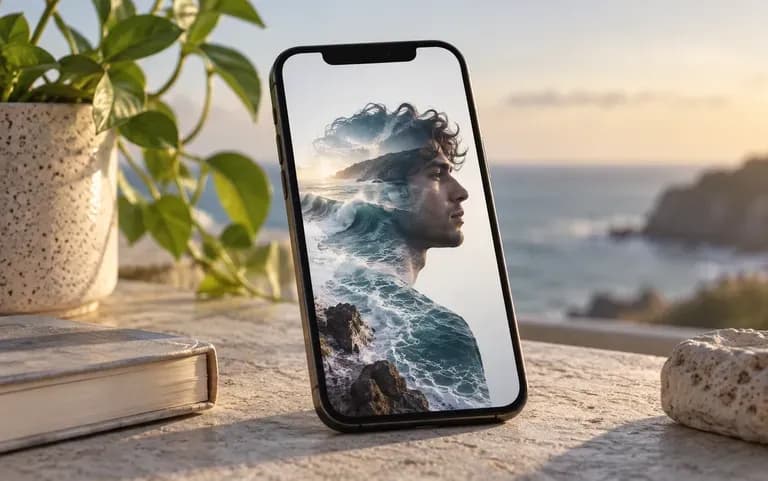
Blend personal headshots with recognizable cityscapes, brand textures, or graphic shapes to create distinctive profile pictures and channel banners.
Merge artist press photos with concert crowd lights, abstract smoke, or architectural geometry for single artwork, tour flyers, and festival announcements.
Pair character silhouettes with symbolic locations or weather textures to pitch book covers, magazine openers, and narrative illustrations on one shared board.
Six two-image composites showing double exposures, silhouette masks, and poster blends generated from paired uploads.
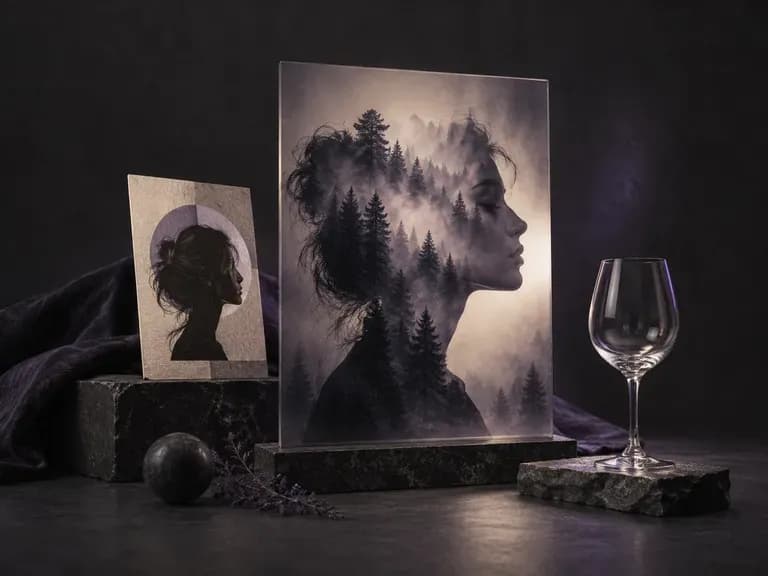
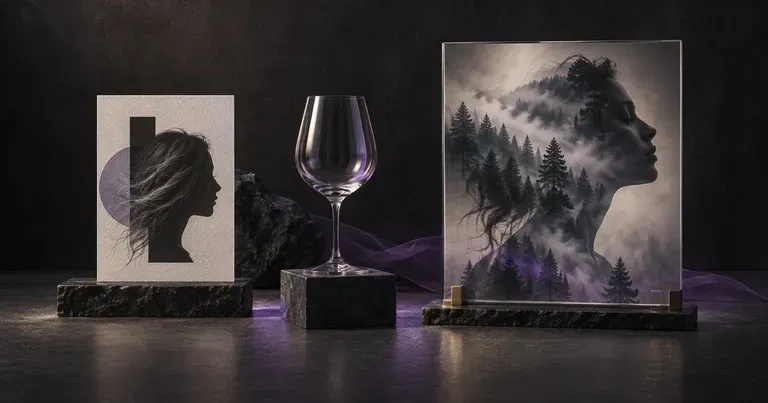
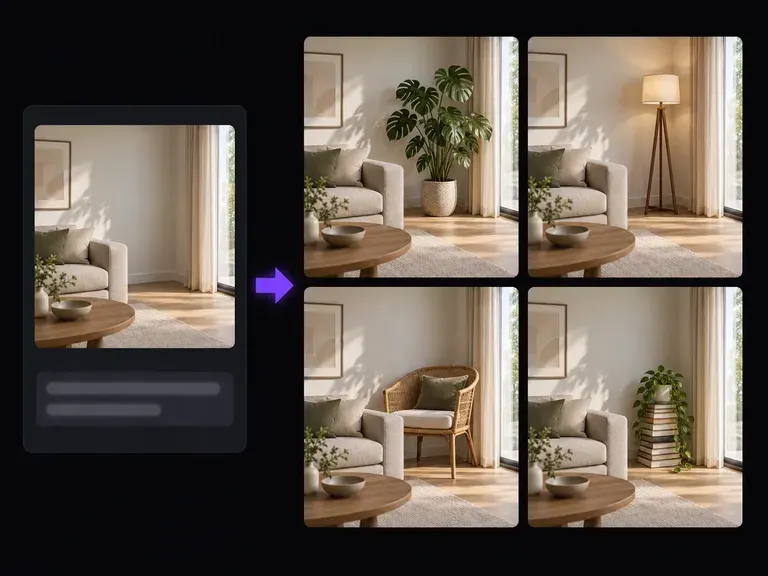
Describe what to add or replace inside a specific region of a single photo while keeping the rest intact.
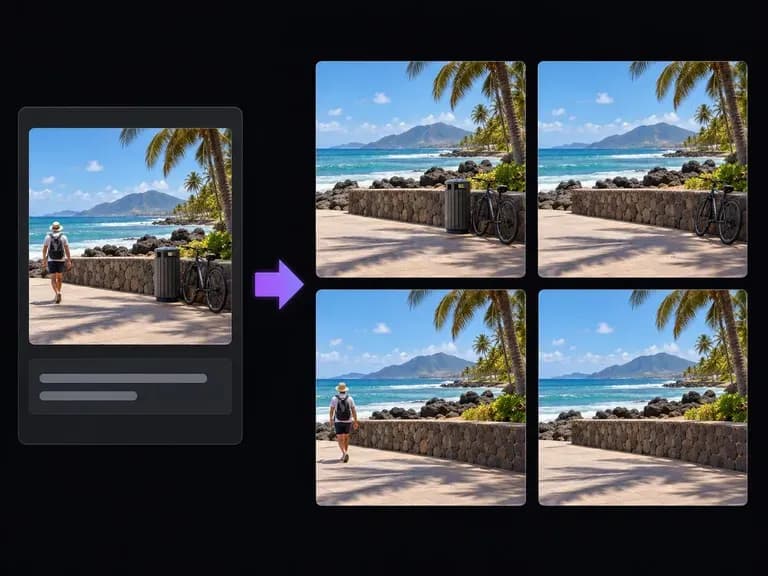
Point out unwanted background items, wires, or bystanders in words to generate a clean surface.
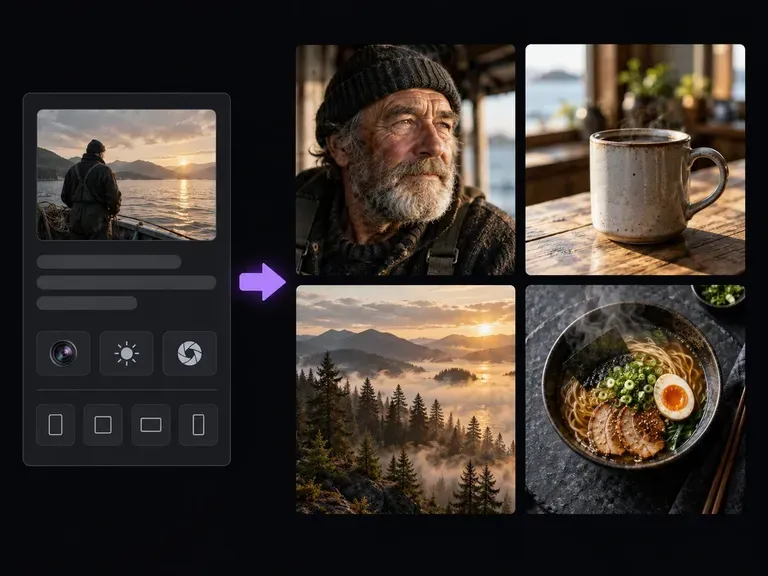
Generate new photographic scenes, textures, and subjects from text when you need a second image.
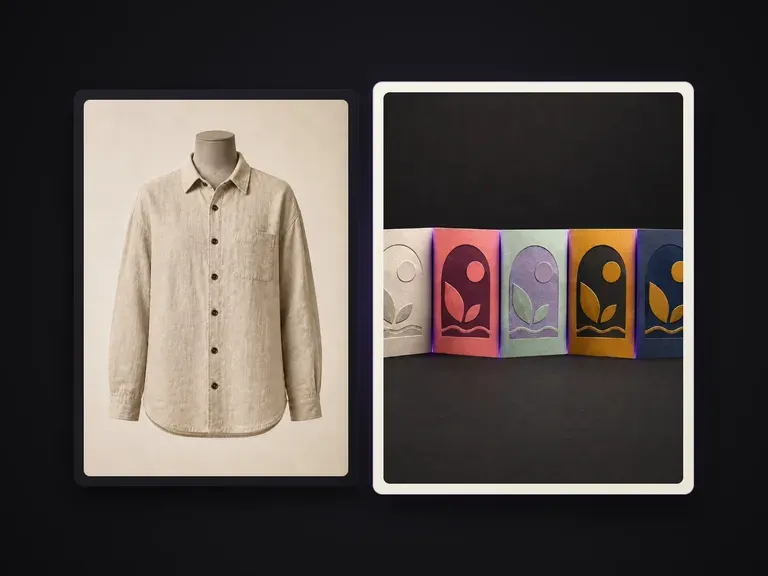
Isolate a clean flat surface motif from a photo of fabric, tile, or printed packaging.
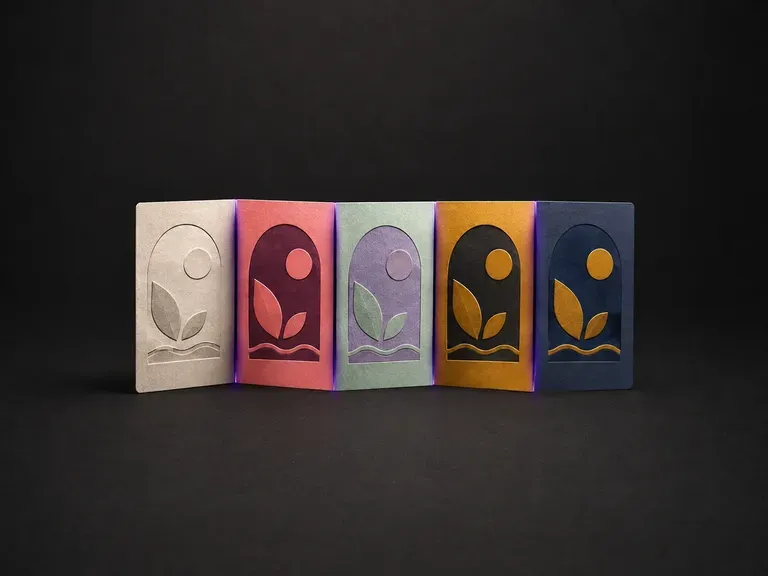
Spin an existing illustration into multiple cohesive seasonal or brand colorways at once.
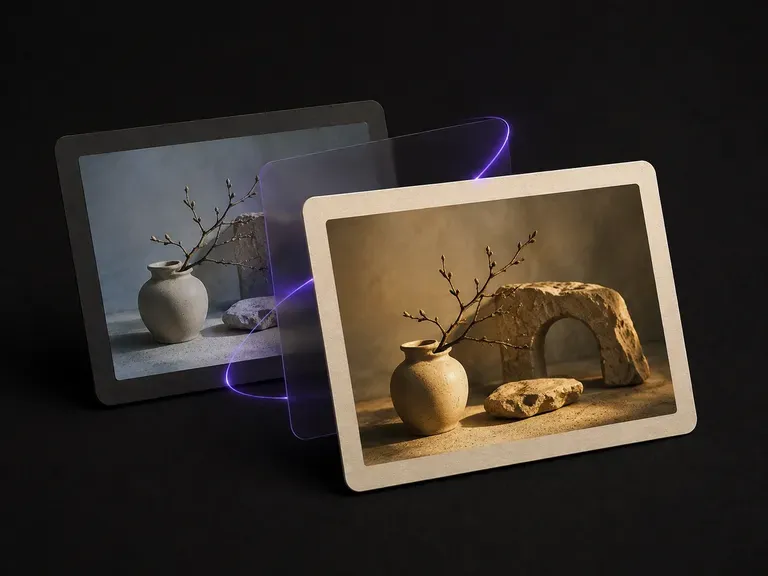
Match the tonal curve, warmth, and shadow tint of a reference film frame across your images.
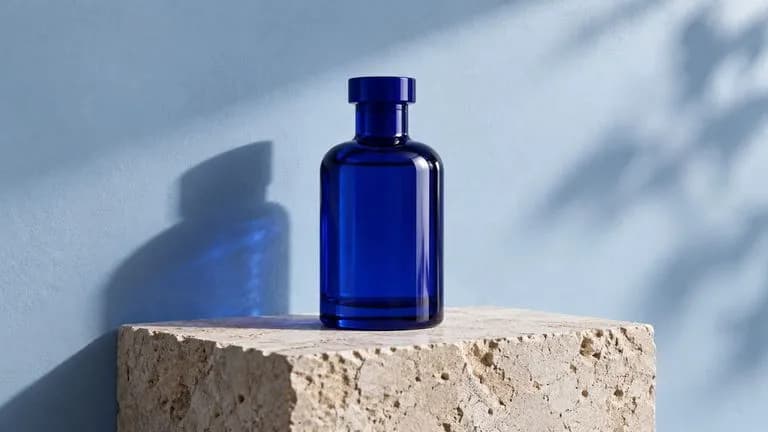
Guide subject posture, materials, and lighting using up to 14 reference images at 1K to 4K.
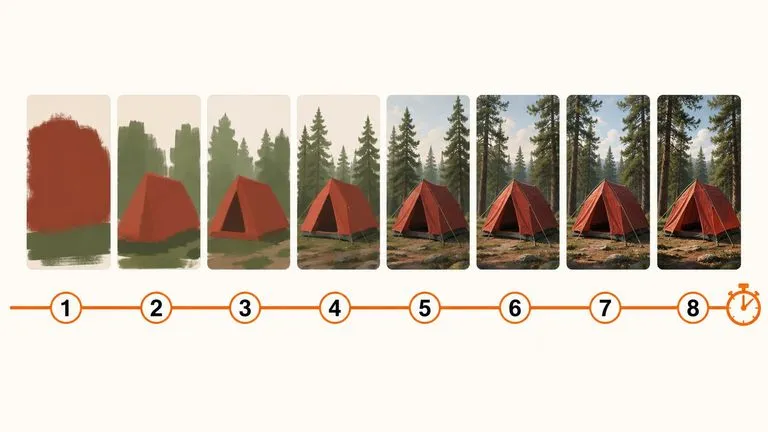
Draft rapid concept thumbnails and layout options before committing compute to final high-res renders.
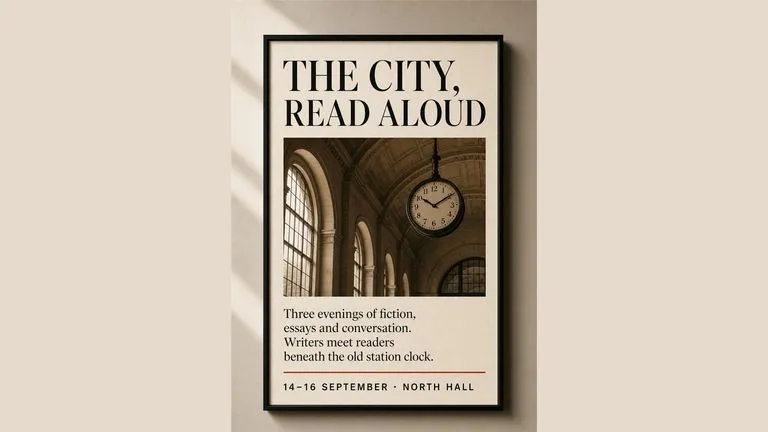
Render crisp labels, fine surface textures, and multi-reference compositions up to 4K resolution.

Follow complex multi-part written briefs that combine uploaded reference photos with strict layout rules.
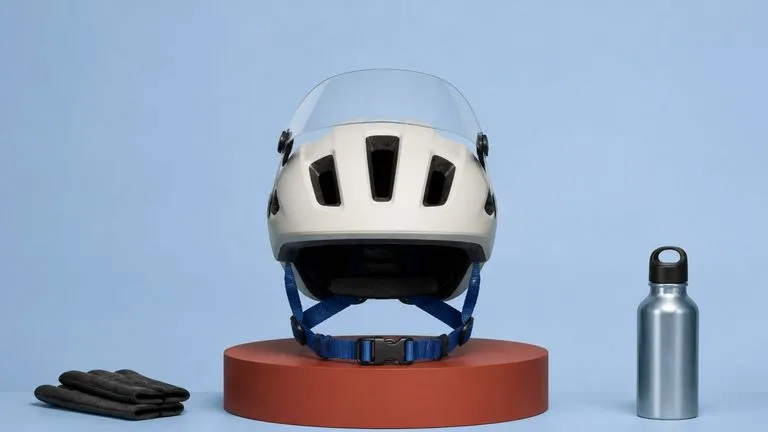
Produce realistic studio lighting, crisp contact shadows, and natural material grain for product shots.
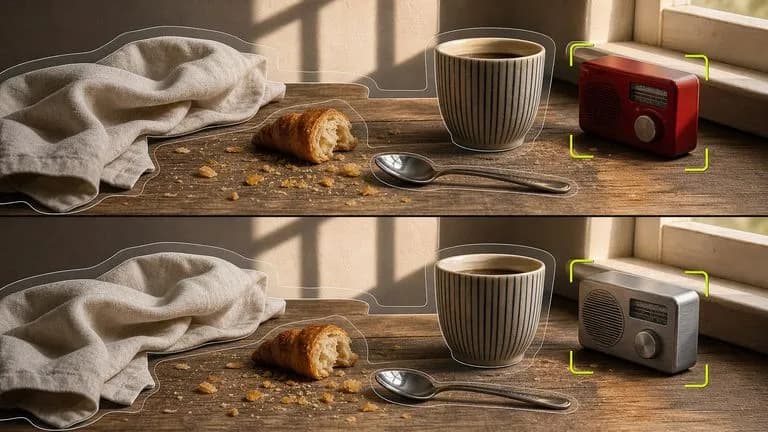
Swap backgrounds, lighting setups, or colorways while keeping your core subject geometry locked.
Upload your subject photo and secondary texture image to test double exposures, silhouette masks, and gradient composites in one workspace.