AI Color Grade Transfer
Input · OriginalOutput · Result

AI Color Grade Transfer

Give it your image and a tone reference. The reference's grade is transferred through Lab statistics matching, which is a computation rather than a re-generation, so the palette shifts while structure and content stay pixel-identical.

Input
Source image · RequiredTone reference image · RequiredTransfer strength · Optional
Output
Color-graded result image × 1

Source image

Required

Drop your image

Your image is uploaded on the canvas — this form carries the settings.

Tone reference image

Required

Drop your image

Transfer strengthOptional

What AI color grade transfer does to a photo

AI color grade transfer moves the colour of one image onto another. This one does it by matching colour statistics rather than redrawing anything, so the result is the same photograph with a different palette, down to the pixel.

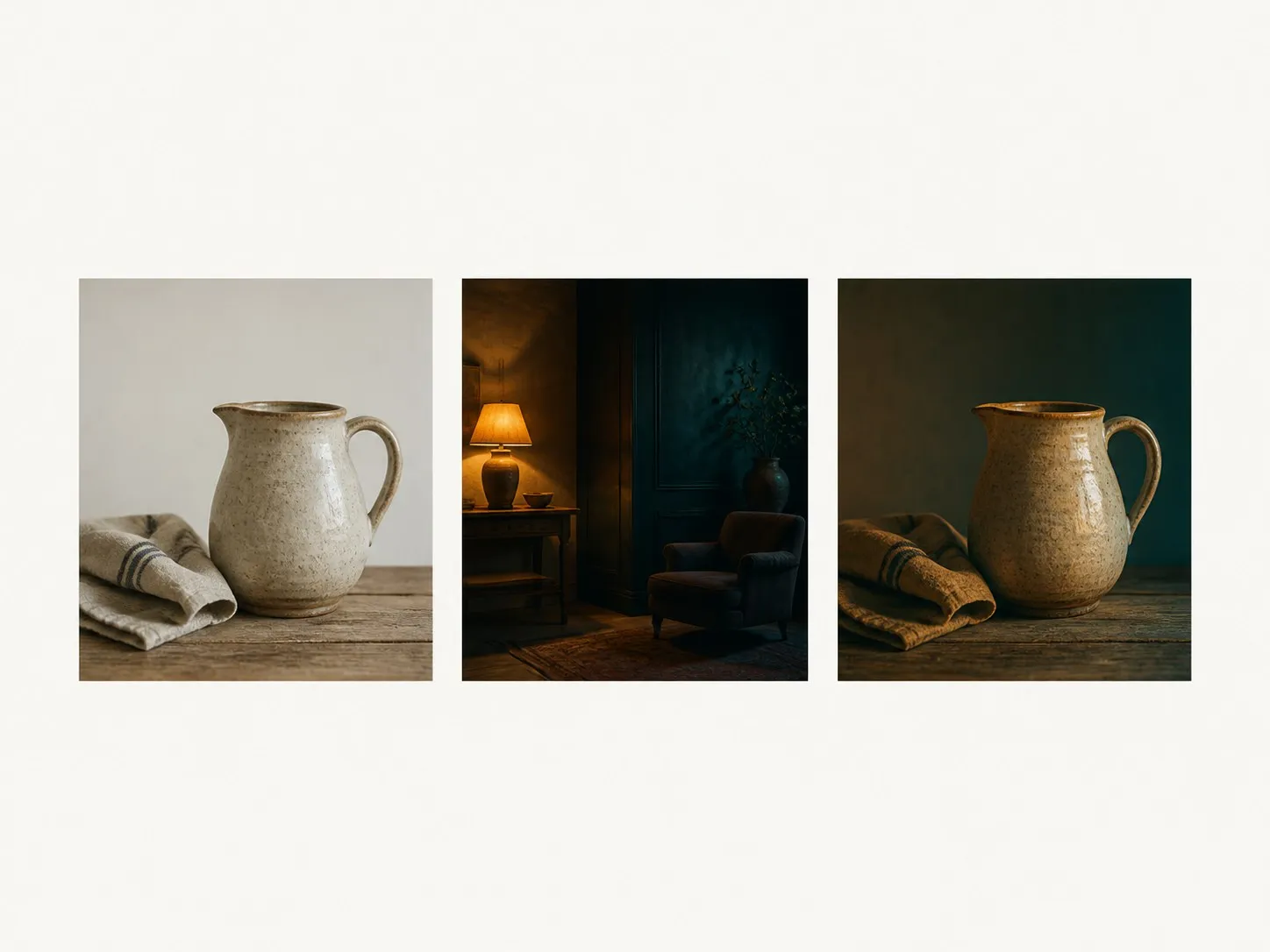
A source photo, a tone reference and the graded result laid out in a row
A source photo, a tone reference, and the graded result

Why AI color match beats a preset pack

Two images and one strength setting. What makes this useful is not the effect, it is what the method rules out.

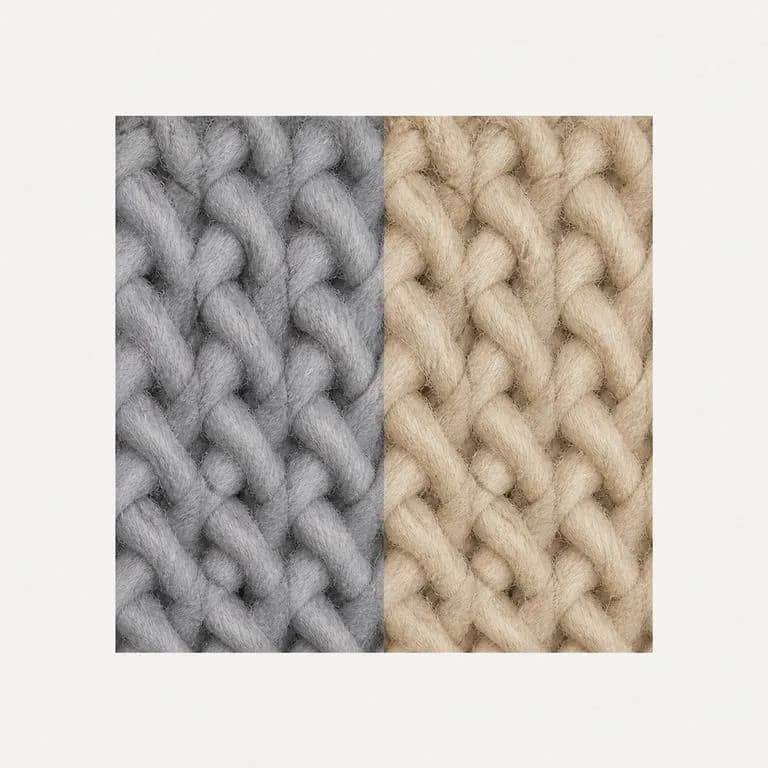
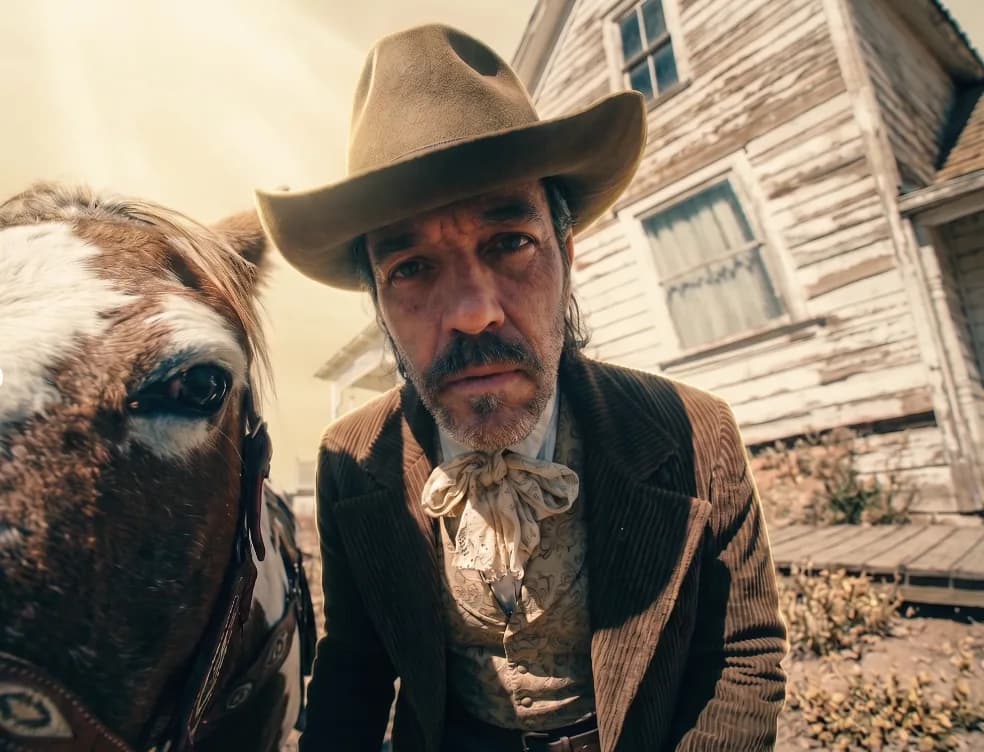
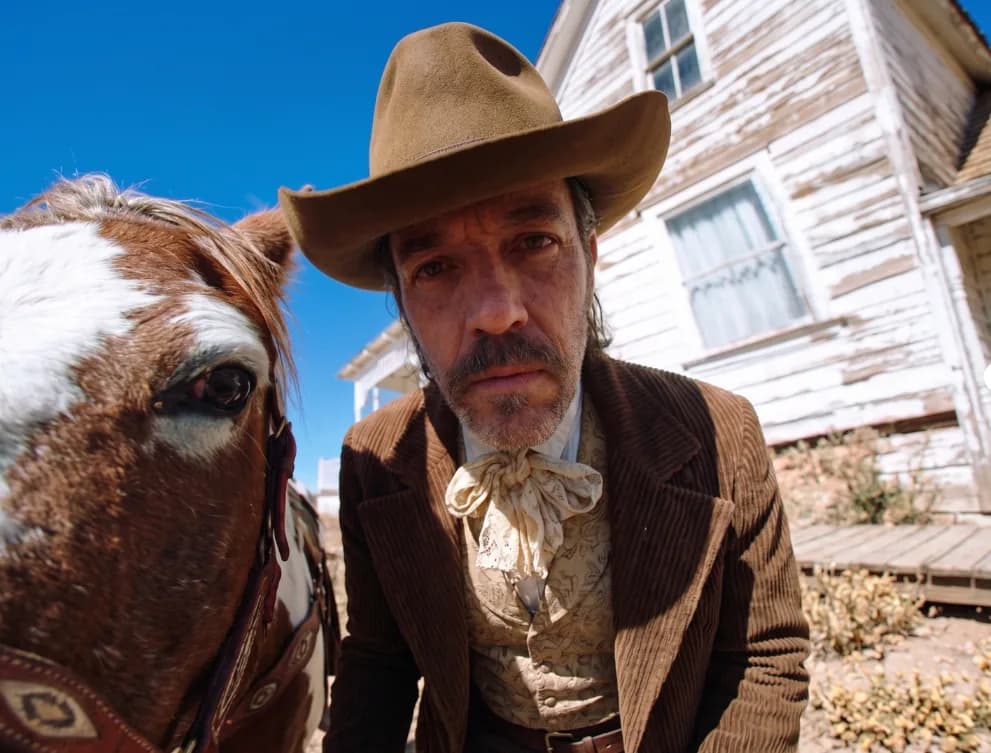
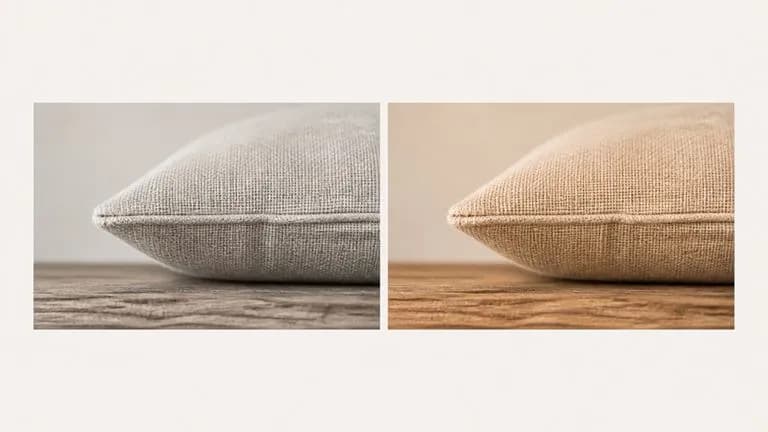
Two crops of one photograph at full magnification with identical texture and different colour
Deterministic

Nothing is redrawn

The transfer is computed from colour statistics, so every edge, face and texture of your original survives untouched. Run it twice on the same pair and you get the same result twice, which is not true of anything that regenerates the image.
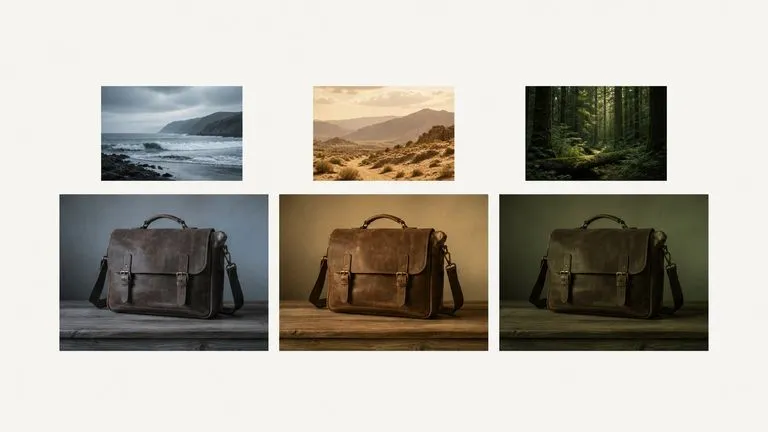
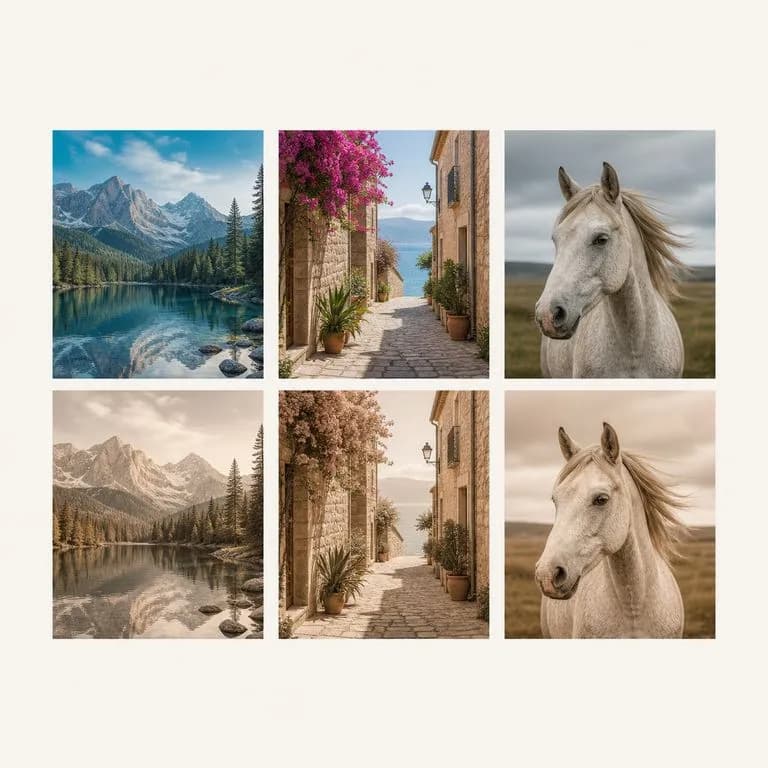
One photograph graded three ways from three different reference images
Required

The reference can be anything

A film still, a competitor's campaign shot, one photo from a set you already like. It reads the palette off whatever you give it. There is no preset list to search through and no name to guess at.

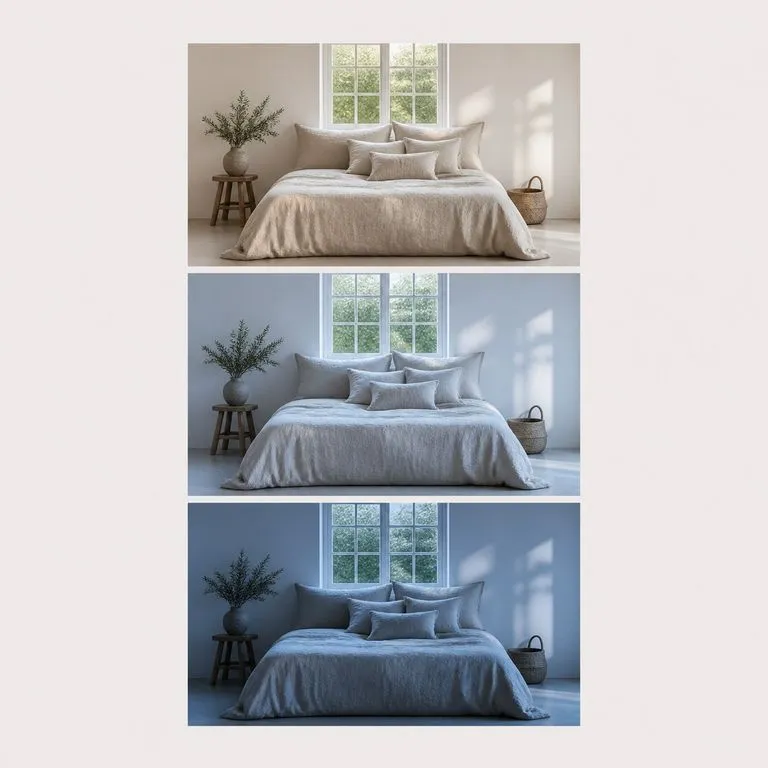
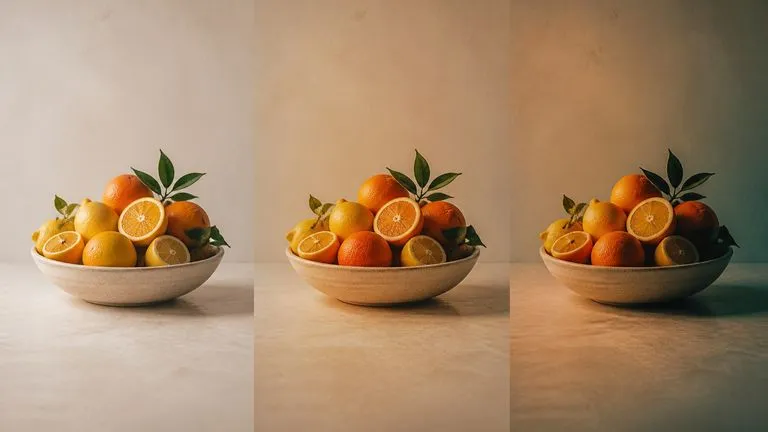
One photograph shown at light, standard and full transfer strength
Three steps

Strength is a real control

Light, Standard and Full blend the graded result back toward your original in controlled steps. This is usually the difference between a grade and a tint, and it is the setting people end up using most.

How to match colors between two photos in four steps

  1. Drop in the image you want graded

    Any photograph. It comes back with the same content, so there is nothing to prepare and nothing to cut out first.

  2. Add the tone reference

    The image whose colour you want. A frame from a film, a shot from a campaign, or the one photo in your own set that got the light right.

  3. Pick a strength

    Start at Standard. Move to Full when the reference is the target rather than the inspiration, and to Light when you only want the direction.

  4. Transfer, then keep working

    The graded image lands on a fresh Virse canvas beside the original. Change the strength and re-run, try another reference, or take it into an edit without exporting.

Who uses AI color grading on photos

People with a set of images that need to look like they belong together.

Six frames from one shoot brought to a single consistent look

Photographers & Retouchers

Bring a whole shoot to one look by grading every frame against the same reference, instead of copying settings between files and hoping.

Images from three different cameras unified into one brand palette

Brand & Content Teams

Keep a feed consistent when the images came from three different cameras on three different days.

A film-still reference pinned above a product photograph carrying its palette

Designers Building a Mood

Pull a film's colour onto your own photography to test a direction, before committing anyone to a full grade.

What a photo color matching pass returns

A cinematic palette moved onto a studio product photograph
Film Still to Product Shot: a cinematic palette moved onto a studio photograph
One image shown at three transfer strengths in a vertical stack
Full, Standard and Light: one pair shown at all three transfer strengths
Three source photos above their three graded versions sharing one look
Mixed Cameras, One Look: three source photos graded against a single reference
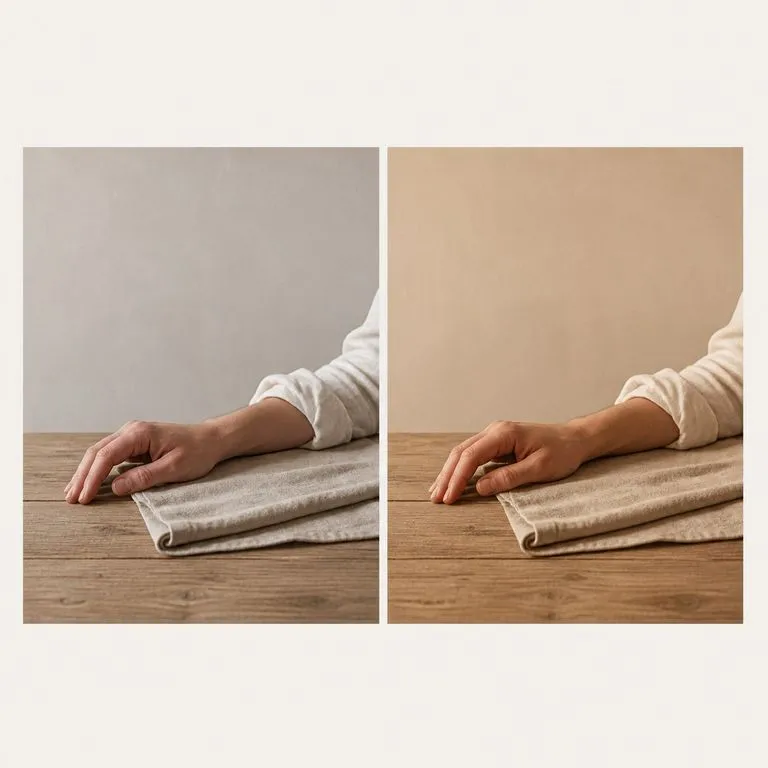
A warm grade applied to a hand and forearm without the skin going orange
Skin Tones Held: a warm grade applied without the faces going orange
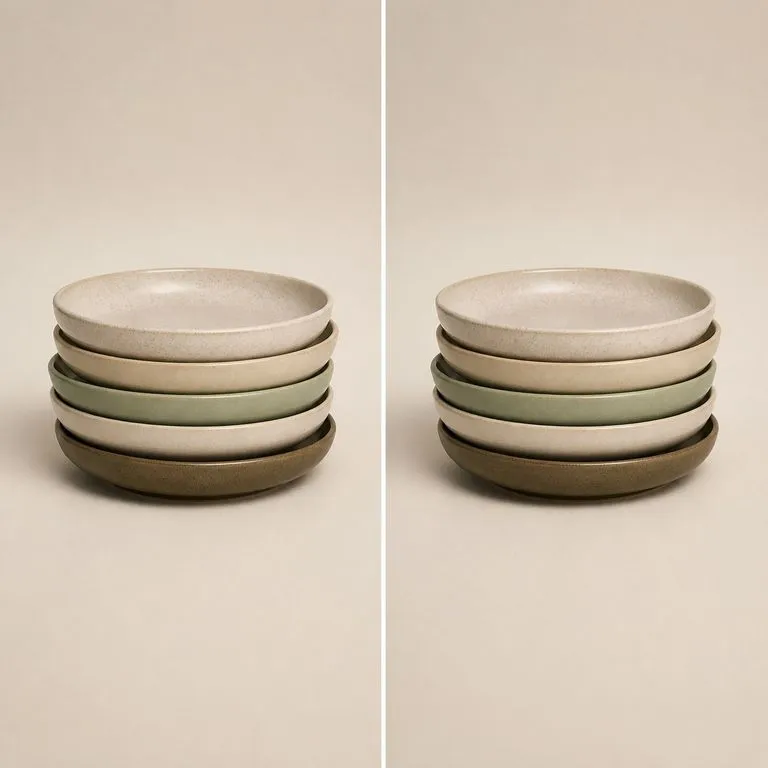
Two extreme close crops of one photograph with identical texture and different colour
Detail at 100 Percent: original and result crops with identical texture
Two runs of one image pair producing indistinguishable results
Same Inputs, Same Output: two runs of one pair, indistinguishable

Color grade transfer compared with a LUT pack

Both move colour. They differ in where the colour comes from and whether the pixels survive.

Preset and LUT packs

  • The look is chosen from a list, so you are searching for a name rather than pointing at an image
  • One preset lands differently on every photo, and each one needs manual correction after
  • A pack is bought once and dates, and matching a new reference means buying another
  • Generative filters redraw the image, so texture and faces shift while you are not looking

The Virse grade transfer

  • The look comes from an image you supply, which can be anything you have seen and liked
  • The transfer is computed per pair, so it adapts to the photo instead of being stamped on it
  • Any reference works today and tomorrow, because nothing is stored as a preset
  • Nothing is redrawn, and the same inputs always give the same output
FAQ

Questions

Is this a re-generation of my image?
No, and that is the point of the tool. The transfer is computed from colour statistics, so nothing is redrawn. Every edge, face and texture of your original survives untouched, and running it twice gives you the same result twice.
What if the full grade is too strong?
Pick a lower transfer strength. It blends the graded result back toward your original in controlled steps, which is usually the difference between graded and tinted.
Can I export a LUT or a .cube file?
No. What comes back is a graded image rather than a colour profile, so there is nothing to load into DaVinci Resolve or Premiere. If you need a portable grade for a video pipeline, generate the LUT in your grading software. This tool is for the images themselves.
Does it work on video?
No. It takes a single image and returns a single image. Most of what people call colour grading happens in video, so it is worth being direct about the boundary: this is a photo tool.
Does pressing Create run the tool straight away?
No. Your inputs travel into a fresh canvas and land on the tool already filled in, but nothing runs until you press Start there. A link can never spend your credits on your behalf.
Can I keep working on the result afterwards?
Yes. Everything the tool produces arrives on a normal Virse canvas, so you can re-run a single output, adjust it, or take it into an edit without exporting and re-importing.

Grade the whole set to match

Start here. Your image and reference travel into a fresh Virse canvas with the tool already filled in, and nothing runs until you press Start.