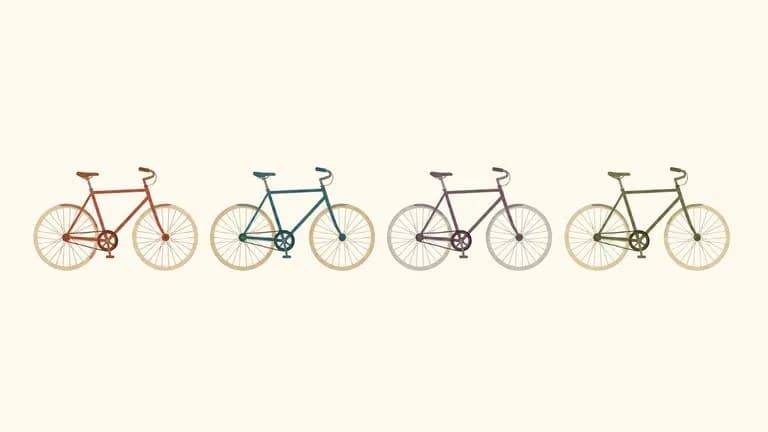
AI Illustration Color Variants
Input · OriginalOutput · Result

AI Color Swap

Upload one illustration. The drawing is held exactly as it is and re-graded into variants that are actually distinguishable from each other, rather than three versions of the same tone.

Input
Illustration image · RequiredVariant count · OptionalTone directions · Optional
Output
Illustration variants in different palettes (count as selected)

Illustration image

Required

Drop your illustration

Your image is uploaded on the canvas — this form carries the settings.

Variant countOptional

What an AI color swap does to a finished illustration

An AI color swap replaces the palette of an image while leaving the image itself alone. This one works on finished artwork: the line work and composition are held fixed, and only the colour treatment changes, which is what makes the variants comparable.

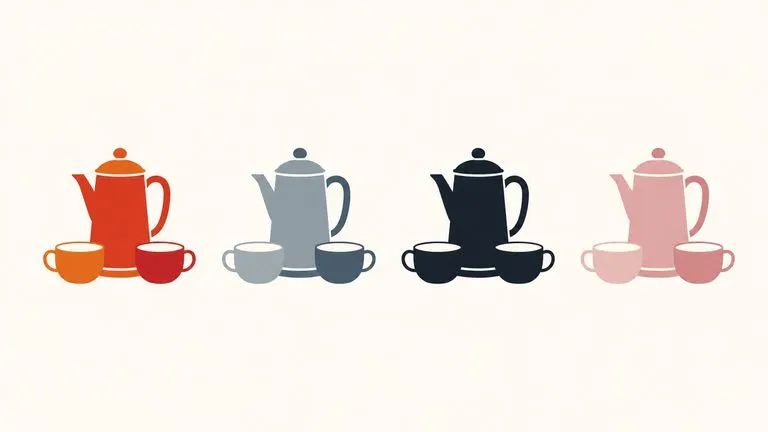
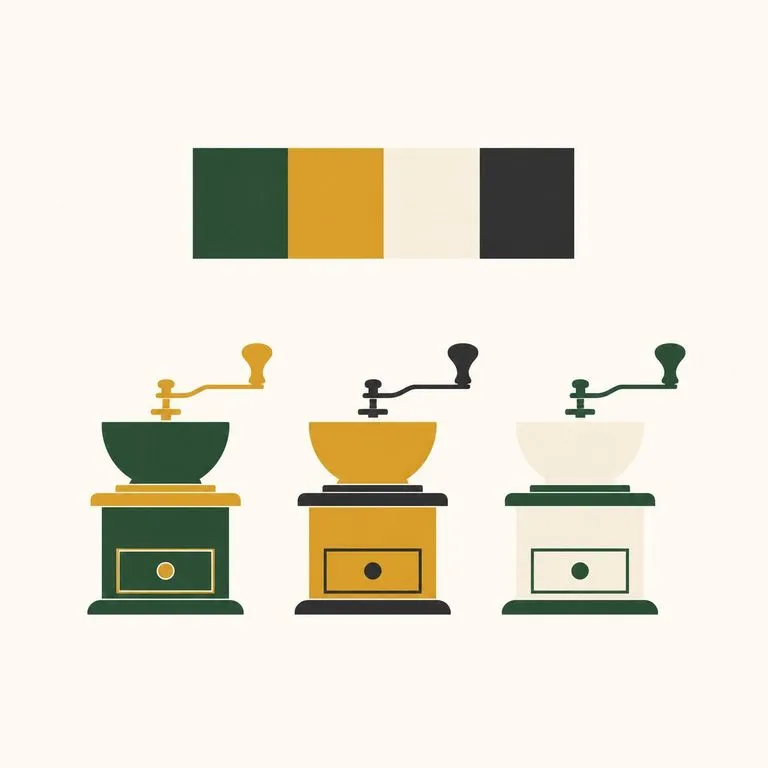
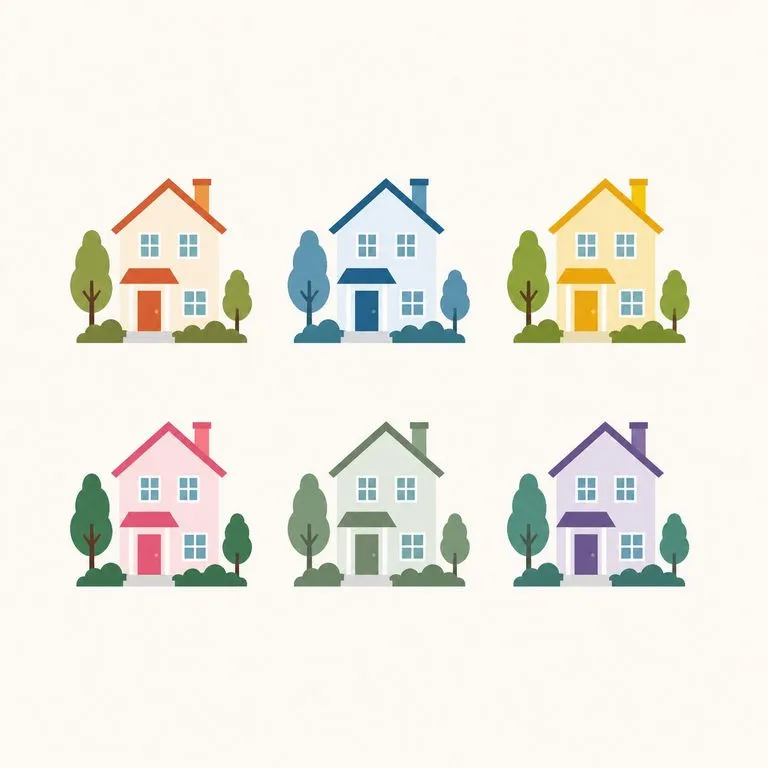
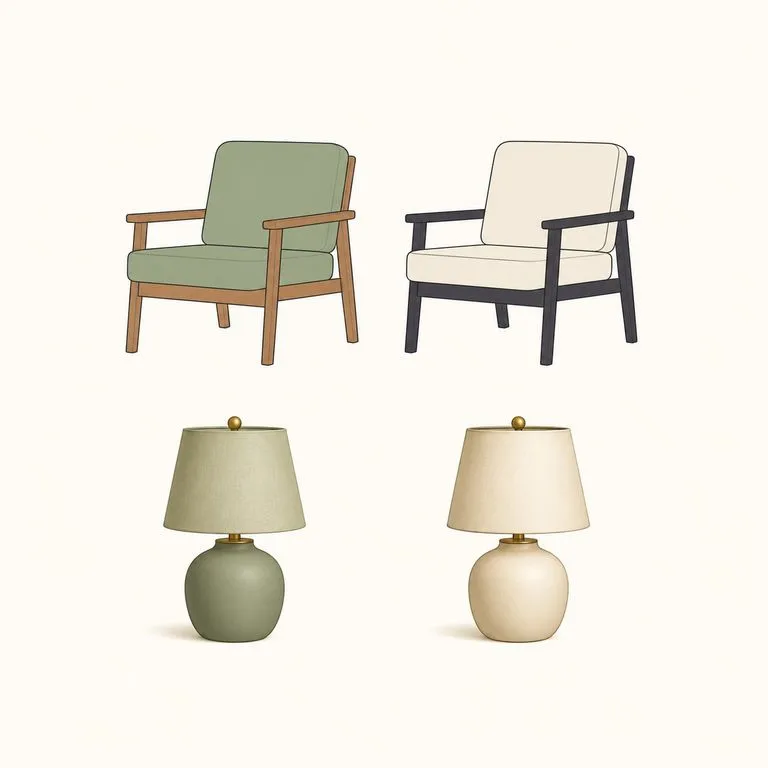
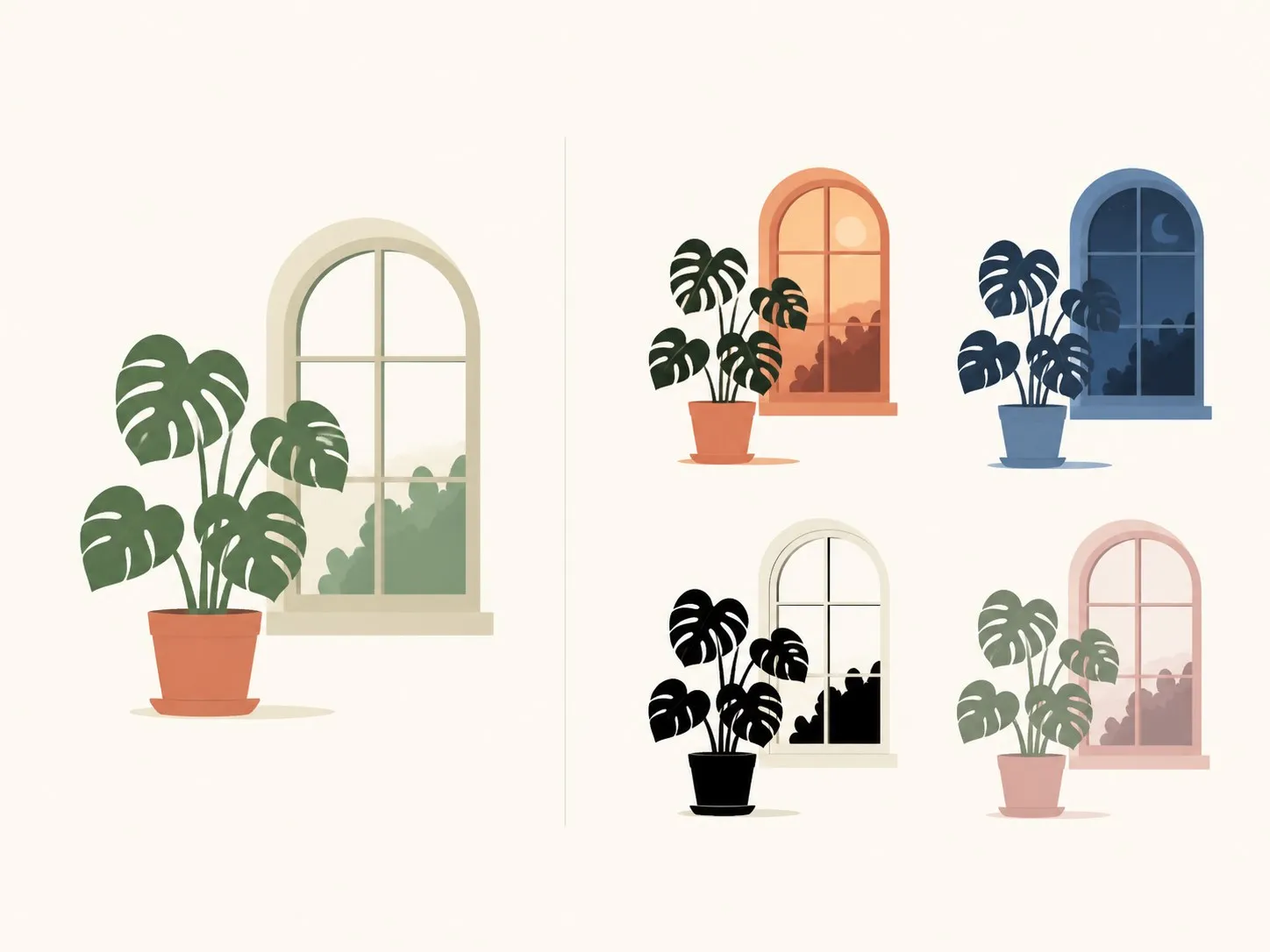
One flat illustration on the left and four clearly different colour variants of it on the right
One illustration and four of its colour variants

What AI color palette swap holds and what it moves

One required image, two optional controls. The split between what is fixed and what varies is the whole design of the tool.

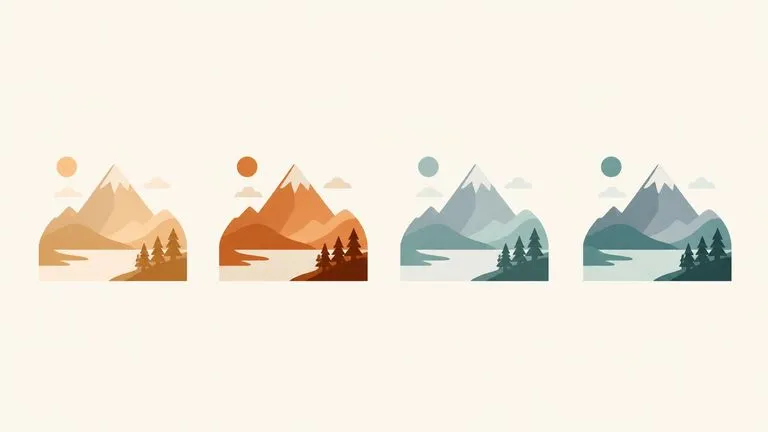
Four colour variants of one illustration with every shape in an identical position
Fixed

The drawing does not change

Line work, shapes and composition are held. Nothing is redrawn between variants, so when you put four of them side by side you are comparing colour and only colour.
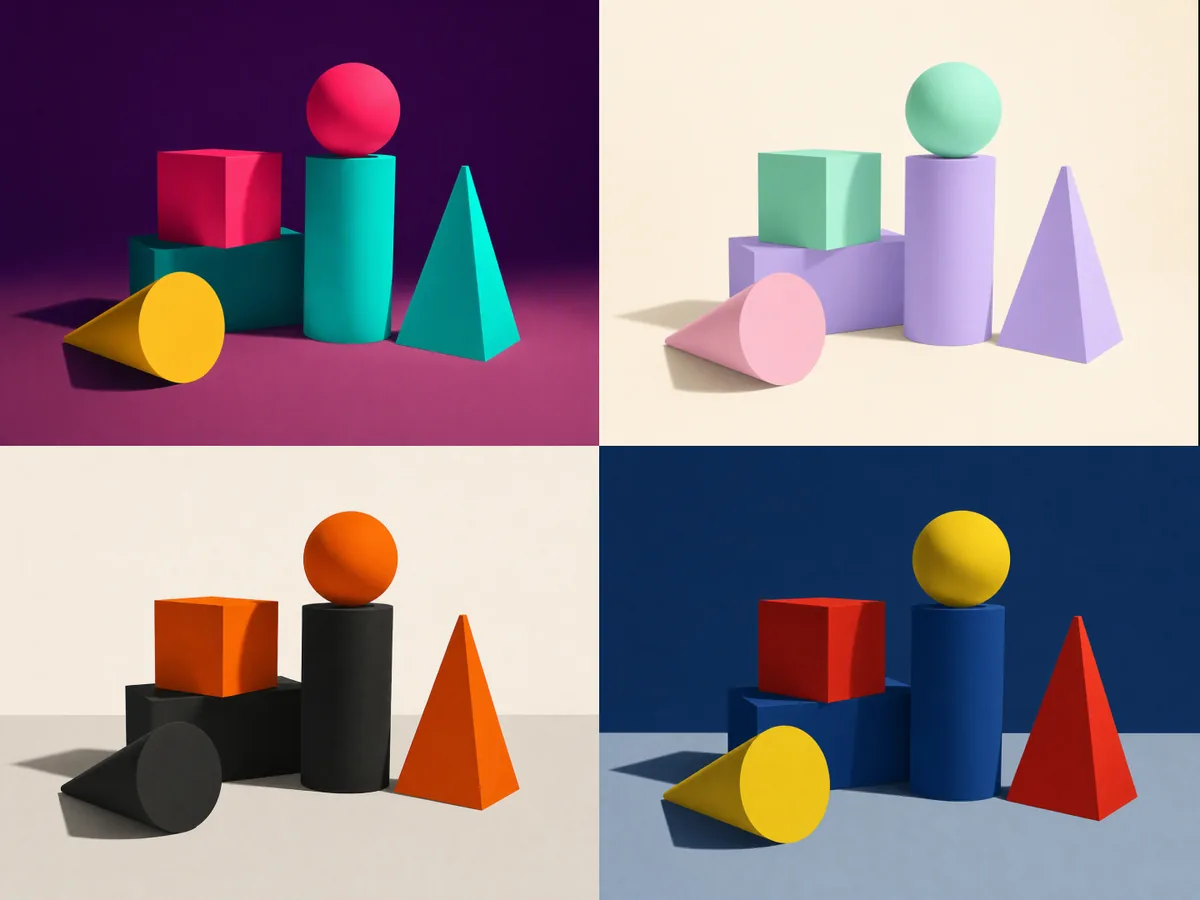
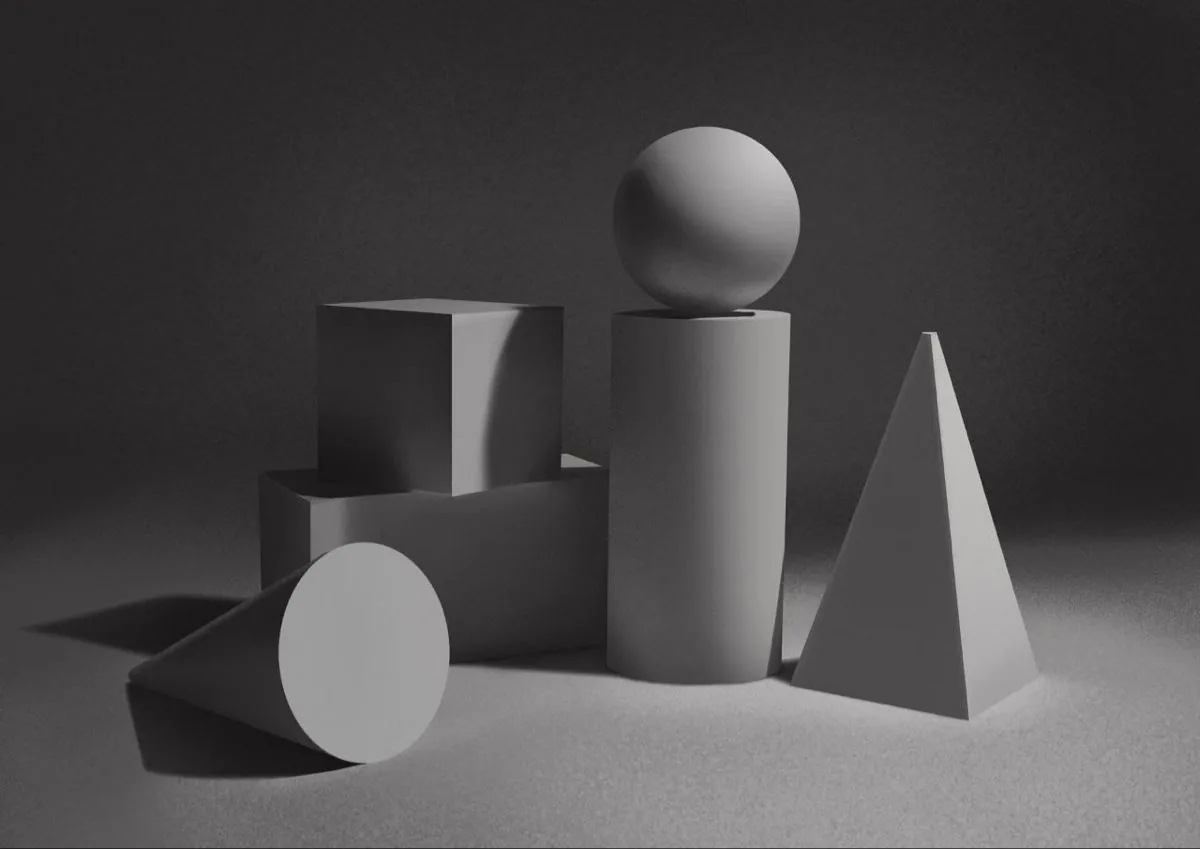
Four variants deliberately spread far apart in colour rather than near-duplicates
The point

Distinctness is planned before rendering

The variants are spread apart deliberately rather than sampled and hoped for. A set of near-duplicates is not a set of options, so the distance between them is decided up front.

Four variants organised into two warm and two cool camps
Optional

You can steer the directions

Leave the tone directions empty and it spreads the range on its own. Name them and you get the camps you asked for: one warm, one cool, one high-contrast, one muted.

How to change the colour palette of an image with AI in four steps

  1. Drop in the illustration

    Finished artwork, flat colour or shaded. The drawing comes through unchanged, so this works on work you have already signed off.

  2. Choose how many variants

    Three, four or six. Four is the usual number for a review, because it fits a comparison sheet without anyone losing track of which is which.

  3. Name the directions, or leave it open

    Empty means it spreads the range for you. Named means you get the specific camps you had in mind.

  4. Create, then keep working

    Every variant lands on a fresh Virse canvas side by side. Re-run one that missed, take another into an edit, and none of it needs exporting.

Who uses an AI image recolor tool

People who finished the drawing and now have to decide what colour it is.

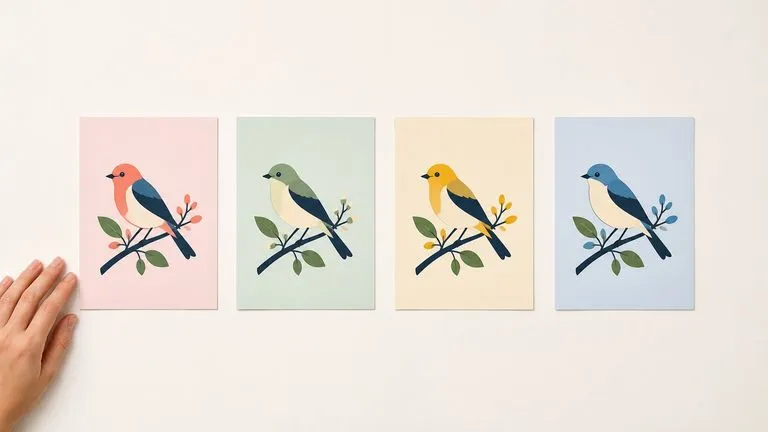
Four colour options of one illustration laid out on a board for review

Illustrators & Art Directors

Put real options in front of a client instead of describing three palettes and asking them to picture it.

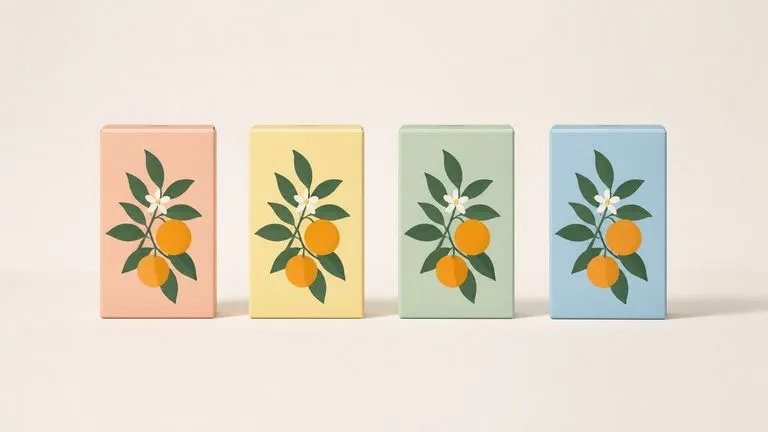
One illustration applied across four packaging colourways

Brand & Packaging Teams

Work out the colourway range for a product family from one finished piece of artwork.

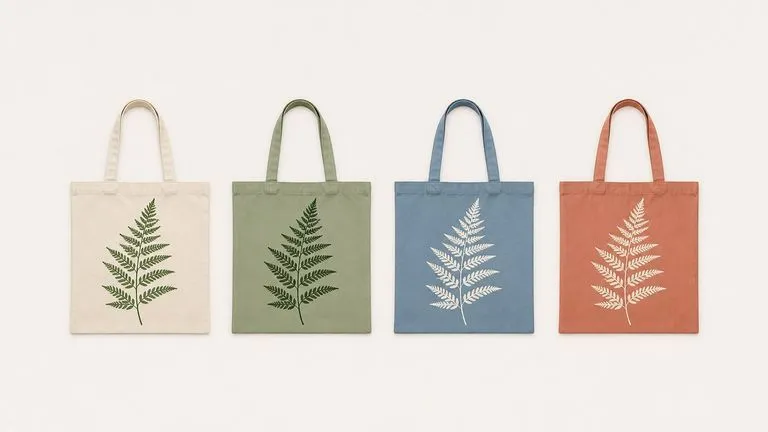
One printed design shown on four differently coloured tote bags

Merch & Print Sellers

Offer the same design in several colourways without redrawing anything, and keep the line work identical across the range.

What an AI color swapper returns

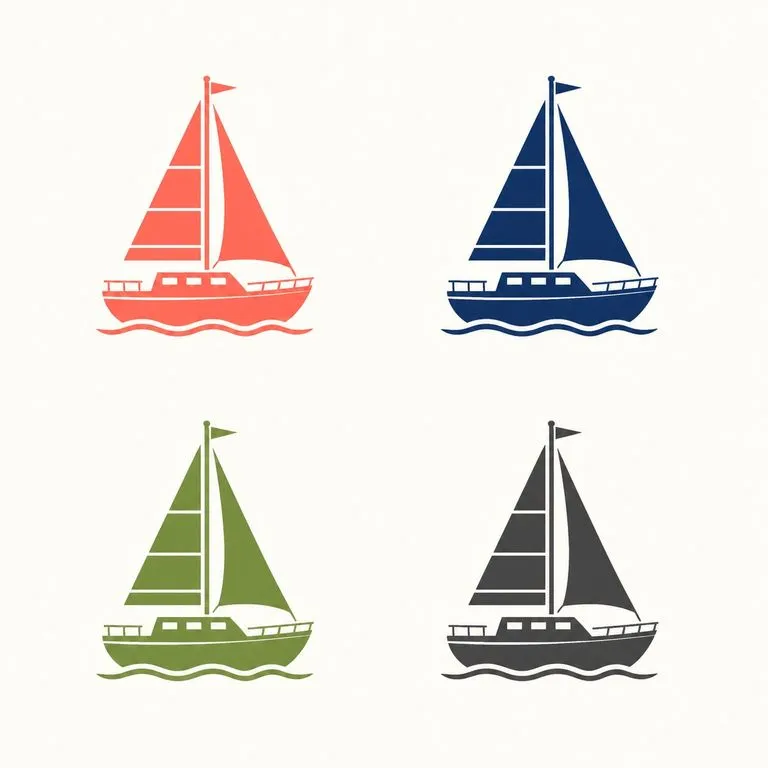
Four colour variants of one illustration in a two by two grid
Four Variants, One Drawing: line work identical, palettes genuinely apart
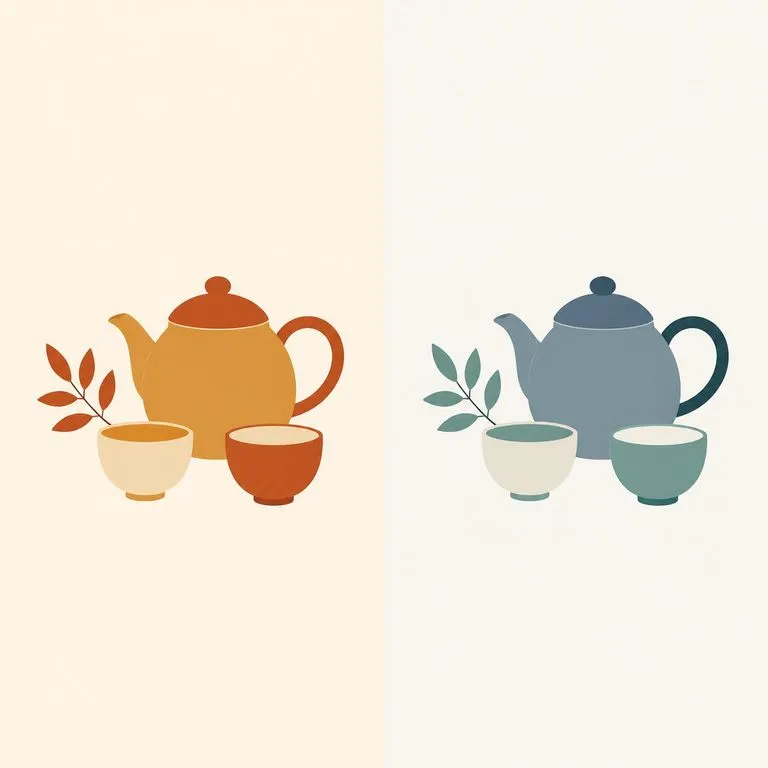
One illustration shown in a warm version and a cool version side by side
Warm and Cool Camps: two directions named in the notes and honoured
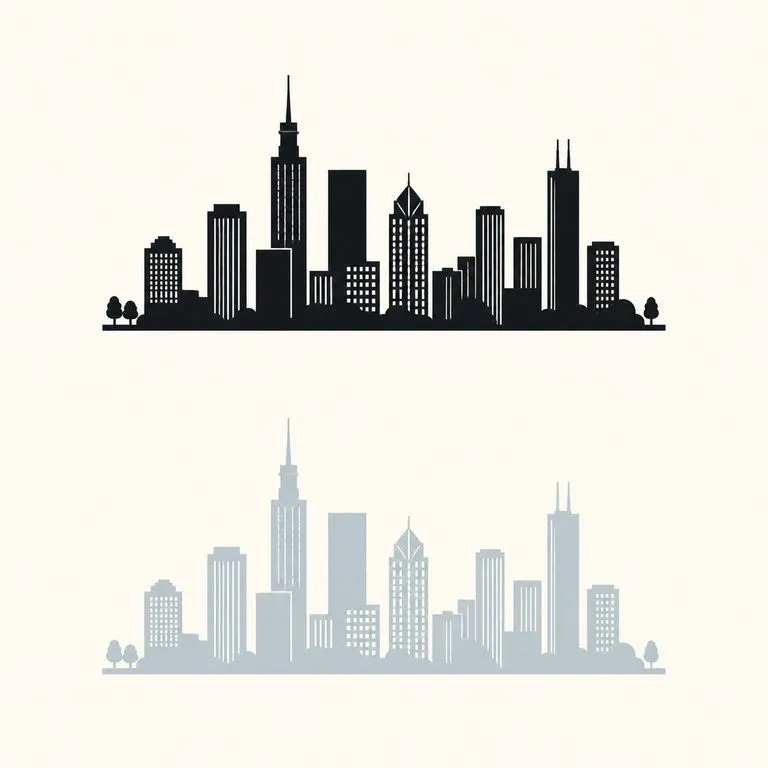
The high-contrast and muted ends of one variant range shown together
High Contrast Against Muted: the two ends of a range shown together
A brand colour card above three variants that stay inside its palette
Brand Colours Held Near: variants kept inside an existing palette
Six colour variants of one illustration laid out as a review sheet
Six-Up Comparison Sheet: the full set laid out for a colour review
The same treatment working on flat artwork and on shaded artwork
Flat Art and Shaded Art: the same treatment applied to both styles

Why an AI color swap is not a recolour filter

Most tools that recolour an image were built to fix one colour. This one was built to give you a set.

Hue shifts and recolour filters

  • One slider moves the whole image, so everything shifts together and nothing gets decided
  • Working per colour means selecting each region by hand before anything happens
  • Nothing stops two attempts landing on nearly the same palette
  • The output is one image, and comparing options means saving files and lining them up

The Virse colour swap

  • The palette is replaced as a palette, so relationships between colours are rebuilt rather than rotated
  • The drawing is held automatically, with no selection or masking step
  • Distinctness is planned before rendering, so the set is worth choosing between
  • Every variant lands on one canvas side by side, ready to compare
FAQ

Questions

Does the drawing itself change?
No. Line work and composition are held fixed, and only the colour treatment varies. That is what makes the variants comparable.
How different are the variants from each other?
Distinctness is planned before anything is rendered, so you get options worth choosing between rather than near-duplicates.
Can it colourise a black-and-white photo?
No. This tool re-grades artwork that already has colour, and it is built for illustration rather than photography. Adding colour to a monochrome photograph is a different job with a different set of expectations.
Can I change just one colour and leave the rest?
Not directly. The tool replaces the palette as a whole, because that is what keeps the colour relationships coherent. If you need one region changed and everything else frozen, that is a masked edit on the canvas rather than a variant run.
Does pressing Create run the tool straight away?
No. Your inputs travel into a fresh canvas and land on the tool already filled in, but nothing runs until you press Start there. A link can never spend your credits on your behalf.
Can I keep working on the result afterwards?
Yes. Everything the tool produces arrives on a normal Virse canvas, so you can re-run a single output, adjust it, or take it into an edit without exporting and re-importing.

Colour options worth choosing between

Start here. Drop the illustration in and the variants open side by side on a fresh Virse canvas, with nothing running until you press Start.