Aspect ratios
Multi-Ratio Output in One Pass
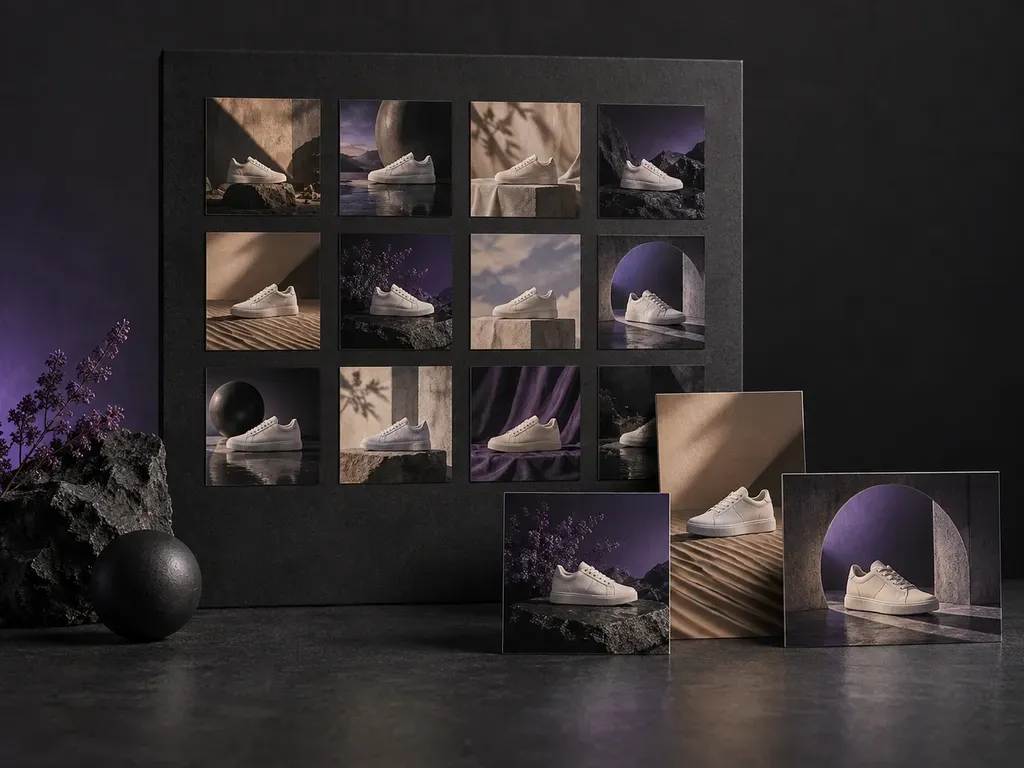
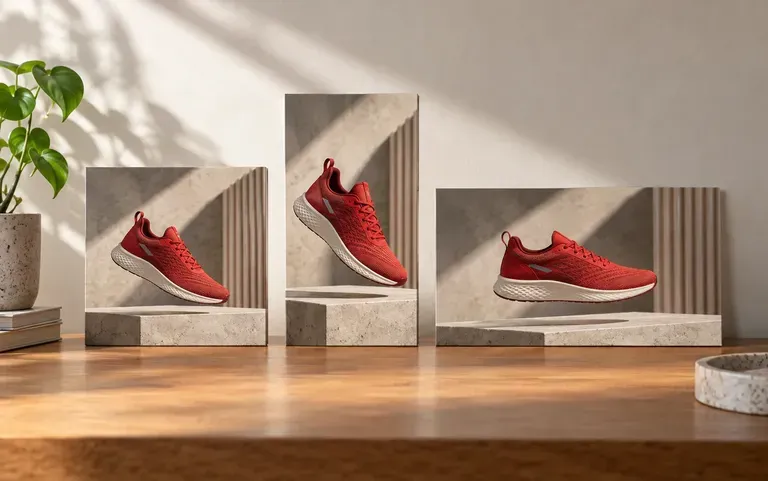
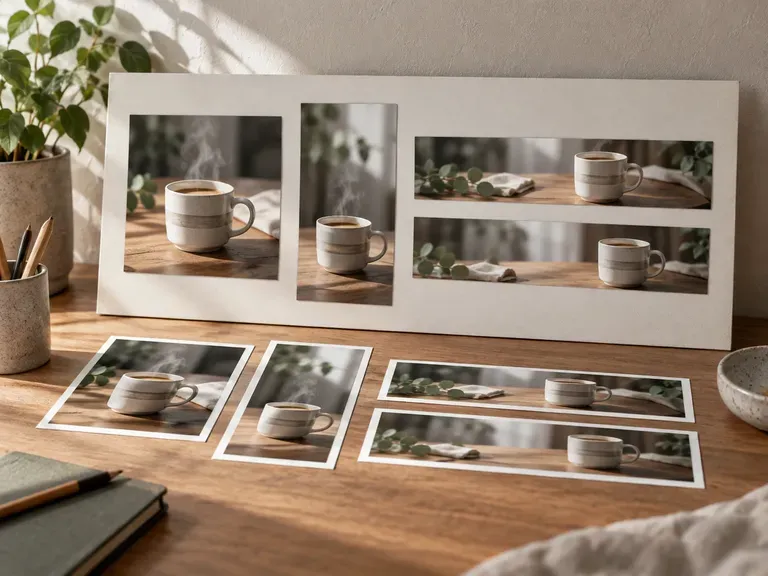
Select square, portrait, and widescreen framing before you run the queue so every prompt returns assets sized for feeds, vertical reels, and web headers.
Paste one prompt per line or upload a reference image to generate a full visual set at once. This batch image generator executes multi-SKU catalog variations, social post packs, and multi-ratio assets on a shared canvas.
An AI batch image generator (also called a bulk image generator or bulk AI image generator) processes a prompt queue or reference photo into a coordinated visual set in one pass. Virse runs batch execution across image models to handle three production tasks:
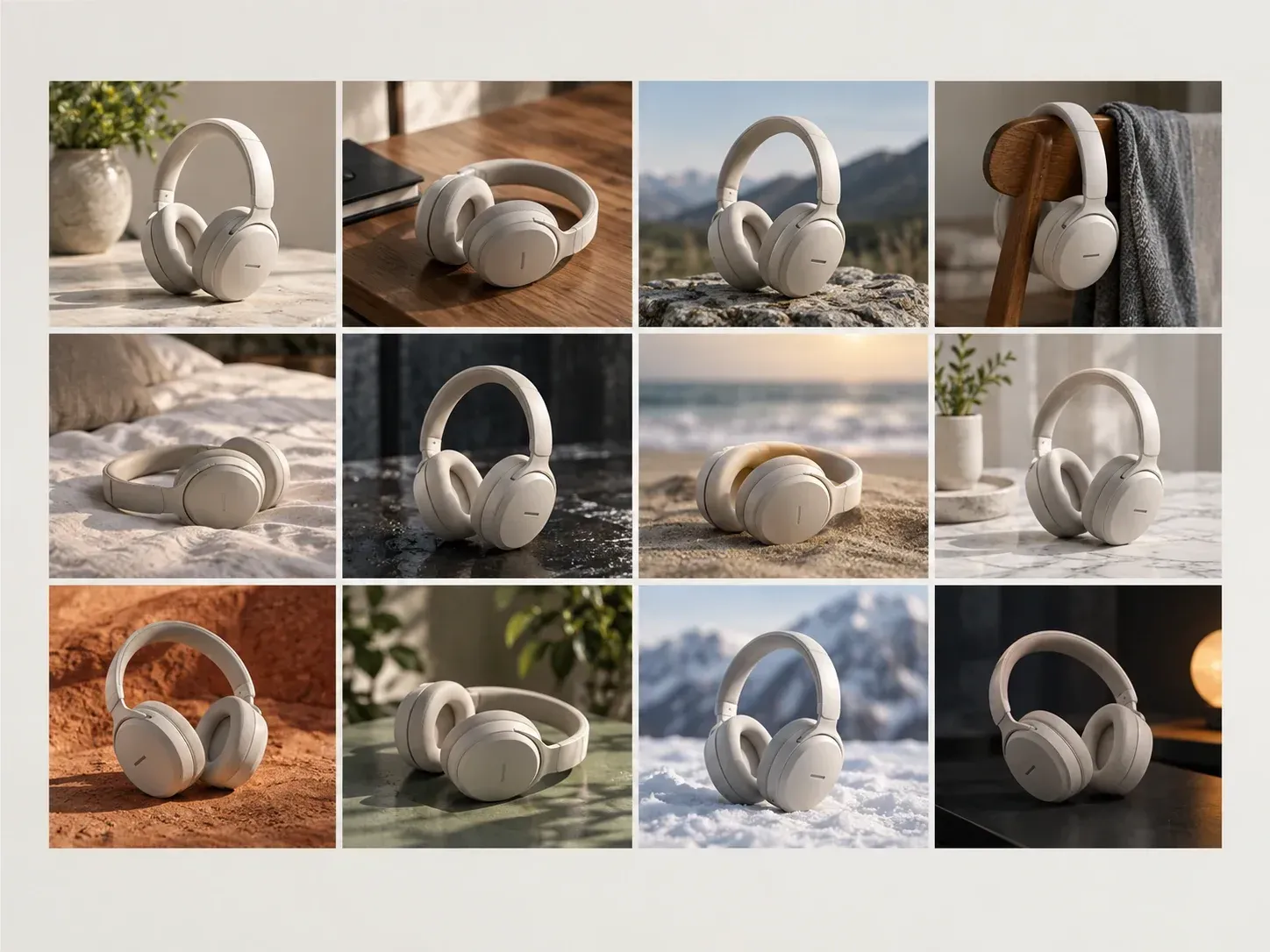
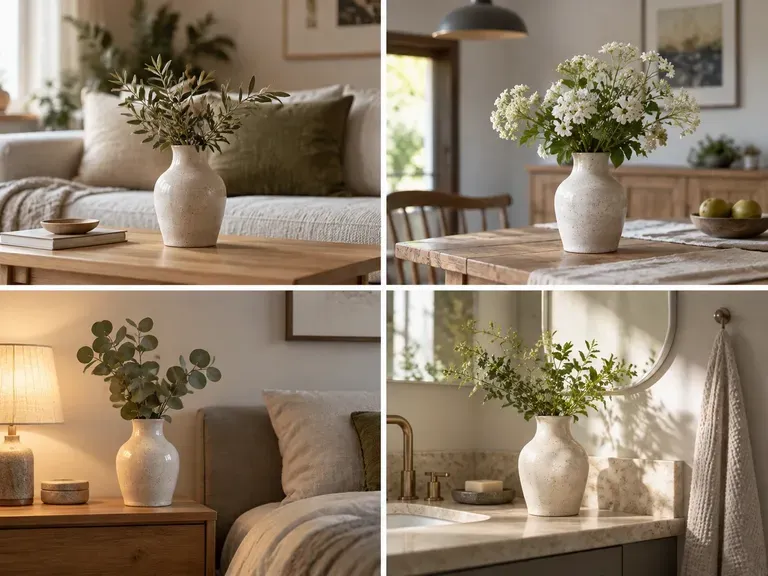
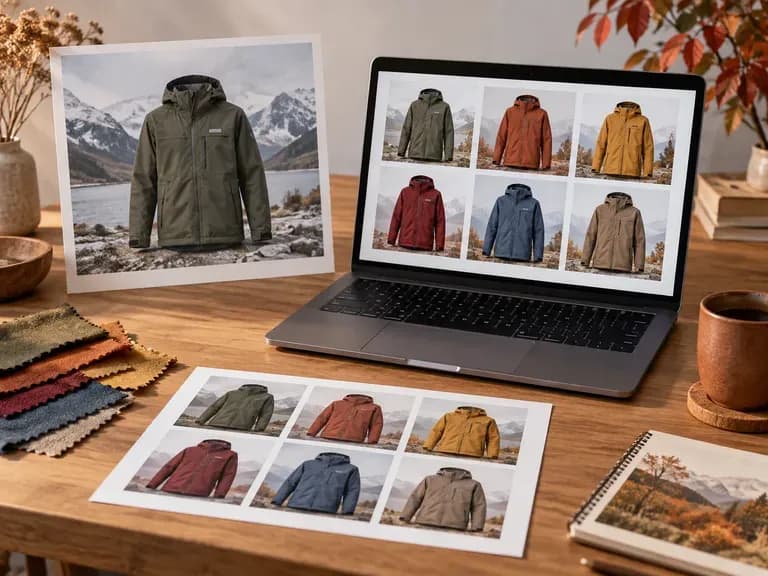
• Multi-SKU catalog variations: Keep one product silhouette locked via a base photo while testing marble, linen, or outdoor scenes.
• Parallel prompt queues: Paste a multi-line brief where each line generates a distinct scene for newsletters or storyboards.
• Consistent aspect ratios: Request square, vertical 9:16, and widescreen 16:9 outputs together without manual cropping.
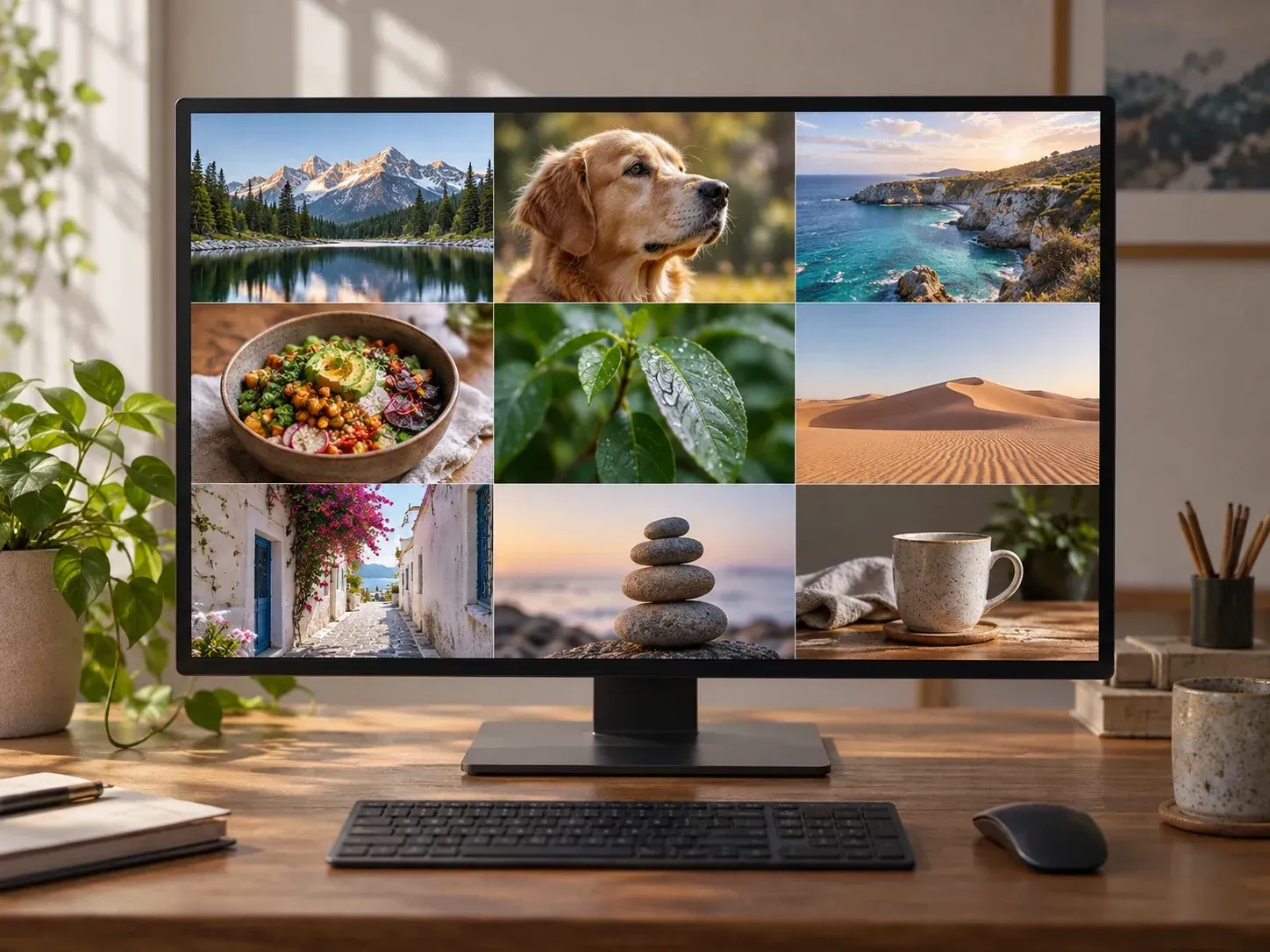
Three controls that separate generative batch execution from running single prompts by hand.
Select square, portrait, and widescreen framing before you run the queue so every prompt returns assets sized for feeds, vertical reels, and web headers.
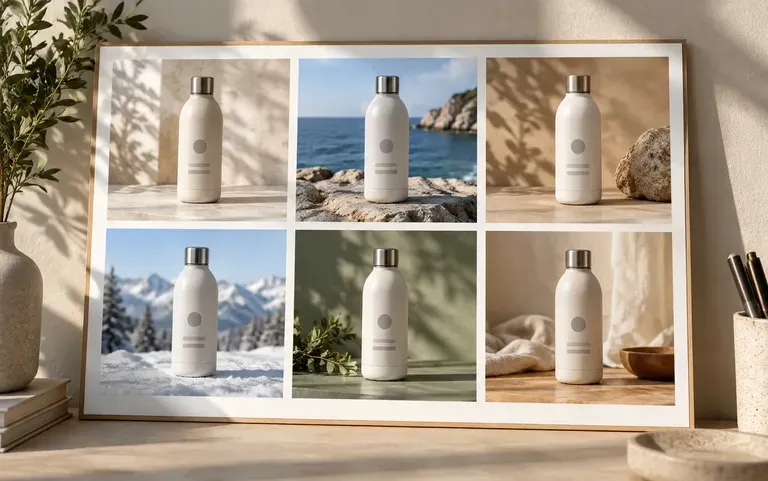
Upload one product shot or character design as a visual anchor, then list scene or colorway changes to produce variations that share the same subject.
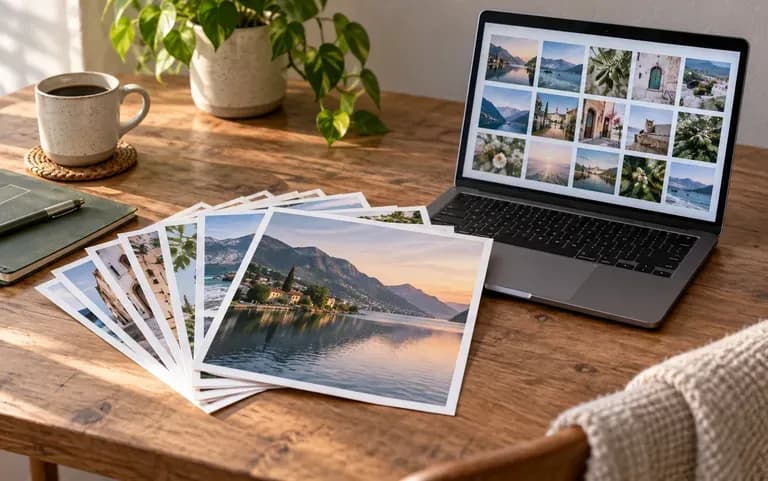
Review the entire generated grid side by side on your Virse canvas, re-run any outlier frame, and download the approved set in one package.
How running a multi-prompt batch on Virse compares with repeating single-image prompts one at a time.
Manual Single-Prompt Runs
Virse AI Batch Image Generator
Start with a text-only list for independent scenes, or upload one clean base image when you want consistent subject variations across the set.
Type or paste your scene descriptions with one prompt per line, or specify the backdrop, lighting, and material shifts for each variation.
Pick square, vertical portrait, widescreen horizontal, or a multi-ratio combination so the batch covers every placement in your campaign.
Confirm the compute cost on the Virse canvas, run the batch job, inspect the generated grid, and download the complete image pack.
Structured line-by-line prompts keep lighting and framing coherent across a set. Copy any of these three batch templates:
• Ecommerce backdrop batch: "Line 1: Bottle on wet slate in steam. Line 2: Bottle on travertine podium at sunset. Line 3: Bottle on brushed aluminum under rim light."
• Newsletter visual pack: "Line 1: Isometric server rack in cobalt and cream. Line 2: Isometric keyboard with amber keys. Line 3: Isometric analytics dashboard above desk."
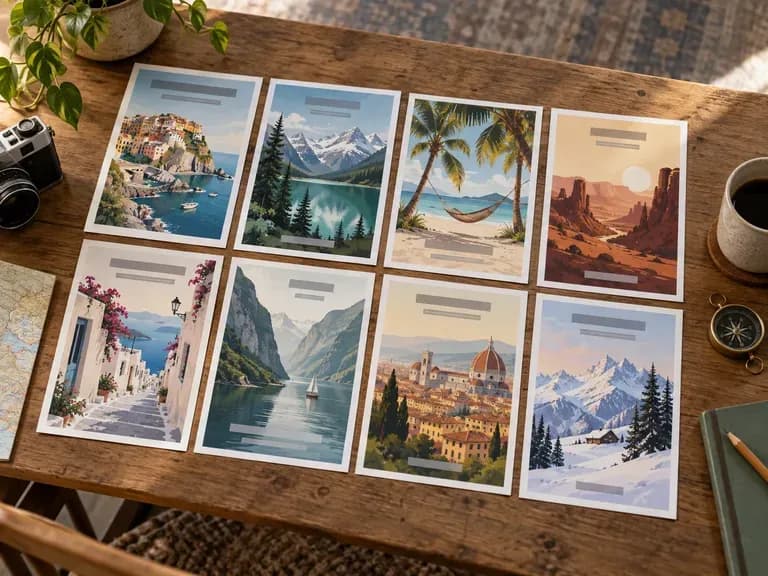
• Tabletop card art queue: "Line 1: Bronze compass on nautical chart by candlelight. Line 2: Obsidian hourglass spilling sand. Line 3: Iron lantern on mossy branch."
Four creative and marketing workflows that rely on multi-image generation to ship visual sets without repetitive manual prompting.
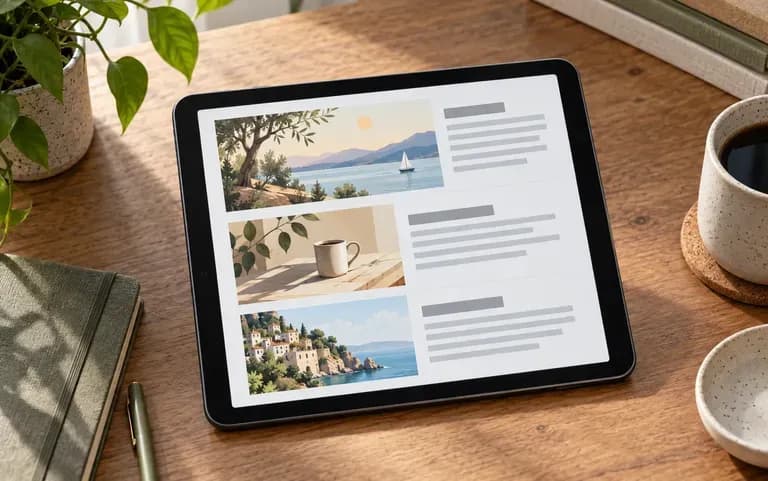
Produce header art and section illustrations for an entire issue from one prompt list so every article block shares a cohesive visual tone.
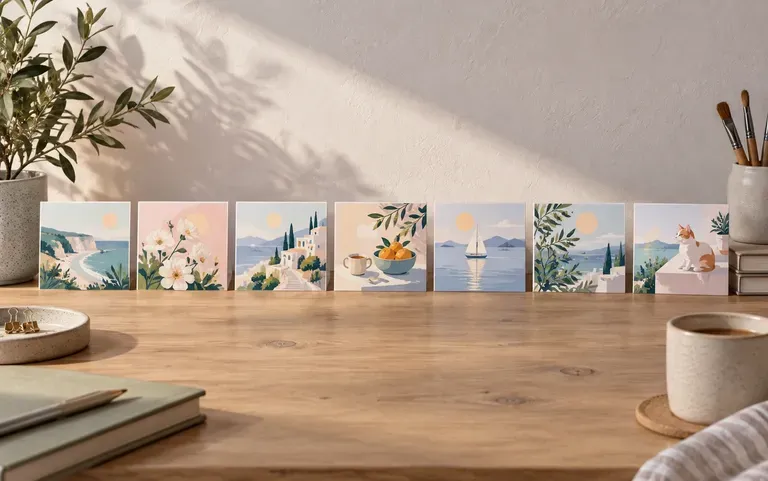
Build a full week of feed posts, vertical story frames, and paid ad creative variants in one sitting before scheduling campaigns.
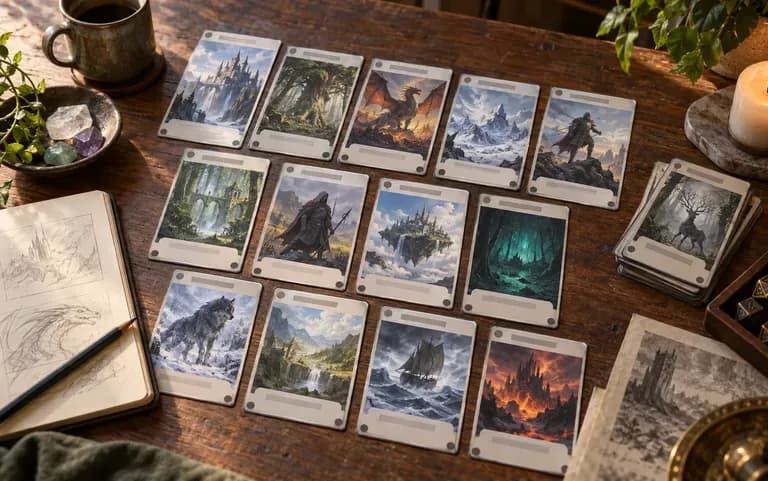
Draft item icons, environment cards, and character tokens from a structured prompt list to playtest a deck before commissioning final art.
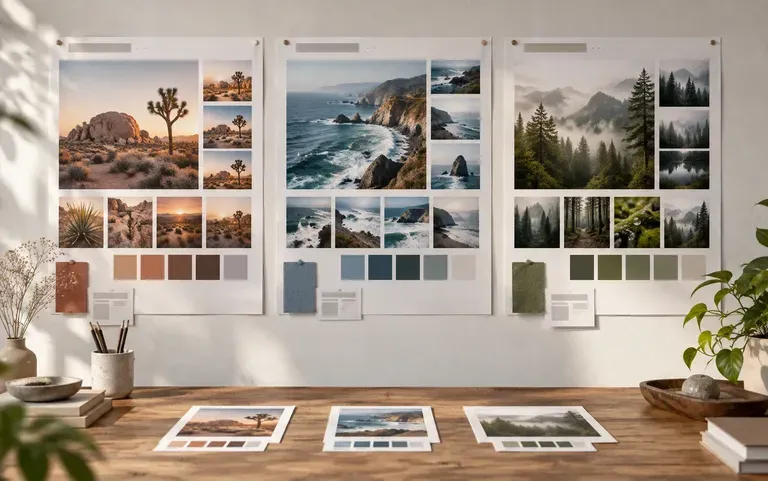
Explore multiple lighting directions, colorways, and room settings for a client brief side by side on the canvas before locking a hero concept.
Six multi-image sets showing ad variations, weekly content packs, multi-ratio exports, and seasonal catalog refreshes.
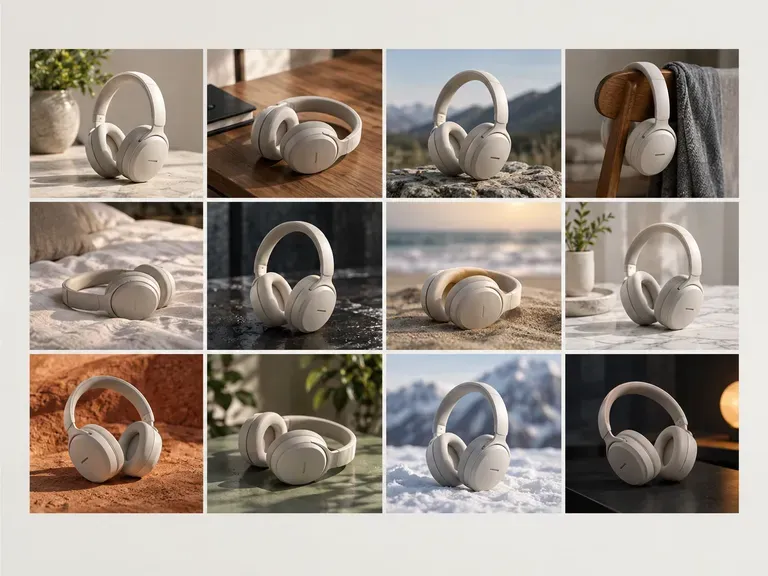
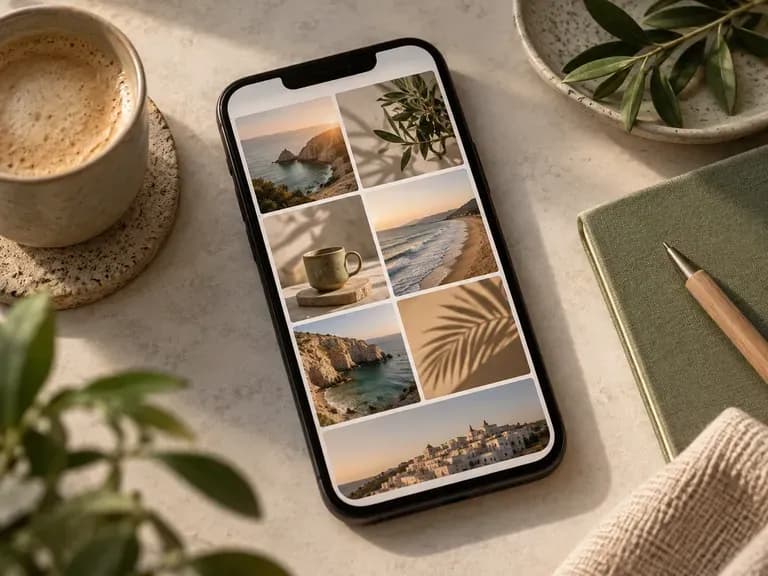
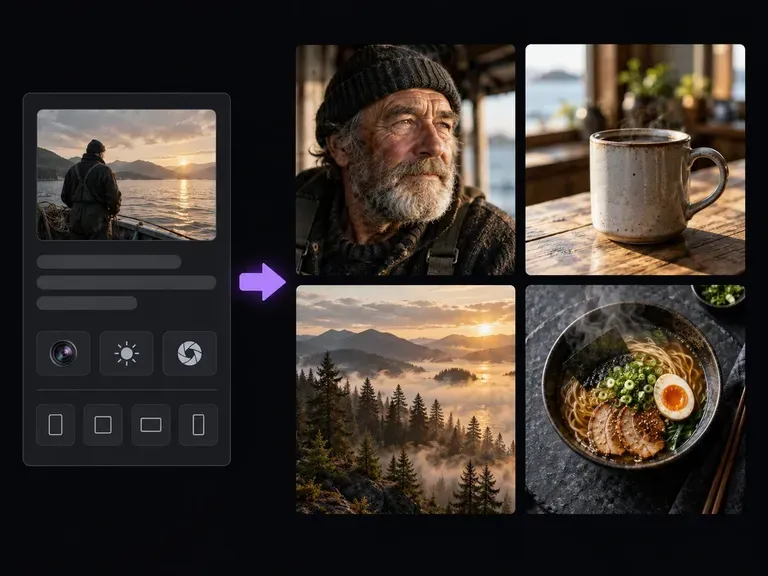
Describe subject, lighting, and surface materials to craft high-detail single photographic concepts.
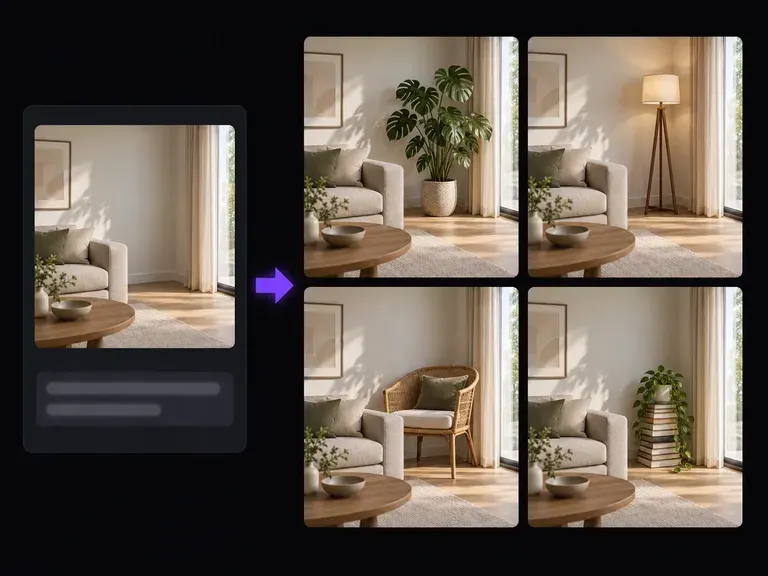
Add, replace, or extend specific regions inside an existing batch output using text instructions.
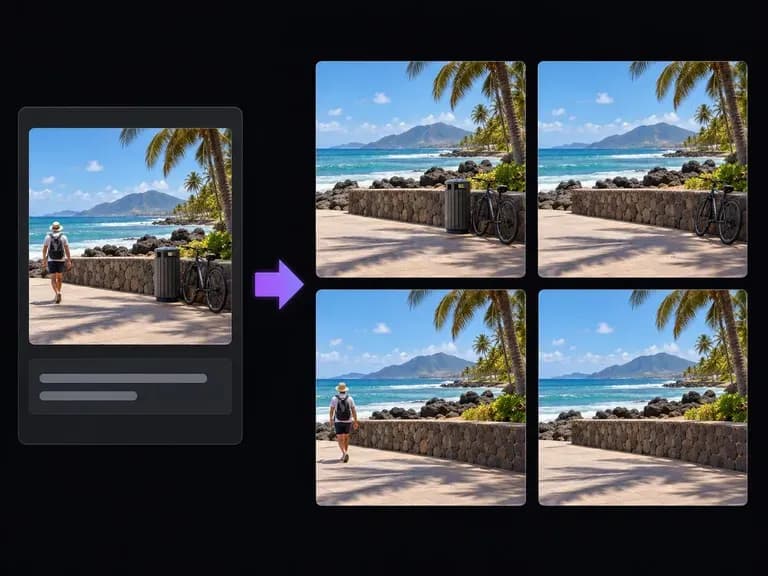
Clean up stray props or background distractions from generated frames before exporting your set.
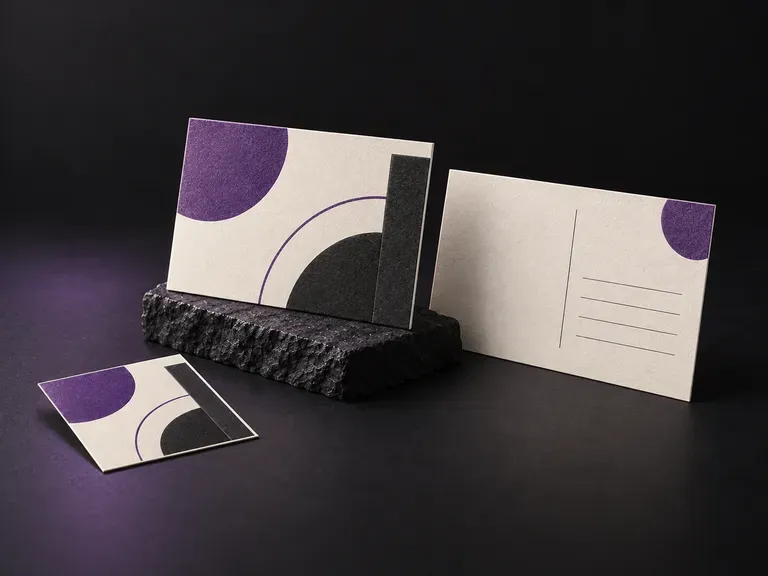
Check front artwork and back message layouts on flat or stacked 4x6 and A6 mailers.
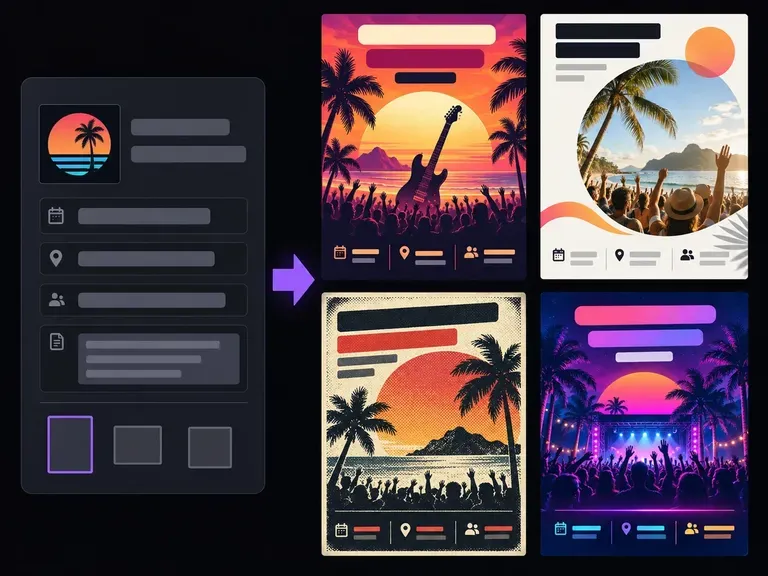
Lay out promotional handbills and event leaflets with strong headline and date hierarchy.
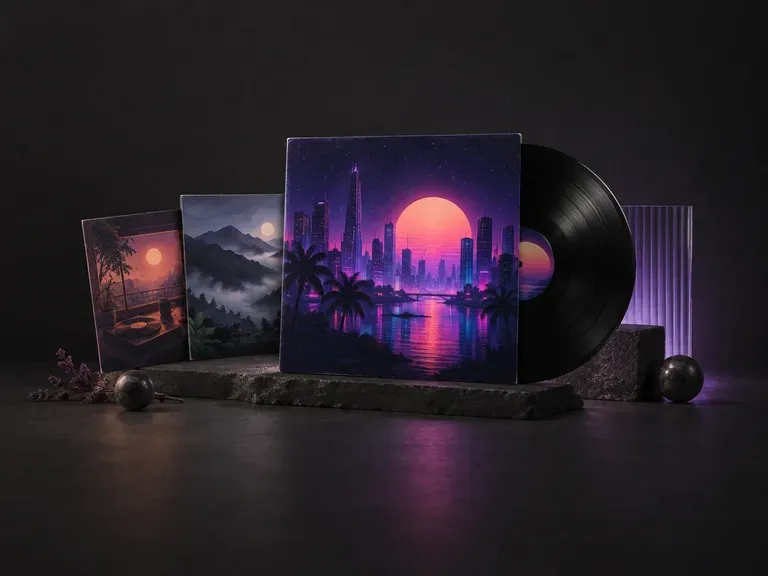
Create square 1:1 cover artwork built to hold up on vinyl sleeves and tiny streaming thumbnails.
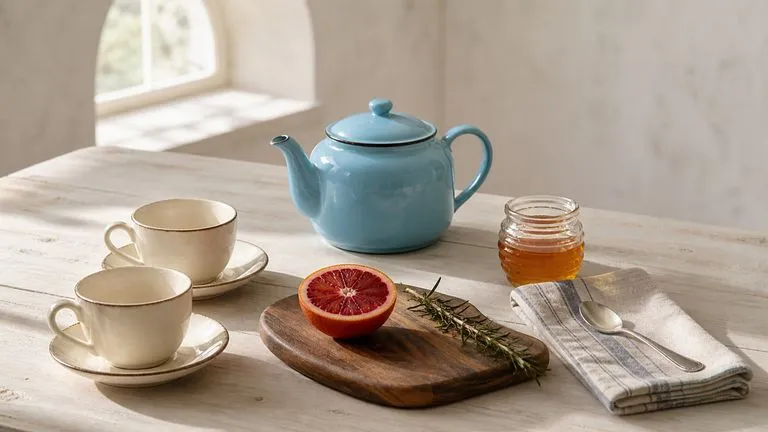
Translate detailed creative briefs into balanced compositions with reliable spatial relationships.
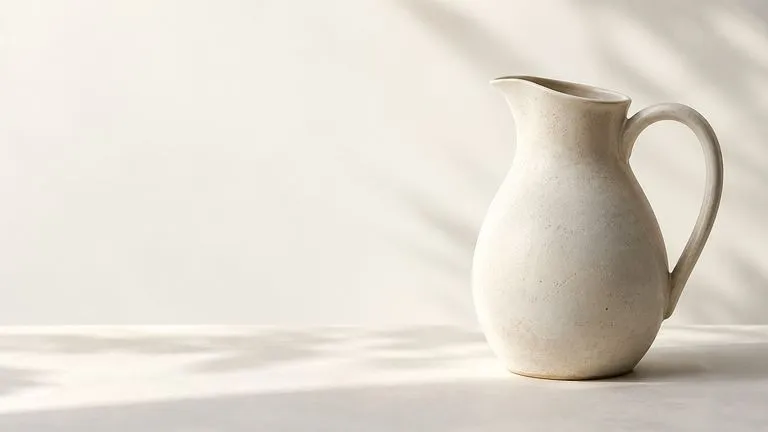
Render high-contrast metallic reflections, fabric weaves, and shallow depth of field.

Guide subject posture, materials, and lighting using up to 14 reference images at 1K to 4K.
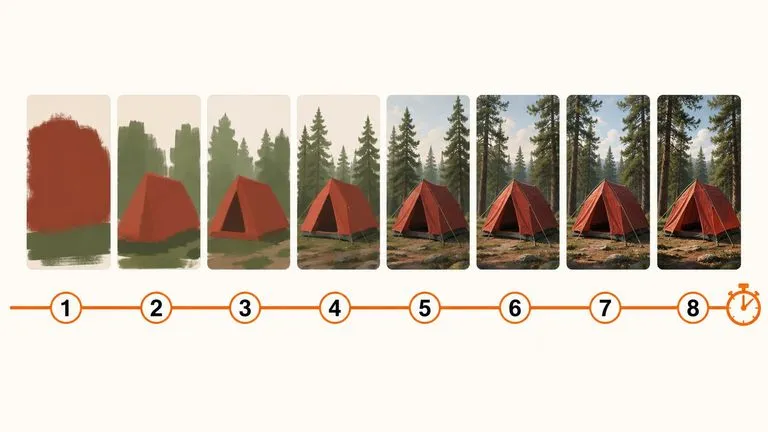
Draft rapid concept thumbnails and layout options before committing compute to final high-res renders.
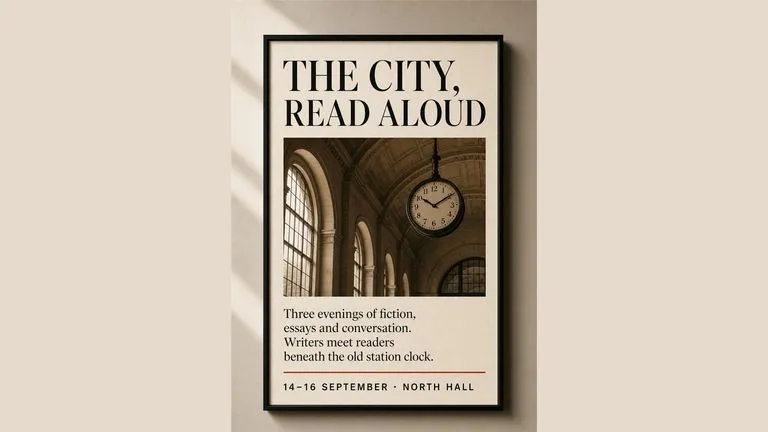
Render crisp labels, fine surface textures, and multi-reference compositions up to 4K resolution.

Follow complex multi-part written briefs that combine uploaded reference photos with strict layout rules.
Open the workspace with your prompt list or product shot to inspect every generated frame side by side.