FLUX 3 AI Image and Video Models

Create and edit stills with FLUX 3 Image at 1K, 2K or 4K. Switch to FLUX 3 Video for 5–20-second scenes at 720P or 1080P with native audio, on the same Virse canvas.

Open this page on a desktop browser to start creating.

Start With the Output You Need

A campaign can begin with a product still and continue as a short film. Write a composition brief for the still, then add action, camera movement and sound for the film. Keeping the two briefs separate makes each creative decision easier to review.
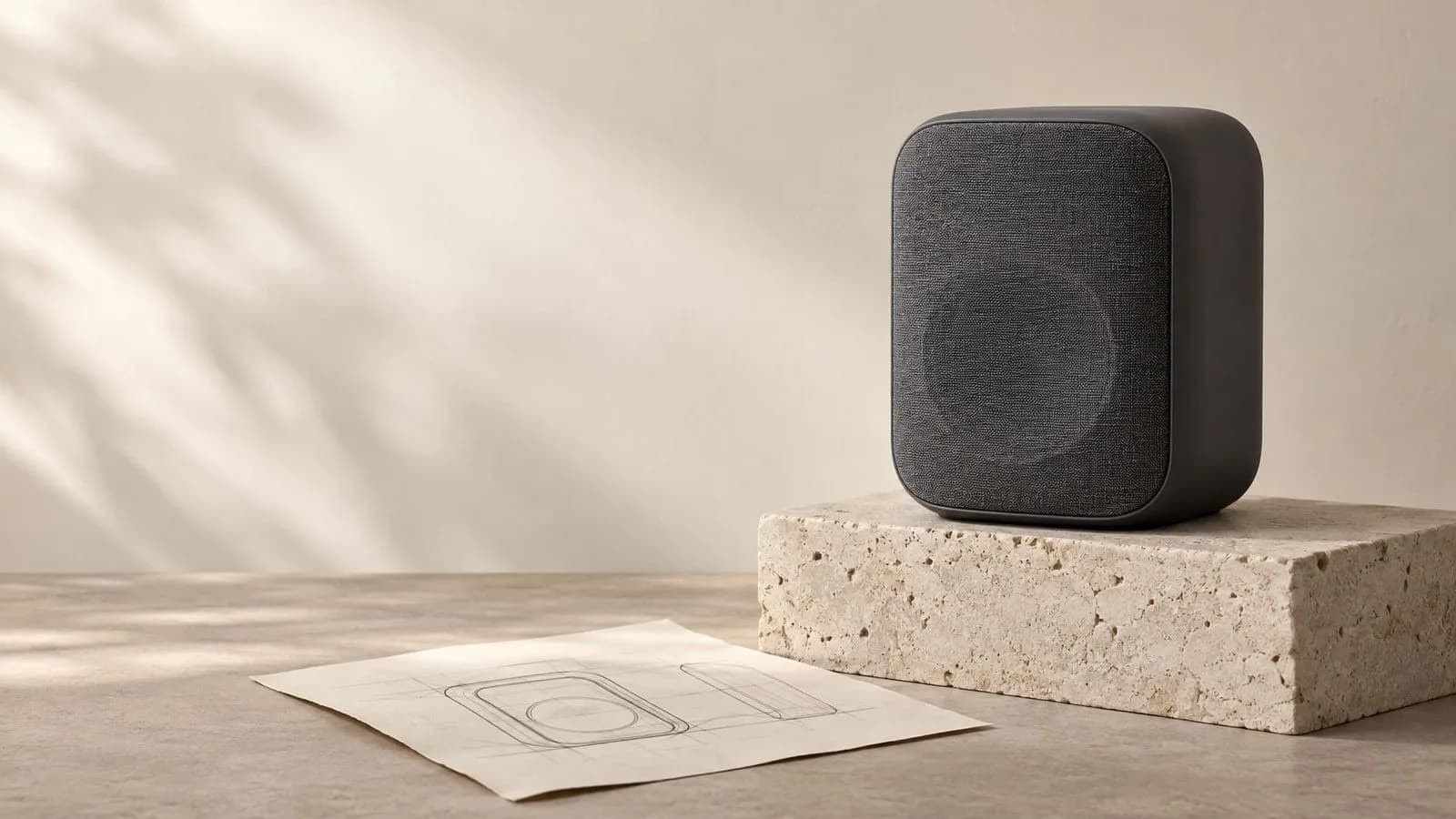
Concept illustration: A graphite desk speaker on a limestone plinth at right, empty cream wall at left, a subtle physical paper composition sketch lying at the base, editorial product photography

What Is FLUX 3?

FLUX 3 is Black Forest Labs' multimodal model family. FLUX 3 Image creates and revises still pictures; FLUX 3 Video generates moving images with sound. Their settings differ, so this page separates the publisher's capabilities from Virse access.
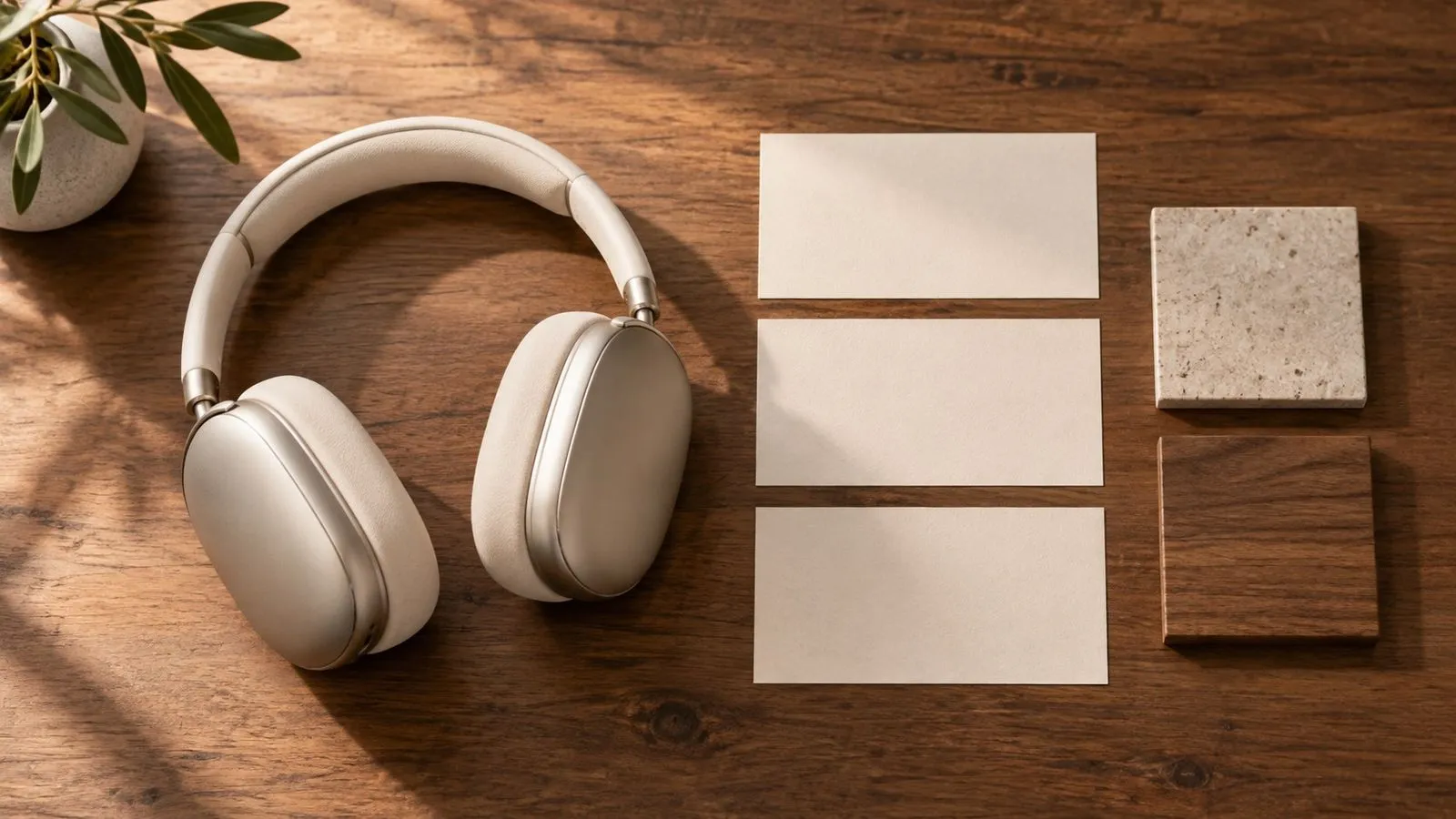
Concept illustration: Art director's tabletop with a large product photograph, three cut-paper rectangular placement guides and two material samples, warm studio light, no readable notes

FLUX 3 at a Glance

Two Enabled Editions

Image for stills and edits; Video for movement and sound.

Image References

Up to 10 reference images in Virse.

Image Sizes

1K, 2K or 4K, with 1K as the default.

Video Duration

Choose 5–20 seconds in Virse.

Video Resolution

720P or 1080P; publisher Full HD output uses upscaling.

Native Audio

FLUX 3 Video audio is fixed on in Virse.

Key Features of FLUX 3

Concept illustration: Minimal product hero with a pale ceramic jug in the right third and generous uninterrupted ivory negative space on the left, advertising composition

Image: Leave Space for Copy

Put the main product and its copy area in the same composition brief. Check the layout before adding final campaign text.
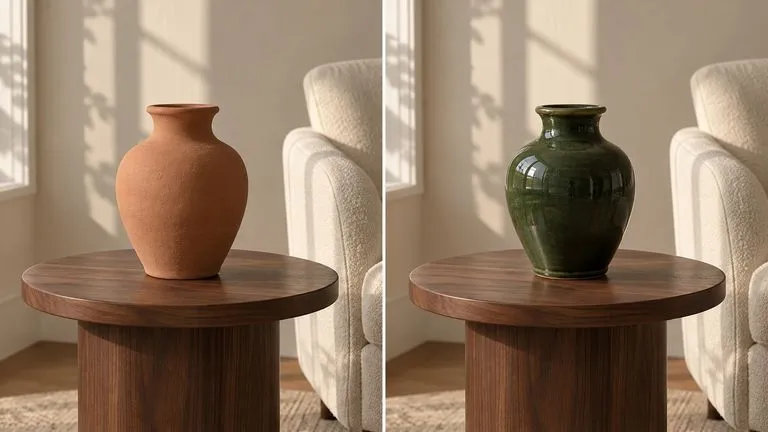
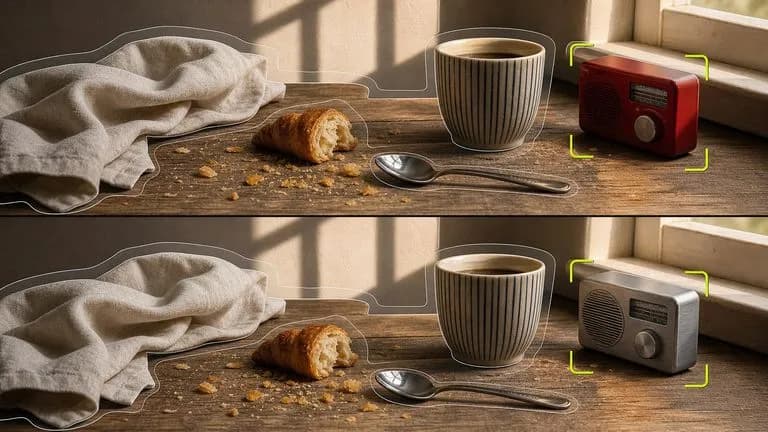
Concept illustration: Conceptual before/after diptych of one terracotta vase on a walnut side table beside a cream armchair. Left panel vase is unglazed terracotta; right panel the exact same vase is glazed deep forest gre

Image: Revise a Specific Element

Identify the object you want to change and describe what should remain. Review edges and neighbouring details after the edit.
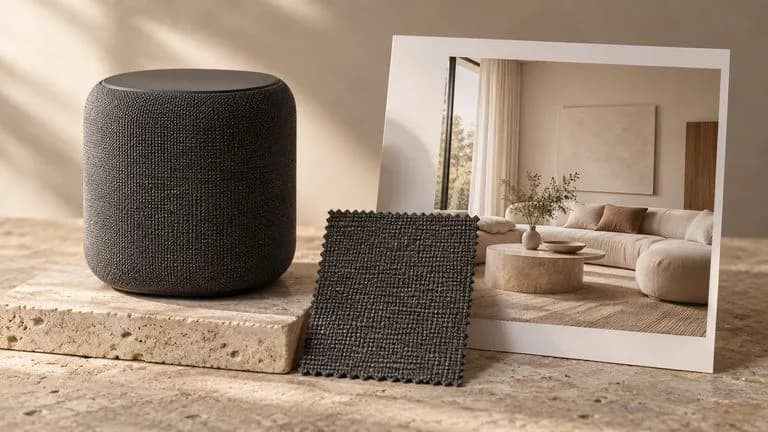
Concept illustration: A physical reference set of a graphite speaker photo, woven fabric swatch and warm cream interior photograph, neatly arranged on an art-direction table, no readable writing

Image: Work From References

Give each reference a role: product identity, material or scene. Keep those instructions distinct when preparing a new composition.
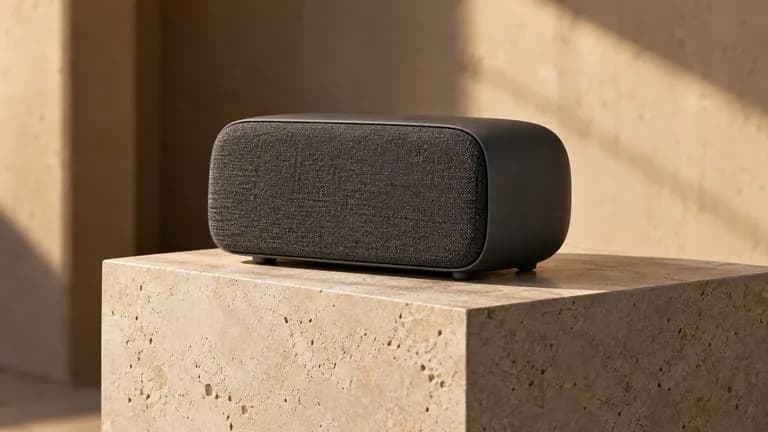
Concept illustration: Static scene concept for image-to-video: graphite desk speaker on limestone plinth seen from three-quarter angle, quiet warm studio, subtle sense of camera depth; no motion claims or video-player inte

Video: Add Action to a Still

Use an opening image to establish the scene, then describe what moves and how the shot ends. Keep the first motion brief simple.

Concept illustration: Static scene concept: small ceramic cafe interior at dawn, espresso cup at foreground, steam rises softly, empty stools and warm window light; the image suggests ambient sound without sound icons or U

Video: Write the Sound With the Scene

The publisher supports generated audio. Describe ambient sound and any dialogue alongside the action, rather than leaving the soundtrack unspecified.
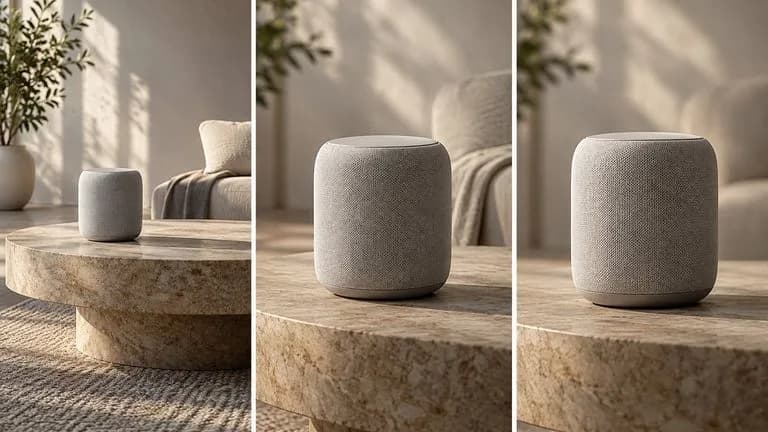
Concept illustration: Three-panel storyboard concept of the same speaker: wide establishing view, closer three-quarter angle, front-on final framing, identical product and lighting; not rendered video frames

Video: Establish the Start and Finish

Virse accepts an optional opening and closing image. Describe a plausible action between them, then review the full clip for continuity.

Build With FLUX 3 Image and Video in Virse

Both editions are enabled. Choose an image brief or a video scene, then review the inputs and quote shown for that edition.

Use Up to Ten Image References

Bring a product view, material sample or setting image into the Image brief. State what each reference contributes to the result.
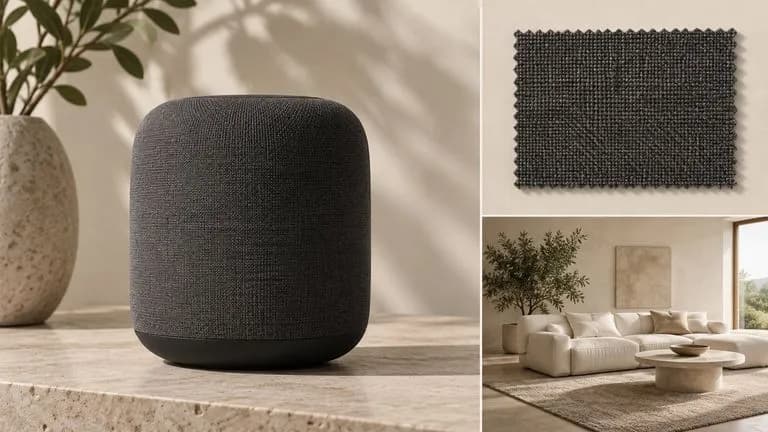
Concept illustration: A tidy physical reference board with a speaker product photograph, a graphite fabric swatch and a cream interior photograph, no interface and no legible writing

Choose the Video Frames

Virse exposes optional first and last frames for FLUX 3 Video. Choose the duration and resolution before writing the motion brief.
Concept illustration: A laptop with a deliberately blank dark display beside three speaker reference prints and a folded portfolio, no fake interface, no text

Carry the Direction Into Motion

Use an approved still as the opening frame. Add a separate instruction for action, camera movement, sound and the ending.
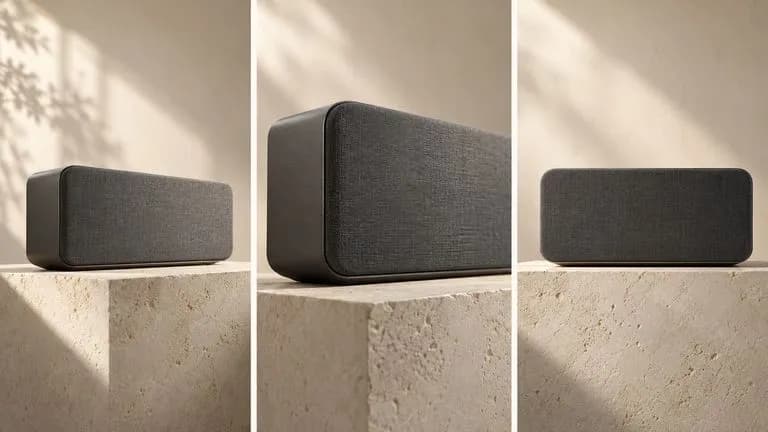
Concept illustration: Three-panel static storyboard concept of a graphite desk speaker on a limestone plinth: wide three-quarter opening view, slow-camera-move midpoint represented by a closer angle, centred front-on endin

Review the Edition’s Quote

Image is billed per image; Video shows estimated compute per second. Check the current quote at the size and duration you select.
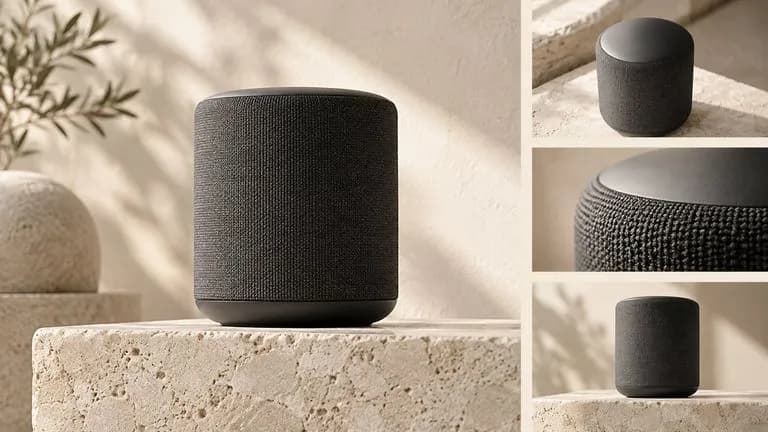
Concept illustration: A cream editorial board showing a graphite speaker hero photograph and a three-shot photographic storyboard, shared warm limestone palette and art direction

What Can You Create with FLUX 3?

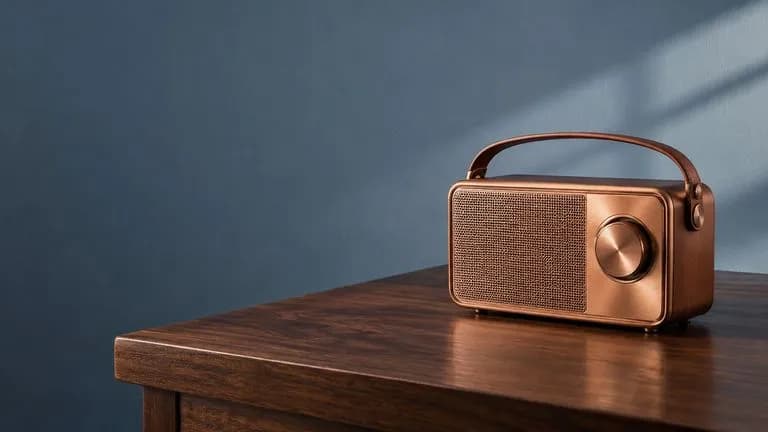
Concept illustration: A copper portable radio on a dark walnut table at the right, generous clean blue-grey wall at left for future copy, premium product campaign

Product Hero Images

Plan a product and a clean copy area with the Image edition.
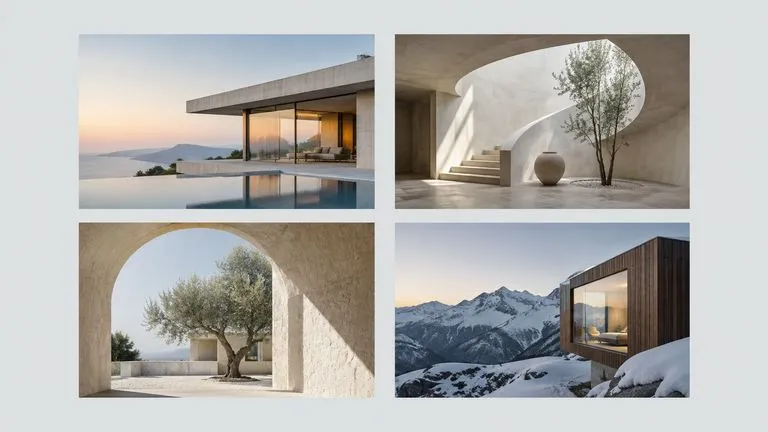
Concept illustration: Editorial flat lay of four architectural photographs and a pale grey blank margin, generous separation, publication art-direction concept, no text

Editorial Layout Concepts

Arrange several subjects in a still composition before final typesetting.

Concept illustration: Fictional cream product carton with copper insert beside a glass bottle, close view of material and arrangement, no labels or logos

Packaging Revisions

Prepare a focused revision to a package material or background.
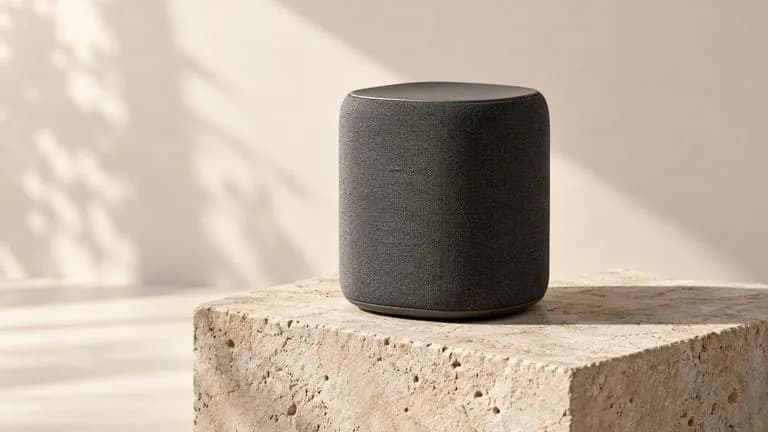
Concept illustration: Static product-motion scene concept: graphite speaker on limestone plinth, three-quarter camera, soft light with shadow, spacious cream studio

Product Motion Studies

Develop a short opening-frame brief for the Video edition.

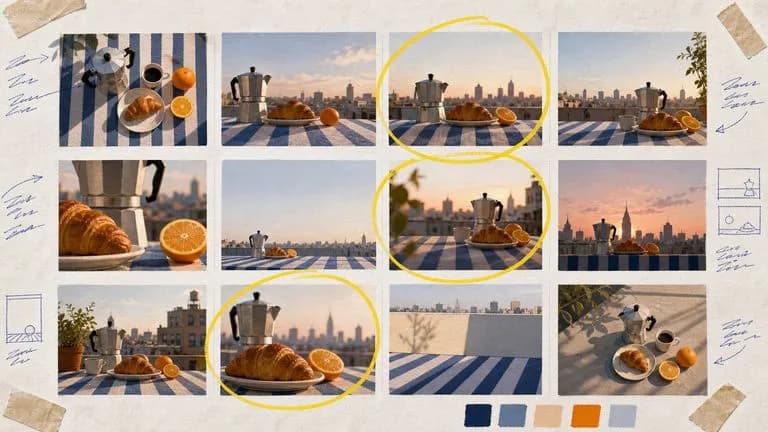
Concept illustration: Static cinematic cafe scene with a cream ceramic espresso cup in foreground, warm early morning light and natural steam, quiet lived-in environment, no text

Short Scenes With Sound

Write a clear action and an accompanying ambient soundtrack.
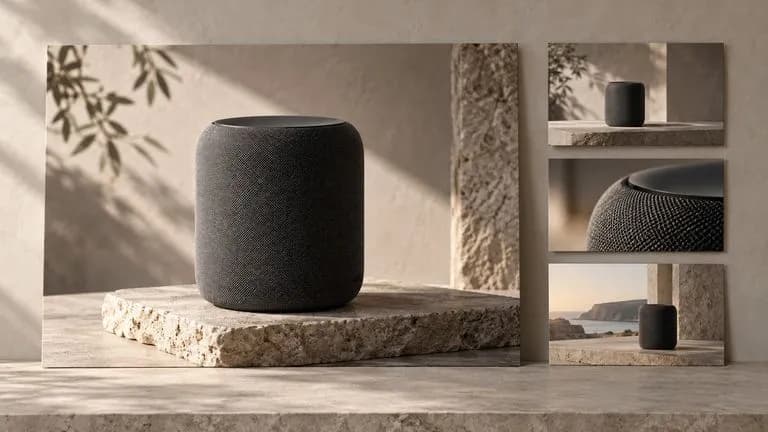
Concept illustration: Campaign art-direction tabletop with one large product hero print and three smaller scene storyboard prints, graphite speaker and limestone art direction consistent throughout, no labels

Campaign Still and Motion Sets

Use one art direction to plan distinct image and video deliverables.

How to Use FLUX 3 in Virse

  1. Choose Image or Video

    Decide whether the deliverable is a still picture or a moving scene.

  2. Set the Visual Direction

    Describe the subject, environment, light and camera viewpoint.

  3. Add the Edition's Instructions

    For Image, specify placement or an edit. For Video, add action, sound and an ending.

  4. Generate and Review

    Choose the edition in the workspace, confirm the quote and generate. Inspect a still at delivery size; watch and listen to a clip from start to finish.

How to Write FLUX 3 Image and Video Prompts

Describe the scene in concrete terms, then add the change or action you want.

  • Edition
  • Subject
  • Composition
  • Change or action
  • Sound for video

Instead of writing

Luxury speaker, beautiful design, perfect layout, amazing detail.

Write

A matte graphite desk speaker on a warm limestone plinth, placed in the right half of a horizontal image. A coiled black cable lies beside it. Leave the left third as a plain cream wall for later headline placement. Soft light from the upper left; eye-level camera. No text or logo.

FLUX 3 Prompt Examples

Concept illustrations generated for these briefs. They are not verified outputs from this model; video scenes are static images.
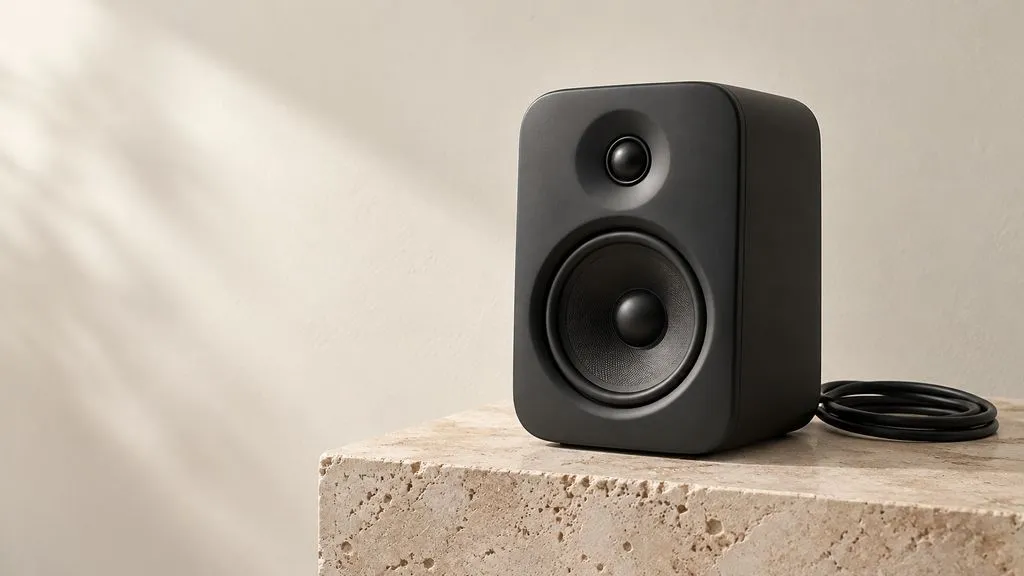
Concept illustration: matte graphite desk speaker on warm limestone plinth in the right half, coiled black cable at base, plain cream wall fills left third, soft upper-left light, eye-level 16:9

Image: Product Hero With Copy Space

A matte graphite desk speaker on a warm limestone plinth in the right half of a 16:9 image. A coiled black cable rests at its base. The left third is a plain cream wall with no objects. Soft light from the upper left, short contact shadow, eye-level view. No text, logos or additional products.

Concept illustration: reading corner, muted rust fabric floor-lamp shade on slim black stand, cream chair, walnut side table, warm wall, natural upper-left window light, eye-level view

Image: Change the Shade, Keep the Room

Using a reference photograph of a reading corner, change only the floor-lamp shade to muted rust fabric. Keep the slim black stand, cream chair, walnut side table, warm wall and camera position. Retain the original light direction. No new furniture or decorative objects.
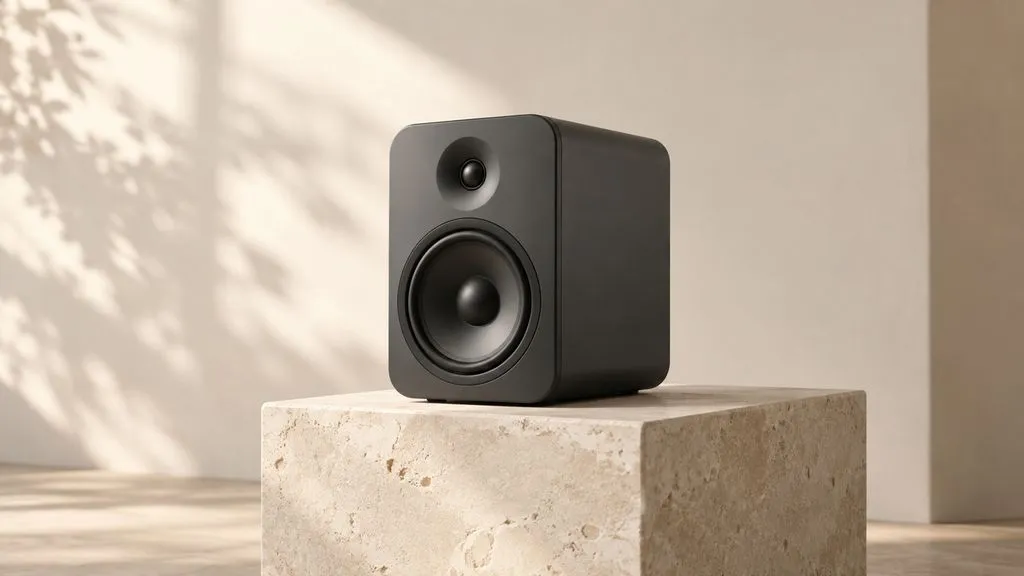
Concept illustration: matte graphite desk speaker on limestone plinth against cream wall, three-quarter view toward front, soft upper-left light, spacious quiet room. No text, logos, player, arrows or visible soundtrack. T

Video: A Speaker Reveal With Ambient Sound

A matte graphite desk speaker sits on a limestone plinth against a cream wall. The camera moves slowly from a three-quarter view toward the front while the speaker remains still. Soft light from the upper left. Quiet room tone, no music or dialogue. End on the centred speaker with the camera at rest. No text or logos.

FLUX 3 Image vs. FLUX 3 Video

DimensionFLUX 3 ImageFLUX 3 VideoCurrent Virse ModelsSource
DeliverableStill imageVideo with generated soundDepends on the selected modelSource
Brief focusComposition and precise changesAction, camera, sound and endingUse that model's documented inputsSource
Virse output1K, 2K or 4K5–20 seconds; 720P or 1080PSee each model’s workspace entrySource
Virse accessEnabledEnabled; audio fixed onBrowse the live model librarySource

Tips for Better FLUX 3 Briefs

Separate the Scene From the Objects

Use the scene for lighting and atmosphere; give the subjects concrete descriptions.

Name the Empty Space

Explain where later copy will sit so it is treated as part of the composition.

Edit One Decision at a Time

Change the background or the product material first, then inspect the result.

Check the Unchanged Areas

A targeted instruction still needs review of the edges and surrounding objects.
FLUX 3 FAQ

Is FLUX 3 available in Virse?
Yes. The live Virse catalog enables both FLUX 3 Image and FLUX 3 Video. Choose the edition that matches the output you need.
How are FLUX 3 Image and Video different?
Image creates still pictures and supports revision. Video adds movement and sound. Use a separate brief for each deliverable.
Does Virse provide a FLUX 3 bounding-box editor?
Black Forest Labs documents box-based layout control, but a dedicated box editor was not verified in Virse. This page does not promise one. Describe placement in your brief and use the controls shown.
Can FLUX 3 Video generate sound in Virse?
Yes. The current Virse catalog marks native audio as supported and fixed on for FLUX 3 Video. There is no audio-off control for this entry.
Is FLUX 3 Video native 4K?
The published release describes HD generation and Full HD through upscaling. FLUX 3 Image's 4K tier does not establish native 4K video.
What does FLUX 3 cost in Virse?
Image lists 8, 15 and 90 compute per image at 1K, 2K and 4K. Video displays estimated rates of 26 compute per second at 720P and 44 at 1080P, with native audio. Confirm the workspace quote.
Are these pictures FLUX 3 test outputs?
No. These are AI-generated concept illustrations. The Video images are static scene concepts, not rendered clips or proof of sound quality.
Can I use FLUX 3 with reference video?
The verified FLUX 3 Video entry accepts text and optional first and last images. Video continuation is listed as a separate FLUX 3 Video Extend entry; it is not the same input workflow.

Choose a Still or a Scene

Open Virse, choose FLUX 3 Image or Video, and keep the brief and its visual references together while you work.