Seedream 4 AI Image Generator

ByteDance's Seedream 4.0 and Seedream 4.5 generate from written descriptions and from images you supply, turning one source picture into as many directions as a project needs.

请在桌面端浏览器打开本页开始创作。

Start From a Picture You Already Have

Seedream 4 is ByteDance's image line, and the thing that distinguishes it in daily use is how comfortable it is working from an input image rather than from a blank prompt.

Text-to-image is the mode everyone demonstrates. Image-to-image is the mode most real work lives in — you have a product shot that needs a different setting, a photograph that needs to become an illustration, a layout that needs six variations. Seedream 4 treats that as the primary path rather than an afterthought bolted onto a generator.

Use Seedream 4 when something already exists. Transform product photography, restyle existing imagery, generate variant sets from one source, build catalogue spreads, and produce the volume of near-identical assets that a commerce or content pipeline actually consumes.

What Is Seedream 4.0?

Seedream 4.0 is an AI image generation model developed by ByteDance. It generates from written descriptions and accepts an input image alongside the prompt, letting it edit, restyle, and transform pictures rather than only producing new ones.

The model is built around three major strengths:

  • Image input treated as a first-class path, not a secondary mode
  • Direct response to plain descriptive language, with no weighting syntax required
  • Two versions available side by side, so a brief can be compared across both

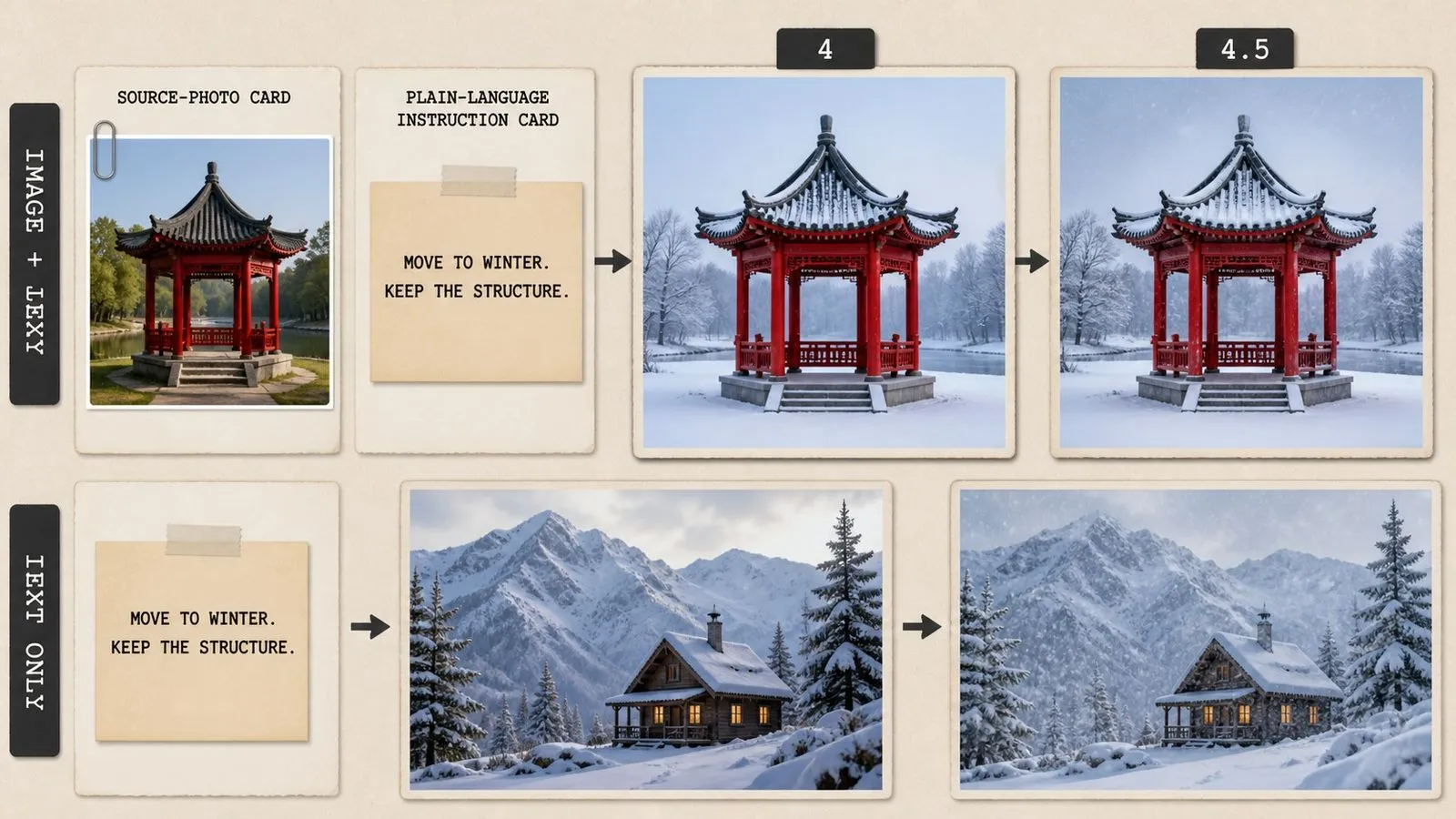
Virse carries the line as two entries, with 4.5 the later revision. Both are closed models served through an API — there are no published weights, which is why searches for a downloadable version turn up nothing. A prompt written for one runs unchanged on the other.

Seedream 4.0 Specs at a Glance

Text and Image Input

Generate from a written brief, an input picture, or both together.

Two Versions Side by Side

Both revisions appear as separate entries in the model list.

Prompt Portability

The instruction you wrote for one revision transfers to the other as written.

No Special Syntax

Plain descriptive sentences, with no weights, brackets, or emphasis markers.

Restyle and Transform

Convert a photograph to illustration, or an illustration to another treatment.

Hosted Only

Served through an API, with no published weights to download or self-host.

Key Features of the Seedream 4 Image Generator

Image-to-Image as the Main Road

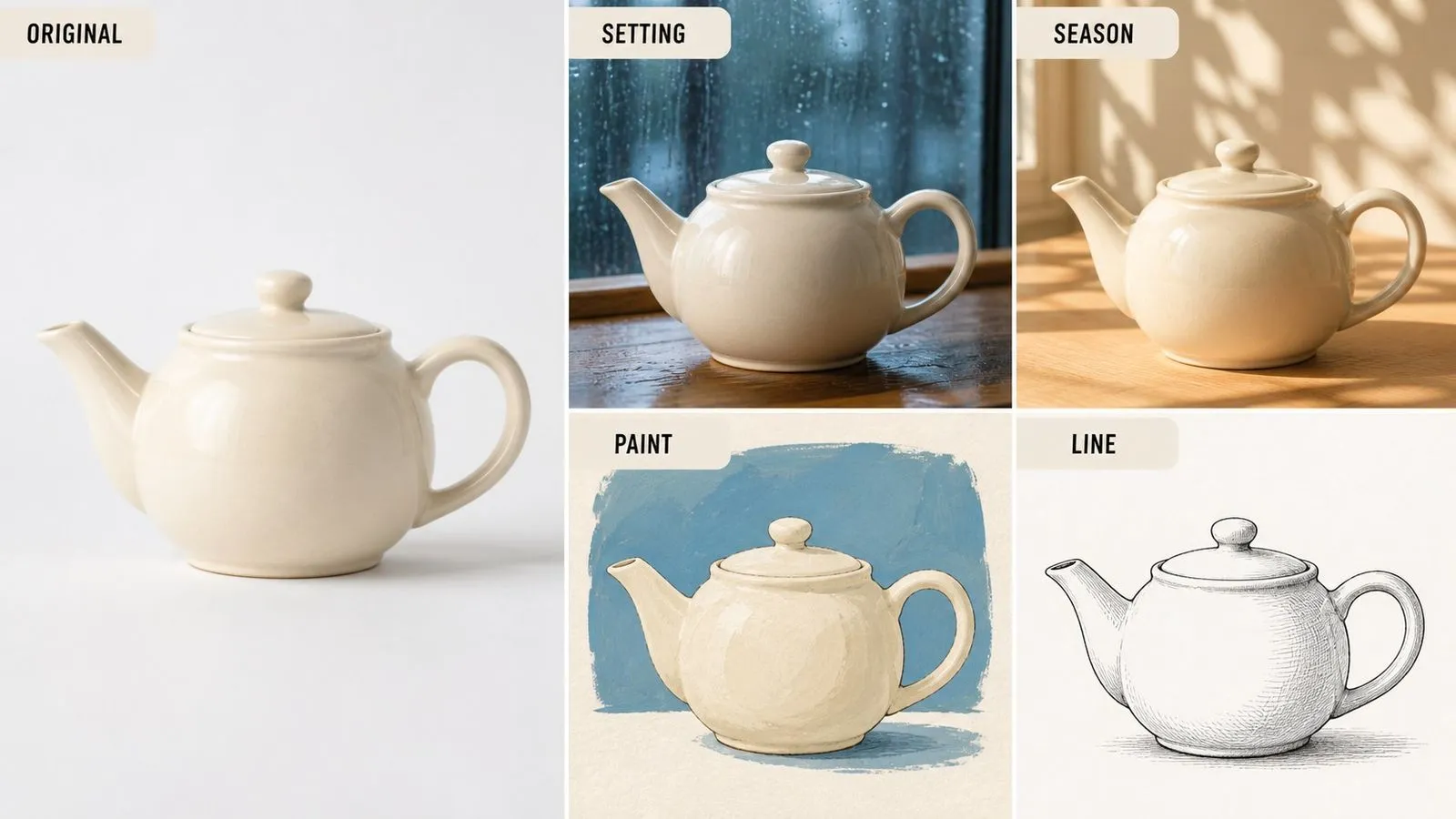
Supplying a source picture is the normal way to use this model rather than an advanced option. Composition, subject, and framing carry over from what you gave it, and the prompt describes the delta.

Variation Sets From One Source

Run the same input image through several different instructions in sequence and get a coherent family of outputs, because every one of them started from the same picture.

Restyling Without Redrawing

Turn a photograph into line art, a rendering into a painting, or a flat illustration into something textured, while the arrangement of the original survives the change.

Straightforward Prompting

The model responds to ordinary descriptive sentences. There is no weighting syntax to learn and no negative prompt field to fill in.

Two Revisions to Compare

Because both sit in the same model list and take the same brief, testing which suits your work is a single click rather than a migration.

Prompt Compatibility Across the Line

Briefs move between entries unchanged, which makes it cheap to re-run an old prompt on a newer revision when one appears.

Build with Seedream 4 in Virse

Image-to-image work is iterative by nature. One source picture becomes four treatments, three of which become inputs for something else, and the useful version is often the one from two steps back. Virse keeps that whole tree on a single canvas. Source images, intermediate passes, and finished outputs sit next to each other, so a chain of transformations remains legible instead of collapsing into a folder of similarly named files.

Keep the Source Image in View

Park the original beside every derivative so you can see what actually changed rather than trusting your memory of it.

Branch Instead of Overwriting

Run the same source through several instructions in parallel and keep all of the results, rather than replacing each attempt with the next.

Access 30+ Creative Models

Move between Seedream 4 and 30+ other image and video models without leaving the canvas or rewriting the brief.

Run Both Versions on One Brief

Run one prompt through both revisions side by side and pick by looking, not by reading version numbers.

What Can You Create with Seedream 4.0?

Product Photography Variants

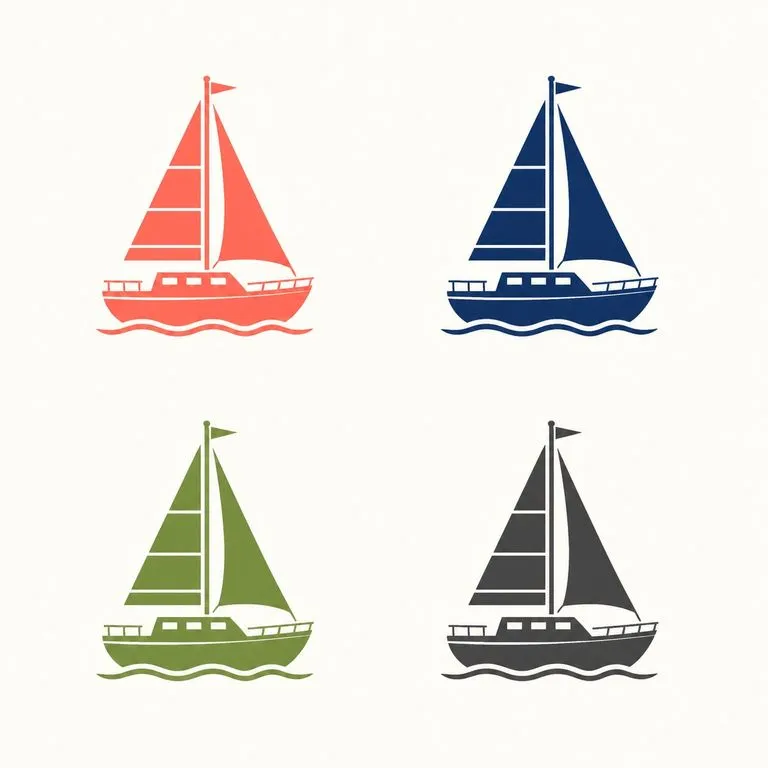
Move an existing product shot into new settings, seasons, or colour schemes.

Catalogue Spreads

Produce a consistent set of item images from a shared source treatment.

Photo-to-Illustration Conversions

Turn photographs into line drawings, flat vector treatments, or painterly renderings.

Setting Transplants

Drop an existing subject into a different environment without reshooting it.

Editorial Variations

Generate several visual treatments of one concept for a client to choose between.

Social Asset Families

Build a run of related posts that share a look because they share a source.

How to Use Seedream 4.0 in Virse

  1. Bring In a Source Image

    Upload the photograph, render, or earlier generation you want to work from.

  2. Describe the Change, Not the Scene

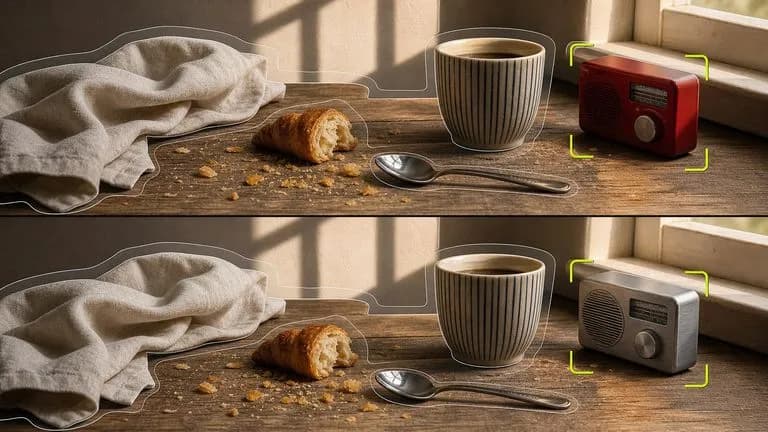
    State what should be different. Anything you do not mention is expected to carry over.

  3. Branch Several Directions

    Run the same source through three or four different instructions and compare the results together.

  4. Re-Run the Winner on Both Versions

    Take the instruction that worked and try it on the other entry before settling.

How to Write a Seedream 4.5 Prompt

A useful Seedream 4.5 prompt usually includes four elements:

  • The Delta
  • The Preserved Set
  • Treatment
  • Framing

与其这样写

Make this photo look better and more professional, nicer background.

不如这样写

Replace the cluttered desk behind the subject with a plain mid-grey wall. Keep the subject's pose, expression, clothing, and the direction of light on their face exactly as they are. Photographic treatment with natural skin texture retained. Keep the original crop and the subject's position in frame.

Seedream 4 Prompt Examples

Photograph to Pen and Ink

Using the supplied photograph, convert the scene to a pen-and-ink drawing. Keep the composition, the position of every object, and the perspective exactly as in the original. Cross-hatching for shadow, clean contour lines, no colour and no grey fill. White paper where the original sky appears.

Product Into a New Setting

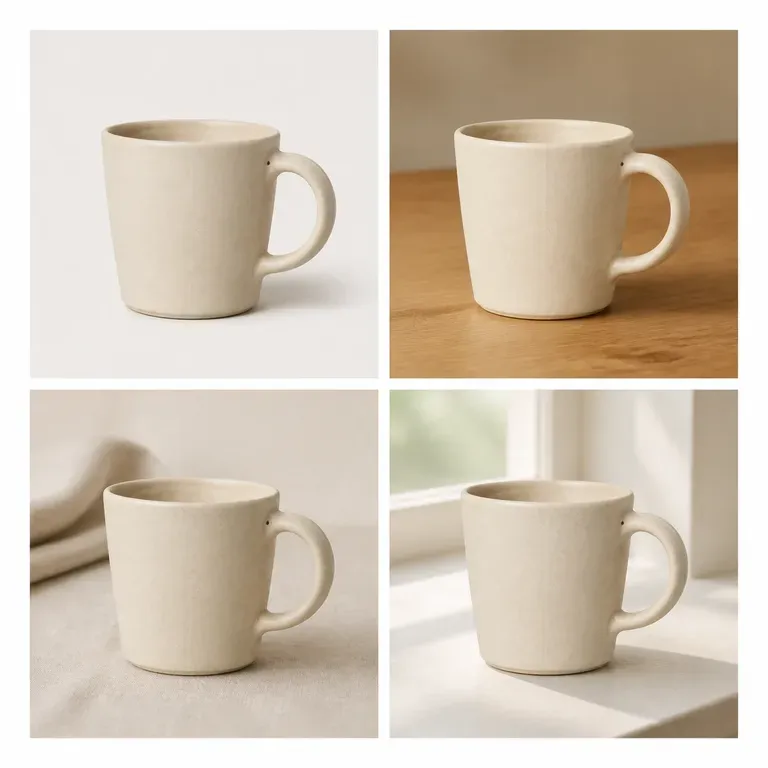
Using the supplied product shot of the ceramic mug, move it from the white studio background to a weathered oak table beside a window. Keep the mug's shape, glaze colour, handle angle, and scale exactly as they are. Soft morning light from the left, one long shadow falling to the right, shallow depth of field behind the mug. Same camera height and framing as the original.

Catalogue Variant Family

Using the supplied image of the folded wool scarf, generate the same shot in a different colourway. Keep the fold pattern, the lighting, the shadow shape, the background, and the crop identical. Change only the yarn colour to deep rust, preserving the visible weave texture. Even shadowless studio lighting throughout, square format.

Seedream 4 vs. Seedream 4.5

对比维度Seedream 4Seedream 4.5
Position in lineEarlier releaseLater revision of the same line
Input modesText and imageText and image
Prompt syntaxPlain descriptive languagePlain descriptive language
Brief portabilityRuns on 4.5 unchangedRuns on 4 unchanged
How to chooseCompare on your own briefCompare on your own brief
Where it fitsEstablished sets built on itNew work on the current revision

Tips for Better Seedream 4 Results

Name What Must Survive

In image-to-image work the preservation clause does as much as the instruction. Listing what stays is what stops the model quietly redoing it.

Reuse the Source, Not the Output

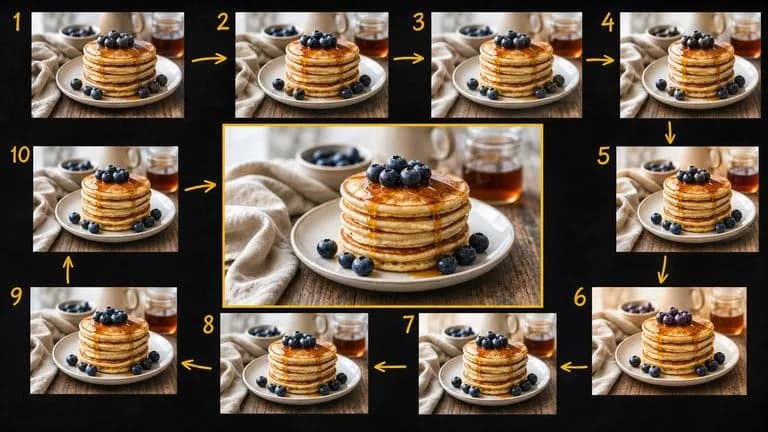
When running one picture through several treatments, go back to the original each time. Chained edits drift a little further with every pass.

Describe the Positive State

Say what should be there rather than listing what should not. Naming an unwanted object often summons it.

Change One Thing per Variant

For a family of outputs, hold everything constant and move a single attribute. That is what makes a set read as a set.

Seedream 4 FAQ

What is Seedream 4.0?
Seedream 4.0 is an image generation model from ByteDance, available in Virse alongside its later revision. Both generate from written descriptions and accept an input image for editing and transformation.
Can Seedream 4 edit an existing image?
Yes, and it is the mode the model is most useful in. Supply a source picture with your instruction and it works from that rather than starting over.
Is Seedream 4 free, and what does it cost?
Seedream 4 is available on Virse's paid plans. Generation draws on a monthly credit allowance rather than a charge per image, and the higher plans make it unmetered within fair use. Current plan rates are listed on the Virse pricing page.
What is the difference between Seedream 4 and Seedream 4.5?
4.5 is the later revision of the same line. Both take the same inputs and the same prompts, so the practical way to choose is to run one brief through both and compare.
Is Seedream 4.0 open source?
No. It is a closed model served through an API, with no published weights and no way to run it locally.
Does Seedream 4 support negative prompts?
Rather than listing what to exclude, describe the desired state directly — "an empty street" instead of "a street with no people". Naming an unwanted object often makes it more likely to appear.
Can Seedream 4 restyle a photograph?
Yes. Converting a photograph into line art, flat vector, or a painterly treatment while preserving the original composition is one of its core uses.
How do I use Seedream 4.0 in Virse?
Select either revision from the model list, attach a source image if you are transforming one, write your instruction, and generate.

One Source, Every Direction

Bring in the picture you already have, branch it into the versions the project needs, and keep the whole tree where you can see it.