How to Use FLUX 3 Image: Edit Photos Without Unwanted Changes
Vincent13분 읽기 ·

To use FLUX 3 Image , select FLUX 3 Image Klein in a compatible interface, enter a prompt to generate an image, or upload an existing image and describe what to change. For more control, use reference images for visual consistency, bounding boxes for object placement, and preservation instructions to protect unchanged details. Local users can also run supported workflows through ComfyUI.
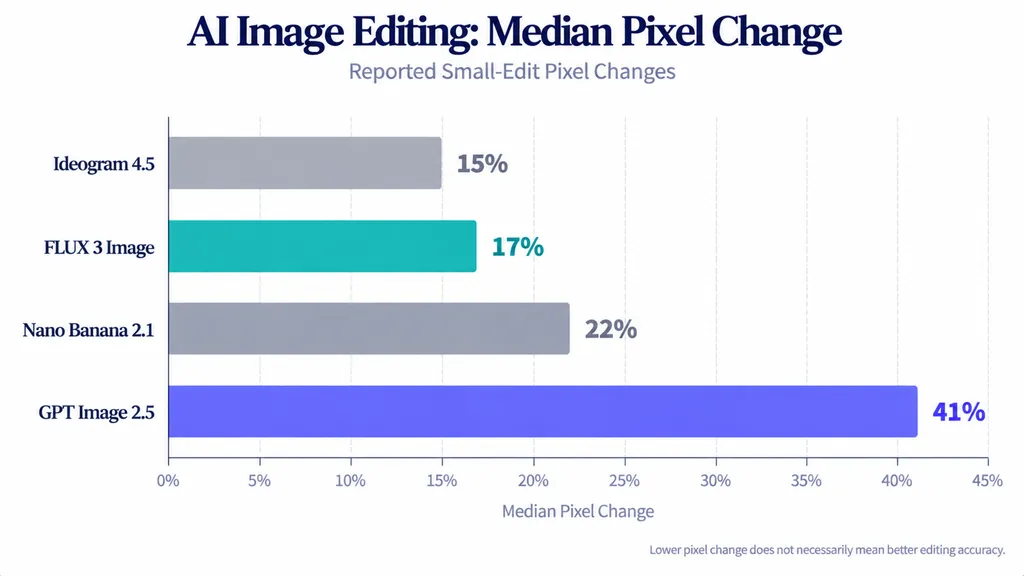
The challenge is making precise edits without changing everything else. Replacing a product, adjusting lighting, or changing clothing can unintentionally alter faces, backgrounds, and composition. In a documented editing experiment examined in our research review, FLUX 3 recorded 17% median pixel change during small edits, compared with 41% for GPT Image 2.5. These limited findings highlight why image preservation deserves separate evaluation.
With Virse, your creative workflow does not have to end with one generated image. Bring FLUX 3 outputs and visual references into an infinite AI canvas, explore alternative design directions, and organize visual iterations within one workspace. Instead of managing disconnected assets, keep your creative context together as concepts develop into finished designs.
What Is FLUX 3 Image, and Which Version Should You Use?
FLUX 3 Image Klein is an open-weight image generation and editing model developed by Black Forest Labs. Its 5.6-billion-parameter image transformer supports text-to-image generation, image modification, up to 10 reference images, and bounding-box-based spatial guidance.
It is suitable for product photography, portrait editing, advertising concepts, and visual workflows requiring repeatable compositions.
FLUX 3 Image Klein vs Klein Base
Feature | Klein | Klein Base |
Checkpoint | Distilled | Undistilled |
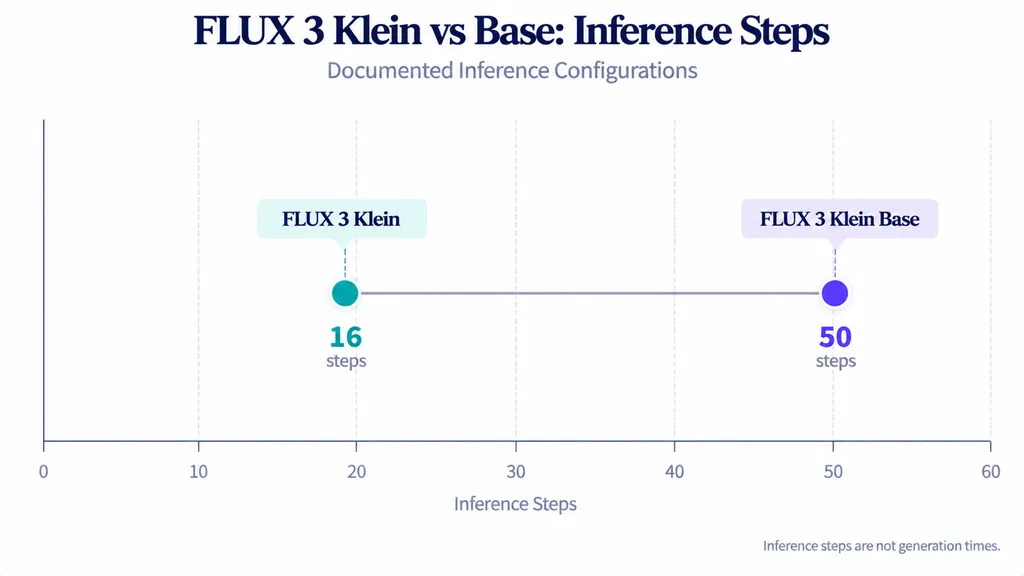
Default steps | 16 | 50 |
Guidance | None | CFG 3.5 |
References | Up to 10 | Up to 10 |
Resolution | Up to 4K | Up to 4K |
Best for | Generation, editing | Training, research |
Choose Klein for everyday image generation and editing. Klein Base primarily targets fine-tuning, LoRA training, and research.
The two checkpoints have different inference configurations, so settings should not be transferred between them without checking the official documentation.
How to Use FLUX 3 Image Online: 5 Practical Steps
The simplest approach is using a hosted interface that explicitly supports FLUX 3 Image Klein. Available controls depend on the provider.
Step 1: Choose a Compatible Interface
Select FLUX 3 Image Klein and confirm that the interface supports your task.
For new compositions, choose text-to-image generation. For existing photographs, use an image-editing workflow.
Do not assume every hosted interface supports reference images or bounding boxes.
Step 2: Prepare Your Visual Brief
Define the subject, environment, camera perspective, lighting, and intended style.
For example, a skincare advertisement may require realistic glass reflections, controlled product placement, and negative space for marketing copy.
Step 3: Enter a Detailed Prompt
Product photography prompt:
"A premium amber skincare bottle on a limestone pedestal, three-quarter camera angle, warm studio lighting, realistic glass reflections, soft shadows, and a minimal beige background."
This gives the model a clearer composition than simply requesting a beautiful product photograph.
Step 4: Generate and Inspect
Review product shape, materials, lighting, background, and composition.
If the bottle looks distorted, refine its physical description. If the scene feels incorrect, adjust the lighting or camera instructions.
Change one major requirement at a time so that improvements remain identifiable.
Step 5: Save and Refine
Preserve successful outputs before making additional edits.
For commercial assets, compare every result against the creative brief, especially product identity, framing, and brand consistency.
A successful generation should satisfy the intended design requirements, not merely look attractive.
How to Write Better FLUX 3 Image Prompts
Effective FLUX 3 prompts describe a complete visual scene rather than relying on isolated keywords.
The official workflow also provides prompt upsampling, which expands short user instructions into detailed captions.
Use Prompt Upsampling
Black Forest Labs explains that the model is trained on detailed captions produced by its prompt-upscaling system. The official reference workflow enables this component by default.
For example, "a perfume bottle on a table" provides insufficient visual direction.
A stronger prompt describes the bottle material, tabletop surface, camera perspective, lighting, and intended photographic style.
For supported local workflows, use the official prompt upsampler rather than assuming a short raw prompt will produce equivalent results.
Use a Repeatable Prompt Structure
A practical structure is:
Subject + Action + Composition + Lighting + Style + Preservation Rules
For generation, emphasize the desired composition.
For editing, preservation rules become essential because they identify which existing visual elements must remain unchanged.
This also makes troubleshooting easier: each requirement can be reviewed independently.
How to Edit Images with FLUX 3 Without Changing the Background
Effective FLUX 3 editing requires separating the requested change from the elements that must remain untouched.
A practical example is changing clothing in a professional portrait while preserving facial identity and body proportions.
Step 1: Prepare the Source Image
Use a photograph with clear facial features, clothing, body contours, and background details.
For product imagery, ensure that packaging and surrounding objects are sufficiently visible.
Step 2: Specify the Modification
Outfit editing prompt:
"Replace the subject's outfit with a black tailored blazer and white shirt. Preserve the original face, hairstyle, body proportions, pose, camera angle, lighting, and background."
The instruction identifies the desired change while describing the original details that matter.
Step 3: Evaluate the Edited Result
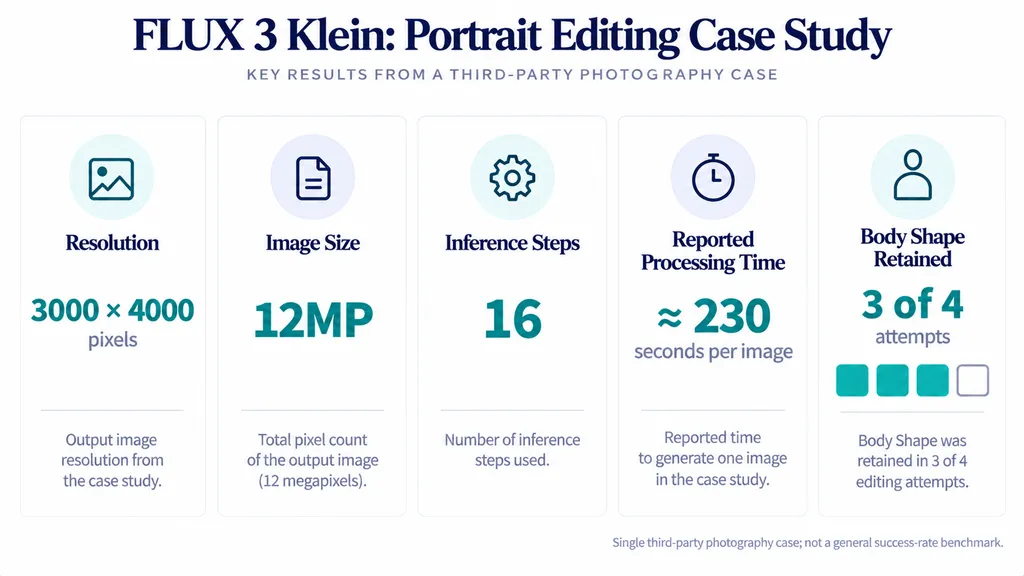
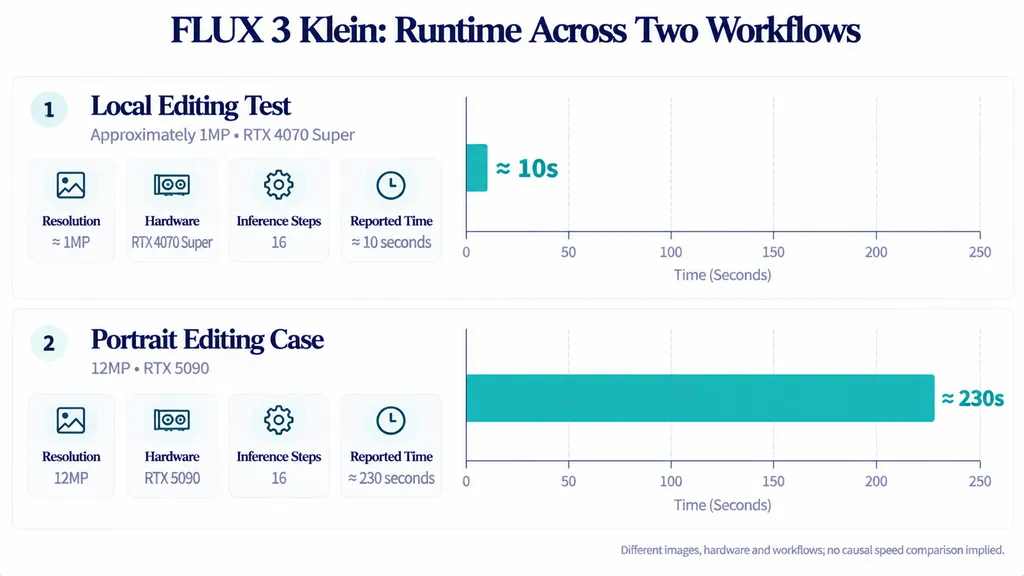
A professional photography case documented in our research materials examined FLUX 3 Klein's ability to change clothing while retaining the subject's original body shape.
Test condition | Reported result |
Resolution | 3000 × 4000 |
Image size | 12MP |
GPU | RTX 5090 |
System RAM | 64GB |
Steps | 16 |
Processing time | Approx. 230 seconds |
Body shape retained | 3 of 4 attempts |
The figures describe a small third-party test, not an independent experiment conducted by our team or a general model success rate.
The important lesson is that clothing accuracy and anatomical preservation are separate requirements.
Step 4: Inspect Preserved Details
Check facial features, hands, body silhouette, lighting, surrounding objects, and framing.
For an ecommerce product replacement, inspect packaging details, shadows, and background materials as carefully as the replacement object.
An edit is not successful if it completes the requested change but damages important approved details.
How to Use FLUX 3 Bounding Boxes for Precise Object Placement
FLUX 3 bounding boxes provide spatial guidance for positioning and scaling image elements.
They are especially relevant to advertising layouts, product compositions, and interior concepts.
How Bounding Boxes Work
The official reference implementation accepts rectangular coordinates ordered as top, left, bottom, and right, normalized between 0 and 1.
Formatted prompt workflows can also use a 0–1000 coordinate system.
These formats are implementation-specific and should not be mixed.
Example: Positioning a Product in an Advertisement
Imagine designing a skincare advertisement with the bottle on the right and empty space for copy on the left.
First, describe the scene and product. Then assign the bottle its intended region using the interface's supported bounding-box format.
Generate the image and compare the resulting placement, product scale, and surrounding composition with the design brief.
Bounding boxes guide placement and scale, but they are not hard pixel masks. Unrelated image regions can still change.
How to Use Multiple Reference Images in FLUX 3
FLUX 3 Image Klein supports up to 10 reference images, allowing different inputs to guide identity, pose, composition, and style.
The most useful workflow assigns each reference a specific responsibility.
Combine Identity and Pose References
Use one photograph to establish identity and another to communicate the desired pose.
Example prompt:
"Use the first reference for facial identity and hairstyle. Use the second for pose and camera angle. Create a realistic studio portrait with soft lighting and a navy jacket. Preserve the first subject's identity."
Review the final face and pose separately to determine which requirement needs adjustment.
Avoid Conflicting References
Different references may introduce incompatible camera angles, lighting, or body positions.
Begin with the minimum images necessary and add new references only when they provide useful information.
More reference images do not automatically produce greater consistency.
The official model documentation also clarifies that reference images anchor visual content but do not rigidly lock scene structure.
How to Use FLUX 3 Image in ComfyUI
ComfyUI provides a local, node-based environment for configuring generation and editing workflows.
Black Forest Labs distributes compatible model packages and example workflows for text-to-image generation, image editing, and bounding-box-based editing.
Step 1: Prepare the Model Files
Access the official FLUX 3 Image Klein ComfyUI repository and accept the applicable model access conditions.
Choose the checkpoint precision appropriate for your hardware.
The package includes the image transformer, text encoder, image autoencoder, and an optional prompt-upscaling component.
Step 2: Load the Official Workflow
Use the provided workflow matching your task:
- Text-to-image: Generate an image from a prompt.
- Image editing: Upload a source and specify a modification.
- Bounding-box editing: Combine a source image with spatial instructions.
Load the corresponding model components before executing the workflow.
Step 3: Configure Sampling
For distilled Klein, use the documented 16-step configuration without CFG.
Klein Base uses 50 steps and CFG 3.5.
Prompt upsampling is important for achieving results aligned with the model's intended caption format.
Step 4: Run and Inspect
Generate the image, review the output, and record the settings used.
For editing, compare the original and modified images to identify both successful changes and unintended differences.
What Local Performance Tests Show
A documented local comparison included in our research review reported:
Metric | FLUX 3 Klein | Qwen Turbo |
GPU | RTX 4070 Super | RTX 4070 Super |
Resolution | Approx. 1MP | Approx. 1MP |
Steps | 16 | 8 |
Sampler | Euler | Euler |
Time | Approx. 10s | Approx. 3s |
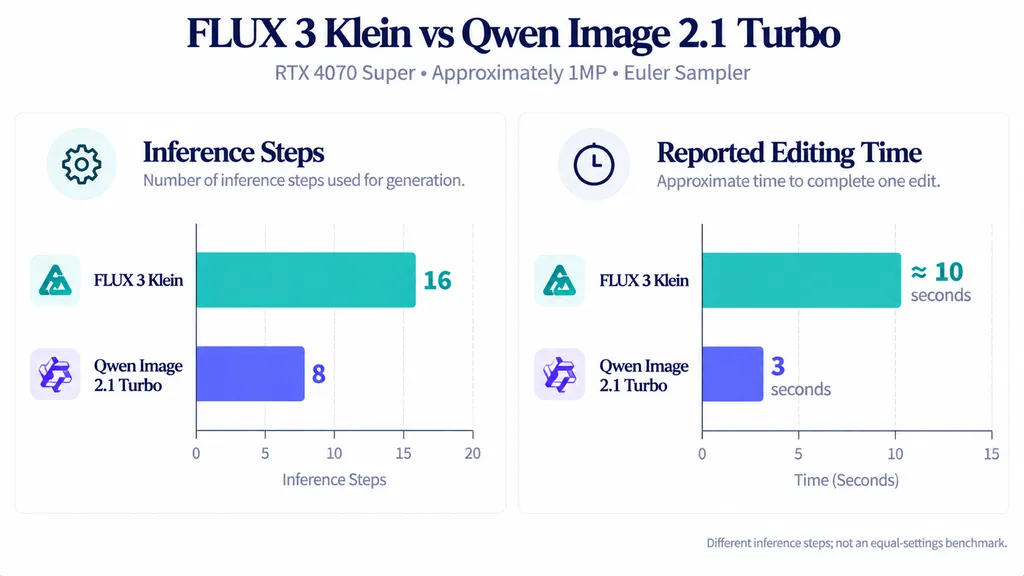
Qwen Turbo refers to the Qwen Image 2.1 Turbo configuration in the reported test.
Because sampling steps differed, these figures are not an equal-settings speed benchmark.
For professional workflows, evaluate usable output quality, editing accuracy, and correction time alongside inference speed.
Best FLUX 3 Image Prompts for Real Design Tasks
A reliable editing prompt identifies the target, describes the modification, and protects unrelated visual details.
Product Replacement Prompt
"Replace the ceramic cup with a transparent glass cup. Preserve the wooden table, background objects, camera perspective, lighting, and realistic shadows."
Best for: Ecommerce photography and marketing variations.
Review: Compare the original and edited backgrounds, object boundaries, and shadows.
Lighting Adjustment Prompt
"Change only the lighting to blue-hour ambient light after sunset. Add cool diffuse illumination and soft shadows. Preserve the subjects, clothing, composition, and background."
Best for: Photography retouching and architectural concepts.
Review: Check whether the lighting changes without affecting object shapes or composition.
Character Consistency Prompt
"Change the person's jacket to dark brown leather. Preserve facial identity, hairstyle, skin texture, body proportions, posture, and background."
Best for: Fashion concepts and portrait editing.
Review: Inspect facial identity, anatomy, and clothing accuracy separately.
These are illustrative prompt templates, not independently verified success claims.
How to Prevent Image Drift During Repeated FLUX 3 Edits
Image drift occurs when repeated modifications unintentionally change visual elements outside the intended editing area.
This can undermine visual consistency in product photography, advertising, and character design.
Case Study: 30 Changes Across 6 Editing Rounds
Our research review includes a documented café-image editing experiment involving 30 requested modifications across 6 editing rounds.
The reported median pixel-change measurements for small edits were:
Model | Pixel change |
Ideogram 4.5 | 15% |
FLUX 3 Image | 17% |
Nano Banana 2.1 | 22% |
GPT Image 2.5 | 41% |
These values originate from a third-party experiment summarized in the research materials. The complete original methodology and individual outputs were not independently verified.
FLUX 3 recorded less pixel change than Nano Banana 2.1 and GPT Image 2.5 in this experiment, but more than Ideogram 4.5.
However, changing fewer pixels does not automatically indicate better editing.
A model could preserve the image while failing to complete the requested task.
A Practical Framework for Evaluating Image Drift
Use three separate measures:
- Task Success: Did the requested modification occur?
- Image Preservation: Did unrelated elements remain consistent?
- Cumulative Drift: How far did successive outputs move from the original?
Save the source image and every successful intermediate version.
After each edit, compare the target area and unrelated regions. If essential details drift, return to the last acceptable output.
This separates visual attractiveness from the requirements that determine whether an asset is usable.
Common FLUX 3 Image Problems and How to Fix Them
Our review of editing experiments and user questions identifies recurring challenges involving image preservation, identity consistency, and instruction accuracy.
Why Does FLUX 3 Change the Background?
A localized instruction may be interpreted as a broader scene modification.
Fix: Identify which background objects, lighting conditions, camera angles, and environmental details must remain unchanged.
Where supported, use spatial controls to clarify object placement.
Why Does FLUX 3 Change Faces or Body Proportions?
Clothing and pose modifications can unintentionally affect identity or anatomy.
Fix: Use a clear identity reference and explicitly protect facial features, body shape, and posture.
Review anatomical consistency separately from clothing accuracy.
Why Does FLUX 3 Ignore Part of a Prompt?
Ambiguous or competing instructions make the intended result harder to interpret.
Fix: Prioritize the essential modification, identify the target precisely, and remove unnecessary style requirements.
When using multiple references, assign each image a distinct purpose.
Why Does FLUX 3 Become Less Consistent After Several Edits?
Successive outputs may accumulate unintended visual changes.
Fix: Save intermediate versions, inspect every result, and return to an earlier successful output when important details deteriorate.
For professional production, repeatable accuracy is more valuable than a single visually impressive result.
FAQs
How do I use FLUX 3 Image as a beginner?
Choose a compatible platform, select FLUX 3 Image Klein, and enter a detailed prompt describing the subject, composition, lighting, and style. To edit an image, upload the original and specify the required modification. Review the result before refining it. Begin with simple generation and single-image editing before using advanced reference or spatial controls.
Can FLUX 3 edit an image without changing the face or background?
FLUX 3 supports targeted image editing, but complete preservation is not guaranteed. Describe the modification precisely and specify which facial features, body proportions, lighting, and background elements should remain unchanged. Reference images help communicate identity, while bounding boxes guide placement. Always inspect the entire output.
Can I use FLUX 3 with multiple reference images?
Yes. FLUX 3 Image Klein supports up to 10 reference images. Different images can communicate identity, pose, composition, or style. Assign each reference a clear purpose and verify that your chosen interface supports the inputs. More references do not automatically improve consistency.
Why does FLUX 3 change unrelated objects after repeated edits?
Repeated image editing can accumulate unwanted visual differences. Reduce drift by specifying preservation requirements, saving successful intermediate versions, and comparing outputs against the original. When important details change unexpectedly, return to an earlier acceptable result rather than continuing from a degraded image.
Conclusion
Learning how to use FLUX 3 Image effectively requires more than writing detailed prompts. Reliable generation and editing depend on choosing the correct checkpoint, using prompt upsampling where supported, defining precise modifications, and protecting existing visual details. Reference images and bounding boxes provide additional guidance, while documented photography and repeated-editing experiments demonstrate why task success, image preservation, and processing time should be evaluated independently. For designers creating product photographs, portraits, advertising assets, and visual concepts, combining clear instructions with careful iteration and systematic quality checks provides a stronger foundation for consistent, usable results.