
Instruction-Based Editing
Describe the change in a sentence rather than selecting a region.
Black Forest Labs' editing models, FLUX Kontext Pro and Kontext Max, built to apply one described change while the rest of the frame survives untouched.
데스크톱 브라우저에서 이 페이지를 열어 창작을 시작하세요.
FLUX Kontext exists because "edit this image" and "generate a similar image" are different jobs that most models perform identically.
Ask a generator to change one thing in a photograph and you usually get a plausible new picture back — composition subtly redrawn, details you never mentioned quietly rearranged, the subject almost but not quite the same person. Kontext is built the other way round. Its design goal is to apply the change you named and return everything else recognisably intact.
Use FLUX Kontext when something already exists and needs one specific thing to be different. Swap backgrounds, remove objects, change materials and colours, adjust the light, and chain those changes one at a time so every step stays reviewable.
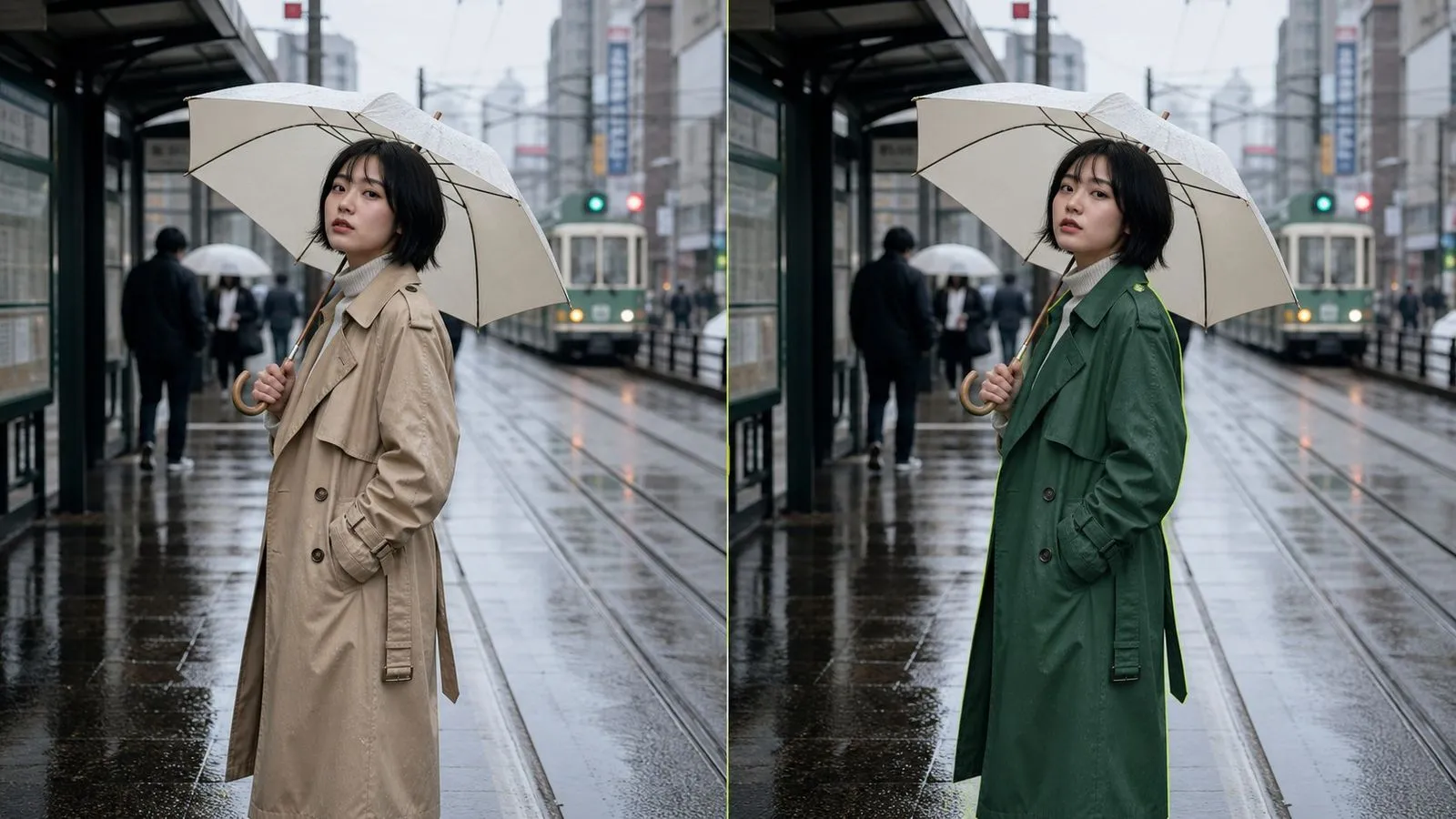
FLUX Kontext is an image editing model family developed by Black Forest Labs, offered in Virse as two entries: FLUX Kontext Pro and FLUX Kontext Max. You supply a picture and a written instruction, and the model interprets that instruction in the context of what is already in the frame — which is where the name comes from.
The model is built around three major strengths:
Both entries accept the same inputs and the same instructions, differing in headroom on demanding edits rather than in what they can be asked to do. There is no mask to paint, no region to lasso, and no layer stack to manage.
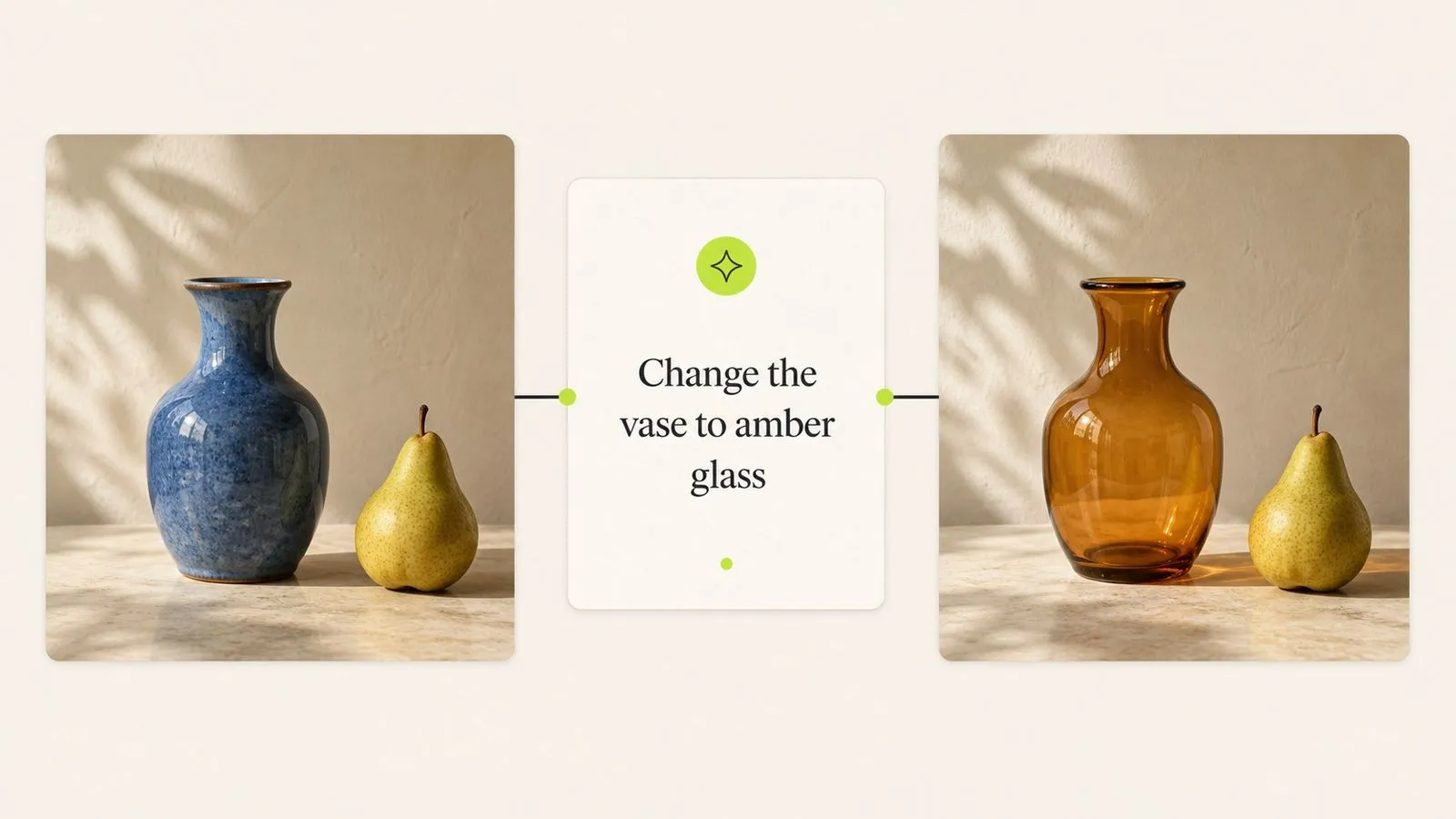
Describe the change in a sentence rather than selecting a region.
Anything you do not mention is meant to come back unchanged.
Kontext Pro for everyday work, Kontext Max for compounded edits.
Targeting happens in language: name the object and where it sits.
Feed a result back in to layer the next change as a separate step.
A brief written for one entry runs on the other unmodified.
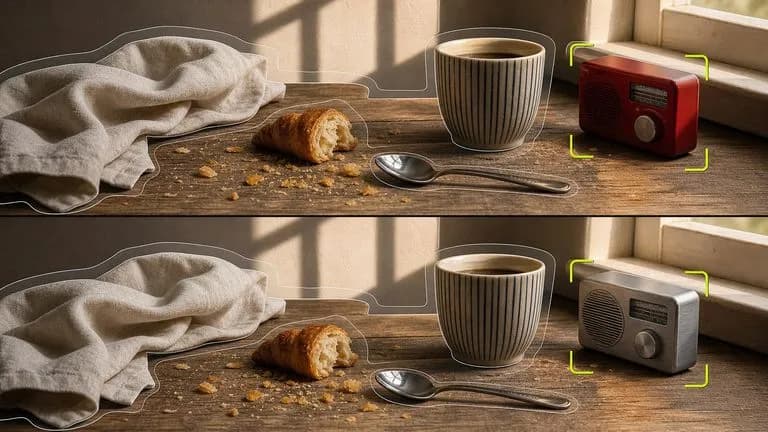
Naming what must stay is not filler in a Kontext instruction, it is the load-bearing half. The model is built to honour it, which is the behaviour that separates an editing model from a generator handed an input image.
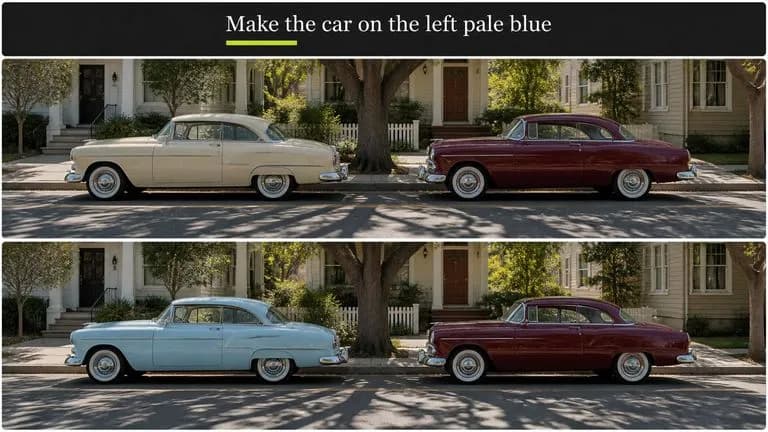
"The car on the left" is a valid way to point at something. There is no mask to paint and no path to draw, which removes the step that usually makes small edits not worth doing.
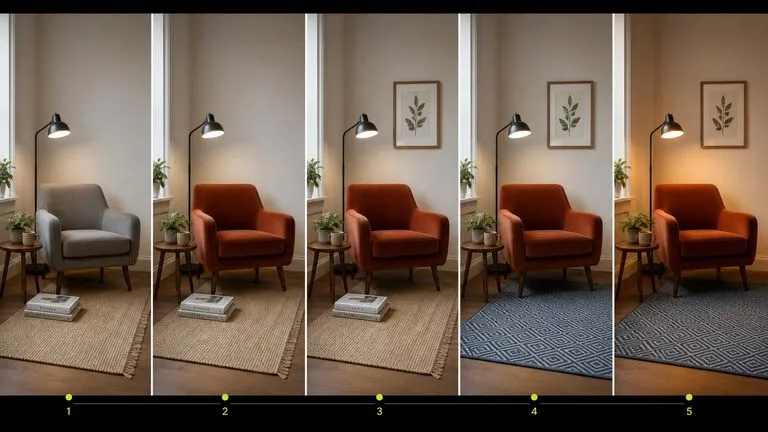
Because each pass returns a picture rather than a reinterpretation, running five single changes in sequence produces five reviewable states instead of accumulating drift.
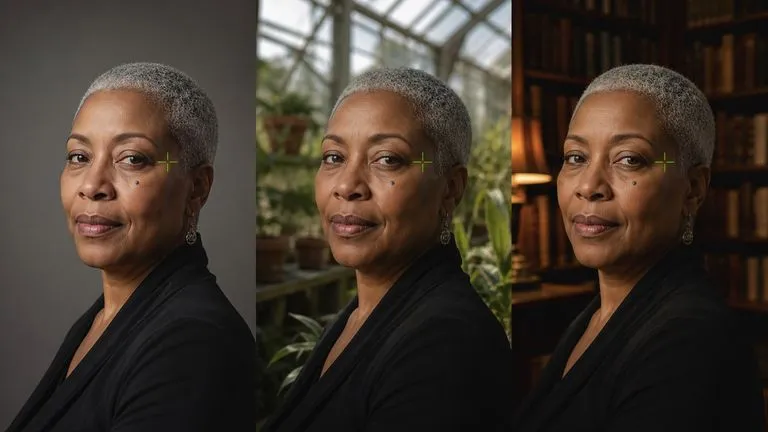
A person or product that has to stay recognisable across a run of edits holds better here than through repeated generation, because nothing is being regenerated.
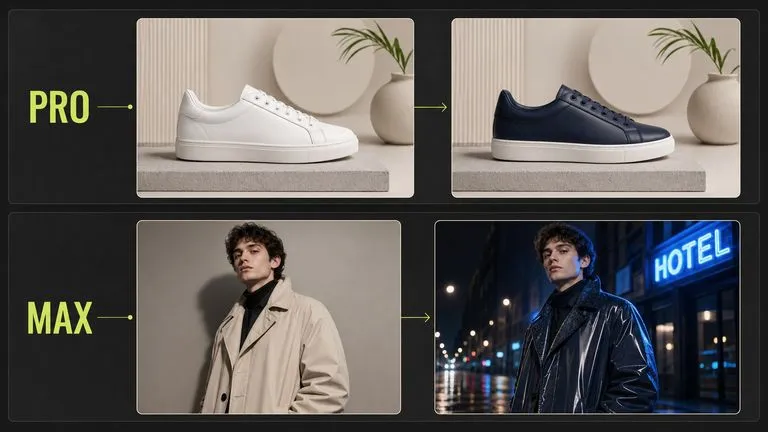
Kontext Pro handles the everyday case. Kontext Max carries more headroom for instructions that change several related things at once — a background and the lighting on the subject, or a garment while a pattern survives.
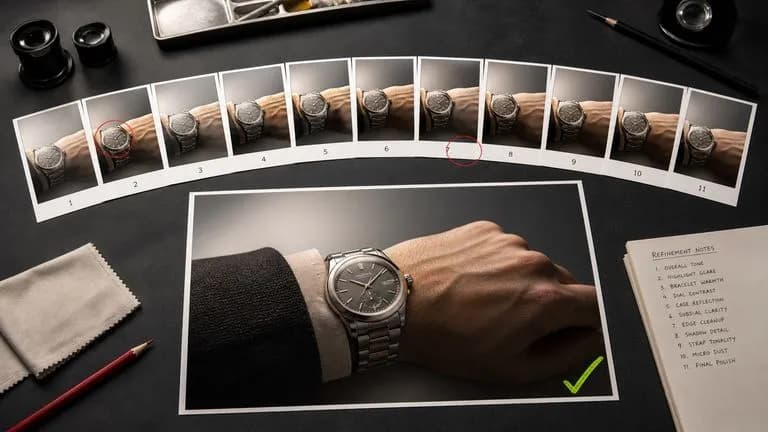
Most models are optimised for the first image. This one is optimised for the eleventh, which is where finished assets actually get made.
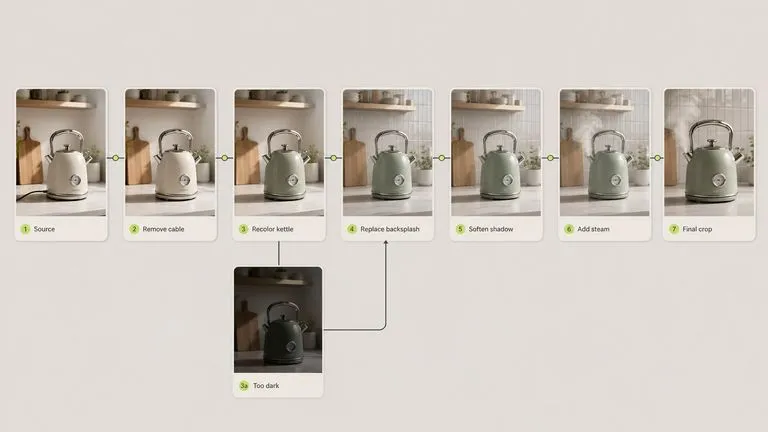
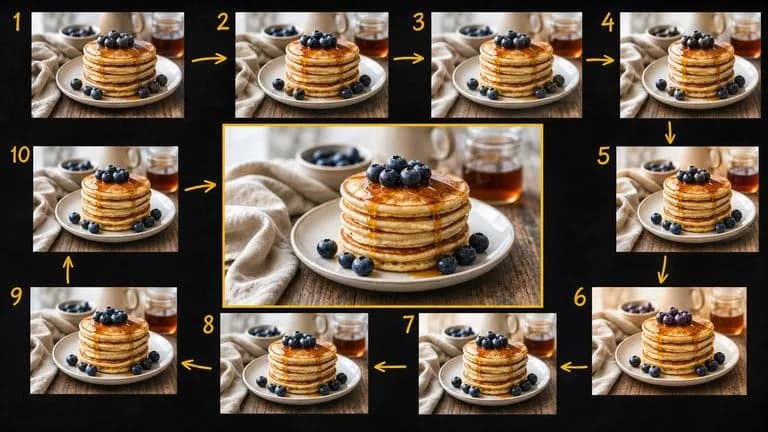
Editing is iterative and iteration produces near-identical files. Version four is usually the good one, and by version nine nobody can tell them apart from a filename. Virse keeps the chain visible. The source, every intermediate pass, and the final image sit beside each other on one canvas, so an edit that went the wrong way costs a single step rather than the whole thread.
Every pass stays laid out in order, which makes it obvious where a sequence stopped improving.
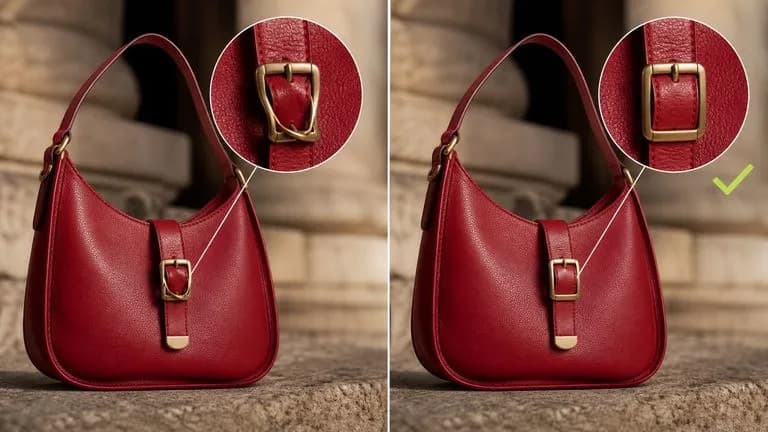
A near-miss from an expensive generator is often cheaper to fix here than to regenerate there, and the fix happens without leaving the canvas.
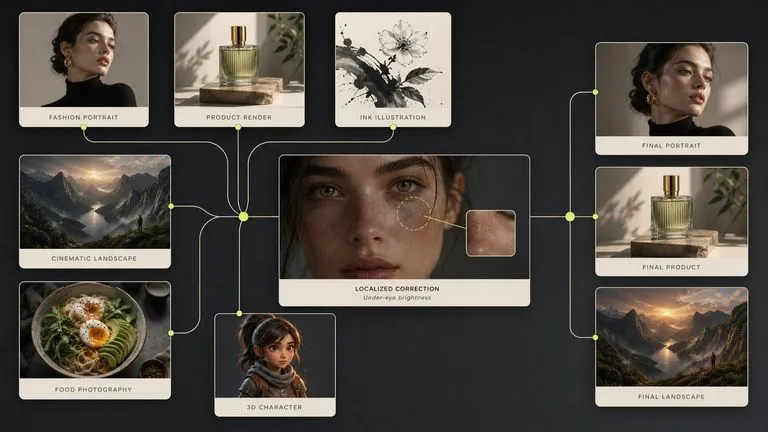
Move between FLUX Kontext and 30+ other image and video models without leaving the canvas or rewriting the brief.
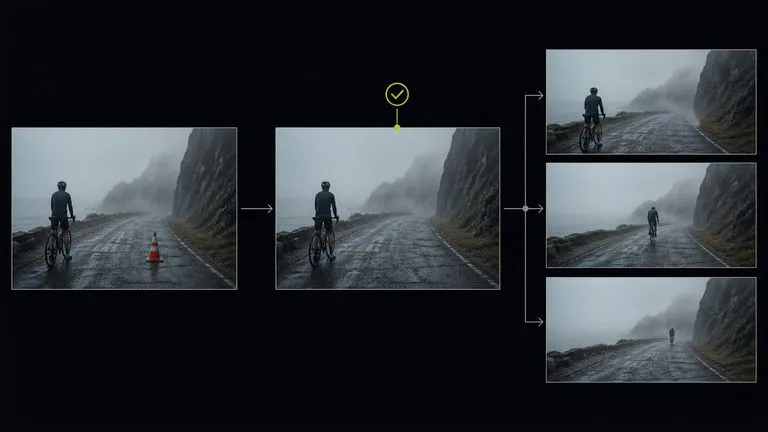
Adjust an opening frame until it is right, then hand it to Seedance 2.0, Kling 3.0, or Veo 3.1.
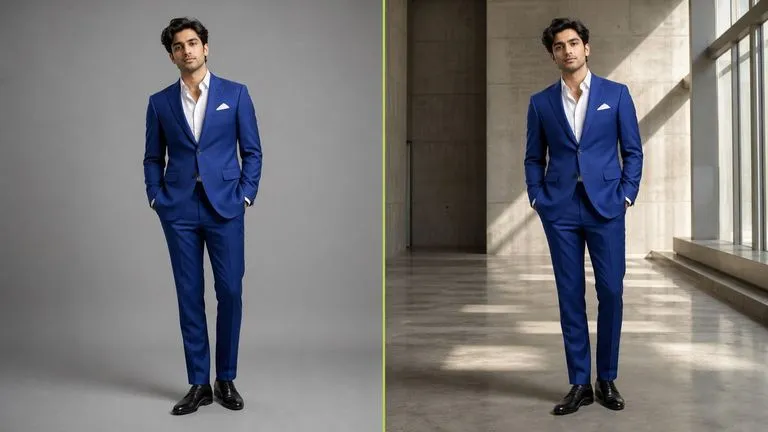
Move a subject onto a new backdrop while pose, scale, and lighting survive.
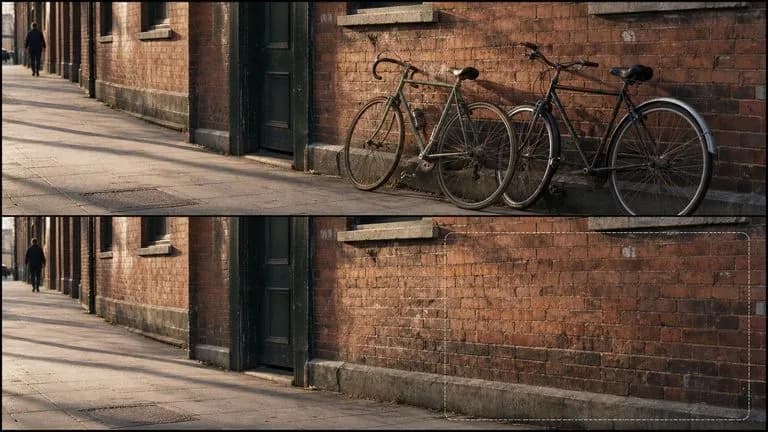
Take an element out and have the space filled with what plausibly belongs there.
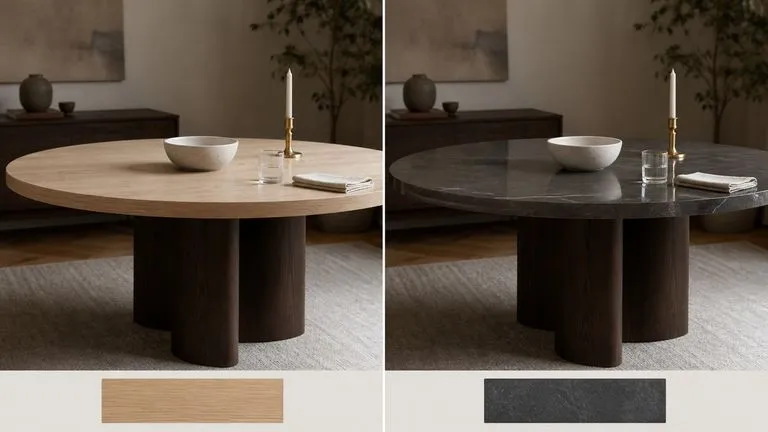
Turn linen into velvet or beige into forest green while shape and shadow hold.
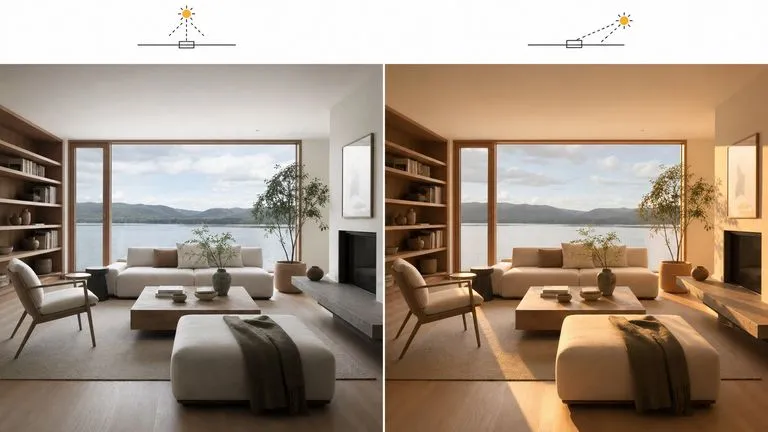
Relight a scene without rebuilding it.
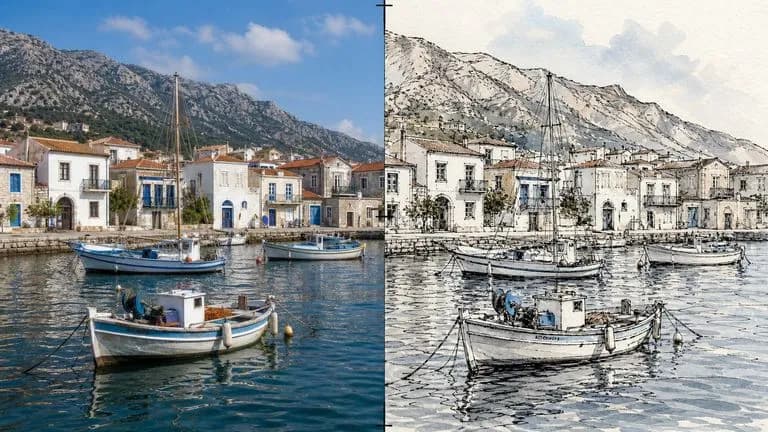
Convert a photograph to a drawing while the composition stays exactly in place.
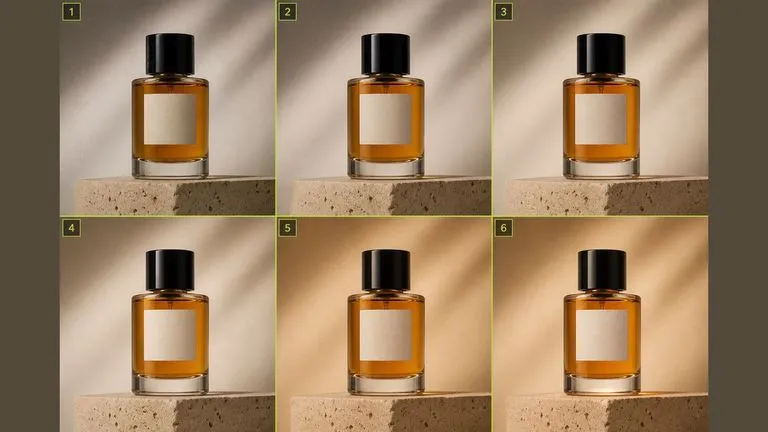
Chain a run of single corrections into a finished asset, one reviewable step at a time.
Bring in a photograph, a generated picture, or a frame from elsewhere on the canvas.
State what should be different, and name what must stay exactly as it is.
Look at the parts you did not ask about, especially near the edges of the frame.
Feed the result back in for the following edit rather than describing everything at once.
A useful FLUX Kontext prompt usually includes three elements:
이렇게 쓰는 대신
A woman in a red dress standing in a modern kitchen with marble countertops, natural window light, professional photography.
이렇게 쓰세요
Change the dress to red. Keep the woman's pose, face, hair, and position in the frame exactly as they are, and leave the kitchen and the lighting untouched.

Remove the two bicycles leaning against the wall on the right side of the image. Fill the space with a continuation of the same brick wall and pavement, matching the existing texture, mortar lines, and shadow direction. Leave the rest of the street, the doorway, and the figure on the left completely unchanged.

Change the tabletop from pale oak to dark polished slate. Keep the table's shape, edge profile, and position identical. Keep every object on the table exactly where it is, at the same scale and angle. Update only the reflections and contact shadows on the surface so they read correctly against the new material.

Change the light in the room from midday overhead to late afternoon entering low from the right. Keep the furniture, the camera position, and every object exactly where it is. Lengthen the shadows to match the new direction and warm the colour temperature slightly. Leave the view through the window unchanged.
| 비교 항목 | FLUX Kontext Pro | FLUX Kontext Max |
|---|---|---|
| Positioned for | Everyday single-change edits | Compounded or demanding edits |
| Input | Image plus written instruction | Image plus written instruction |
| Instruction set | Identical to Max | Identical to Pro |
| Masking | Not required | Not required |
| Typical use | Volume retouching, background swaps | Several related changes in one pass |
| Switching cost | Brief runs on Max unchanged | Brief runs on Pro unchanged |
"Keep everything else unchanged" measurably reduces drift. It is the single most useful habit on this model.
Chaining three single edits beats one instruction containing three, and it leaves you three places to step back to.
"The car on the left" is targetable. "The car" is ambiguous the moment there are two of them.
Drift shows up at the edges of the frame, away from where you were looking when you wrote the instruction.
Explore focused tools for creating, editing, and preparing design assets.
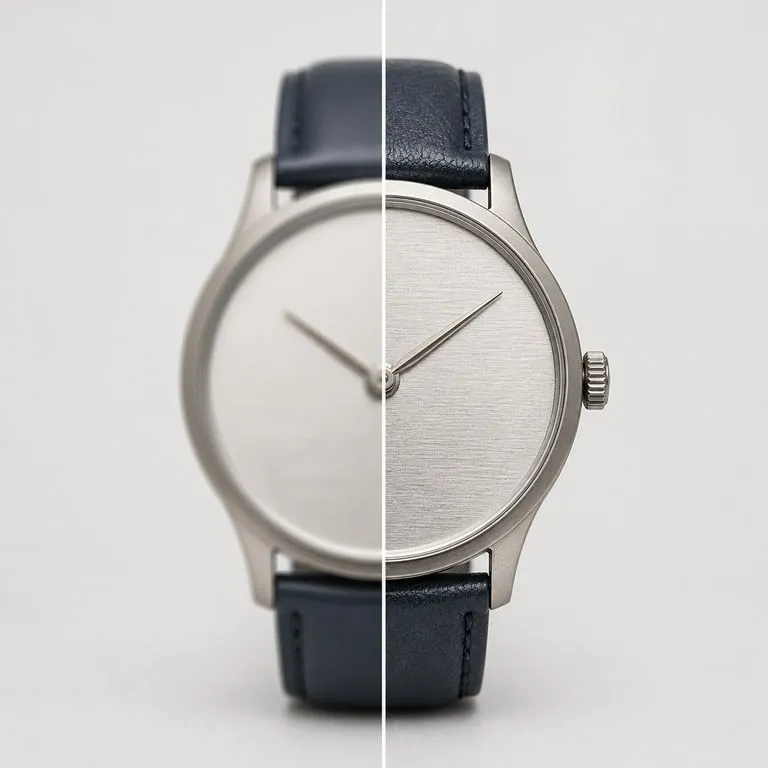
사용하기에 충분히 좋지 않은 사진을 업로드하세요. 흐림, 노이즈, 압축 아티팩트 또는 단순한 픽셀 부족 등 실제로 무엇이 문제였는지 파악하고, 먼저 이를 보정한 다음 선택한 해상도로 렌더링합니다.
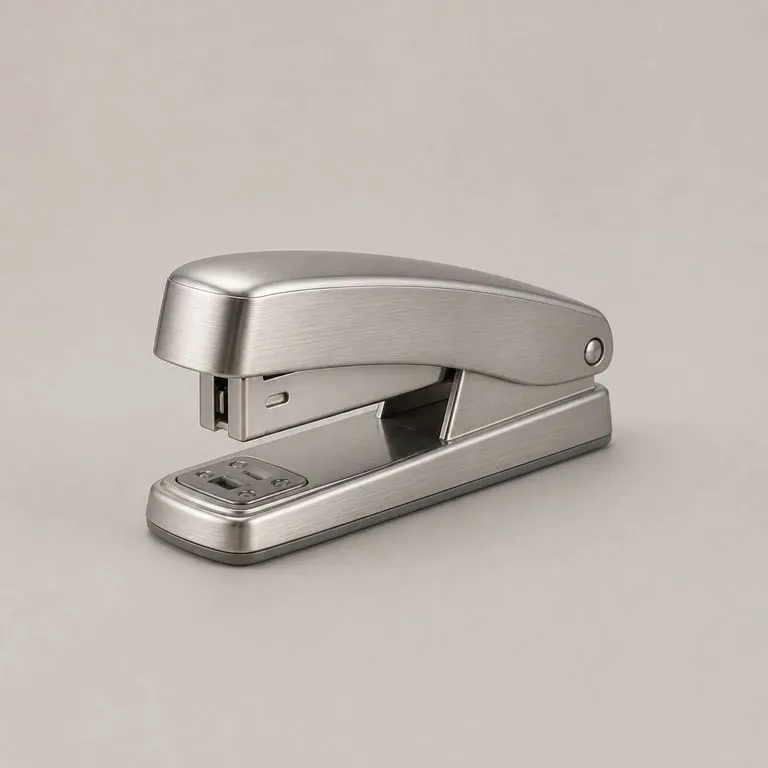
제품 사진과 소재 참조 이미지를 업로드하세요. 내부 구조를 읽고, 어떤 패널이 무엇인지와 각 표면이 어디에서 꺾이는지 파악한 다음, 조명은 일관되게 유지하고 형태는 원래 위치 그대로 둔 채 새 소재를 그 구조에 맞춰 입힙니다.
내 이미지와 톤 레퍼런스를 넣어보세요. 레퍼런스의 그레이드는 Lab 통계 매칭을 통해 전송됩니다. 이는 재생성이 아니라 계산 방식이므로, 팔레트는 바뀌어도 구조와 콘텐츠는 픽셀 단위로 동일하게 유지됩니다.
Google's Gemini 2.5 Flash Image — the original Nano Banana — generates and edits pictures at conversation speed, so a correction takes a sentence instead of a session.
ByteDance의 Seedream 4.0 및 Seedream 4.5는 작성한 설명과 제공한 이미지로부터 생성하여, 하나의 원본 사진을 프로젝트에 필요한 만큼 다양한 방향으로 전개합니다.
Alibaba's Qwen Image 3.0 Pro renders type as language across a dozen scripts, holding legibility down to ten pixels in dense layouts.
Describe the difference instead of rebuilding the picture, and chain the edits so every step stays somewhere you can return to.