

Plan for the Destination Shape
State the width-to-height ratio or composition you need. A portrait frame may need room above the subject, while a wide frame needs more space to the sides.
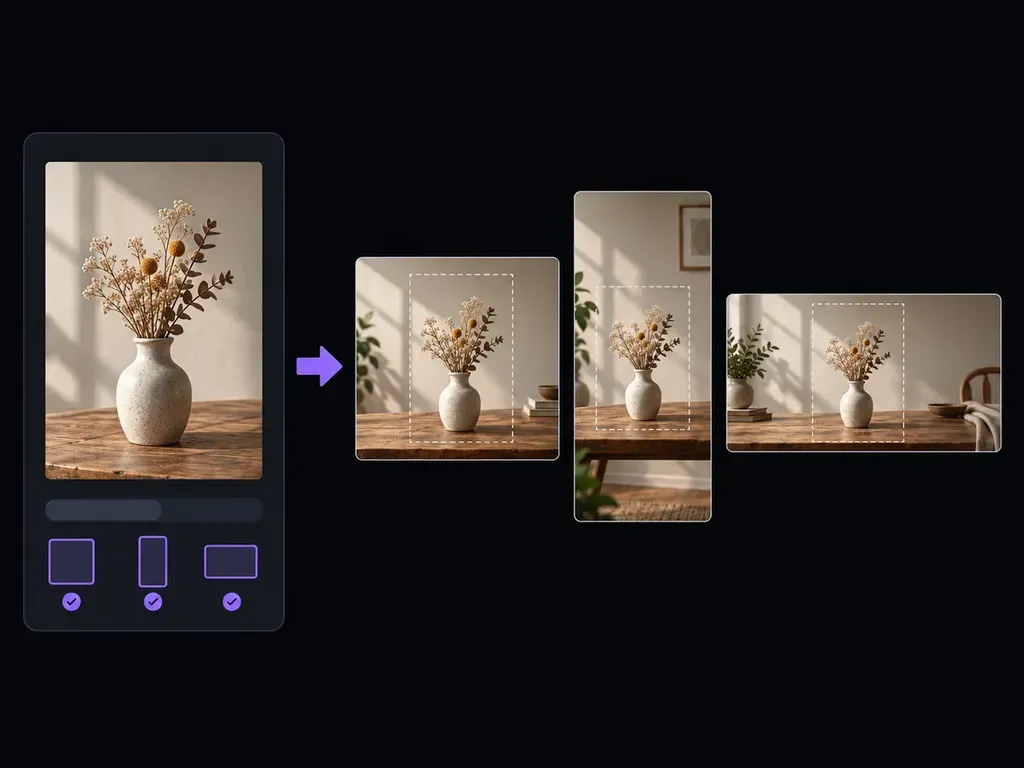
A square product shot and a wide header need different compositions. Add your source image and tell Virse the shape you need. The AI aspect ratio changer extends the surroundings to create room around the subject, giving you a composition to review for its next use.
An AI aspect ratio changer adapts an image to a new width-to-height shape by generating surrounding content. It creates a revised composition rather than simply stretching pixels. Check the added areas and subject after generation.

Start with the destination: a tall post, a square card or a wide header. Then decide where the subject should sit within that shape.
State the width-to-height ratio or composition you need. A portrait frame may need room above the subject, while a wide frame needs more space to the sides.

Describe how the background should continue. A quiet wall, more sky or a longer tabletop can help a subject fit without becoming stretched.
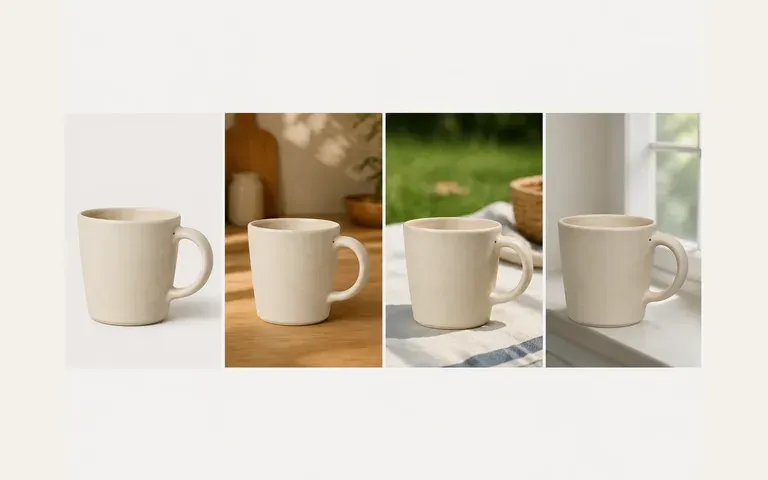
Compare the framing and added details at the size you plan to use. Keep important parts away from edges that may be cropped elsewhere.
Use a clear source with a subject you want to keep. Note any important details close to the existing edges.
Tell Virse the target ratio and where you want extra room. Add a description if the surrounding area needs a particular appearance.
Continue in the workspace and review how the subject fits the new frame. Check the new surroundings as well as the original focal point.
View the result in its intended layout. Confirm that later crops or text overlays will not hide the important parts of the image.
A change in shape can make an image easier to place, provided the new composition still serves the subject.

Prepare an image concept for a tall or square layout. Keep captions and essential text separate from the generated picture.

Explore a wider composition for a banner or header. Leave space where the final layout needs a headline or navigation.

Compare product placement in different image shapes. Check that the item remains accurate before using the result in a listing.
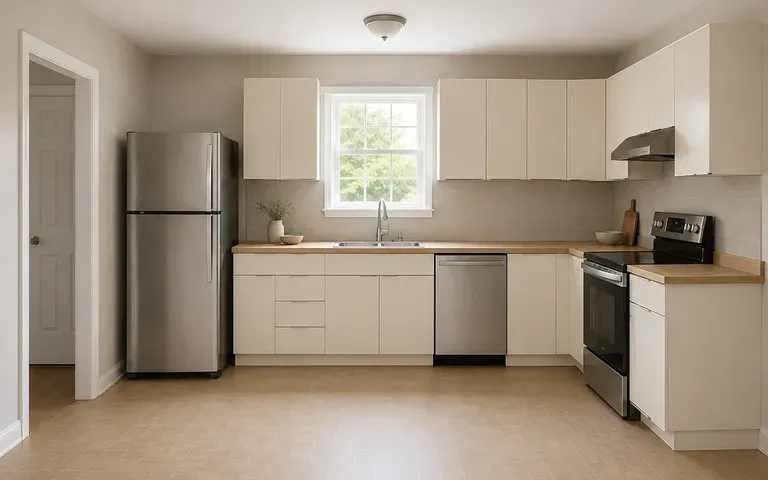
Fit an image direction to a wide slide. Judge the balance beside your text instead of relying on a mechanical stretch.
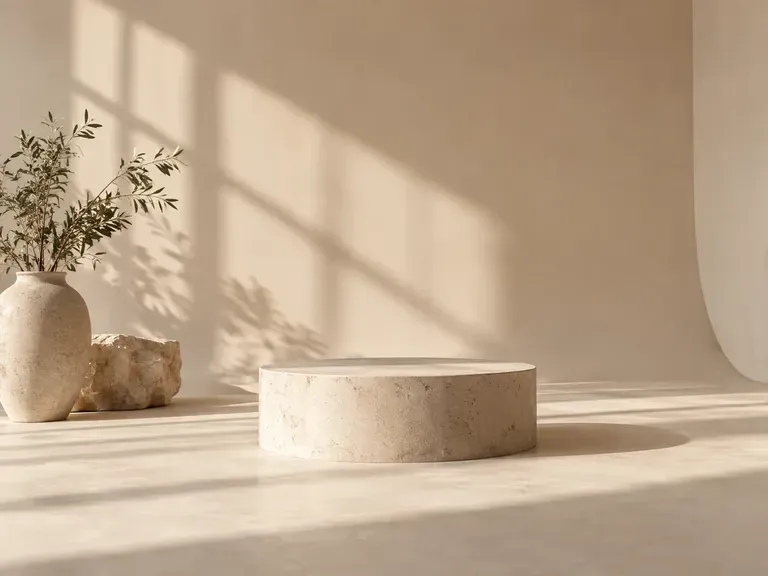




Start with your destination shape and a clear source image. Describe the surrounding space, then compare the new composition before placing it in your design.