Browse documentation

Agent Mode Guide

Agent Mode is especially useful for:

Scenario

What it can do

Multi-step automation

Describe the goal once instead of operating step by step. The Agent breaks down and executes the intermediate steps.

Content packages

Produce content plans, series images, copy, and other packaged outputs as one module.

Work from existing materials

Connect images, text, or modules from the canvas and continue creating from your existing materials.


1. Add an Agent node

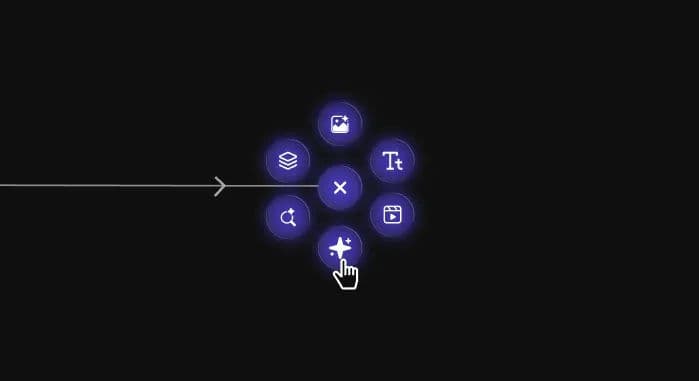
Add an Agent node to the canvas.

The radial node menu on the canvas, with the Agent node under the cursor

2. Connect materials

Connect the nodes the Agent should use: images, text, videos, or even an entire module. Different input types let the Agent do different kinds of work.

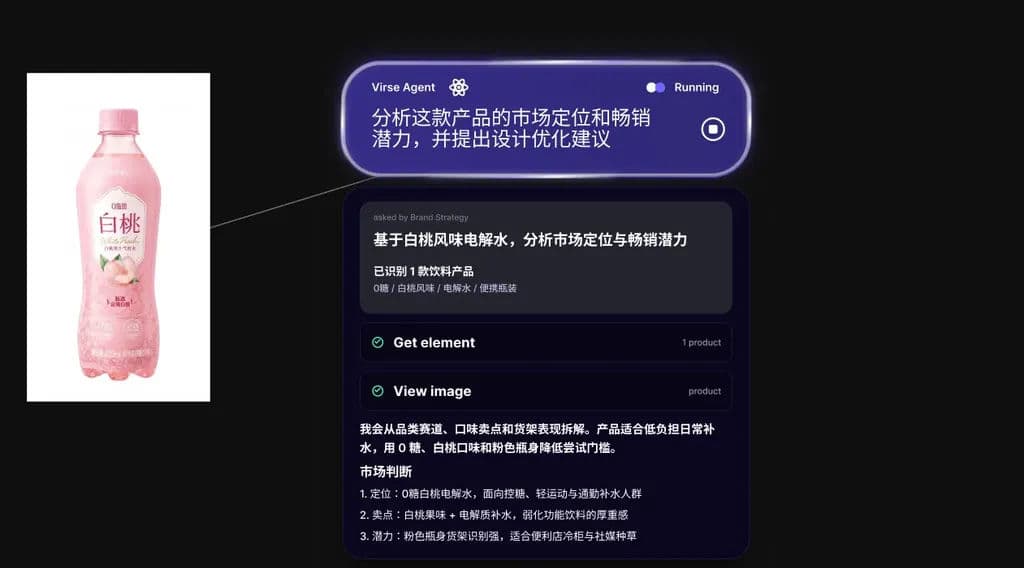
Connect an image node to the Agent

An image node of a peach drink wired into a running Agent that is analysing the product's market positioning

The Agent can inspect image content, analyze design, break down composition, interpret style, and directly use the image for editing or video creation.

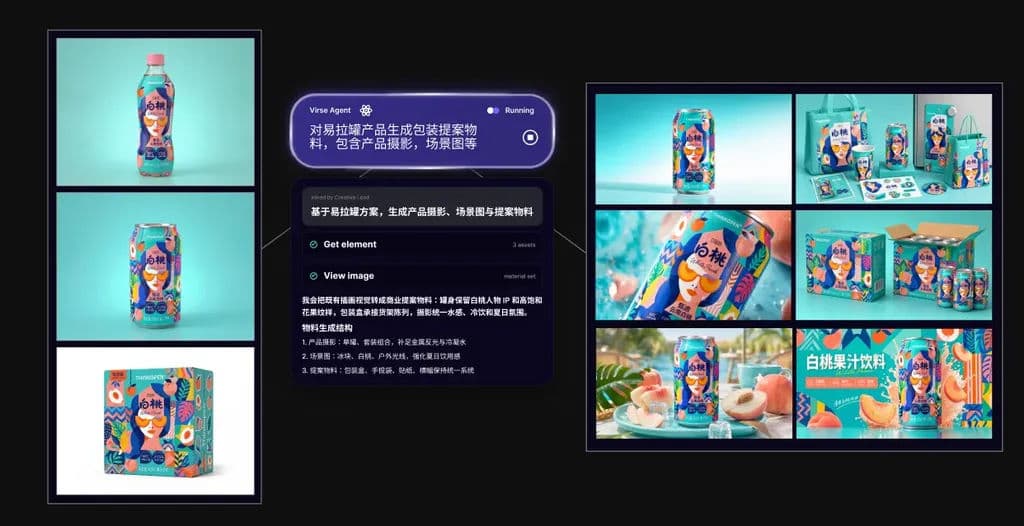
Connect a module to the Agent

A can product connected to an Agent generating packaging assets: product photography, scene shots and video

The Agent can understand a group of related materials as a whole. It can also package related images, text, and videos into a new reusable module.

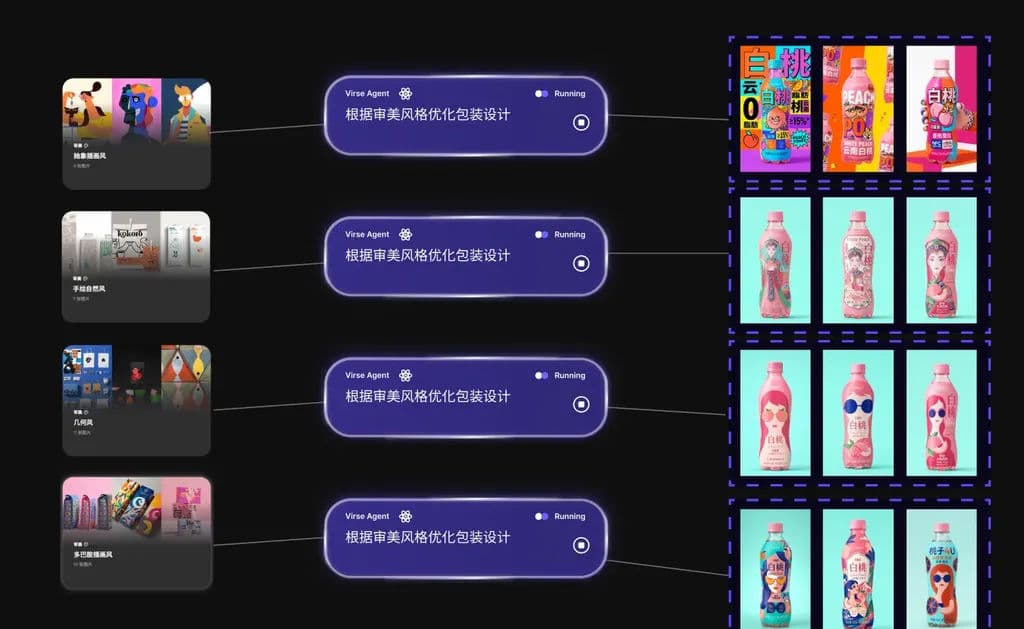
Connect an Aesthetic Node to the Agent

Asset nodes connected to an Agent running an aesthetic-style task, with the resulting packaging variations

The Agent can read the style model in an Aesthetic Node and apply that aesthetic logic while executing the task.

3. Give the Agent a task

Tell the Agent what you want in chat. It understands the task, breaks it into steps, and runs them in sequence. You only need to wait for completion.

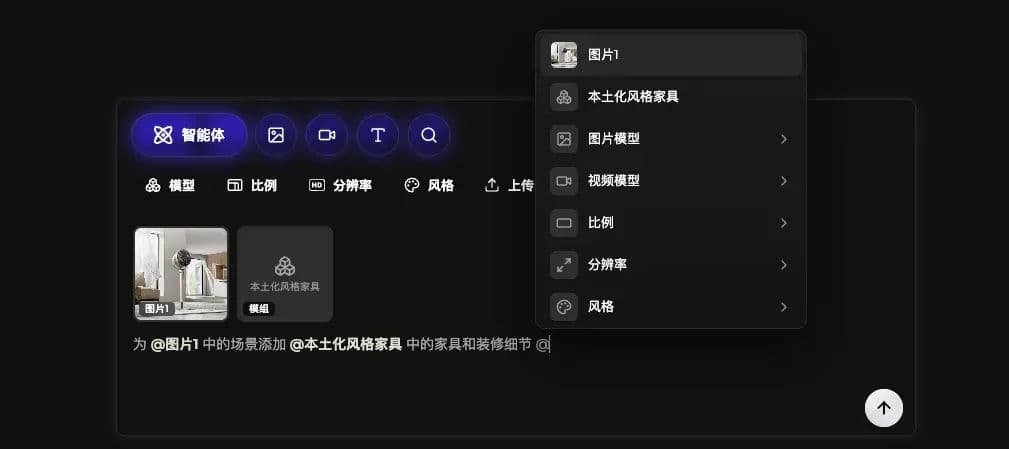
The workbench with the @ menu open, listing image and module references that can be inserted into an instruction

Select the Agent node and send an instruction from the workbench below. Use @ in the input box to open a menu for parameters and reference objects, making the request more precise.

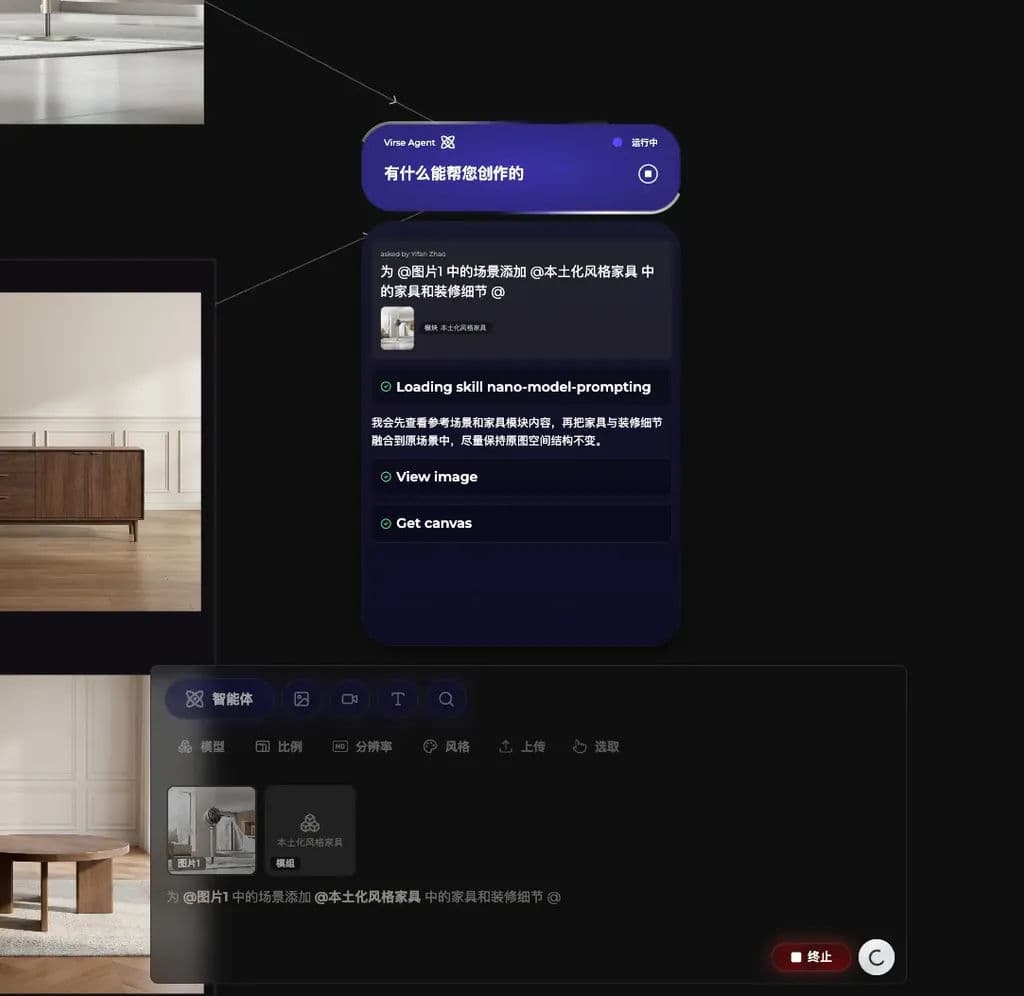
The Agent chat window running a multi-step furnishing task, showing the skill it has loaded

After submitting the task, you can watch progress below the Agent node. Click Terminate if you need to stop it.

4. Receive the module result

When the task finishes, the result is packaged as a module on the canvas. It may contain text, images, or a complete content plan.

You can continue using the generated module:

  • Run all:Replace the module inputs and rerun the whole module; downstream results update accordingly.
  • Save:Save it to the module sidebar and drag it back later for reuse.
  • Ungroup:Break the module apart and use its nodes as normal canvas nodes.
  • Export all:Export all outputs in the module at once.

마지막 업데이트: