
Collaboration sur les projets d’équipe
Dans un espace d’équipe, les canevas s’affichent selon leur périmètre de visibilité. Cela permet de gérer des brouillons privés, de créer en équipe, de travailler en petits groupes de révision et de collaborer avec des membres précis.
Mode de collaboration | Idéal pour |
|---|---|
Mes projets | Les canevas privés que vous avez créés dans l’espace d’équipe, utiles pour les brouillons, l’exploration et votre organisation personnelle. |
Publier pour l’équipe | Rendez le projet visible par toute l’équipe, pour créer ensemble, suivre l’avancement et partager les livrables des jalons. |
Partage ciblé | Partagez uniquement avec certains membres, pour une collaboration ciblée, une révision ou une passation. |
Sur la page des projets d’un espace d’équipe, utilisez les onglets du haut pour afficher les canevas par périmètre de visibilité.
Onglet | Description |
|---|---|
Tout | Tous les canevas de l’espace actuel que vous êtes autorisé à voir. |
Les miens | Les canevas privés que vous avez créés dans l’espace d’équipe. |
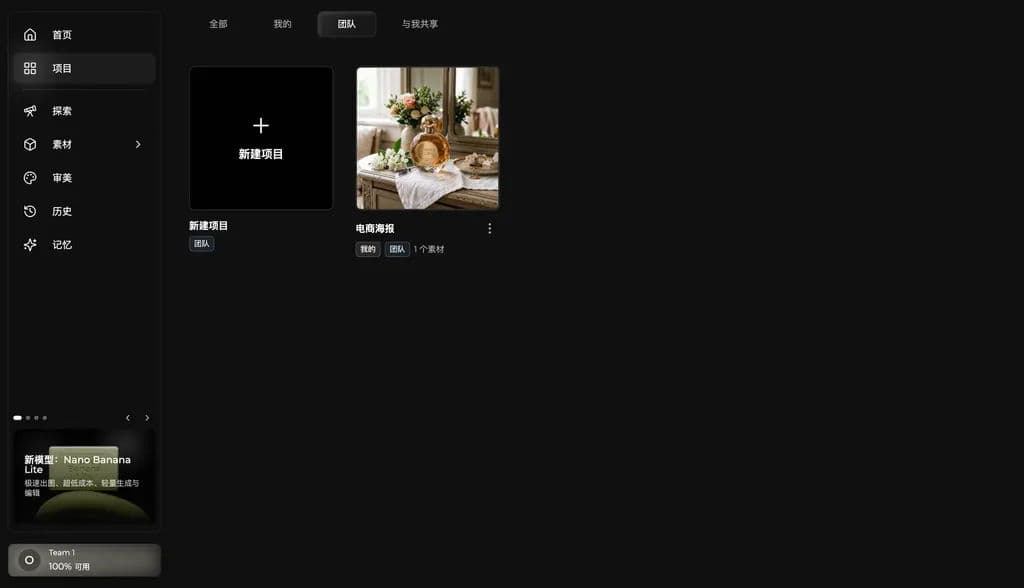
Équipe | Les canevas publiés pour l’équipe. |
Partagés avec moi | Les canevas partagés directement avec vous. |
Équipe ou Partagés avec moi
Les deux onglets permettent de collaborer, mais leur périmètre de visibilité diffère.
Onglet | Qui peut le voir | Idéal pour |
|---|---|---|
Équipe | Tous les membres de l’espace d’équipe actuel. | Les ressources du projet, les canevas de création collective et les livrables des jalons sur lesquels toute l’équipe doit rester alignée. |
Partagés avec moi | Uniquement les membres invités individuellement. | Les révisions en petit comité, les collaborations ponctuelles ou les passations temporaires qui ne nécessitent pas une visibilité pour toute l’équipe. |
Dans Mine, vous pouvez voir les projets que vous avez créés. Ces canevas n’apparaissent pas automatiquement dans la liste de l’équipe ; ils conviennent donc aux brouillons ou à la préparation d’un projet.
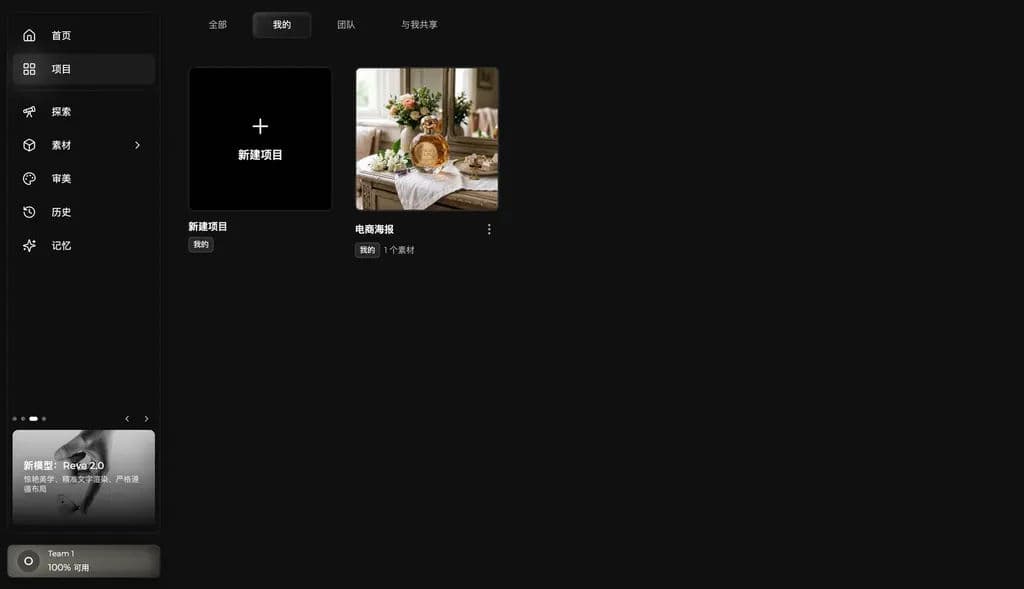
Lorsqu’un canevas doit être visible par toute l’équipe, publiez-le pour l’équipe. Les membres le verront alors dans l’onglet Team.
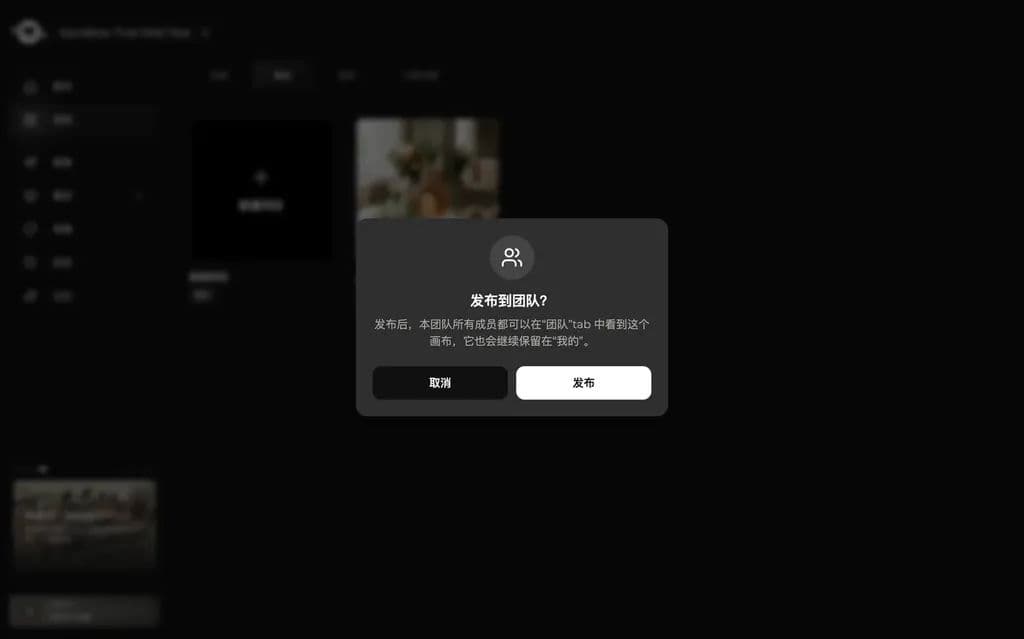
Publier pour l’équipe
Si toute l’équipe doit voir un canevas ou poursuivre la collaboration dessus, choisissez Publish to team dans le menu de la carte du projet.
Virse affiche une boîte de confirmation avant la publication. Une fois celle-ci confirmée, tous les membres de l’équipe peuvent voir le canevas dans l’onglet Team et continuer à le consulter ou à le modifier.
C’est utile pour la création en équipe, le suivi de l’avancement du projet et la documentation des jalons.
Partager avec certains membres.
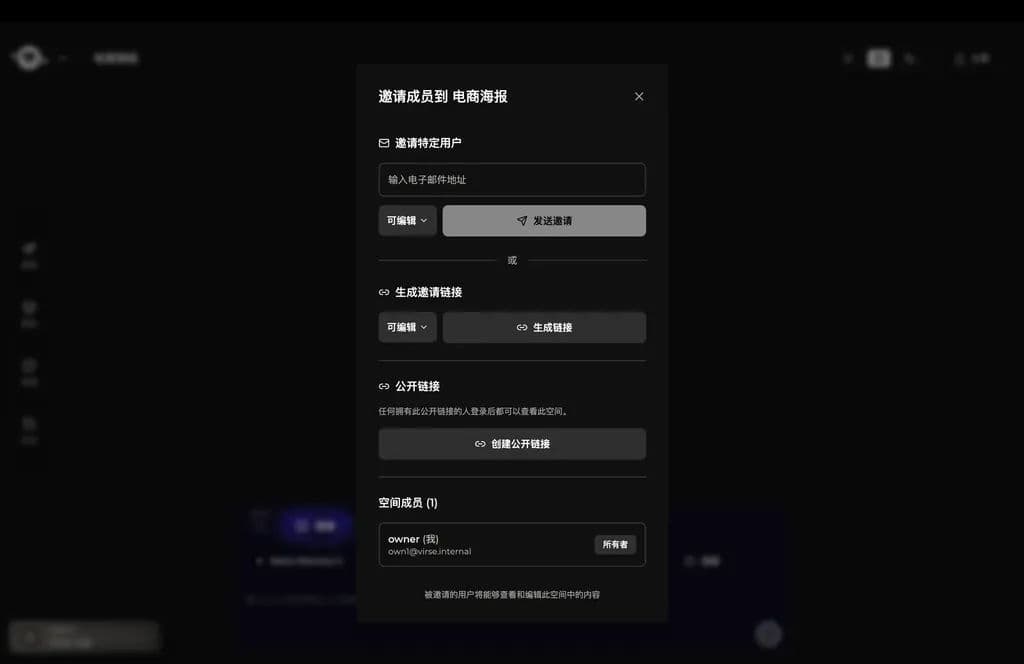
Si vous ne souhaitez pas publier un canevas pour toute l’équipe, partagez-le uniquement avec certains membres.
Ouvrez le canevas et cliquez sur Share en haut à droite pour inviter des membres précis. Vous pouvez envoyer des invitations par e-mail ou générer un lien d’invitation.
Les membres invités peuvent retrouver le canevas dans Shared with me. C’est utile pour les révisions en petit comité, la collaboration ciblée ou la passation d’une étape du projet à des membres précis.
Choisir la bonne méthode de collaboration
Besoin | Méthode recommandée |
|---|---|
Organiser le projet en privé avant de le présenter à l’équipe. | Le garder dans Mine. |
Permettre à toute l’équipe de le consulter et de collaborer. | Publier pour l’équipe |
Seuls certains membres doivent pouvoir le consulter ou le modifier. | Partager avec certains membres. |
Dernière mise à jour :