
Team Project Collaboration
In a team space, canvases are shown by visibility scope. This supports private drafts, team co-creation, small review groups, and targeted collaboration.
Collaboration mode | Best for |
|---|---|
My projects | Private canvases you created in the team space, useful for drafts, exploration, and personal organization. |
Publish to team | Make the project visible to the whole team, useful for co-creation, project sync, and milestone outputs. |
Targeted sharing | Share only with selected members, useful for focused collaboration, review, or handoff. |
On the project page in a team space, use the top tabs to view canvases by visibility scope.
Tab | Description |
|---|---|
All | All canvases in the current space that you have permission to see. |
Mine | Private canvases you created in the team space. |
Team | Canvases published to the team. |
Shared with me | Canvases shared directly with you. |
Team vs. Shared with me
Both tabs support collaboration, but their visibility scope is different.
Tab | Who can see it | Best for |
|---|---|---|
Team | All members in the current team space. | Project materials, co-creation canvases, and milestone outputs that the whole team should stay aligned on. |
Shared with me | Only individually invited members. | Small reviews, one-off collaboration, or temporary handoff that does not need full-team visibility. |
In Mine, you can see projects you created. These canvases do not automatically appear in the team list, so they are suitable for drafts or project preparation.
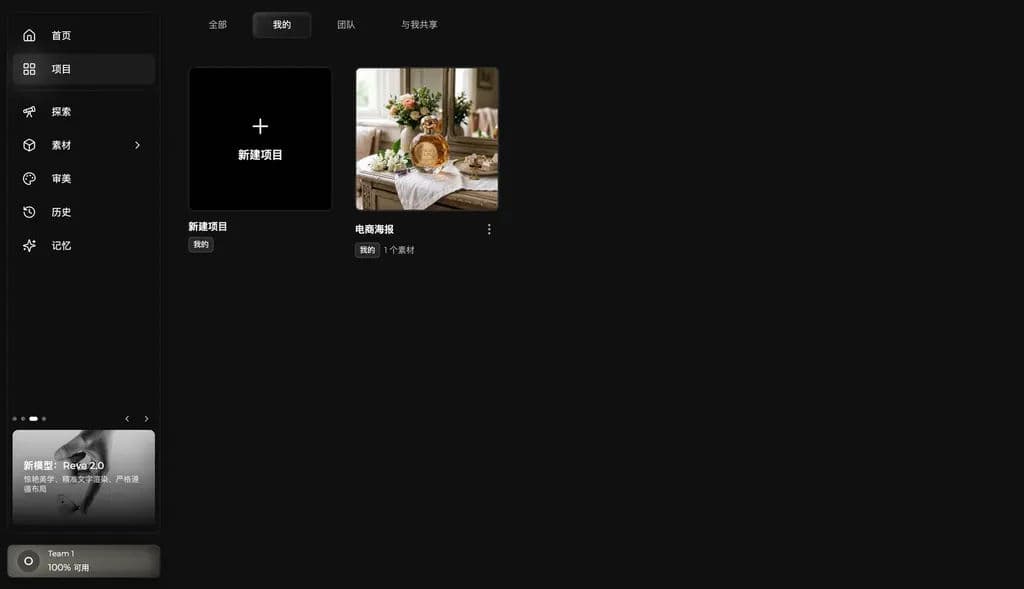
When a canvas should be visible to the whole team, publish it to the team. Team members will then see it in the Team tab.
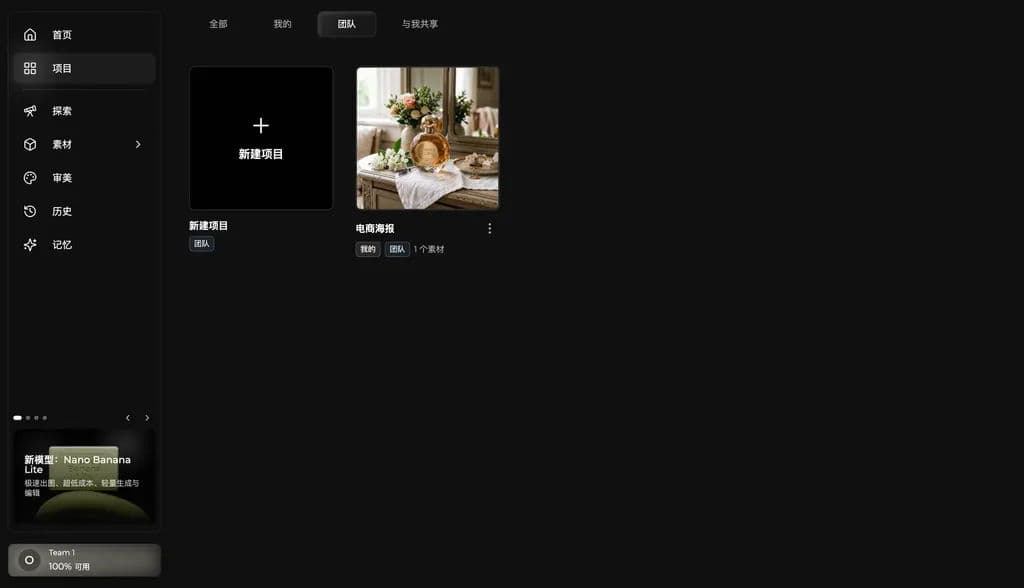
Publish to team
If the whole team should view or continue collaborating on a canvas, choose Publish to team from the project card menu.
Virse shows a confirmation dialog before publishing. After confirmation, all team members can see the canvas in the Team tab and continue viewing or editing it.
This is useful for team co-creation, project progress sync, and milestone documentation.

Share with selected members.
If you do not want to publish a canvas to the whole team, share it only with selected members.
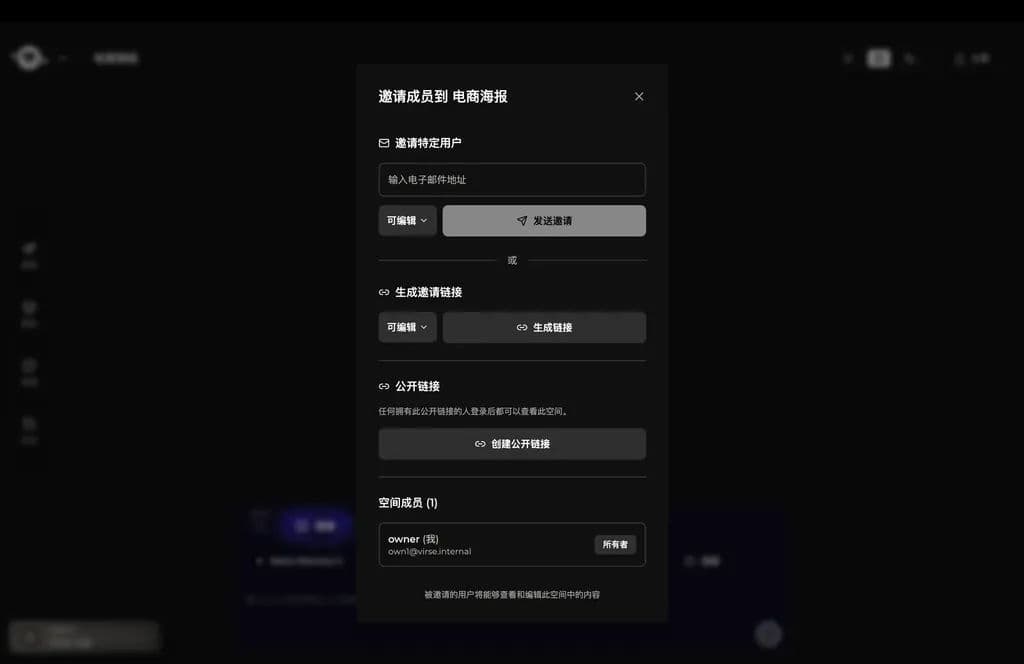
Open the canvas and click Share in the top-right corner to invite specific members. You can send invitations by email or generate an invitation link.
Invited members can find the canvas in Shared with me. This is useful for small reviews, focused collaboration, or handing one project stage to specific members.
Choose the right collaboration method
Need | Recommended method |
|---|---|
Organize the project privately before showing the team. | Keep it in Mine. |
Let the whole team view and collaborate. | Publish to team |
Only selected members should view or edit it. | Share with selected members. |
Last updated