How to Use Nano Banana to Edit Photos: Pro, Nano Banana 2 and Lite
 Yifan Zhao10 分钟阅读 ·
To use Nano Banana to edit photos, upload the original image, request one specific change, describe the intended result and identify everything that must remain unchanged. Use Nano Banana 2 for most everyday edits, Nano Banana Pro for complex portraits, branded products, typography and multi-reference compositions, and Nano Banana 2 Lite for fast, low-cost drafts. The most reliable prompt combines an edit target, a desired result, preservation constraints and a negative boundary. For broader model context, see the Nano Banana review and this guide to writing stronger AI design prompts.
The challenge is that Nano Banana is a generative editor rather than a traditional pixel-selection tool. Replacing a jacket, removing a person or changing a background may also alter the face, composition, lighting or product details. Our review of 30 recurring user questions found that whole-image regeneration, facial changes and declining quality across repeated edits were among the most important concerns. A controlled, branch-based AI design workflow is therefore more dependable than repeatedly editing the latest output, especially when the work involves brand consistency.
Virse turns that controlled process into a visual AI design workflow instead of another isolated chat. Designers can organize source images, references, generations and revisions on an infinite canvas, while multiple Agents work on different tasks and share the same project context. Virse is designed to assist professional teams rather than replace designers, helping them reduce repetitive production work while preserving creative intent, brand standards and accumulated project knowledge. This approach aligns with broader AI design agent creative workflows and professional AI-assisted graphic design.
What Is Nano Banana for Photo Editing?
Nano Banana is Google’s name for Gemini’s native image generation and editing models. The models accept text, images or both, enabling users to upload photos, describe edits, combine references and refine outputs conversationally. Google currently documents four Nano Banana models.
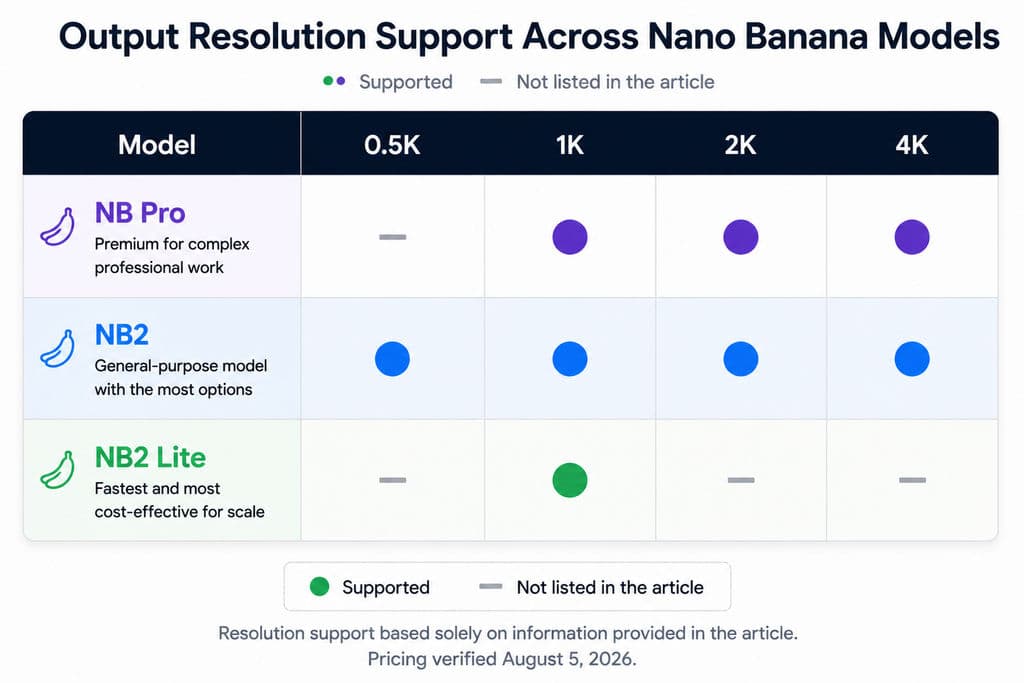
Model | Best For | Output Resolution | Standard API Image Cost |
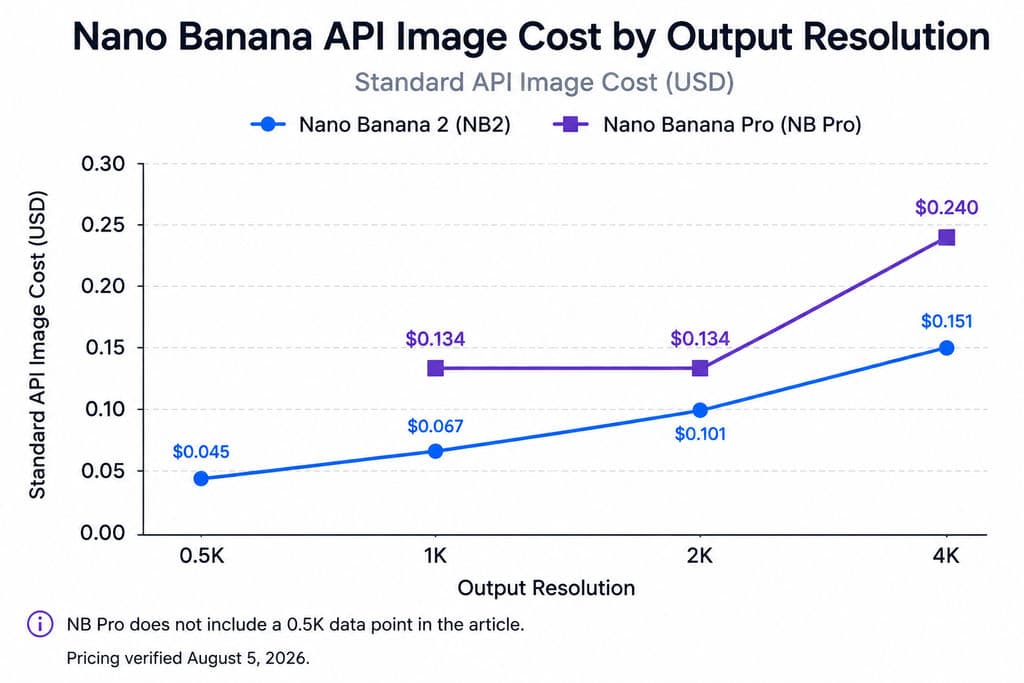
Nano Banana Pro | Complex editing, product mockups, accurate text and brand-sensitive assets | 1K, 2K and 4K | $0.134 at 1K/2K; $0.24 at 4K |
Nano Banana 2 | General photo editing, multiple references and rapid iteration | 0.5K, 1K, 2K and 4K | $0.045 to $0.151 |
Nano Banana 2 Lite | Quick drafts, local edits and high-volume production | 1K | $0.03 |
Original Nano Banana | Existing Gemini 2.5 Flash Image integrations | 1K | Legacy model |
Google positions NB2 as the general-purpose model, NB Pro as the premium option for complex professional work, and NB2 Lite as the fastest and least expensive model for scale. Google now classifies the original Nano Banana as the legacy version.
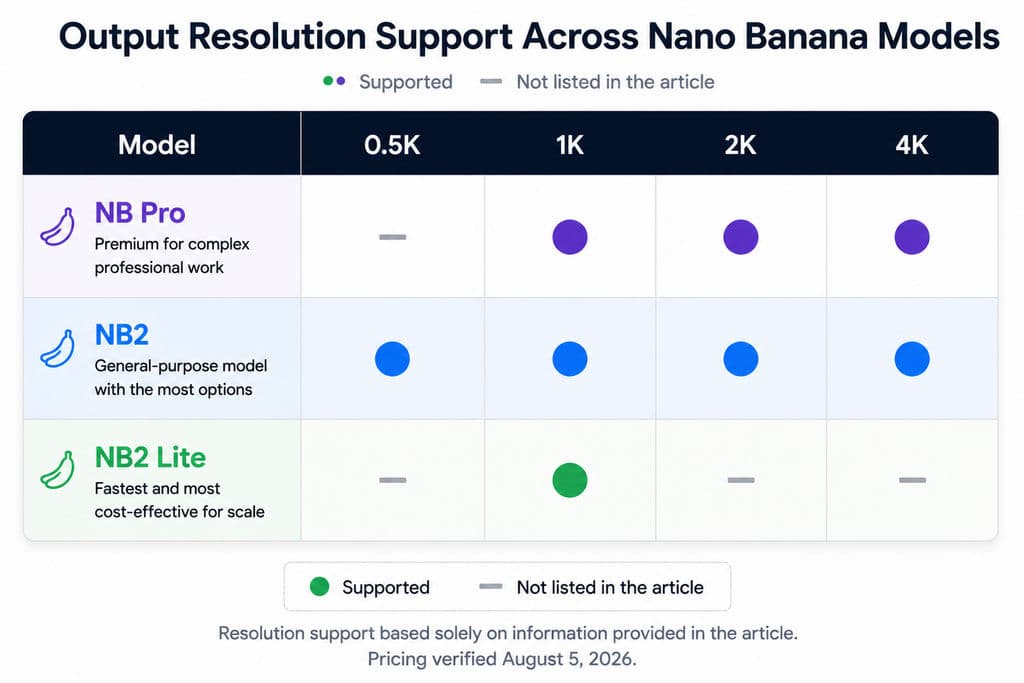
Prices were verified on August 5, 2026. They exclude input tokens, grounding, rejected generations and workflow costs. For a broader cost breakdown, see Nano Banana pricing.
Where Can You Use Nano Banana?
You can use Nano Banana through the Gemini app, Google AI Studio or the Gemini API. In Gemini, upload a photo or open an image from the Library, select Chat, enter an editing instruction and submit it. Paid subscribers can generate with NB2 or NB2 Lite and use More → Redo with Pro when additional detail or control is needed.
How to Use Nano Banana to Edit Photos Step by Step
Step 1: Start With the Original High-Quality Photo
Use the least-compressed source available and keep an untouched master. For portraits, note the face shape, expression, hairstyle, pose and distinctive features. For products, record the silhouette, label, logo, material and reflections.
Step 2: Request One Specific Photo Edit
Ask for one primary transformation per generation. Replace the background first, then adjust lighting in a separate pass. Combining clothing, pose, background, text and color changes makes failures harder to diagnose.
Step 3: Describe the Intended Result
Name the target, its current state and its desired replacement.
Instead of writing:
Change the background.
Use:
Edit only: The current office background.
Change: Replace it with a warm gray photography studio using a seamless backdrop, soft light from the upper left and realistic contact shadows.
Specific visual direction works better than vague terms such as “improve,” “professional” or “cinematic.” The same principle applies when writing AI design prompts for more complex visual workflows.
Step 4: Define What Must Remain Unchanged
List the protected details explicitly:
Preserve: The subject’s identity, facial proportions, expression, hairstyle, skin texture, pose, hands, clothing, camera angle, crop and color grading.
Do not: Regenerate, restyle or modify the subject.
This separates the editable region from the protected region.
Step 5: Inspect the Complete Image
Review faces, hands, logos, labels, text, object edges, shadows, reflections and fine textures at full size. A correct content edit is not automatically a deliverable image. A background may look right while the face, packaging or resolution has become unusable.
Step 6: Branch From the Master and Upscale Last
When an output fails, return to the original or latest approved version. Create separate branches for major changes rather than repeatedly repairing a degraded result. Upscale only after composition, identity, typography and product details are approved. This branch-based process fits naturally into a more structured AI design workflow.
What Is the Best Nano Banana Photo Editing Prompt?
The most effective prompt follows this structure:
Edit target + desired result + preservation constraints + negative boundary
Nano Banana Prompt to Edit Only One Part of a Photo
Edit only: [specific object or region].
Change: Replace [current content] with [desired result]. Match the original perspective, lighting, shadows, depth of field, color and photographic texture.
Preserve: [all protected people, objects and visual details].
Do not: Regenerate, restyle, crop or modify any other part of the original photo.
Nano Banana Prompt to Change Clothes Without Changing the Face
Edit only: The subject’s black jacket.
Change: Replace it with a dark brown suede jacket. Match the original fit, folds, lighting and shadows.
Preserve: The subject’s identity, face shape, eyes, nose, mouth, jawline, expression, hairstyle, skin texture, hands, pose and body proportions.
Do not: Change the background, camera angle, crop or color grading. Do not regenerate the person.
Nano Banana Prompt for Multiple Reference Images
Image 1: Use as the base photograph.
Image 2: Use only as the clothing reference.
Image 3: Use only as the background and lighting reference.
Apply the clothing from Image 2 to the person in Image 1, then place that person in the environment from Image 3. Preserve the identity, face, hairstyle, proportions and pose from Image 1. Do not copy the person or composition from Image 2.
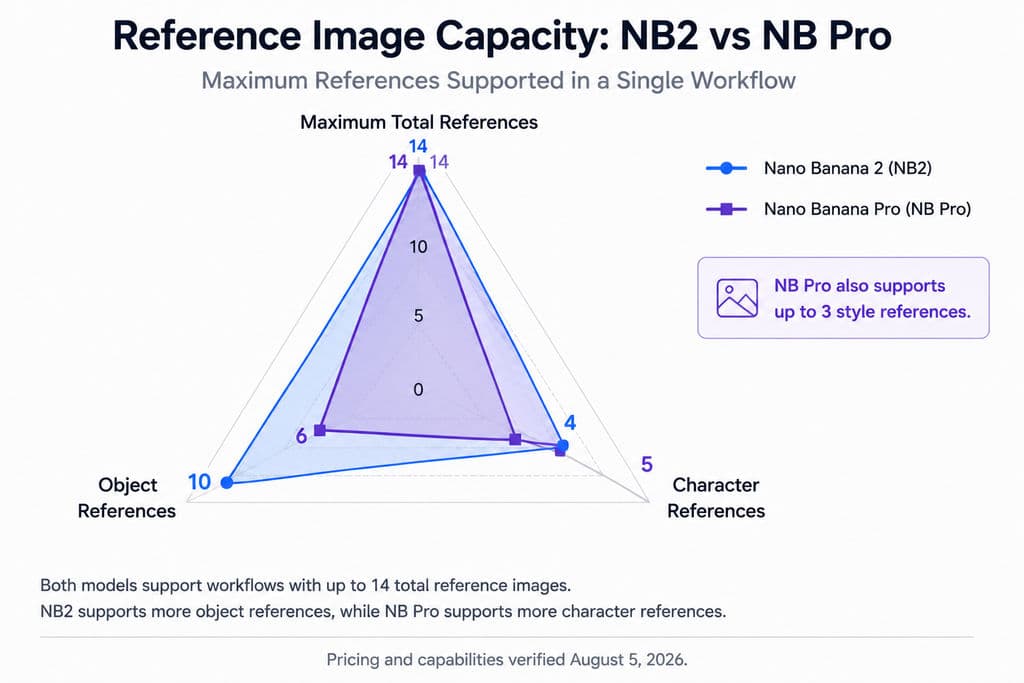
Assigning one role to every reference reduces ambiguity. Gemini 3 image workflows support up to 14 references. NB2 supports up to 10 object references and four character references, while NB Pro supports up to six object references, five character references and three style references.
How to Keep the Same Face When Editing With Nano Banana
Identity consistency is not a pixel-level face lock. Nano Banana may preserve a recognizable person while changing eye shape, expression, age, skin texture or facial proportions.
For better consistency, lock the features that establish identity:
- Face shape and jawline
- Eye spacing and expression
- Nose and mouth
- Hairstyle and hairline
- Skin texture and age characteristics
- Distinctive facial features
Also preserve the pose, hands and body proportions during clothing edits because changing a garment can cause the model to reconstruct the person.
When Should You Combine Nano Banana With Photoshop?
Use a hybrid workflow when unchanged pixels are mandatory:
- Crop or mask the target region.
- Send only that area to Nano Banana.
- Generate the replacement.
- Composite it into the untouched master.
- Match edges, grain, color and shadows manually.
This workflow is better for legal portraits, archival photographs, branded packaging and high-value campaign assets where visual similarity is not precise enough.
Why Does Nano Banana Change the Whole Image or Lose Quality?
Problem | Likely Cause | Practical Fix |
The whole image changed | The instruction was broad or protected elements were undefined | Name one target and list every locked detail |
The face changed | The model reconstructed the person to fit new clothing or light | Add identity constraints or edit a cropped region |
The image became blurry | Generated outputs were reused through several rounds | Restart from the master and use separate branches |
Text or logos drifted | The model interpreted the layout instead of preserving pixels | Finish fixed text and logos in a design tool |
An object looks pasted in | Perspective, light direction or contact shadows were missing | Specify camera angle, environmental light and surface interaction |
There is no verified universal number of safe editing rounds. Our review found repeated reports of noise, softened detail and texture drift, but no standardized benchmark proving that failure begins after a specific number of edits.
How to Use Nano Banana for Ecommerce Photo Editing at Scale
Whering Product Image Case Study
Google reports that wardrobe platform Whering uses NB2 to convert lower-quality user photos into more polished, studio-style assets while retaining authentic textures. Whering also highlighted structured outputs that support its image-classification workflow. This is a vendor-published partner example, not an independent performance benchmark.
HubX Face Editing Case Study
HubX reported a 74% to 76% reduction in latency, describing its face-editing workflow as approximately four times faster after integrating NB2. The result is partner-reported and should not be treated as a universal speed benchmark.
A Scalable Ecommerce Workflow
A practical production system can store product, model and campaign data in structured fields, send approved combinations to the Gemini API, cache repeated assets, route outputs into an ecommerce platform and require human review before publication.
The most reliable production principle is:
Use AI for variable visual content. Use deterministic templates for fixed brand elements.
Let Nano Banana generate environments, models, shadows and variations. Keep logos, prices, disclaimers and final typography in Figma, Photoshop or a template engine. This separation is especially important for maintaining AI ad creative brand consistency across many outputs.
At current standard API rates, 1,000 1K outputs would cost approximately $33.60 with NB2 Lite, $67 with NB2 or $134 with NB Pro, before input costs, rejected generations and human review. Teams planning high-volume production should compare those figures with the broader Nano Banana pricing and their actual review costs.
FAQ
Is NB Pro Better Than NB2 for Editing People?
NB Pro is generally the stronger option for complex, identity-sensitive portraits, multiple references and commercial work where errors are costly. NB2 offers a better balance of speed and cost for routine editing. Neither guarantees an unchanged face, so preservation constraints and branch-based editing remain necessary.
Can NB Edit Only One Part of a Photo?
NB can identify a target through natural-language instructions, but it does not guarantee that every other pixel will remain locked. Name the exact region, request one change and list all protected elements. Use a cropped or masked workflow when unchanged pixels are essential.
Why Does NB Become Blurry After Several Edits?
Repeated generations can reinterpret textures, edges and facial details, while repeatedly downloading and uploading images may add compression. Keep the original master, make one major change per branch and upscale only after all edits are approved.
Is NB2 Lite Good for Ecommerce Images?
NB2 Lite is suitable for quick 1K drafts, catalog variations, thumbnails and high-volume experiments. Use NB2 or NB Pro for hero images, recognizable people, branded packaging and important text. Human review is still required for labels, logos, proportions and product accuracy.
Conclusion
The best way to use Nano Banana to edit photos is to treat it as a controlled design collaborator: begin with the original file, choose NB2 for general editing, NB Pro for complex professional work or NB2 Lite for speed and scale, request one change at a time, define every protected detail, compare each result with the master and use Photoshop with Nano Banana or deterministic templates when pixels must remain exact. This workflow produces more consistent faces, cleaner product assets and more scalable creative production than repeatedly editing the latest generated image.