
How to Use MiniMax H3: Complete ComfyUI, Prompt, Reference, Audio and Performance Guide
 Yifan Zhao10 分钟阅读 ·
To use MiniMax H3 effectively, choose T2V for text-driven generation, I2V when an existing image should anchor the scene, and R2V when you need tighter control over identity, motion, camera behavior, style, or voice. In ComfyUI, start with a short low-resolution test, refine the prompt and references, then raise quality only after the shot works—an approach that also makes a structured MiniMax H3 workflow easier to manage. For a broader look at the model’s practical strengths and limitations, the MiniMax H3 review provides additional context.
The difficult part is not getting H3 to generate—it is getting repeatable, production-usable results. Wrong checkpoint selection can weaken references, ambiguous prompts can assign dialogue to the wrong character, and high-resolution testing can make every failed idea expensive. A strong MiniMax H3 prompt helps reduce ambiguity, while a disciplined H3 production workflow separates concept, identity, action, camera, audio, and final quality into decisions you can test independently.
Virse makes that broader creative process easier to manage. Instead of keeping AI work inside isolated chats, Virse lets designers organize references, assets, and decisions on an infinite canvas while multiple Agents work with shared project context. Its product design also focuses on learning team preferences, brand standards, and prior creative context, helping AI generation become part of a consistent AI design workflow rather than another disconnected tool, while AI design agents can support more coordinated creative workflows.
How to Use MiniMax H3 in ComfyUI
MiniMax H3 is an omni-modal video generation system that can understand text, images, video, and audio and jointly generate video with stereo audio. ComfyUI provides native open-weight T2V, I2V, and R2V workflows; its current documentation requires ComfyUI 0.30.0 or later, making the official Template Library the simplest starting point. If you are setting up the model for the first time, this MiniMax H3 usage guide covers the broader process.
A practical first-generation workflow is:
- Update ComfyUI.
- Open Template Library → Video → MiniMax H3.
- Choose T2V, I2V, or R2V.
- Load the correct diffusion model and supporting encoder/VAEs.
- Generate a short preview.
- Check identity, motion, camera direction, dialogue, and audio.
- Change one major variable at a time.
- Increase resolution only after the shot is reliable.
Which MiniMax H3 Models Do You Need?
T2V, I2V, and first/last-frame generation use FL2VA, while reference-driven R2V uses Ref2VA. Both workflows also require the Qwen3-VL text encoder plus H3 video and audio VAEs. ComfyUI documents this checkpoint split explicitly , so checking the diffusion model should be your first troubleshooting step when references appear to be ignored.
MiniMax H3 T2V vs I2V vs R2V
Workflow | Best For | Primary Control |
|---|---|---|
T2V | Concept exploration and new scenes | Text |
I2V | Animating an existing composition | First image |
First/Last Frame | Planned transitions | Opening and ending frames |
R2V | Identity, motion, camera, style, or voice consistency | Multimodal references |
Use T2V when exploration matters most, I2V when composition matters, and R2V when consistency matters. Treating R2V as simply a stronger I2V workflow is a common mistake because it uses different model weights and a more explicit reference strategy.
How to Write Better MiniMax H3 Prompts
A strong MiniMax H3 prompt behaves more like an audiovisual production brief than an image-generation prompt. MiniMax’s official guide structures generation around a multimodal shot description, overall soundscape, and non-diegetic music, which means visual direction and audio should be planned together. The MiniMax H3 prompt guide is useful when you need a more systematic way to structure those instructions.
Write MiniMax H3 Prompts as Shots
Start by defining the scene and initial composition, then describe observable actions and camera behavior over time. For multi-shot videos, MiniMax’s guide uses Shot 1 without a timestamp and introduces subsequent shots with explicit cut times , while timeline ranges remain useful as a storyboarding method rather than the final documented format.
A useful planning sequence is:
Reference role → Shot → Subject → Action → Camera → Dialogue → SFX → Soundscape → Music
Instead of asking for a “cinematic product reveal,” specify what changes: the camera slowly pushes toward the product, the subject rotates it toward the light, a mechanical click is heard, and the next shot cuts to a close detail.
Control MiniMax H3 Dialogue and Audio
H3 generates dialogue, ambience, SFX, and music together with the video. MiniMax recommends stable speaker identities across shots , which is especially important when two or more characters appear.
Our review of real user questions identified wrong-speaker dialogue and unintended lip movement as recurring problems. Keep each speaker’s identity, action, and dialogue closely associated. For narration, explicitly define it as off-screen voiceover and make clear that the visible character should not speak.
How to Use MiniMax H3 R2V References for Better Consistency
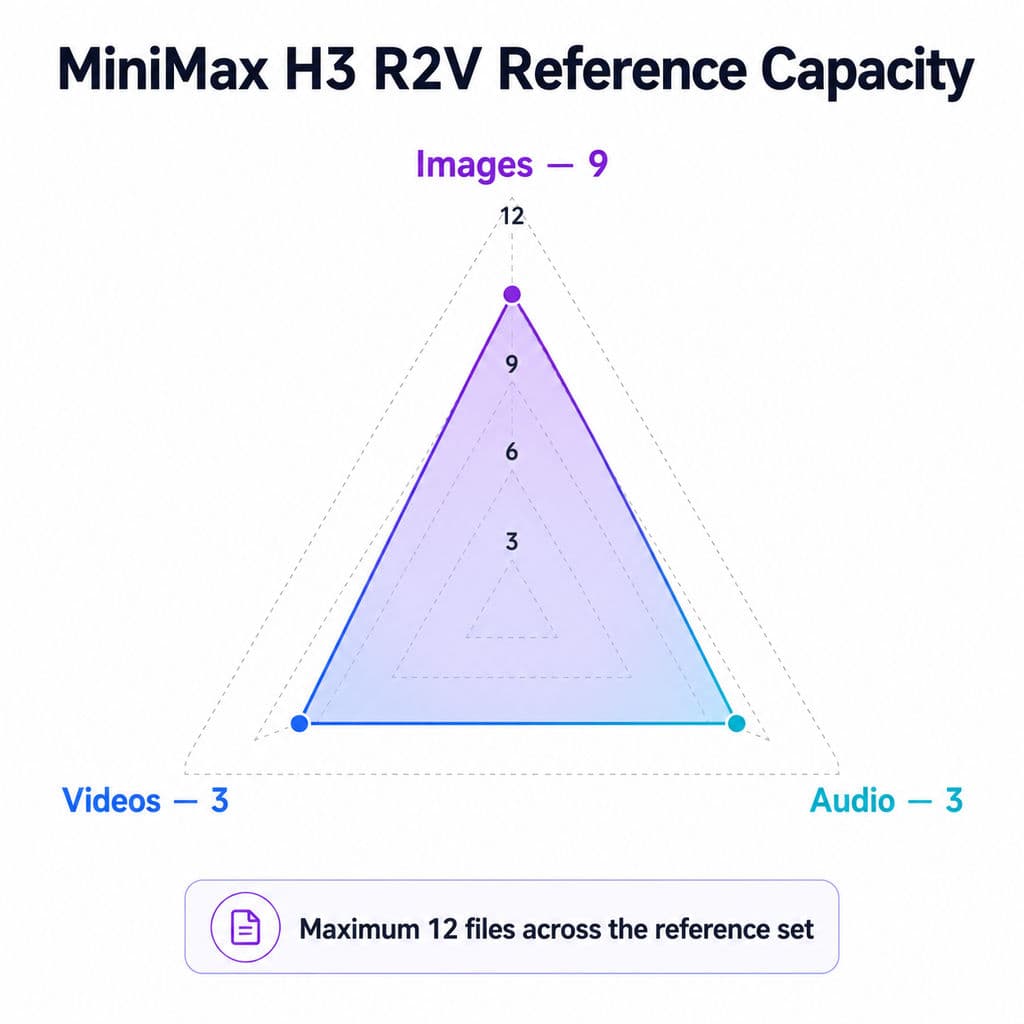
MiniMax H3 R2V supports up to 9 reference images, 3 reference videos, and 3 reference audio clips, with a maximum of 12 files across the complete reference set. MiniMax’s model documentation confirms these limits , but using the maximum number is rarely the goal.
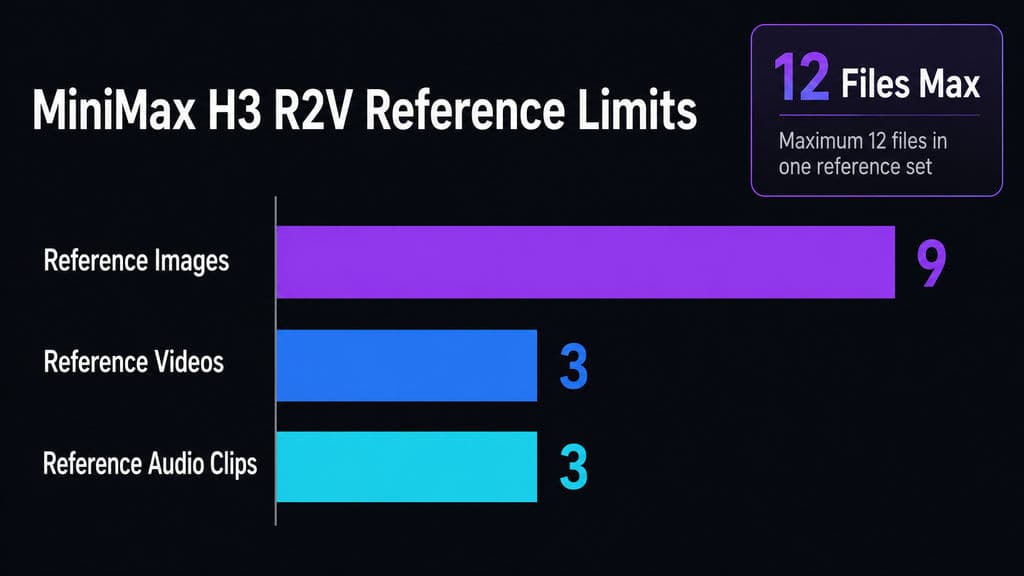
The stronger rule is: give each reference one dominant responsibility.
For example:
- Picture 1 controls character identity.
- Picture 2 controls environment or visual style.
- Video 1 controls movement and camera behavior.
- Audio 1 controls voice.
MiniMax’s full-reference guide distinguishes subjects, image anchors, video structure, and audio signals , reinforcing the idea that reference relationships should be explicit rather than implied.
MiniMax H3 ref_image_size: Match vs Max
ComfyUI provides two practical reference-image strategies. Match prioritizes speed by scaling the reference toward the generation resolution, while max preserves up to a 2048-pixel short edge for stronger identity fidelity , at additional processing cost.
For faces, products, or detailed character assets, max can be worth the slower iteration. For environment or broad style references, match is usually the more efficient starting point.
MiniMax H3 Resolution: 768p Local vs 2K Output
The phrase “MiniMax H3 supports 2K” needs context.
What Resolution Does Local MiniMax H3 Generate?
The open H3-Base workflow produces 768p-class output. ComfyUI recommends a 768-pixel short edge, with approximately 1344×768 at 16:9 for a full-quality local canvas , and lower megapixel settings are better for preview iterations.
How Does MiniMax H3 Generate 2K?
MiniMax’s official model card explains that the full H3 system contains H3-Context-IR, H3-Base, and H3-Regenerate-2K . H3-Base first generates a 768p result; H3-Regenerate-2K then uses that result together with the original multimodal context to regenerate higher-resolution detail rather than applying conventional super-resolution.
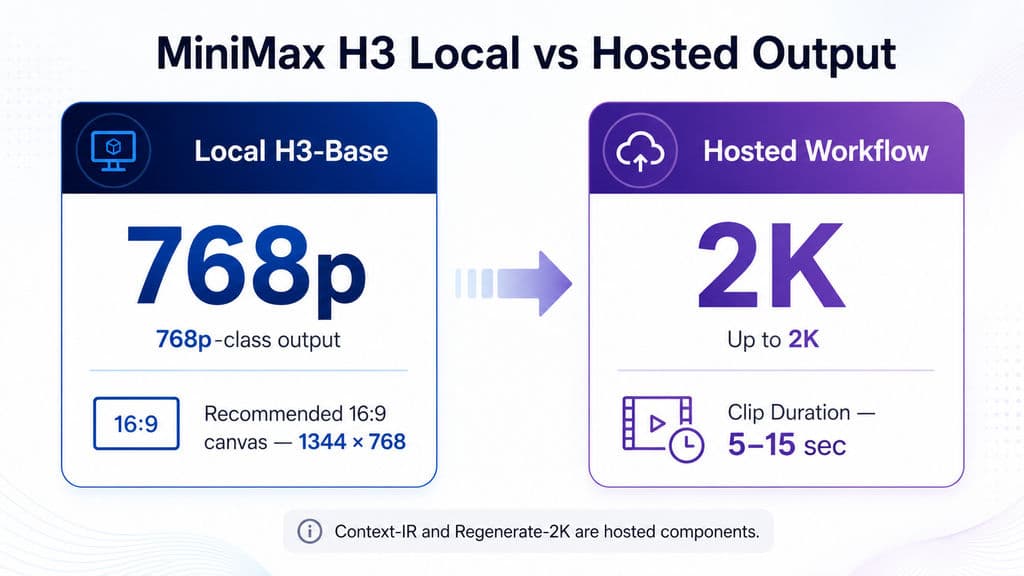
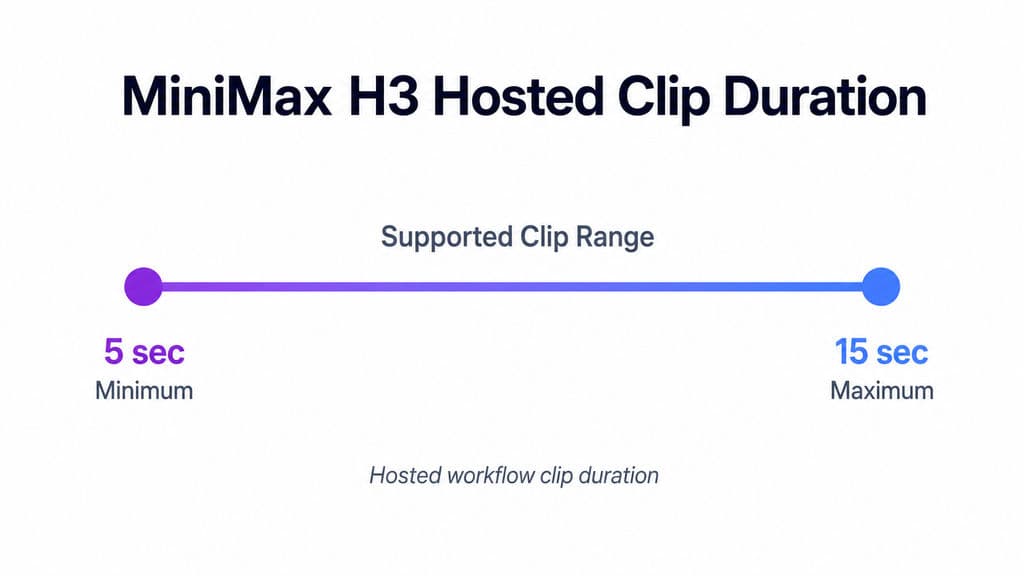
The Context-IR and Regenerate-2K systems are currently hosted components rather than part of the open-weight release. MiniMax’s API workflow renders up to 2K and 5–15 seconds per clip , so local 768p generation and hosted 2K output should not be treated as identical workflows.
How Much VRAM Does MiniMax H3 Need?
There is no useful single minimum VRAM number because performance depends on VRAM, system RAM, resolution, duration, steps, quantization, offloading, and attention implementation.
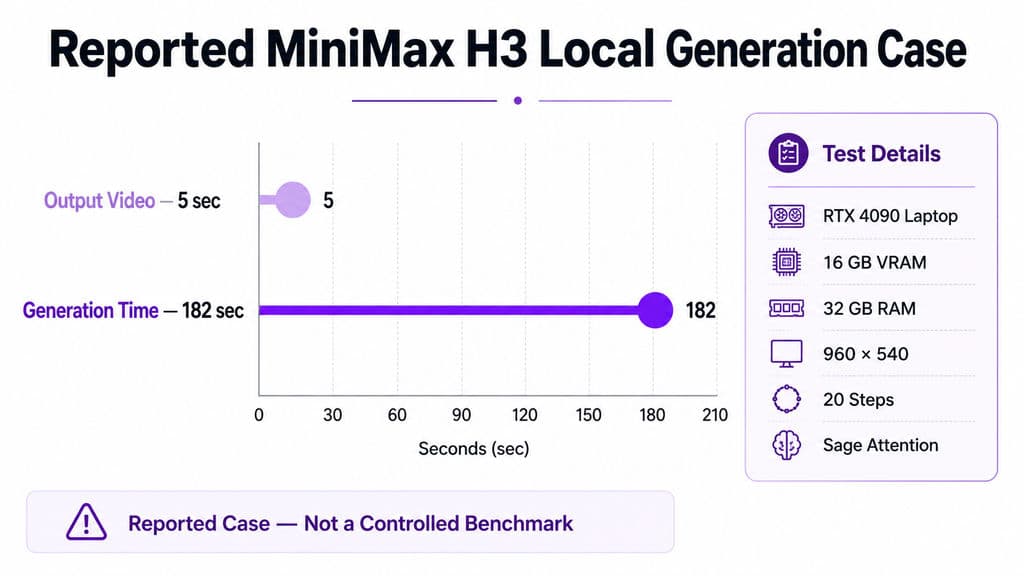
In our review of documented local workflows, one RTX 4090 Laptop configuration with 16GB VRAM and 32GB RAM generated a five-second 960×540 video with audio in 182 seconds using 20 steps and Sage Attention . This is a useful real-world case, but not a controlled benchmark.
The research also includes lower-VRAM reports where aggressive offloading made H3 runnable. The practical distinction is important: a GPU may be capable of completing a generation without being fast enough for comfortable creative iteration.
How to Speed Up MiniMax H3 With Sage Attention
For faster H3 generation, reduce duration and resolution first. These directly reduce the amount of video the model must generate and make prompt testing substantially cheaper.
After that, Sage Attention is the clearest documented optimization. ComfyUI states that it can roughly double H3 generation speed with minimal quality loss , although the exact improvement will vary by configuration.
For professional workflows, speed settings should still be A/B tested. Compare the same prompt and seed and inspect faces, distant subjects, fine product details, motion continuity, and audio synchronization before adopting any aggressive acceleration method.
Common MiniMax H3 Problems and How to Fix Them
Problem | Most Likely Fix |
|---|---|
R2V ignores references | Confirm Ref2VA is loaded and give every reference a clear role |
Wrong character speaks | Stabilize speaker identity and keep dialogue near that character’s action |
Lip movement during voiceover | Explicitly define off-screen narration and a non-speaking visible subject |
Identity changes | Reduce competing references or use higher reference-image detail |
Generation is too slow | Shorten duration, lower preview resolution, enable Sage Attention |
Missing H3 nodes | Update ComfyUI and reload the official H3 template |
This troubleshooting structure reflects the highest-frequency issues in our review of H3 user questions. In practice, simplifying the workflow often works better than adding more prompt instructions.
What Is the Best MiniMax H3 Workflow for Production?
For professional video and design work, I recommend a shot-based iteration pipeline:
Preview → Prompt A/B → Reference A/B → Keeper → Native-quality render → 2K or finishing when needed → Edit
This approach turns H3 into a controlled creative system. T2V explores ideas, I2V anchors designed compositions, R2V preserves important visual or audio references, and short previews expose problems before expensive final generation. A dedicated MiniMax H3 production workflow can help formalize that sequence.
From a product-design perspective, this is also more scalable than asking one prompt to solve concept, identity, camera, motion, dialogue, and finishing simultaneously. The goal is not fewer decisions; it is making each decision cheaper and easier to evaluate. This is also where knowing where to use MiniMax H3 becomes important, because not every creative task needs the same level of multimodal control.
FAQ
Can H3 run on 12GB VRAM?
H3 can run on constrained consumer hardware with quantized models and offloading, but VRAM alone cannot predict generation speed. Resolution, duration, system RAM, model variant, steps, and attention optimization all matter. A better hardware test is to compare how long your target five-second preview takes under the settings you actually intend to use.
Why is my H3 R2V reference not working?
First confirm that you are using Ref2VA rather than FL2VA. Then assign each image, video, or audio reference a specific responsibility such as identity, environment, motion, camera, or voice. If several references compete to define the same property, reduce them before increasing prompt complexity.
Should H3 prompts use Shot 1 or time ranges?
Use time ranges for planning if they help you storyboard, but the official MiniMax base prompt guide organizes the final prompt around sequential shots, with later shots introduced at explicit cut times. The distinction matters because a useful creative planning technique is not necessarily the same as the model’s documented prompt structure.
Does local H3 generate native 2K?
No—not through H3-Base alone. The open H3-Base workflow generates 768p-class output. MiniMax’s full system uses H3-Regenerate-2K to regenerate the base result with the original context, while the official API can deliver up to 2K output.
Conclusion
MiniMax H3 works best as a structured audiovisual production workflow, not a one-prompt video shortcut. Choose T2V, I2V, or R2V according to the creative constraint, use FL2VA or Ref2VA correctly, assign every reference a clear responsibility, describe observable shots and camera actions, direct audio alongside the visuals, and validate ideas with inexpensive previews before raising resolution. The most important practical question is not simply whether H3 can run on your hardware, but whether your setup lets you iterate quickly enough to make good creative decisions; once that MiniMax H3 workflow is stable, local 768p generation, hosted 2K finishing, and Virse can fit into a much more scalable professional AI-powered design process.
更多 Virse 博客文章
工作流

What Is Human-Centered Design? HCD Process, Real Examples & Why Most Teams Get It Wrong
2026年9月21日 by Vincent
工作流

What Is Design Thinking? 5 Stages, Real Examples & Why Most Teams Get It Wrong
2026年9月21日 by Vincent
工作流
How to Turn a Design Into a Real Product: What to Do After the Prototype
2026年9月21日 by Vincent