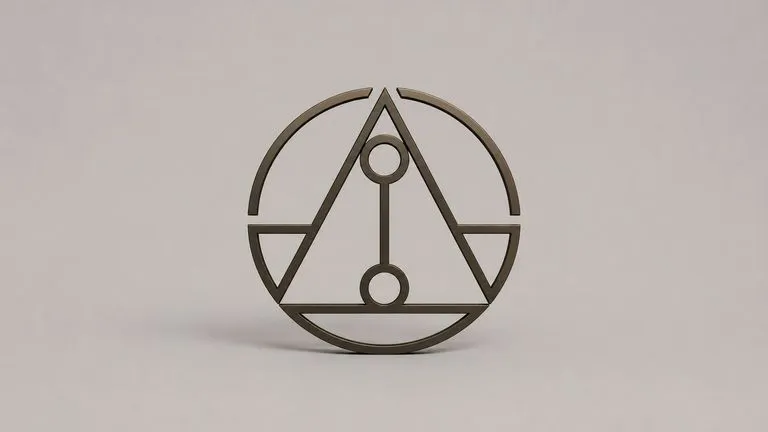
AI Logo Materializer

AI Logo Materializer

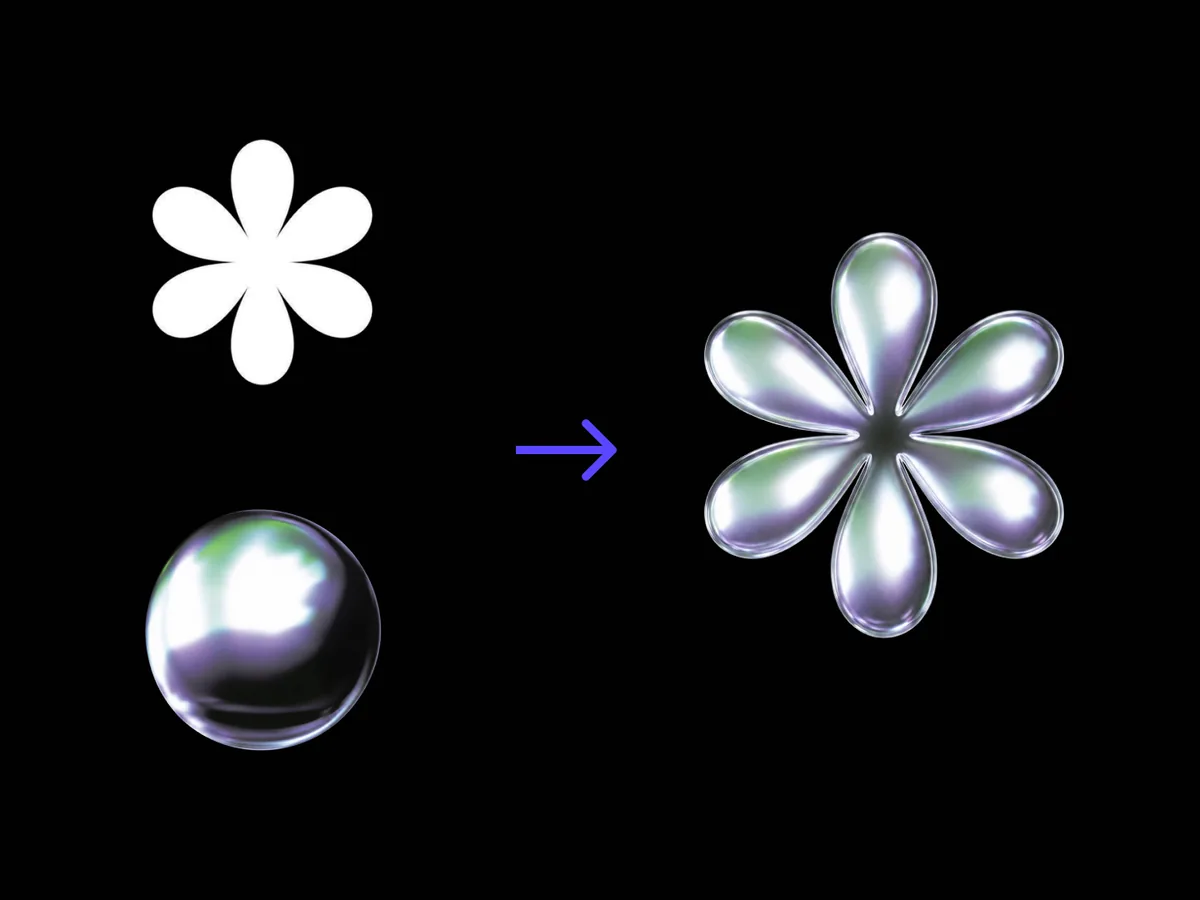
Give it a flat logo and a material reference. Brushed metal, cast glass, walnut, anything you have photographed. It renders the mark as a dimensional object in that material, with the silhouette and the letterforms exactly as drawn.

输入
Logo 图 · 必填材质参考图 · 必填出图要求 · 选填
输出
材质化立体 Logo 效果图 × 1

Logo 图

必填

Drop your flat logo

图片在画布里上传,这里填的是参数。

材质参考图

必填

Drop your flat logo

What the AI logo materializer does to your mark

The materializer starts with the logo you already have rather than designing one. It adds depth, bevel and light response read off a photographed material, and treats the outline you drew as the one thing it is not allowed to touch.

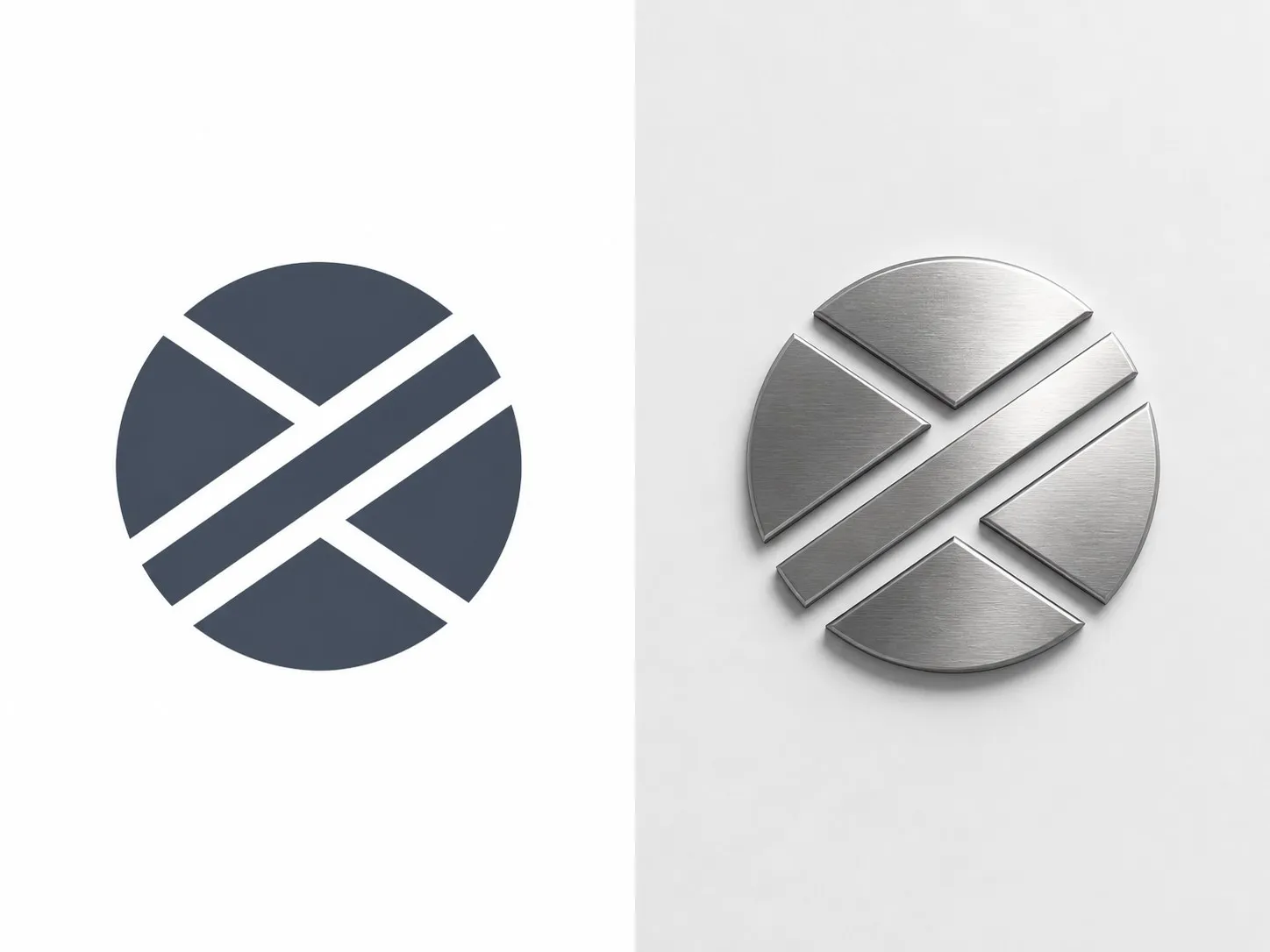
A flat abstract mark on the left and the same mark rendered in brushed metal on the right
A flat logo and the same mark rendered in brushed metal

Two inputs to turn a logo into 3D with AI

Two images and a line of notes. What matters is how strictly the first one is protected.

A mark with fine strokes and tight counters surviving the bevel intact
Untouched

Your logo is the hard constraint

Silhouette and letterforms come through exactly as drawn. The material brings depth, bevel and the way light behaves on the surface, but the outline you supplied is the outline you get back.

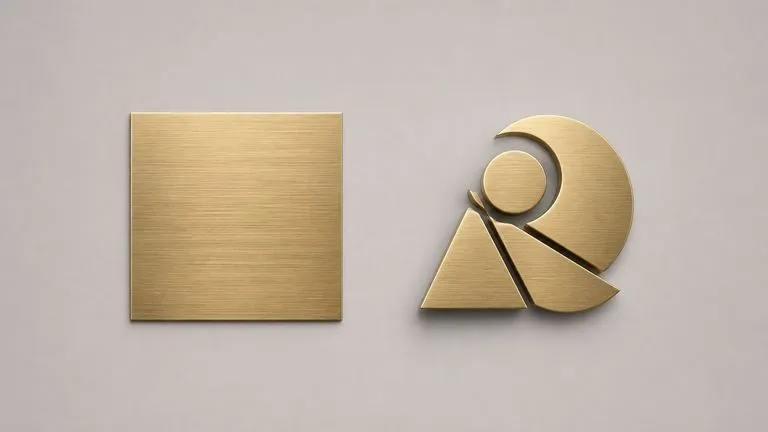
A material swatch beside a mark rendered in that exact finish
Required

The material comes off a photograph

A close-up where the surface fills the frame works best. Grain, gloss and how light breaks across it are read from your reference, and the shape of whatever object it was is ignored entirely.

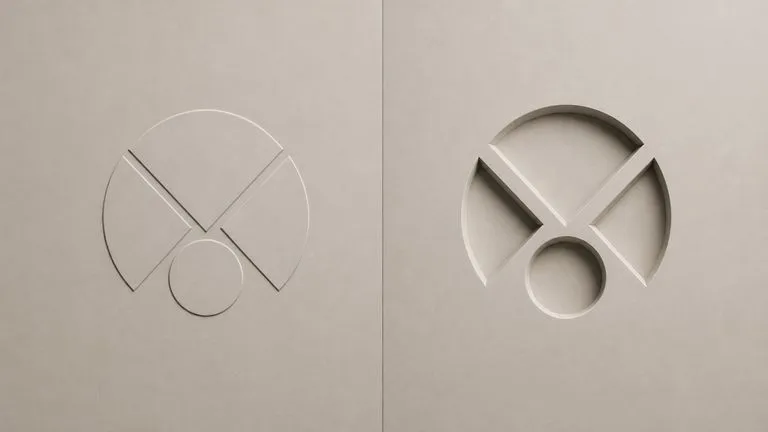
One mark rendered twice with a shallow bevel and a deep carve
Optional

Depth and light are yours to name

Shallow bevel or carved deep, light from the side or straight on, dark backdrop or bright. One line of notes moves all of it, and it is what separates a signage render from a product render.

How to convert a logo to 3D in four steps

  1. Export the logo flat

    A clean mark on a plain background. Vector exported to PNG is ideal. The cleaner the edges, the more precisely the bevel follows the letterforms.

  2. Photograph or find the material

    Fill the frame with the surface. Brushed steel on a desk, a slab of walnut, glass against a light. The reference object's shape does not matter.

  3. Say how deep and how lit

    Bevel depth, light direction, backdrop. This is where a metal logo stops looking like a default chrome preset.

  4. Render, then keep working

    The mark lands on a fresh Virse canvas beside the flat. Swap the material and run again, or take the render into an edit without exporting.

Who uses an AI logo mockup generator

People with a finished mark who need to show it as an object.

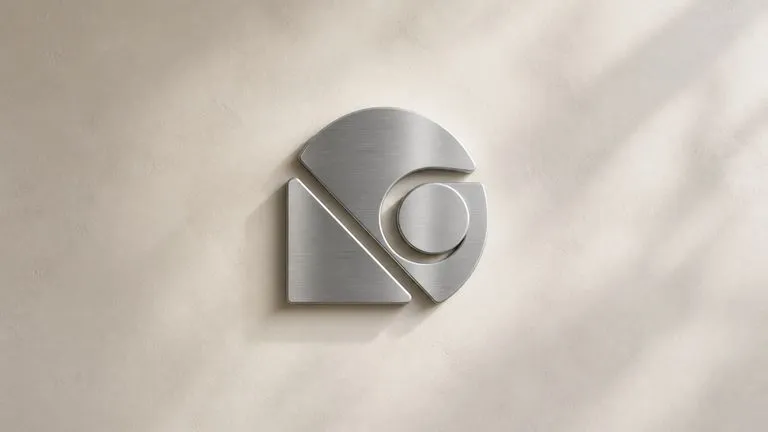
An abstract mark mounted as metal signage on an interior wall

Brand & Identity Designers

Present the logo as signage, as an embossed cover, as a cast plaque, in the meeting where the identity gets signed off.

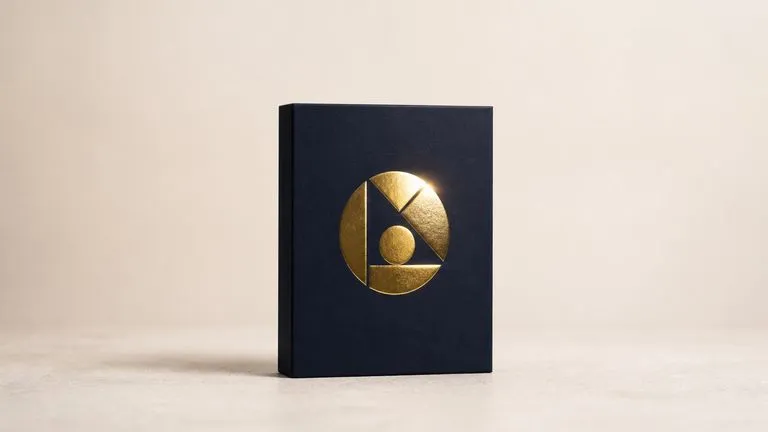
An abstract mark shown as a foil finish on a matte carton

Packaging & Print Teams

Show what a foil, deboss or spot finish will look like before a proof exists to look at.

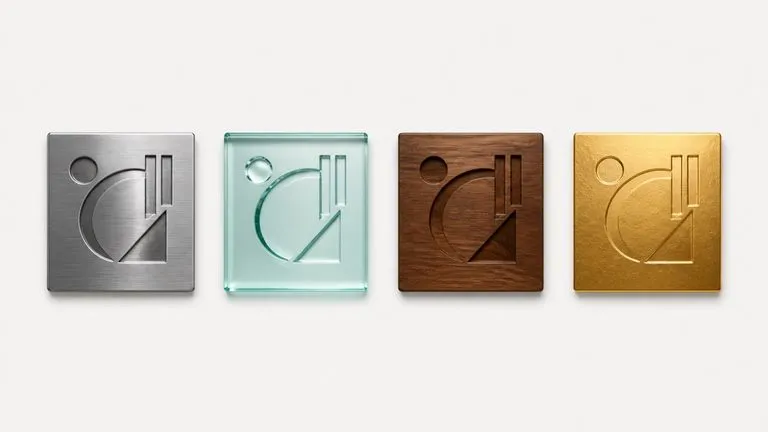
One mark shown in four material applications laid out as a brand deck page

Agencies Building Pitch Decks

Fill the application pages of a brand deck without modelling anything or booking a photographer.

Metal, glass, gold and wood logo renders

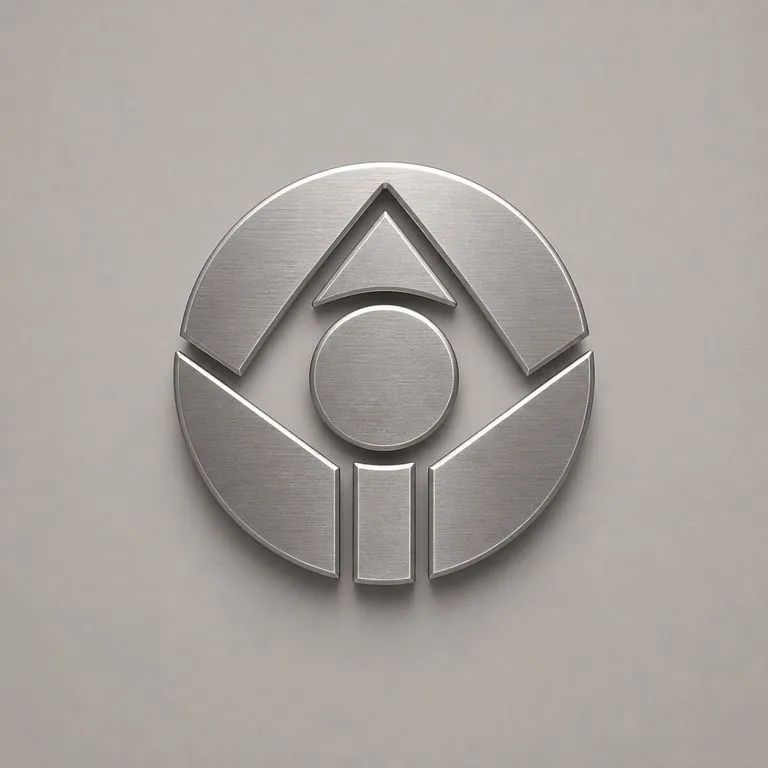
An abstract mark rendered in brushed steel with a shallow bevel
Brushed Steel, Shallow Bevel: grain running across the face, letterforms unchanged
An abstract mark rendered in cast glass with light passing through it
Cast Glass With Light Through It: thickness reading at the edges of the mark
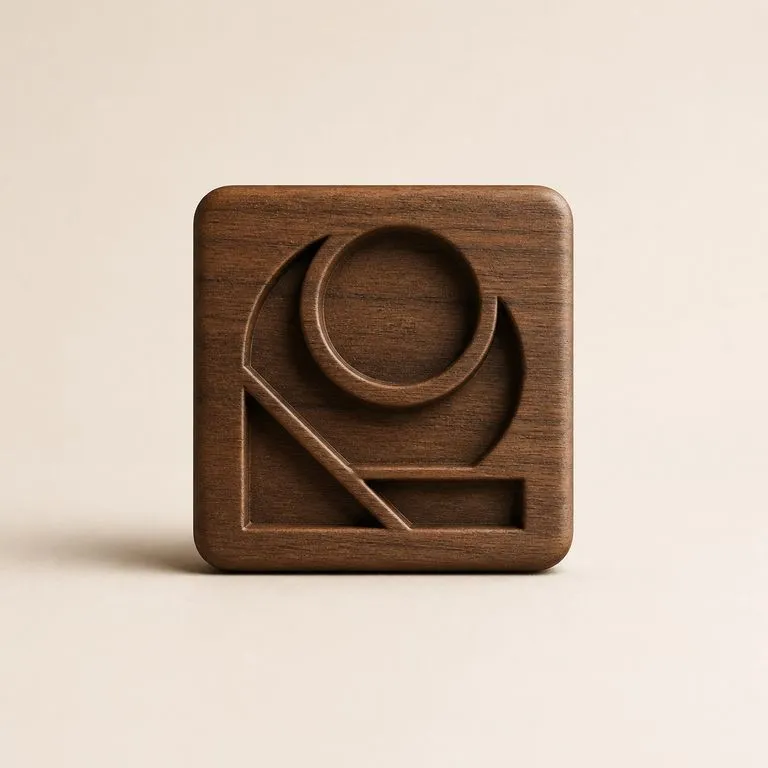
An abstract mark carved deep in walnut with the grain following the form
Walnut, Carved Deep: wood grain following the surface rather than lying flat
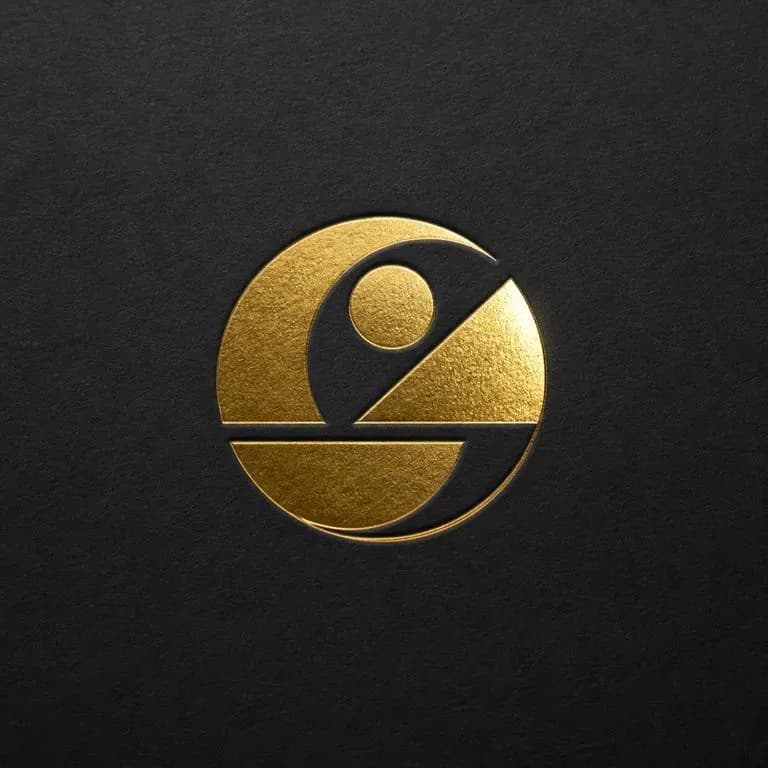
An abstract mark in gold foil catching light against a dark matte ground
Foil on a Dark Backdrop: a specular break where the finish catches the light
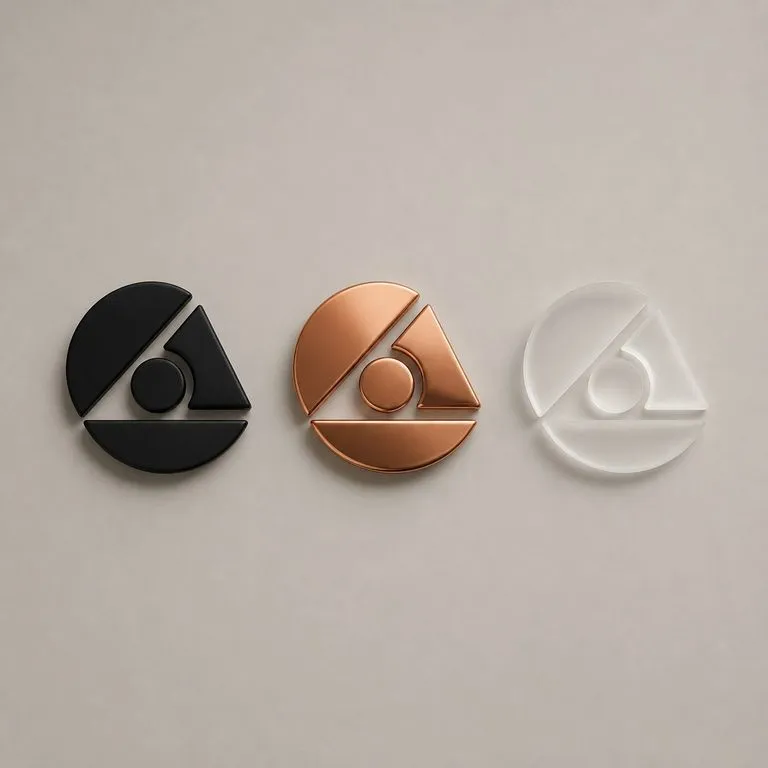
One mark rendered in three materials with an identical silhouette in each
One Mark, Three Materials: the same logo rendered from three references
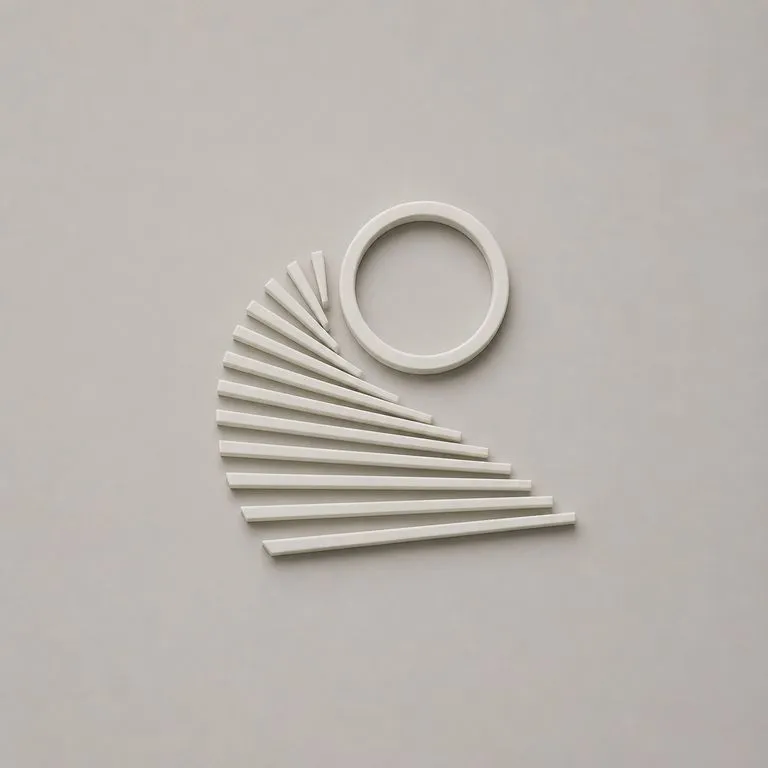
A mark with very fine strokes rendered without the thin parts merging
Fine Detail Held: thin strokes surviving the bevel instead of merging

Why the reference image matters more than a preset

Most 3D logo tools ask you to pick a material from a list. This one asks you to show it one.

Preset material libraries

  • You choose from named finishes, so matching a real substrate means finding the closest one
  • Chrome and gold presets look like chrome and gold presets, which is why they date quickly
  • The bevel is usually fixed, and the letterforms get simplified to fit it
  • The output is a download, and the next material is another export

The Virse materializer

  • The finish comes off a photograph of the actual material, including one you shot yourself
  • Grain, gloss and light response are read from that surface rather than approximated
  • The silhouette is a hard constraint, so thin strokes and tight counters survive
  • The render lands on a canvas where the next material is one swap and a re-run
FAQ

Questions

Does the logo shape ever change?
No. The silhouette and letterforms are the hard constraint. The material brings depth, bevel and light response, but the outline you drew is the outline you get.
What makes a good material reference?
A close-up photo where the surface fills the frame, showing grain, gloss and how light breaks on it. The reference object's shape is ignored entirely and only its material is read.
Can it design a logo for me?
No. A finished flat logo is a required input, because everything this tool does is built around not changing it. If you are still designing the mark, that is a different job and this is the wrong step.
Can I download the 3D model or an animation?
No. What comes back is a rendered image. There is no mesh, no STL and no spinning video, so if you need the mark as geometry for print or motion, build it from your vector file.
Does pressing Create run the tool straight away?
No. Your inputs travel into a fresh canvas and land on the tool already filled in, but nothing runs until you press Start there. A link can never spend your credits on your behalf.
Can I keep working on the result afterwards?
Yes. Everything the tool produces arrives on a normal Virse canvas, so you can re-run a single output, adjust it, or take it into an edit without exporting and re-importing.

Give your mark a surface worth touching

Start here. Your logo and material reference travel into a fresh Virse canvas, where nothing runs until you say so.