AI Material Pack Extractor

AI PBR Texture Generator

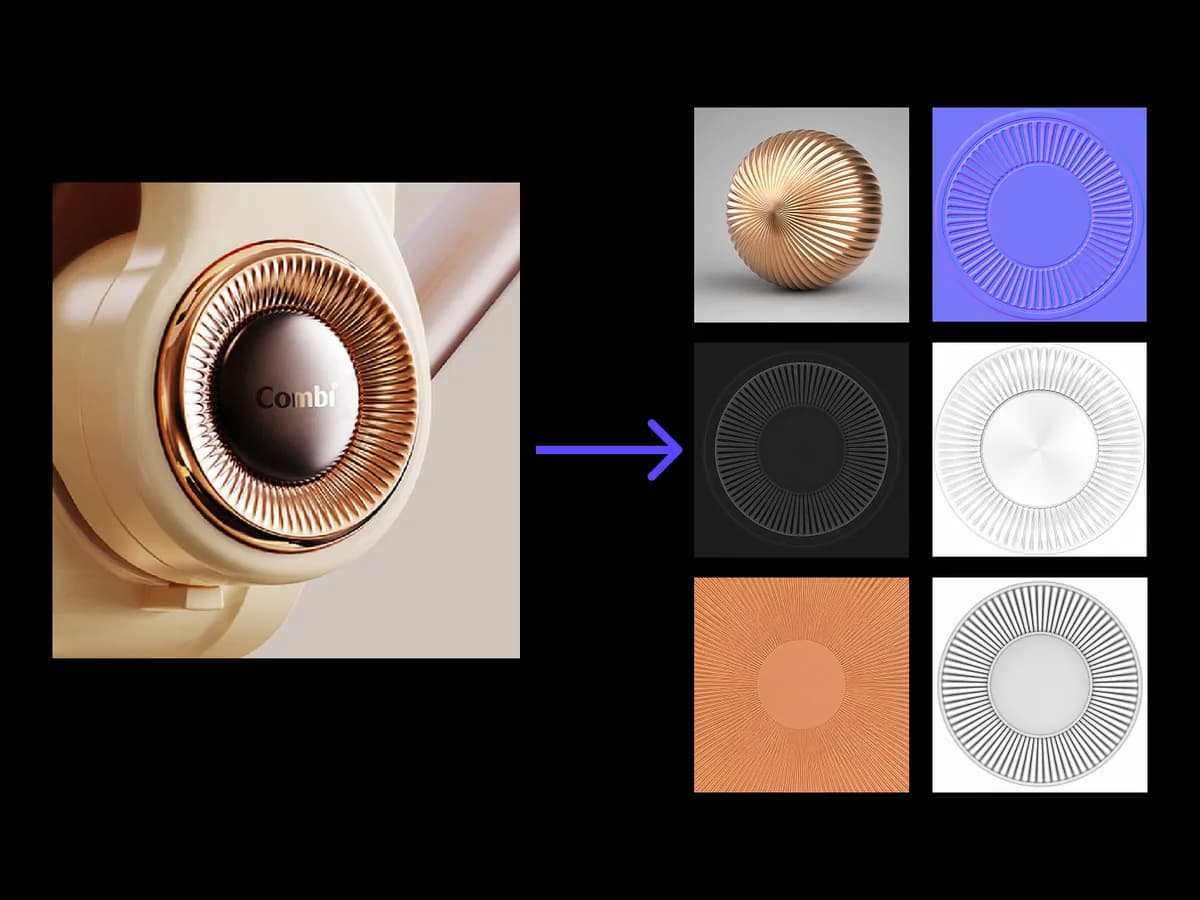
Point it at anything with a surface you want. It returns a fixed six-piece set every time: material sphere, albedo, normal, roughness, metallic and ambient occlusion, all read off the one photograph you gave it.

입력
Material reference image · 필수Material notes · 선택
출력
Six-piece PBR-style material pack × 6

Material reference image

필수

Drop your material reference

이미지는 캔버스에서 업로드합니다. 여기서는 설정만 입력합니다.

What an AI PBR texture generator returns from one image

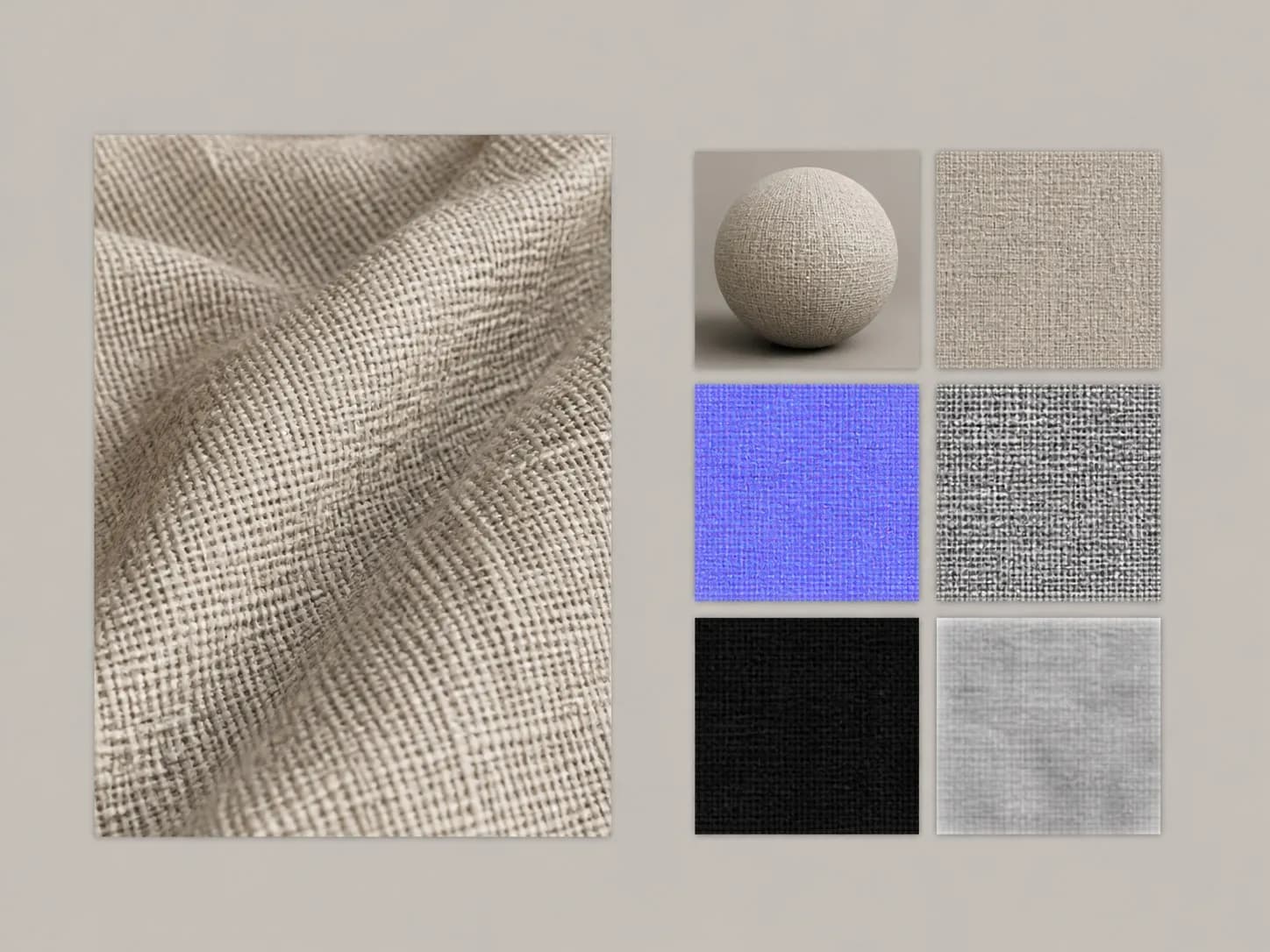
An AI PBR texture generator breaks a material down into the separate channels that describe it. This one starts from a photograph rather than a prompt, and it always returns the same six pieces, so one photo becomes six ways of describing one surface.

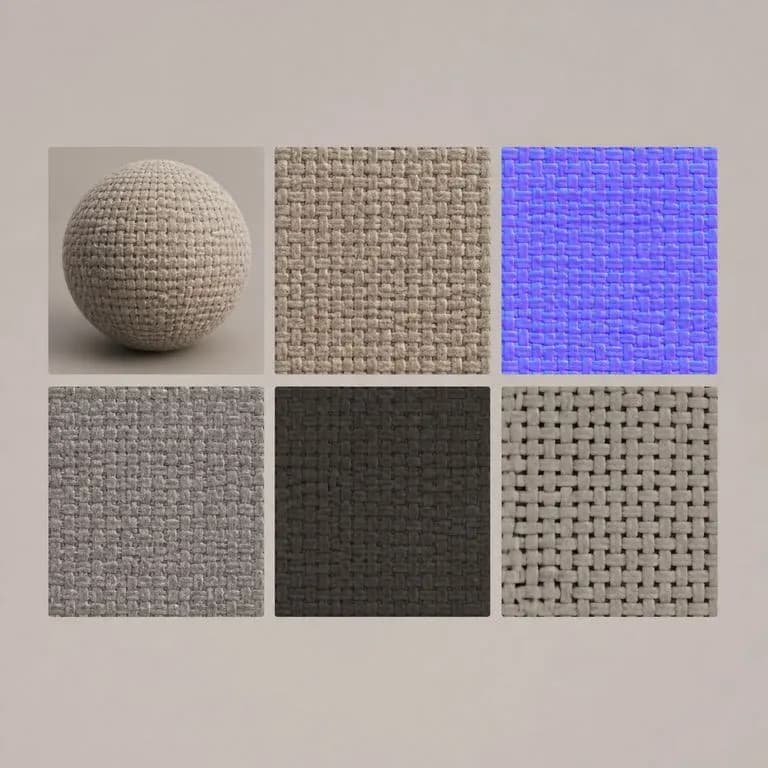
A close-up photograph of woven fabric on the left and a six-tile set of extracted material channels on the right
A material photograph and the six-piece set extracted from it

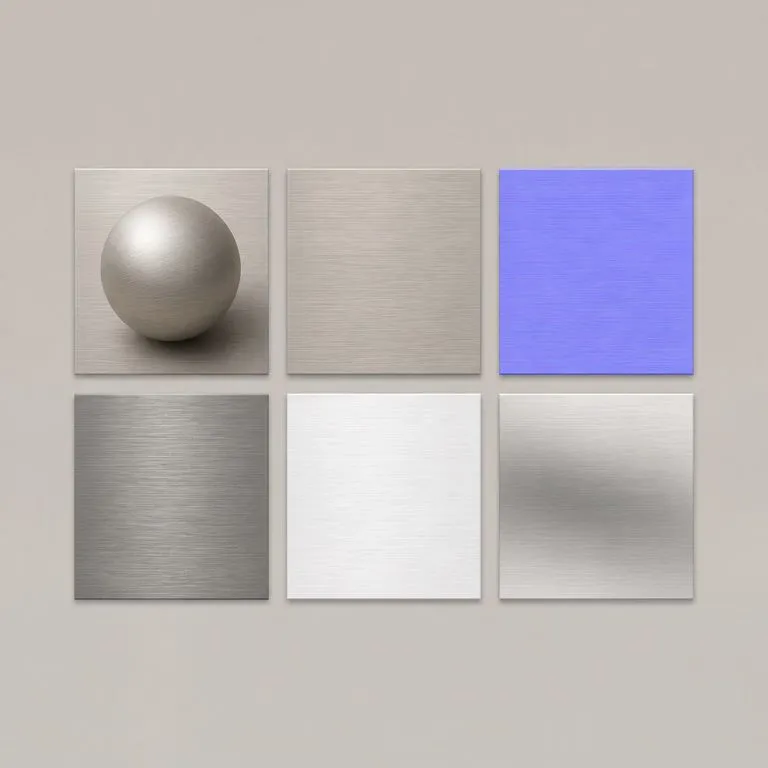
Six channels every PBR material from image set contains

The set is fixed. Three of the six describe what the surface looks like, and three describe how it behaves under light.

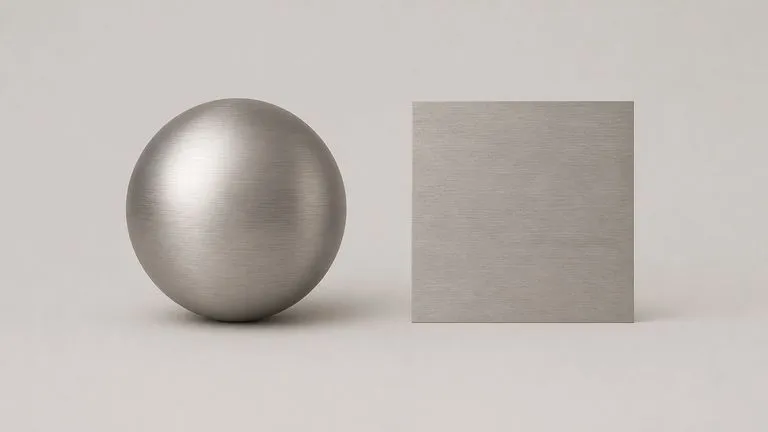
A material sphere rendered in brushed metal beside a flat desaturated base colour tile of the same metal
What it looks like

Sphere and albedo

The material sphere is the one image you show someone who asked what the finish is. Albedo is the base colour with the lighting taken out of it, so the same material reads the same whether the reference was shot in sun or under a desk lamp.

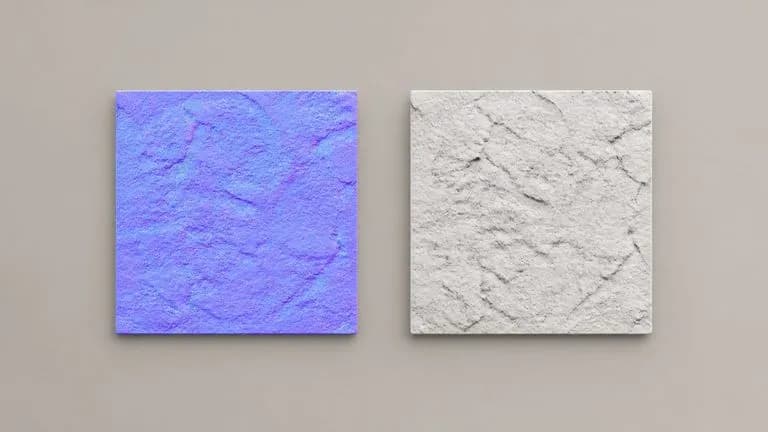
A violet-blue directional surface map beside a soft grey-scale shadow map of the same stone texture
What the surface does

Normal and ambient occlusion

Normal carries the direction of every bump, weave and machining line. Ambient occlusion carries the shadow that collects in the recesses. Together they are why a flat photograph starts reading as something with depth.

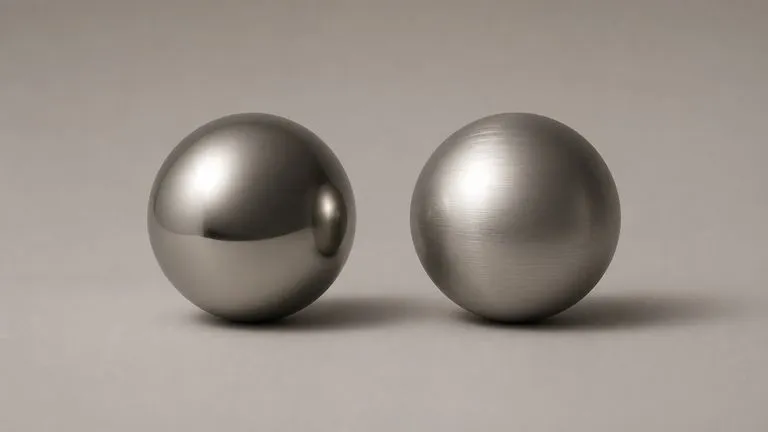
Two spheres of the same metal, one with a tight highlight and one with a broad soft highlight
How light behaves

Roughness and metallic

Roughness decides whether a highlight is a tight point or a broad smear. Metallic decides whether the surface reflects its surroundings or its own colour. These two settle most arguments about whether a finish is right.

How to create PBR from an image in four steps

  1. Photograph the surface, not the object

    Fill the frame with the material. A flat, evenly lit patch reads best, and a phone camera is enough. Strong shadows across the sample are the one thing worth avoiding.

  2. Say what to read and what to skip

    One line of notes. Stitching, printed labels, logos and dust are the usual things worth telling it to ignore, since they belong to the sample rather than to the material.

  3. Extract the set

    The six pieces come back together, in the same order every time. Nothing is chosen for you, because nothing is optional.

  4. Compare, then hand it on

    The set lands on a fresh Virse canvas. Put it beside another set to compare channel for channel, or hand it to whoever authors the production maps.

Who uses an AI texture generator from image

People who need to describe a material precisely enough that the next person builds the right one.

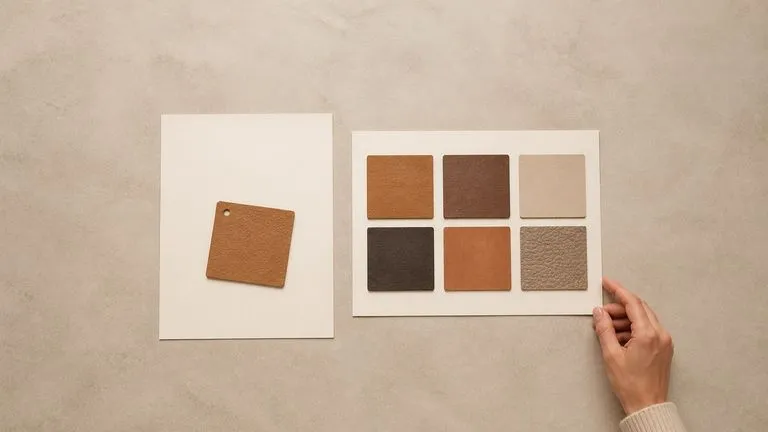
A physical leather swatch resting on a blank sheet beside a printed six-tile material set

CMF & Materials Designers

Turn a physical swatch into something you can put in a deck, a spec sheet or a message, without describing a finish in adjectives and hoping it lands.

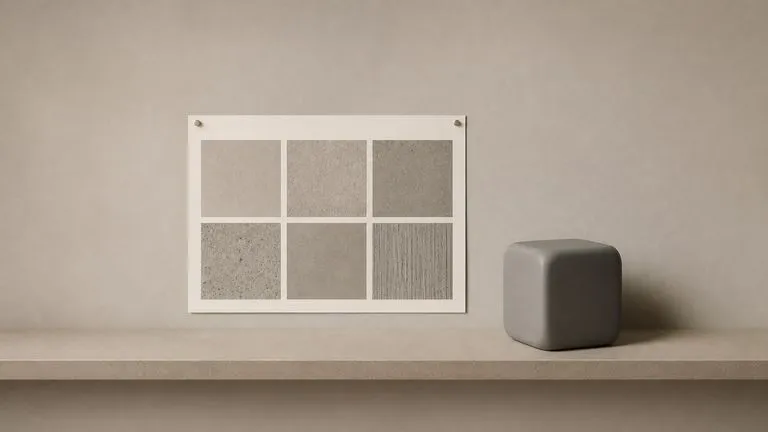
A printed six-tile material set pinned beside a shaded grey 3D object on a neutral wall

3D & Visualisation Artists

Get a reference set that tells you what the real material does, before you sit down to author the production maps for an engine or a renderer.

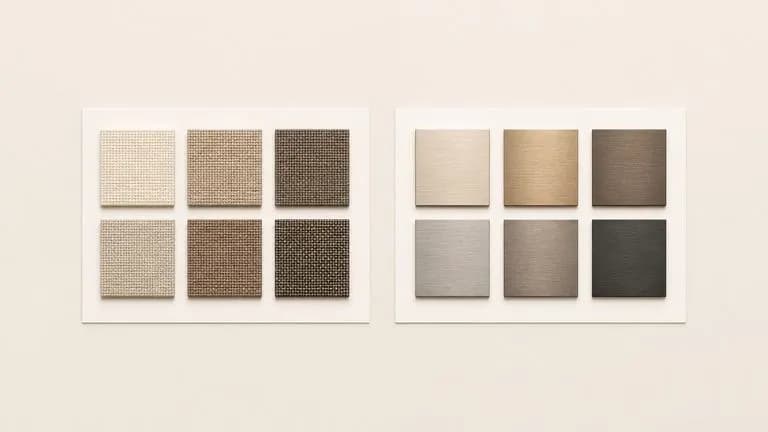
Two six-tile material sets laid side by side for comparison on a clean board

Product & Packaging Teams

Compare two candidate finishes channel for channel, so a materials decision comes down to what the surfaces actually do rather than which photograph was lit better.

What a PBR texture from image set looks like

A six-tile material set derived from brushed aluminium
Brushed Aluminium, Six Channels: grain direction carried into normal, gloss into roughness
A six-tile material set derived from a woven textile photographed on a phone
Woven Textile From a Phone Shot: pile and weave separated from the printed label
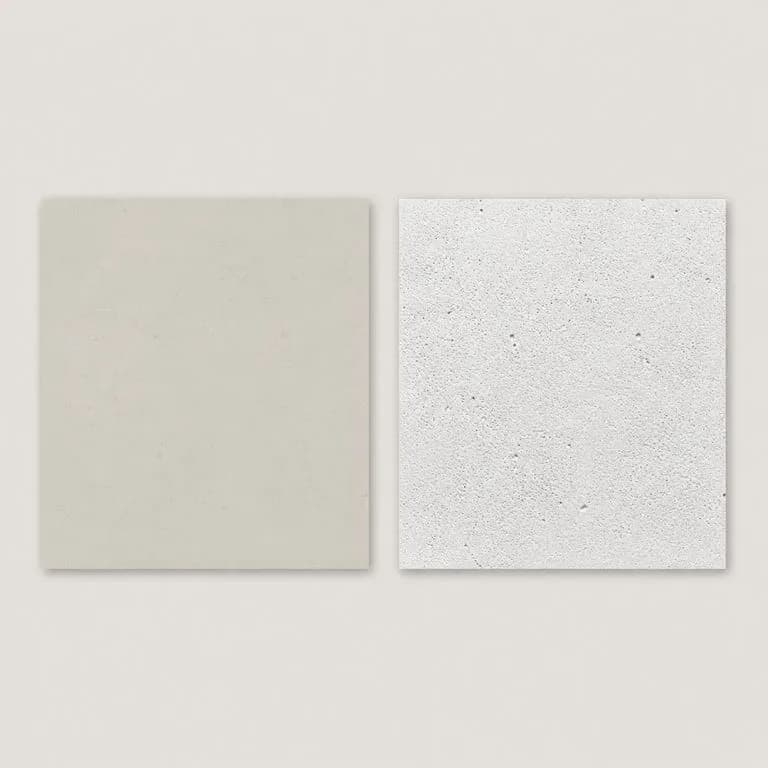
A concrete surface shown as a colour tile beside a shadow map where the pitting reads dark
Cast Concrete: surface pitting landing in ambient occlusion rather than in albedo
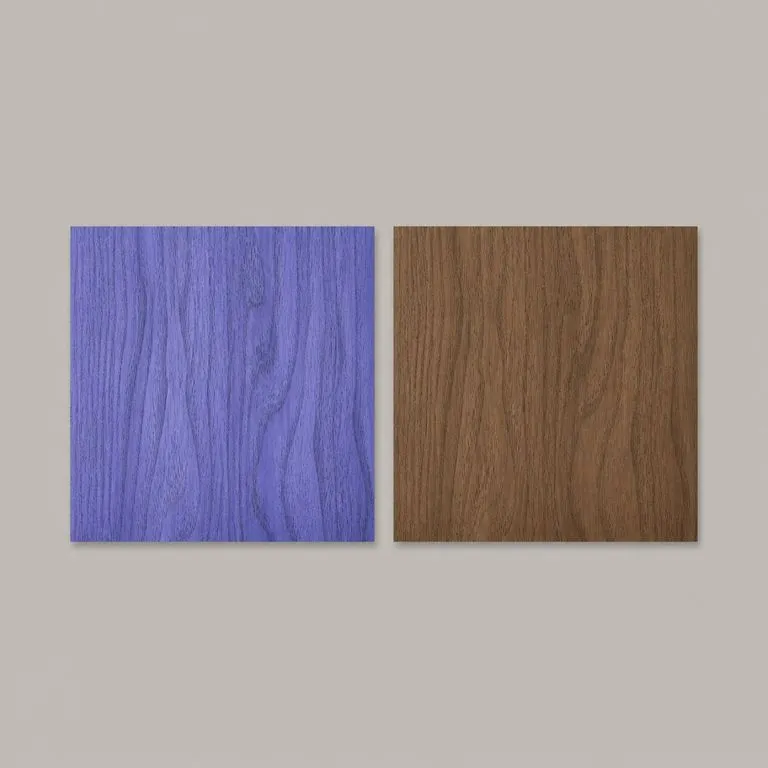
A walnut veneer shown as a directional surface map beside its flat base colour
Walnut Veneer: grain in normal, colour in albedo, with the lighting removed
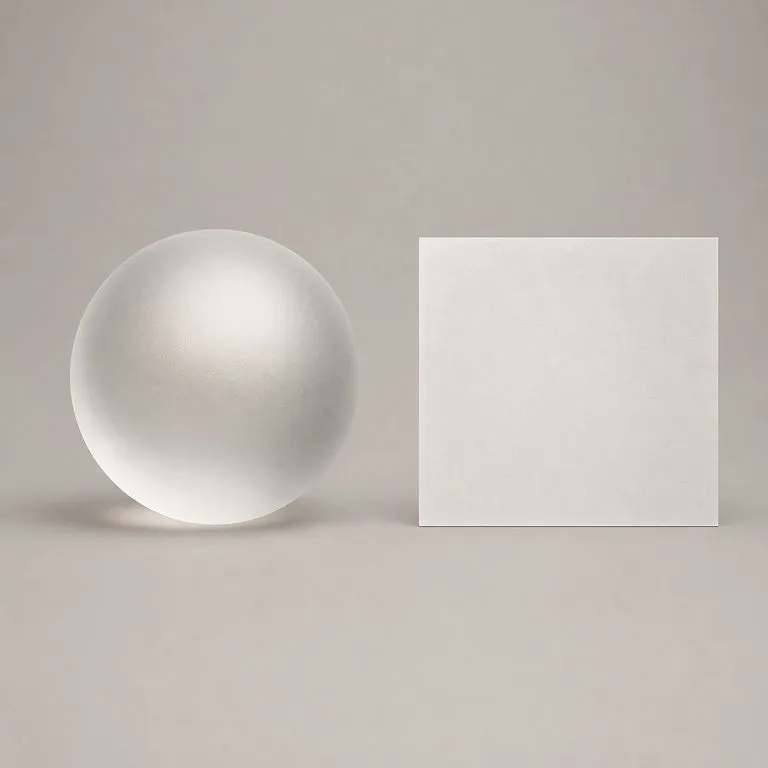
A frosted glass sphere with a broad diffuse highlight beside a near-white contrast map
Frosted Glass: a broad, soft highlight showing up as high roughness
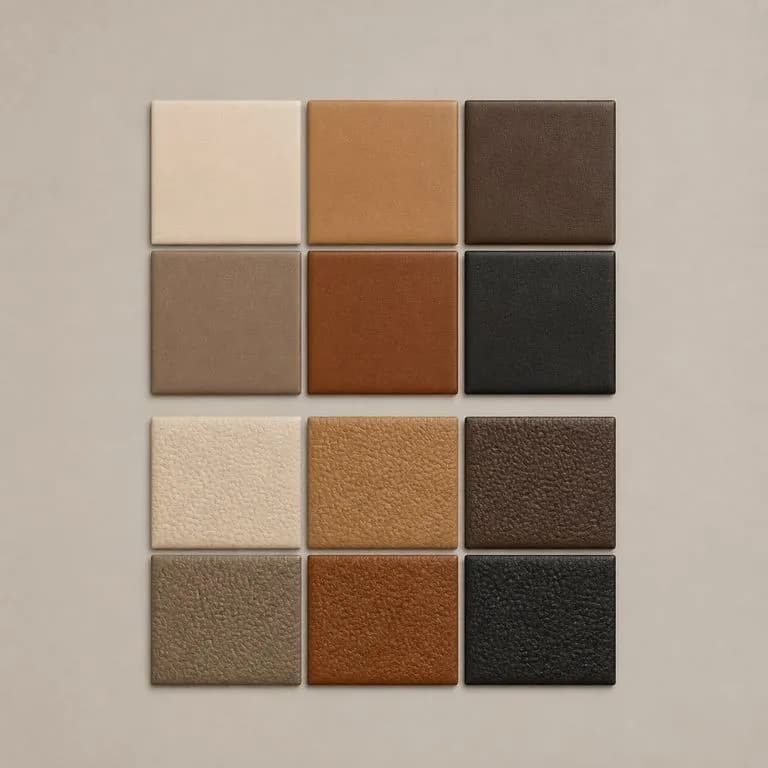
Two leather material sets laid out in identical channel order for comparison
Two Leathers, Compared: identical channel order making a side by side readable

Why extracting a material beats a seamless texture generator AI

The difference between describing the material you have and being handed a material somebody generated.

Prompt-based texture generators

  • The material comes from a text description, so nobody can check it against a real sample
  • Output varies run to run, and two attempts at the same finish rarely line up
  • Channels are whatever the tool decided to produce this time
  • The result is a download, and the workflow stops there

The Virse extractor

  • The material comes off a photograph of the real surface, so it can be checked against the sample
  • The same reference gives the same set, which is what makes a comparison mean anything
  • Six channels, fixed type and fixed order, so two materials line up piece for piece
  • The set lands on a canvas and can be compared, re-run or handed on from there
FAQ

Questions

Are these usable as engine textures?
No, and they are not meant to be. They are PBR-style representations for design reference: for judging a material, for communicating it, and for handing to whoever authors the real maps. Treat them as a spec rather than as an asset.
Why always six, and always in that order?
So a set can be compared with another set. Fixed type and fixed order means two materials line up channel for channel, which is the only way a side by side tells you anything.
Can it put the material onto my product?
Not from here. This tool takes a material apart. Putting a finish onto a product photograph is the AI Material Transfer tool, which reads your product's structure and wraps the reference material along it. Many people run both: extract the material to judge it, then transfer it to see it on the product.
Can I get a seamless or tileable version?
No. The set describes the surface in the photograph you gave it, and it is not tiled or repaired at the edges. If you need a tileable map for a game engine or a 3D scene, author it from this set rather than expecting the set to be one.
Does pressing Create run the tool straight away?
No. Your inputs travel into a fresh canvas and land on the tool already filled in, but nothing runs until you press Start there. A link can never spend your credits on your behalf.
Can I keep working on the result afterwards?
Yes. Everything the tool produces arrives on a normal Virse canvas, so you can re-run a single output, adjust it, or take it into an edit without exporting and re-importing.

Take the material off the photo

Start here. Your reference travels into a fresh Virse canvas with the tool already filled in, and nothing runs until you press Start.