
How to Use Seedance 2.5: A Complete Guide for AI Video Production
 Yifan Zhao14 min de lecture ·
To use Seedance 2.5, open the model in Dreamina, upload the images, videos, audio, scripts, or previs assets needed to define the scene, assign each reference a specific role, and write a structured prompt covering the subject, action, camera, timeline, sound, and continuity requirements. Generate a short test first, review identity and motion consistency, and then use localized editing or video extension as part of a structured Seedance workflow to correct individual problems instead of rebuilding the entire project.
Seedance 2.5 is most useful when treated as a multimodal video production system, not a one-line text-to-video generator. Published Dreamina materials describe support for native clips up to 30 seconds, as many as 50 multimodal references, local video and audio editing, green-screen and white-model guidance, and beta long-video workflows extending to 180 seconds. Availability, pricing and feature limits may still differ by account or region.
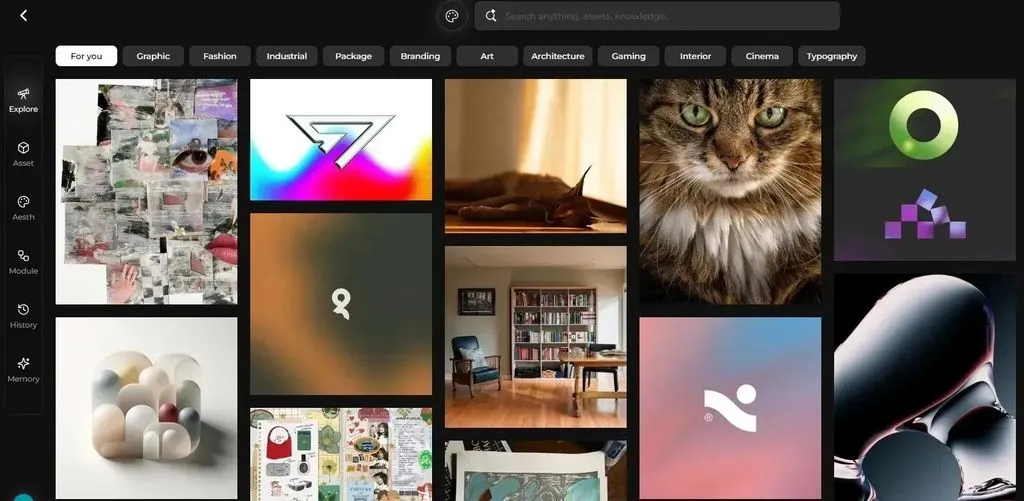
virse helps solve this workflow problem by organizing AI video creation on an infinite canvas, where designers can arrange references, connect assets, coordinate multiple AI agents, and preserve project context over time. Instead of treating Seedance as an isolated prompt box, Virse turns it into part of a collaborative AI design system that supports reusable brand knowledge, visual consistency, and faster iteration across complex creative projects.
Where Can You Use Seedance 2.5?
The main creator-facing access point is Dreamina, CapCut’s AI creative platform. Dreamina publishes dedicated Seedance 2.5 pages covering general generation, ecommerce advertising, longer videos, and creative production workflows. For a broader breakdown of where to use Seedance 2.5, the available workflow depends on the model access provided in your account.
A typical access process is:
- Sign in to Dreamina.
- Open the AI video generator.
- Select Seedance 2.5 when it appears in the model menu.
- Choose a text-to-video, image-to-video, or reference-to-video workflow.
- Upload the required assets.
- Set the aspect ratio and duration.
- Add a structured prompt.
- Generate a short test before using the longest setting.
Seedance 2.5 access may vary by account, region, and rollout stage. Creators should verify the model name inside the official workspace rather than assuming that every third-party platform using the Seedance name provides the same version.
This distinction matters for professional work. Uploading public product photography for a social media test carries less risk than submitting confidential product designs, unreleased campaign assets, private customer footage, or proprietary 3D previews. Before using any AI video platform commercially, review its asset-retention policy, commercial-use terms, pricing, and privacy controls.
How to Use Seedance 2.5 Step by Step
Define the final video before choosing a prompt
Start by deciding what the video needs to accomplish.
Common Seedance 2.5 use cases include:
- A vertical social advertisement
- A product launch concept
- A cinematic character introduction
- A game or animation previs sequence
- An ecommerce product demonstration
- A brand storytelling video
- A client presentation or internal concept film
The final use determines the duration, aspect ratio, reference assets, camera language, and required level of consistency.
For example, a product advertisement needs stricter control over geometry, colors, logo placement, and materials than an atmospheric concept video. A game cinematic may need stronger spatial and camera control, making a Blender previs more useful than a highly detailed text prompt.
Choose the right Seedance 2.5 input method
Input method | Best for | Main limitation |
Text only | Early visual exploration | Limited identity and geometry control |
Image reference | Products, characters, and keyframes | Provides limited motion information |
Video reference | Performance and camera movement | May transfer unwanted visual details |
Audio reference | Dialogue, rhythm, and ambience | Timing may still require correction |
Green-screen video | Actors and product demonstrations | Edges and lighting need close review |
White-model previs | Layouts, blocking, and camera paths | Does not create editable 3D geometry |
Mixed references | Branded and complex productions | Conflicting inputs can reduce consistency |
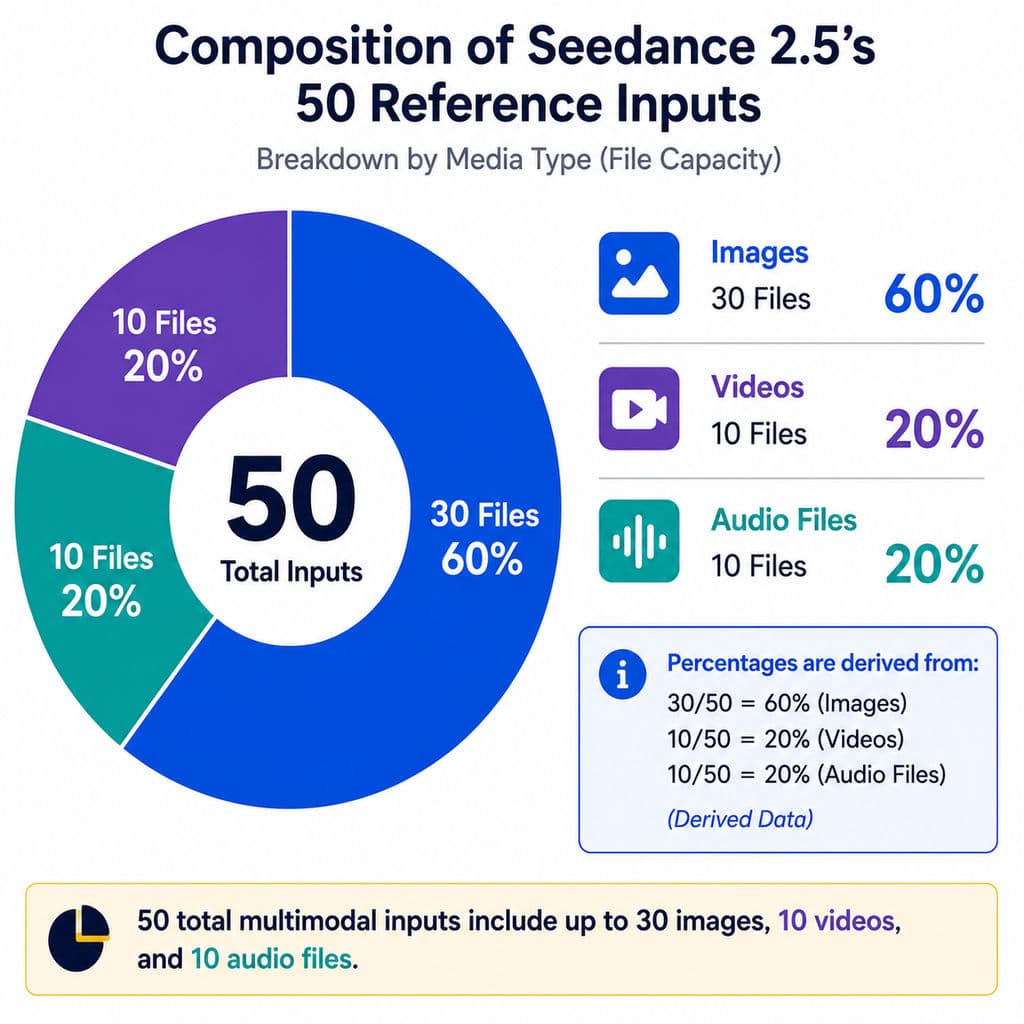
Published material describes support for up to 50 combined multimodal inputs. The research materials further divide this capacity into as many as 30 images, 10 videos, and 10 audio files.
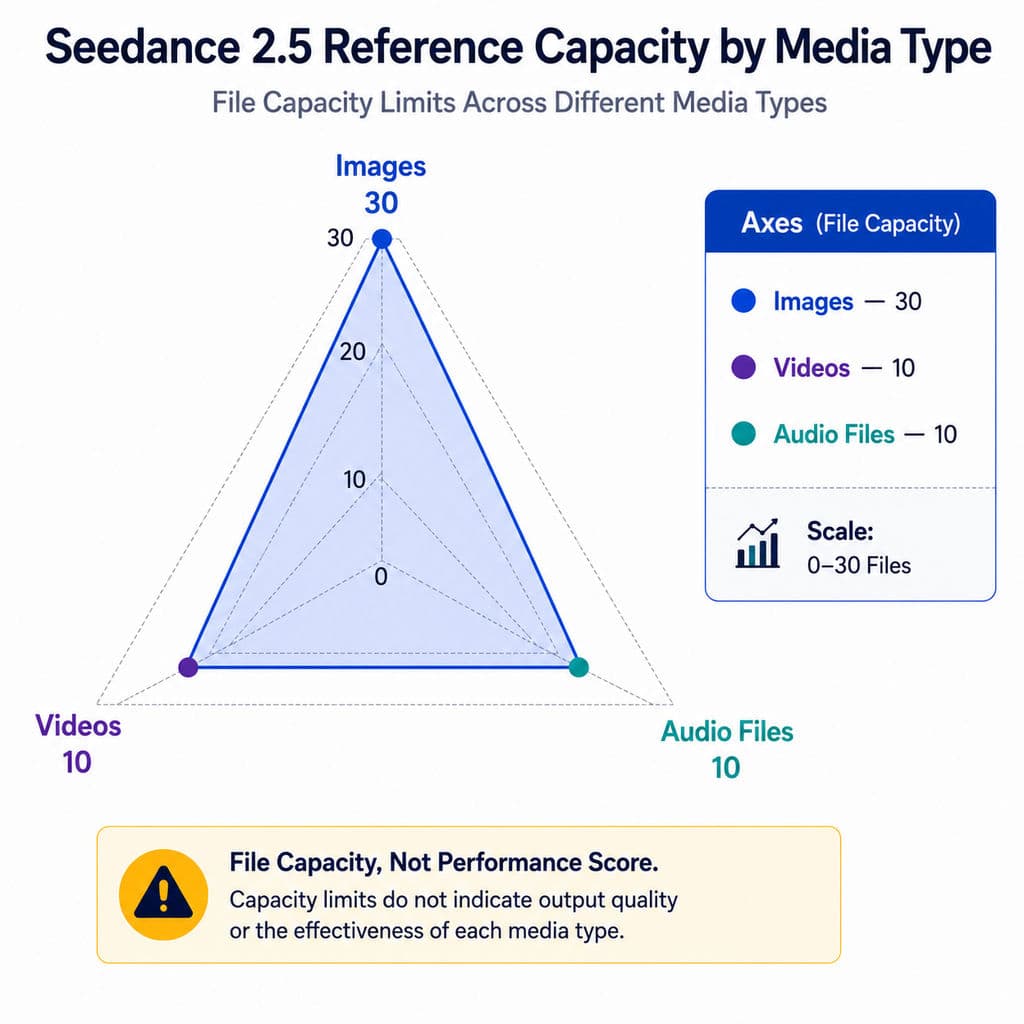
However, the maximum number of references is not the recommended number.
Our review of recurring user questions found that inconsistent results are often associated with:
- Duplicate reference images
- Conflicting character outfits
- Several versions of the same product
- Mixed lighting directions
- Unclear reference priorities
- Too many loosely related style images
More context improves a generation only when every asset has a clearly defined function.
Label every reference by function
Use clear reference names such as:
@Character_Afor identity@Product_Frontfor product geometry@Style_01for lighting and color@Motion_Referencefor movement@Camera_Previsfor camera direction@Audio_01for dialogue or pacing
Then explain what each asset controls.
For example:
Use @Character_A as the strict face, hairstyle, wardrobe, and body-proportion reference. Use @Motion_Reference only for movement timing. Use @Style_01 only for lighting, texture, and color grading.
This prevents the model from treating every reference as equally important.
In professional AI design workflows, the most reliable hierarchy is:
- Authoritative references for identity and product geometry
- Structural references for movement, composition, and camera
- Stylistic references for color, lighting, texture, and atmosphere
- Optional references for secondary details
Dreamina’s guidance also recommends connecting uploaded assets to explicit prompt instructions so the model can distinguish between identity, motion, styling, and sound.
Write a structured Seedance 2.5 prompt
A strong Seedance 2.5 prompt should include:
- Format and duration
- Subject
- Action
- Environment
- Camera
- Timeline
- Audio
- Continuity rules
- Elements to avoid
Use this template:
Create a [duration] [aspect ratio] video.
Subject:
Describe the person, product, or object.
Action:
Describe one primary action and any secondary movement.
Environment:
Describe the location, spatial layout, weather, and atmosphere.
Camera:
Specify the framing, lens character, camera path, speed, and cuts.
Timeline:
Divide the video into timed sections.
Audio:
Specify dialogue, sound effects, ambience, and music.
References:
Explain what each uploaded asset controls.
Must preserve:
List identity, product geometry, wardrobe, logos, colors, and scene layout.
Avoid:
List unwanted subtitles, extra objects, identity changes, abrupt cuts, and unrelated music.
Prompts such as “cinematic, premium, beautiful, 4K” are not enough. These words describe the intended impression, but they do not explain what happens, how the camera moves, what must remain unchanged, or when each event occurs.
Generate a short proof before a long video
Test the most difficult requirement first.
That may be:
- Character consistency
- Product accuracy
- Camera movement
- Lip synchronization
- Green-screen integration
- Multi-person interaction
- Hand-object contact
A reliable workflow is:
5–10 second proof → continuity review → 30-second generation → localized correction → final editing
Longer duration gives the model more time to complete an action, but it also creates more opportunities for faces, hands, clothing, lighting, and background geometry to drift.
The goal of the first test is not to produce the final video. It is to verify that the model understands the visual identity, spatial structure, and movement logic of the scene.
Review the result systematically
Do not evaluate a generation only by whether it looks attractive.
Review it by category:
Review area | What to inspect |
Identity | Face, hairstyle, age, and body proportions |
Product | Shape, components, logo, colors, and materials |
Motion | Weight, speed, contact, and acceleration |
Camera | Framing, path, speed, and unwanted cuts |
Continuity | Clothing, props, lighting, and background |
Audio | Dialogue timing, sound placement, and lip sync |
Artifacts | Hands, reflections, text, and duplicated objects |
This review method makes revisions more precise. Instead of rewriting the entire prompt, identify whether the failure comes from identity, action, camera, timing, sound, or reference conflict.
How Long Can Seedance 2.5 Videos Be?
Seedance 2.5 is described as supporting native video generation up to 30 seconds, while Dreamina also presents beta long-video workflows covering approximately 5 to 180 seconds.
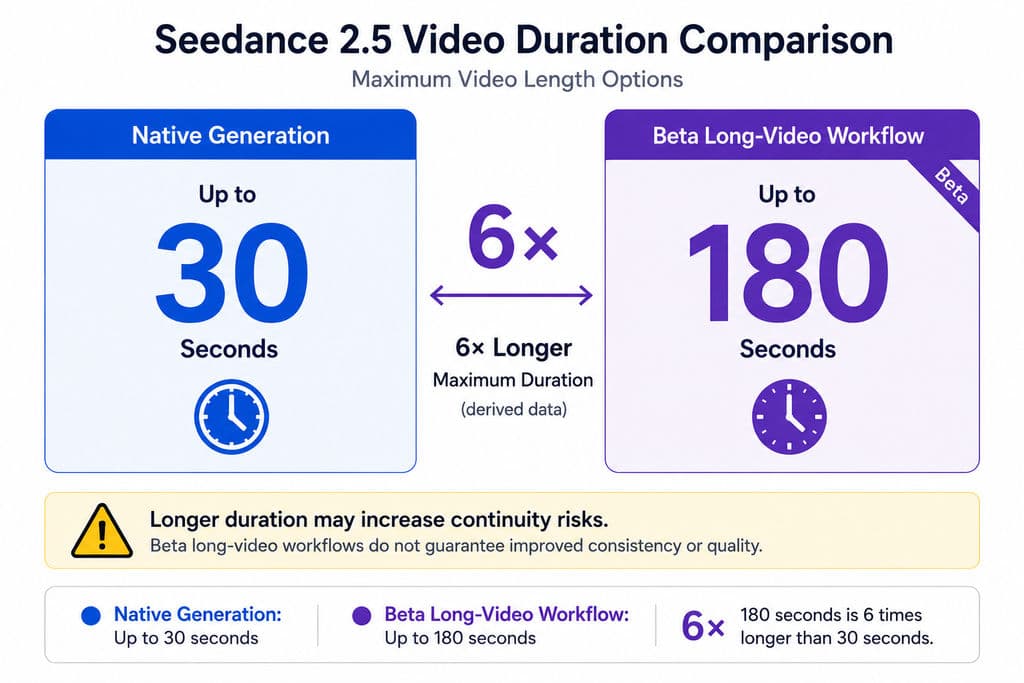
The main value of a 30-second native generation is not simply a longer output. It allows a complete advertising or narrative structure to exist within one generation:
- Establishing shot
- Subject introduction
- Main action
- Product or narrative reveal
- Closing frame
Generating the sequence together can reduce the visible continuity breaks that occur when several independent clips are stitched together.
However, longer output also increases risk. A 90- or 180-second sequence may introduce:
- Character drift
- Costume changes
- Product deformation
- Lighting inconsistencies
- Repeated or missing actions
- Background changes
- Timing errors
For this reason, extended generation is best suited to story drafts, previs, explainers, internal reviews, and first-cut concept videos.
Even when the platform supports a longer output, divide the story into clear sections and review each one independently.
How to Write Seedance 2.5 Timestamp Prompts
A Seedance 2.5 timestamp prompt should coordinate action, camera, audio, and continuity within each time range.
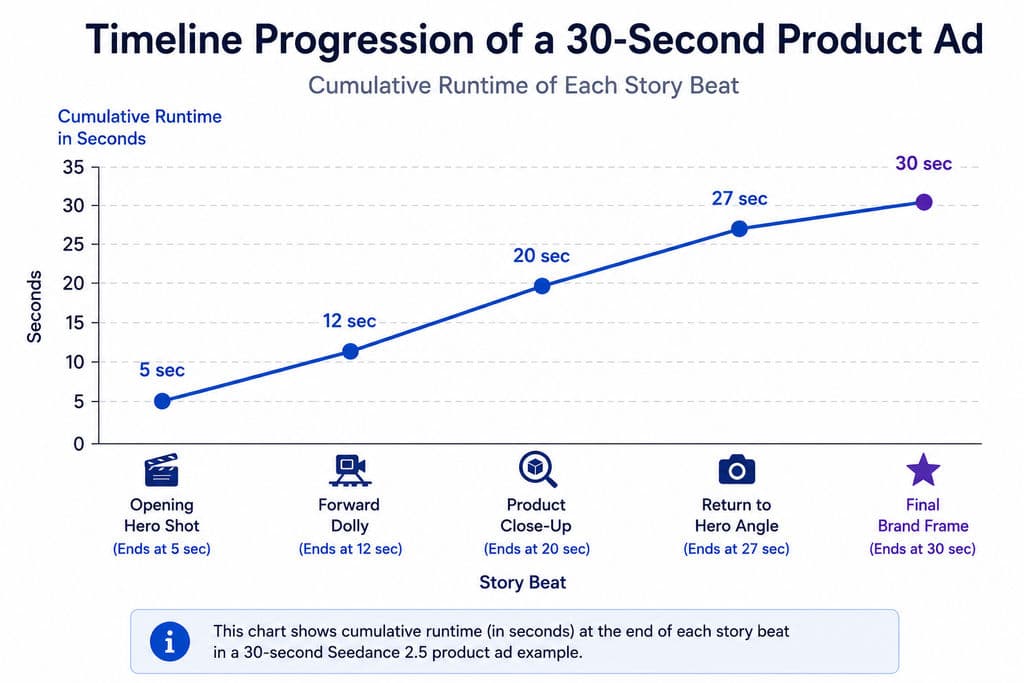
Here is a practical 30-second product-ad template:
00:00–00:05
Wide hero shot of the silver speaker on a black stone platform. The camera remains still. Use low ambient room tone.
00:05–00:12
Begin a slow forward dolly. A narrow blue light passes across the metal surface. Preserve the exact product shape and logo position.
00:12–00:20
Cut to a close side angle. The control dial rotates once. Synchronize a subtle mechanical click with the movement.
00:20–00:27
Return to the hero angle. Mist moves slowly behind the product. Do not introduce extra objects or text.
00:27–00:30
Hold the final composition. Show the approved brand name during the final second only.
In one documented brand-video demonstration reviewed for this guide, the editing workflow placed branded wording within the final second. Another example shortened a 30-second space-themed sequence to approximately 22 seconds by removing an unwanted section rather than regenerating the full clip.
These cases demonstrate an important production principle: AI video quality depends not only on generation, but also on timeline-level revision.
Timestamp prompts should still be treated as directional rather than perfectly frame accurate. One third-party test indicated that timing could remain within roughly one second of the instruction, but the test did not provide a large benchmark or repeated controlled results.
For important advertising, dialogue, or music cues, always verify the final timing in a conventional editor.
How to Use Seedance 2.5 Multimodal References
Multimodal prompting works best when each reference controls a different production variable.
Reference type | What it should control |
Character images | Face, hair, clothing, and proportions |
Product images | Geometry, components, colors, and materials |
Environment images | Architecture, set design, and atmosphere |
Style images | Lighting, grading, texture, and lens character |
Video clips | Performance, choreography, and camera motion |
Audio files | Dialogue, rhythm, and sound direction |
Previs clips | Scene layout, timing, and camera path |
A useful prompt might say:
Product Front is the authoritative geometry reference. Preserve its silhouette, dimensions, controls, logo position, colors, and material finish. Style Image 02 controls lighting and color only. Motion Video 01 controls camera speed and movement but must not change the product design.
This level of instruction is especially important for products, branded characters, packaging, fashion, automotive concepts, and ecommerce advertising.
Our review of user questions found that many inconsistent results begin with an asset-management problem rather than a model problem. Teams often upload several attractive images but fail to define which asset controls geometry, which controls color, and which controls style.
For repeatable production, create a reusable reference package containing:
- Approved product angles
- Character sheets
- Logo assets
- Brand colors
- Material references
- Typography examples
- Camera references
- Lighting references
- Approved previous outputs
This turns multimodal prompting into a controlled production workflow rather than a one-off generation.
How to Use Seedance 2.5 for Green-Screen Product Ads
A documented sunglasses-ad case used footage of a real model wearing the product against a green background. Seedance generated a new environment while retaining the model’s performance and the product as primary references. The workflow then added branded wording near the end of the video.
A practical green-screen workflow is:
- Record the subject against a clean, evenly lit background.
- Keep the product visible throughout the important movement.
- Avoid severe motion blur and fast hand contact.
- Upload front and side product references.
- State that the video controls performance only.
- Describe the replacement environment and lighting direction.
- Require preservation of product geometry and brand colors.
- Generate a short test.
- Inspect hair, edges, hands, shadows, and reflections.
- Add final branding, legal text, captions, and audio in an editor.
This workflow is useful because one recorded performance can be reused for several environments, campaign directions, or regional variations.
For example, the same model footage could be tested in:
- A minimalist studio
- A city-night environment
- A beach campaign
- A futuristic product laboratory
- A seasonal ecommerce scene
However, this workflow should not be confused with a professional keying pipeline. Current evidence does not establish reliable transparent alpha output, editable masks, or broadcast-quality treatment of hair, glass, smoke, reflections, and translucent objects.
Green-screen input improves structural control, but final edge quality still requires human review.
How to Use Seedance 2.5 with Blender or Maya
Seedance 2.5 can use a white-model or clay-render video as a structural reference.
The 3D preview can define:
- Scene layout
- Camera movement
- Object position
- Character blocking
- Action timing
- Spatial relationships
Separate image references can then control:
- Character appearance
- Product materials
- Lighting
- Color
- Texture
- Visual style
A professional workflow is:
- Build a low-detail scene in Blender or Maya.
- Position the major objects.
- Animate the camera and key actions.
- Export a clay-render preview.
- Upload character, product, and style references.
- State that the previs controls geometry and camera movement.
- State that image references control appearance and materials.
- Generate the visual concept.
- Review spatial and camera continuity.
- Revise the previs when structural changes are needed.
This workflow is valuable for:
- Game cinematics
- Film previs
- Animation
- Architecture
- Advertising
- Product launch films
- Virtual production
It solves a common communication problem. Clients and non-3D stakeholders may struggle to evaluate a grey viewport animation, while a fully rendered sequence may be too expensive during early concept development.
Seedance can transform the previs into a more visually complete concept film before the team commits to final rendering.
The limitation is important: Seedance generates a video interpretation, not an editable 3D scene. It does not replace Blender, Maya, Unreal Engine, or a final VFX pipeline when exact dimensions, material behavior, simulations, engineering accuracy, or editable geometry are required.
How to Edit a Seedance 2.5 Video Without Regenerating Everything
Localized editing is one of the most practical Seedance 2.5 workflows because it allows creators to target a specific section instead of restarting the entire generation.
A useful edit instruction is:
Between 00:08 and 00:11, replace the red cup with the referenced silver bottle. Preserve the character, camera movement, table layout, lighting, audio, and all content outside this interval.
A strong local-edit prompt should include:
- The exact time range
- The object or action being changed
- The replacement reference
- The elements that must remain unchanged
- Any audio behavior that should be preserved
Localized editing is useful for:
- Replacing a product
- Changing a background object
- Removing an unwanted shot
- Correcting a logo
- Adjusting a character action
- Adding a brand reveal
- Revising dialogue or sound
- Shortening a sequence
However, localized editing should not be treated as a guarantee that every other frame will remain identical. Small changes in lighting, texture, motion, or composition may still appear.
For important work, compare the original and edited versions side by side and review the frames immediately before and after the edited section.
What Are the Main Seedance 2.5 Limitations?
Seedance 2.5 is better suited to controlled creative production than fully autonomous final delivery.
The highest-risk conditions identified in our research include:
- Several interacting characters
- Complex hand-object contact
- Fast physical movement
- Long continuous shots
- Conflicting identity references
- Products requiring exact geometry
- Small logos and typography
- Repeated scene changes
- Local edits expected to preserve every pixel
- Long sequences without a storyboard
Published materials also provide limited independent evidence regarding:
- Generation success rates
- Production-scale reliability
- Commercial licensing
- API pricing
- Asset privacy
- Long-video consistency
- Repeatability across multiple generations
The most reliable solution is to reduce uncertainty before generation.
Use:
- One primary subject
- One authoritative identity reference
- One authoritative product reference
- Clear camera instructions
- Short proof generations
- Separate structural and stylistic references
- Conventional editing and quality assurance
Seedance 2.5 can accelerate concept development and video production, but creative direction, brand accuracy, rights review, and final delivery remain human responsibilities.
FAQ
Is Seedance 2.5 available in Dreamina?
Dreamina publishes dedicated Seedance 2.5 product and tutorial pages, but access may vary by region or account. Check the model selector inside the official Dreamina workspace and confirm that the selected version is 2.5 before uploading private assets or purchasing credits.
Can Seedance 2.5 generate a 3-minute video?
Dreamina describes a beta long-video workflow supporting up to 180 seconds, while standard native generation supports up to 30 seconds. A three-minute output should be treated as an extended draft workflow because identity, timing, product accuracy, and environmental consistency may become less reliable as duration and scene complexity increase.
How many references can Seedance 2.5 use?
Seedance 2.5 is described as supporting up to 50 multimodal inputs, with research materials listing as many as 30 images, 10 videos, and 10 audio files. Better results usually come from using fewer authoritative references and clearly explaining what each asset controls.
Is Seedance 2.5 suitable for ads, films, and games?
Seedance 2.5 is suitable for advertising concepts, product-video drafts, social campaigns, game cinematics, previs, and creative reviews. It should not be treated as a replacement for final editing, VFX, 3D rendering, rights review, or quality control. Its strongest role is accelerating exploration and structured iteration before professional finishing.
Conclusion
Seedance 2.5 works best when references, timing, camera direction, sound, and revision are planned as parts of one production workflow. Start with a clear final use, assign every reference a specific role, write the prompt as a timed production brief, test the highest-risk movement first, and refine individual failures through localized editing. Its 30-second native generation, multimodal reference support, green-screen workflows, local editing, and white-model guidance make it useful for advertising, ecommerce, product storytelling, game cinematics, and previs, but consistent professional delivery still depends on human creative direction, disciplined asset management, quality control, and conventional post-production.
Plus d’articles du blog Virse
Flux de travail

What Is Human-Centered Design? HCD Process, Real Examples & Why Most Teams Get It Wrong
21 septembre 2026 by Vincent
Flux de travail
What Is Design Thinking? 5 Stages, Real Examples & Why Most Teams Get It Wrong
21 septembre 2026 by Vincent
Flux de travail
How to Turn a Design Into a Real Product: What to Do After the Prototype
21 septembre 2026 by Vincent