
How to Use Nano Banana 2.1: Prompts, Editing & Real Examples
 Yifan Zhao10 min de lecture ·
To use Nano Banana 2.1, select the model in a supported platform, describe your image or upload a reference, and specify what should change and what must stay the same. Generate the image, compare it with your requirements, and make focused revisions from an approved reference.
For professional work, the challenge is preserving useful details while improving the image. A portrait can gain realistic texture but lose facial likeness. A product photo can acquire better lighting while its packaging changes. Successful editing requires both the requested improvement and preservation of the details that matter. Maintaining brand consistency is especially important for commercial assets.
Our review of published examples and user questions points to a practical approach: start with a clear visual brief, separate edits from preservation requirements, and check each accepted output against the original. This AI design workflow helps organize generation, review, and revision.
How to Access Nano Banana 2.1 and Generate Your First Image
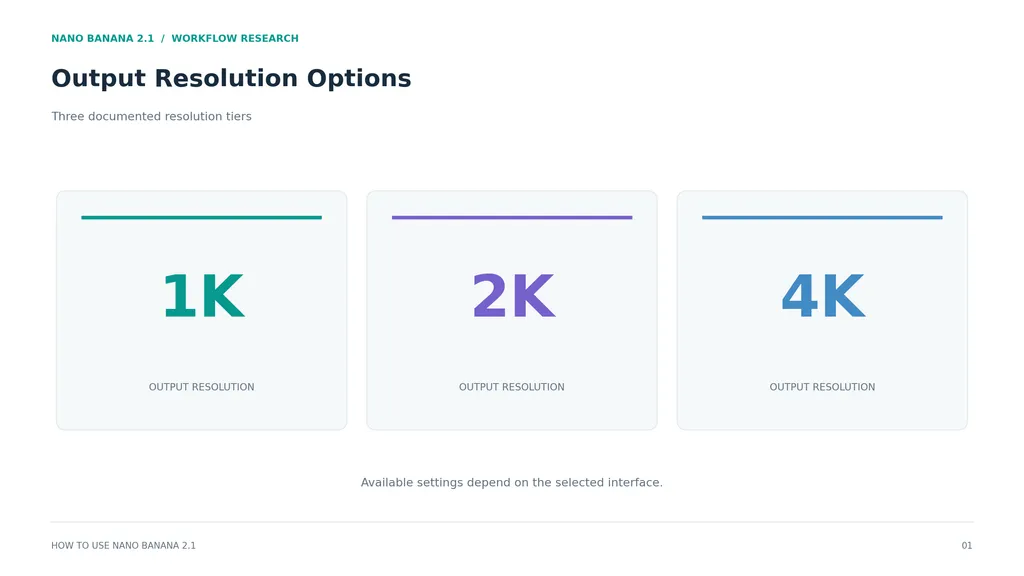
Nano Banana 2.1 is Google’s image-generation and conversational-editing model. Google’s documentation identifies it as gemini-nano-banana-2.1 and documents support for 1K, 2K, and 4K output.
Select the correct model and output settings
Open a supported image workspace, such as Google AI Studio, and confirm that Nano Banana 2.1 is selected. A generic “Nano Banana” label may refer to another model.
Before generating, check:
Setting | What to confirm |
|---|---|
Model | Nano Banana 2.1 is explicitly selected |
Input | Text generation or reference-image editing |
Aspect ratio | Matches the intended placement |
Resolution | Available in the selected interface |
Export | Downloaded dimensions and file format |
Choose dimensions through the available controls rather than relying exclusively on a resolution request inside the prompt.
Start with a simple, inspectable image
Use a subject whose requirements are easy to evaluate:
Create an editorial photograph of a matte ceramic mug on a pale oak table. Place the mug on the left, leaving clear space on the right for a headline. Use soft window light, natural shadows, and visible ceramic texture. Keep the background quiet. Do not add text, logos, or extra objects.
Review the subject, placement, lighting, and unwanted additions separately. If only the framing is wrong, revise that requirement before changing the style.
The first useful result becomes your reference for further work. Save it before experimenting.
How to Write Nano Banana 2.1 Prompts That Give You More Control
A useful prompt communicates visual priorities, not just descriptive volume. Our review of user questions found recurring uncertainty about long prompts and JSON formatting, without controlled evidence that either consistently improves results.
Build prompts around subject, composition, and constraints
Use this structure:
Element | Practical instruction |
|---|---|
Subject | Identify the main person, object, or scene |
Composition | Specify framing, placement, and empty space |
Lighting | Describe direction, softness, and contrast |
Materials | Identify textures that should remain visible |
Text | Supply exact wording where required |
Constraints | State essential exclusions or preservation needs |
For a skincare campaign:
Create a clean product photograph of an unbranded amber glass skincare bottle on a warm white surface. Position it centrally with generous space above. Use soft side lighting, believable glass reflections, and a gentle contact shadow. Preserve a simple cylindrical silhouette. Do not add packaging, flowers, labels, or decorative text.
The prompt creates reviewable requirements. “Premium” alone does not explain whether you want soft daylight, dramatic contrast, or a minimalist composition.
Use JSON only when it helps organize the brief
A widely discussed portrait example used a detailed JSON prompt, but responses disagreed about whether that complexity was necessary.
That example demonstrates a prompting approach, not proof that JSON is superior. Plain language can express the same subject, lighting, texture, and preservation instructions.
For reusable production briefs, labeled fields can help maintain consistency. For an individual image, a concise paragraph is often easier to revise.
Before adding more detail, remove contradictions such as “soft natural daylight” combined with “hard theatrical spotlights” unless the mixed lighting is intentional.
How to Use Nano Banana 2.1 for Realistic Portraits and Photo Cleanup
Portrait workflows in our research emphasized natural light, skin texture, and restrained retouching. These are useful creative directions, although attractive examples do not establish a general success rate.
Describe photographic conditions instead of stacking realism keywords
Try a prompt that explains how the photograph should look:
Create a candid photograph of an adult designer beside a studio workbench. Use soft overcast daylight, eye-level framing, and a relaxed expression. Retain natural skin texture, small facial lines, fabric creases, and believable shadows. Keep the studio recognizable in the background. Avoid beauty retouching, exaggerated sharpening, and dramatic cinematic lighting.
Inspect facial proportions, hands, hair edges, and the relationship between highlights and shadows.
If skin looks artificial, name the defect. “Reduce smoothing and retain small skin variations” is a more actionable revision than “make it more realistic.”
Case study: refining a ChatGPT portrait in Nano Banana 2.1
One published workflow began with a ChatGPT-generated portrait and used Nano Banana 2.1 for cleanup. The editing instructions prioritized the person’s identity, clothing, pose, and composition.
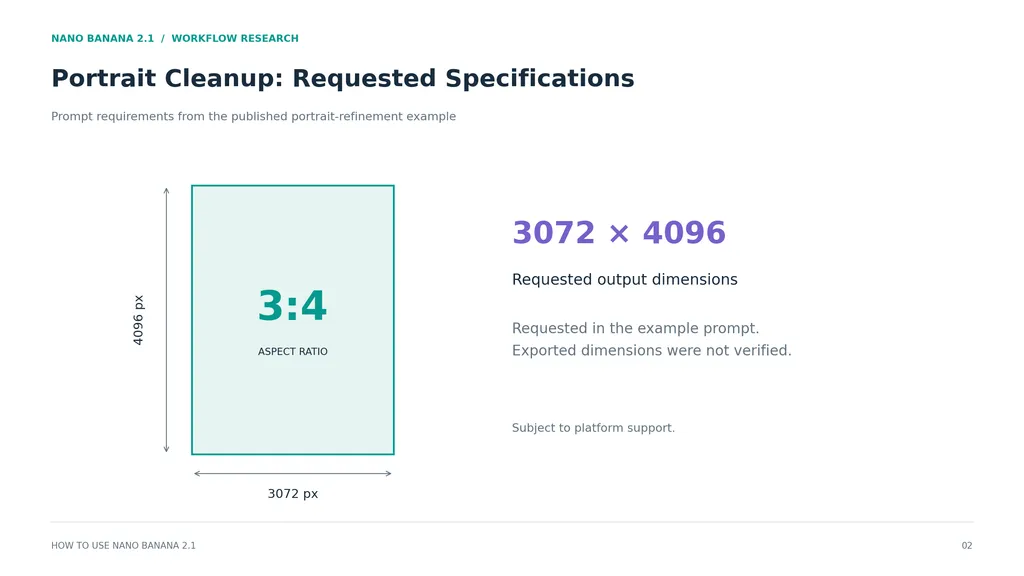
The prompt requested a 3:4 aspect ratio and 3072 × 4096 output where supported. These were requested specifications; the available material did not verify the exported dimensions or quantify the improvement.
The useful lesson is the editing structure:
Refine this uploaded portrait. Improve uneven lighting and distracting artifacts while preserving facial proportions, expression, hairstyle, clothing, pose, and framing. Retain natural skin texture. Do not introduce accessories, reshape the face, or replace the background.
Use cross-model refinement when the original composition is already useful and the remaining problem is specific. Compare the result against the imported reference before accepting it.
How to Edit Images with Nano Banana 2.1 Without Losing Consistency
Separate the requested change from the details that must remain. “Improve this image” leaves too many decisions open when a face, product, or layout is already approved.
Write an explicit preservation brief
For a product photograph:
Change the background to a pale gray studio backdrop. Preserve the bottle’s silhouette, cap shape, label wording, label position, camera angle, and relative size. Keep the product in its existing position. Adjust the contact shadow to fit the new background. Do not redesign the packaging.
This distinguishes a necessary supporting change—the shadow—from unwanted product changes.
For portraits, prioritize identity, expression, and pose. For fashion, add garment seams, patterns, and accessories. For products, inspect geometry, color, labels, and reflections.
Preservation language is a request, not a guarantee of pixel-level protection.
Case study: what a 90-generation editing experiment actually tested
A platform-published experiment compared Nano Banana 2.1, GPT Image 2.5 Sunburst, and Ideogram 4.5 using:
10 consecutive edits × 3 runs × 3 models = 90 generations.
Each sequence edited the preceding output and included color changes followed by restoration requests. This tested whether images could withstand accumulated revisions.
The available material did not establish reliable success percentages, costs, or a universal winner. The useful evidence is the test design: repeated editing and reversibility require separate evaluation from first-image quality.
Apply that principle to your own asset. Change a visible attribute, request its restoration, and inspect unrelated details against the original.
Save checkpoints and restart when drift appears
Editing drift occurs when unintended differences accumulate across revisions.
Save the original and each accepted version. Compare important outputs against the original, especially after changes to lighting, background, or style.
If facial features or packaging have already changed, return to an approved checkpoint. Continuing from the damaged version can make those differences part of the next reference.
How to Create Menus and Infographics with Nano Banana 2.1
Provide the content and reading order before asking for visual polish. A menu needs accurate item-price relationships; an infographic needs correct labels and connections.
Case study: menu and water-cycle comparisons
A platform-published Nano Banana 2 versus 2.1 comparison used the same prompts and settings for these tasks:
Task | Published settings | Reported observation |
|---|---|---|
Menu | 4:3, 1K | Both models reproduced the supplied text and prices correctly; 2.1 had cleaner layout |
Water-cycle infographic | 1:1, 1K | The task examined explanatory layout and labeling |
These were single-generation examples from a platform community. They support trying the workflow, but they do not establish a general text-accuracy rate or consistent superiority across documents.
Supply exact copy and inspect relationships
For a poster:
Create a clean portrait-format exhibition poster on an off-white background. Include only “FORM & MATERIAL” and “An exhibition of contemporary objects.” Make the title dominant and place the subtitle beneath it. Use charcoal typography and a restrained teal accent. Leave generous margins. Do not add dates, addresses, logos, or other wording.
For an infographic, provide the approved facts, labels, and sequence. Check that arrows connect the correct stages and that labels describe the correct objects.
Accurate-looking text can still communicate an incorrect relationship. Review meaning as carefully as spelling. When exact typography or numerical placement is essential, finish those elements in an editable layout tool.
How to Fix Nano Banana 2.1 Problems and Check Output Quality
Our review found conflicting experiences with instruction following, filtering, and visual quality. These are task-specific observations rather than a measured failure rate.
Diagnose the visible problem before rewriting the prompt
Problem | Practical response |
|---|---|
Requested edit is missing | Simplify the brief and state the change directly |
Unrelated details change | Restart from the approved reference and narrow the edit |
Skin becomes waxy | Reduce retouching language and specify texture preservation |
Text changes | Supply exact copy and simplify the layout |
Export is smaller than expected | Check interface settings and downloaded dimensions |
Request is blocked | Review the platform’s explanation and applicable rules |
Change one important variable at a time when troubleshooting. Replacing the prompt, reference, composition, and settings together makes it difficult to identify what helped.
Evaluate the accepted asset, not just the attractive preview
Before publication, check:
- Whether the requested change happened.
- Whether essential details survived.
- Whether text and factual relationships are correct.
- Whether the downloaded file meets the placement requirements.
- Whether manual correction is still necessary.
For commercial work, consider cost per accepted image: generation expense plus retries and cleanup, divided by usable outputs. The reviewed examples do not provide enough verified cost or time data to calculate that figure here.
Conclusion: How to Use Nano Banana 2.1 Effectively
Use Nano Banana 2.1 with a clear brief, an approved reference, and explicit acceptance criteria. The portrait-cleanup example shows how to separate refinement from redesign, while the menu comparison and 90-generation editing experiment highlight different checks for text accuracy and revision stability. Start with focused tasks, inspect results against the original, and preserve accepted checkpoints. The practical goal is an image that meets your requirements and remains usable through the next revision.
FAQ
Do Nano Banana 2.1 prompts need JSON?
No. JSON can organize a complex brief, but the reviewed material does not establish that it produces better results than equivalent plain language. Specify the subject, composition, lighting, and constraints clearly. Choose the format that makes your instructions easier to maintain and revise.
Can Gemini help write Nano Banana 2.1 prompts?
Yes. You can ask Gemini to turn a rough idea into a structured visual brief. Give it your intended use, reference details, and preservation requirements. Review the expanded prompt before generating: an assistant may introduce stylistic details that were never part of your original direction.
Can you use Nano Banana 2.1 to improve a ChatGPT image?
Yes, where your chosen platform accepts image uploads. A published portrait workflow used this approach for refinement while requesting identity and composition preservation. Upload the selected image, describe the remaining defect, and compare the edited output with the reference. The example did not establish a measurable improvement rate.
How do you preserve faces across repeated edits?
Use a clear approved reference, specify the facial proportions and expression to retain, and compare accepted outputs with the original. Save checkpoints and restart when likeness changes. Preservation instructions help define the task, but they do not guarantee identical facial details through an extended editing sequence.
Should you switch models when Nano Banana 2.1 fails?
Consider another model when focused revisions repeatedly miss the same requirement. Compare alternatives using the same reference, brief, and acceptance criteria. For exact text, packaging, or local corrections, an editable design tool may also be appropriate. Choose based on usable results and correction effort rather than one impressive sample.
Plus d’articles du blog Virse
Flux de travail
Nano Banana 2.1 Prompt Guide: 10 Examples & Common Fixes
16 octobre 2026 by Vincent
Flux de travail
Nano Banana 2.1 vs GPT Image 2.5: Which Handles Image Editing Better?
15 octobre 2026 by Vincent
Flux de travail
Nano Banana 2.1 vs FLUX 3: Image Editing Tested Over 40 Rounds
15 octobre 2026 by Vincent