AI Sketch Generator

AI Sketch Generator

Describe a subject or bring a photo, then tell Virse how you want it drawn. The AI sketch generator creates a drawing with pencil marks, ink lines or charcoal shading. Try a lighter outline or a deeper shadow, and compare the results on your canvas.

Input
Sketch brief · RequiredPhoto to convert · OptionalSketch style reference · OptionalDrawing medium · OptionalShading level · OptionalCanvas ratio · OptionalNumber of sketches · Optional
Output
1 hand-drawn sketch with real hatching and tonal shading; optionally 2 or 4 independent variants — spanning different media when no medium is chosen, or staying in the chosen medium with different stroke work
Photo to convertOptional

Your image is uploaded on the canvas — this form carries the settings.

Sketch style referenceOptional

Drawing mediumOptional
Shading levelOptional
Canvas ratioOptional
Number of sketchesOptional

What Is an AI Sketch Generator?

An AI sketch generator draws an image from a written idea or restyles a photo as a sketch. Virse uses your subject and medium to shape the lines and shading. The result is a raster image, ready to review alongside your reference.

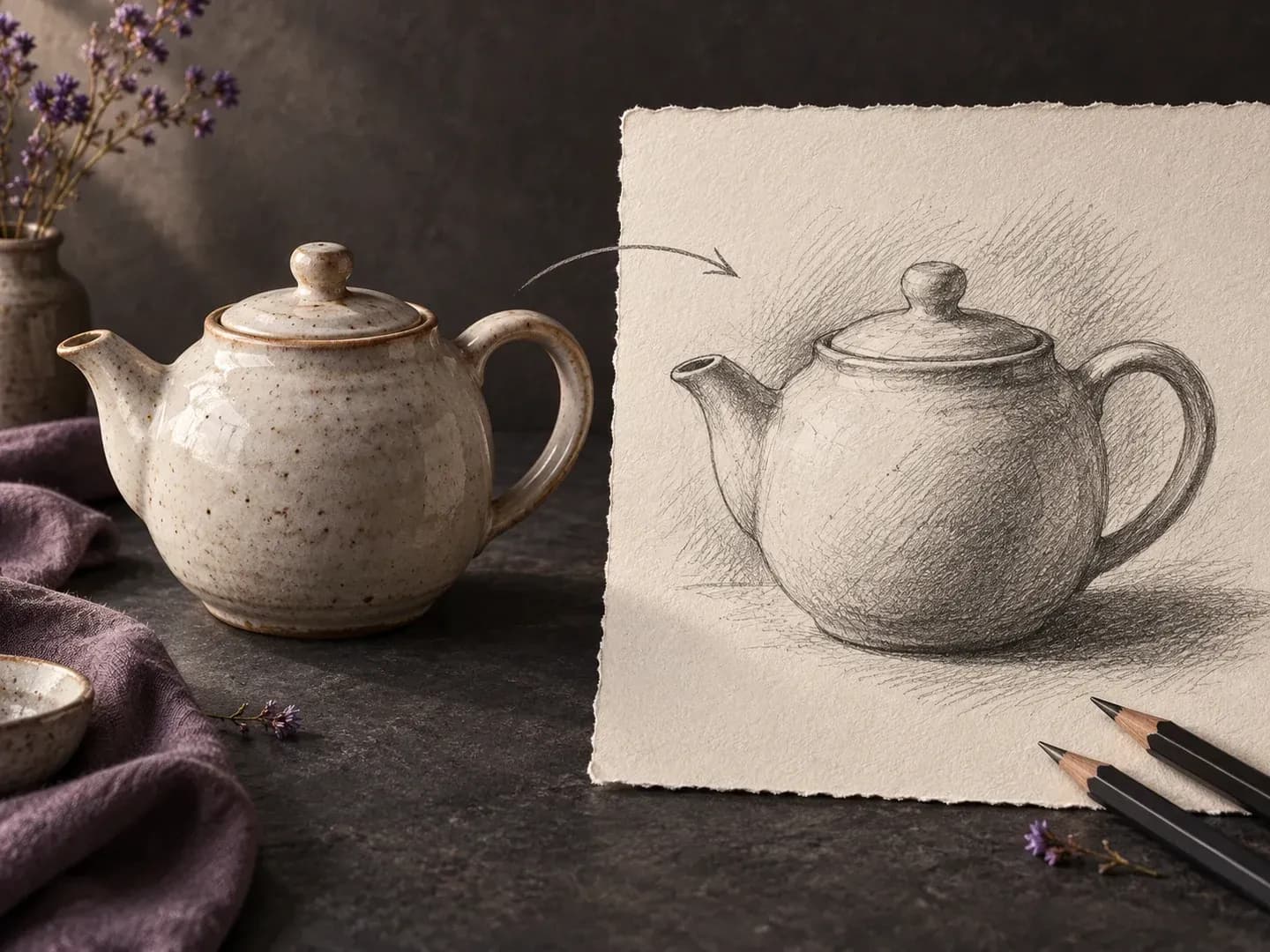
A ceramic teapot beside an illustrative graphite sketch
Illustrative concept: a ceramic teapot interpreted as a graphite sketch

Why Use Virse for AI Sketches?

A drawing can explain an idea without the finish of a photograph. Use the brief to decide what matters: the subject, the marks on the paper or the balance of light and shadow.

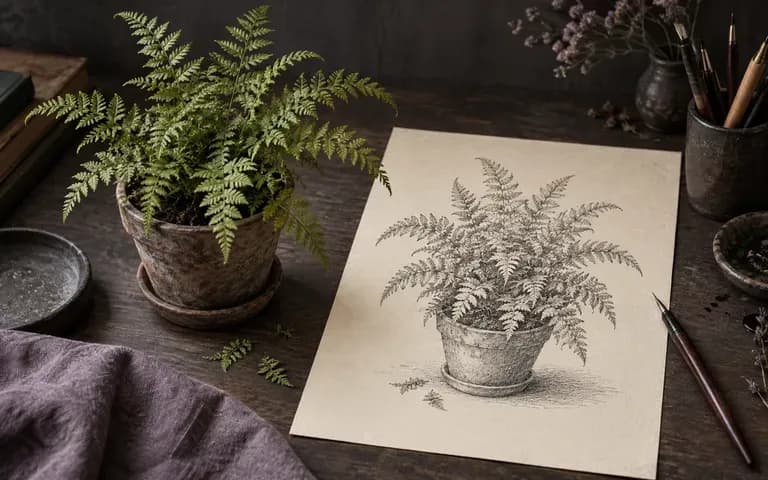
A fern used as the subject of an illustrative ink drawing
Two starting points

Start with a Subject or a Photo

Describe something you have in mind, or use a photo when you already have the subject. Add the view and details you want to emphasize, such as the handle of a cup or the branches of a tree.
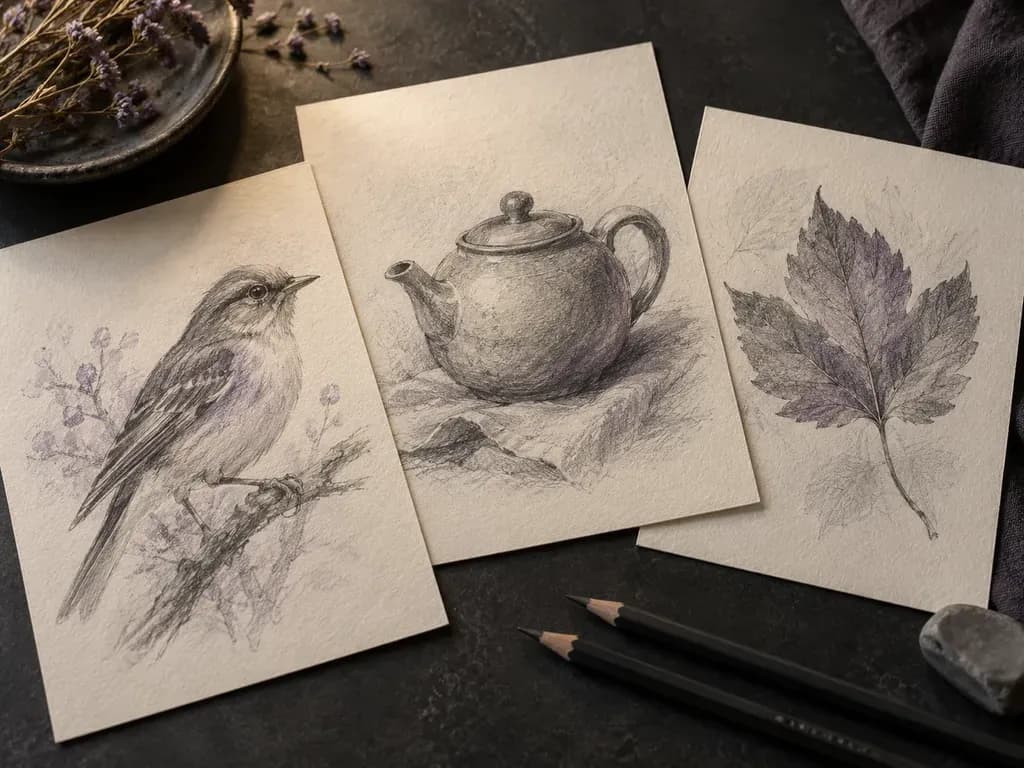
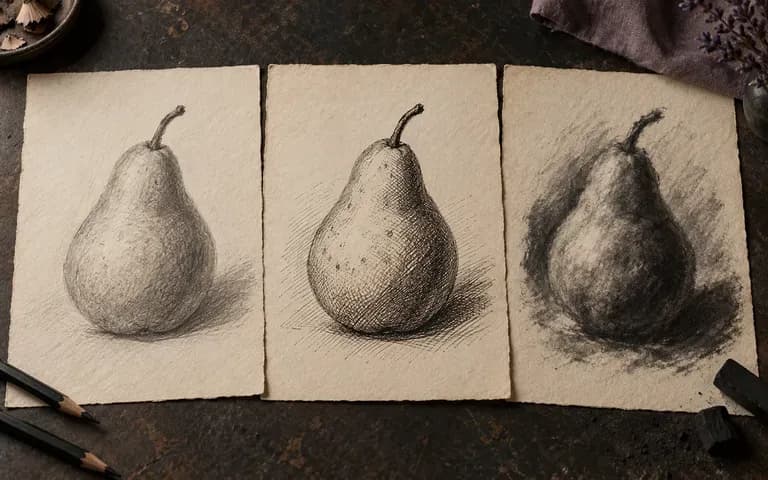
A pear interpreted in pencil, ink and charcoal
Drawing medium

Explore Pencil, Ink and Charcoal

Ask for fine graphite, pen hatching or broad charcoal marks. Change the drawing medium in your brief to explore how the same idea reads with crisp edges, softer texture or stronger shadows.
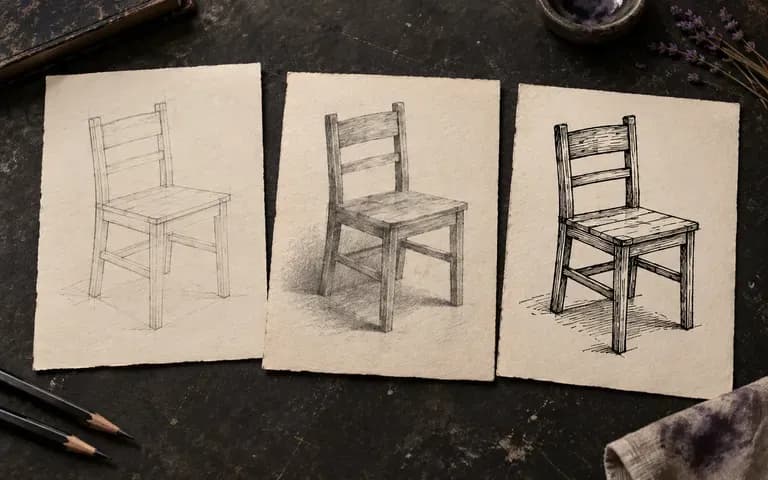
Chair sketch concepts with three different line weights
Canvas

Compare Sketch Directions on Your Canvas

Keep the reference and sketch versions together while you decide which direction works. Revise the description when you want less shading or a different composition, then generate another version to compare.

How to Generate a Sketch with AI

  1. Choose Your Starting Point

    Write a subject description or add a clear photo. For photo to sketch work, choose an image where the important features are easy to see.

  2. Describe the Drawing

    Name the medium, such as pencil, ink or charcoal. Add the viewpoint, line weight and amount of shading you want.

  3. Generate the Sketch

    Submit your brief and continue in the Virse workspace. Review the drawing beside your source, especially small shapes, facial features and any text in the image.

  4. Refine the Brief

    Describe the change you need, such as lighter shadows or a simpler background. Generate another version and compare it with the first before choosing a result.

Who Uses an AI Sketch Generator?

Sketches are useful when the aim is to communicate a visual direction before committing to a finished design.
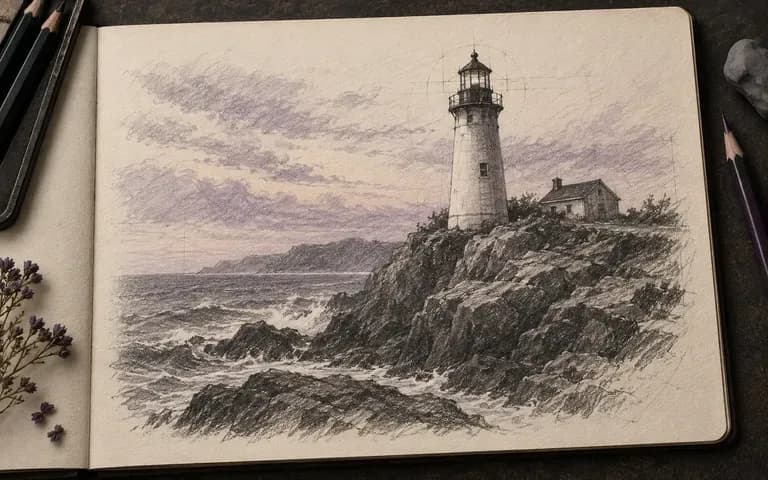
A lighthouse composition drawn in pencil

Illustrators Exploring a Composition

Try different arrangements of a subject before developing your own finished illustration. Use the generated sketch as a reference for composition and tonal balance.
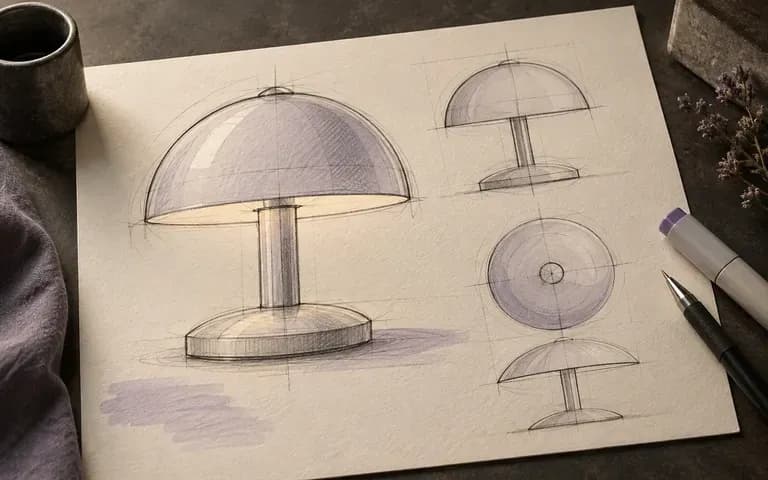
An illustrative table lamp concept in marker

Product Designers Sharing Early Ideas

Describe the silhouette and details of an object to create an early concept sketch. Check proportions yourself before using it in a design brief.
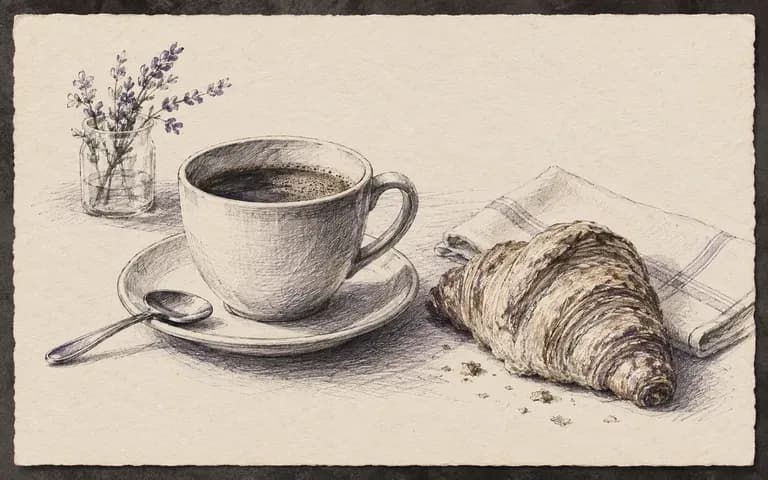
A coffee still life interpreted in pen and ink

Creators Making Editorial Visuals

Give a familiar subject a drawn appearance for a post, presentation or moodboard. Choose the medium to suit the surrounding visual style.
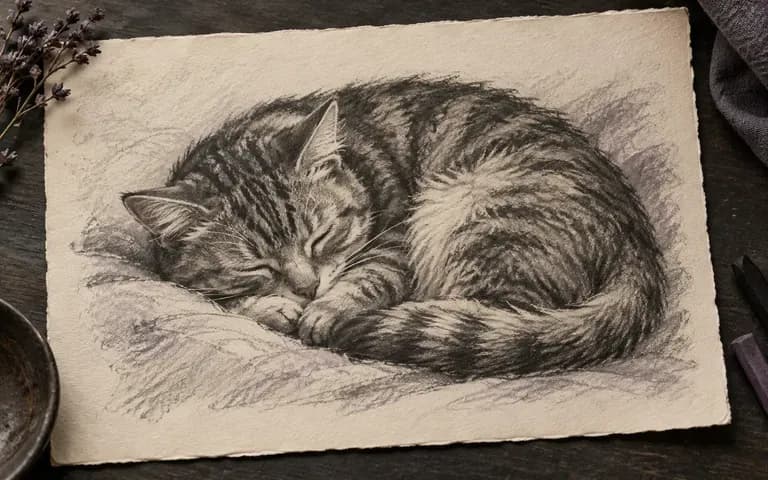
A sleeping cat rendered as a charcoal study

People Turning Photos into Drawings

Try a sketch treatment for a pet, building or favorite object. Compare the drawing with the original, since a sketch can simplify or change small details.
Sketch Ideas to Explore

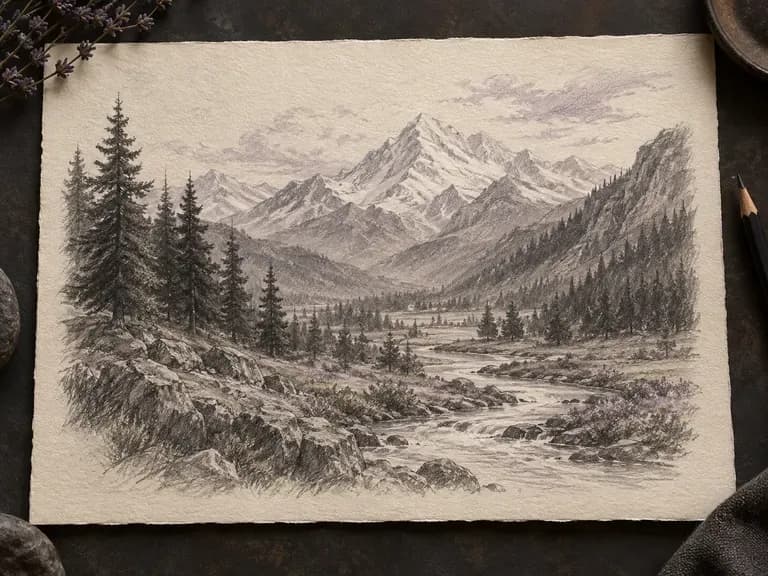
Pencil landscape with mountains and a winding river
Pencil Landscapes: light graphite strokes for mountains, trees and open skies
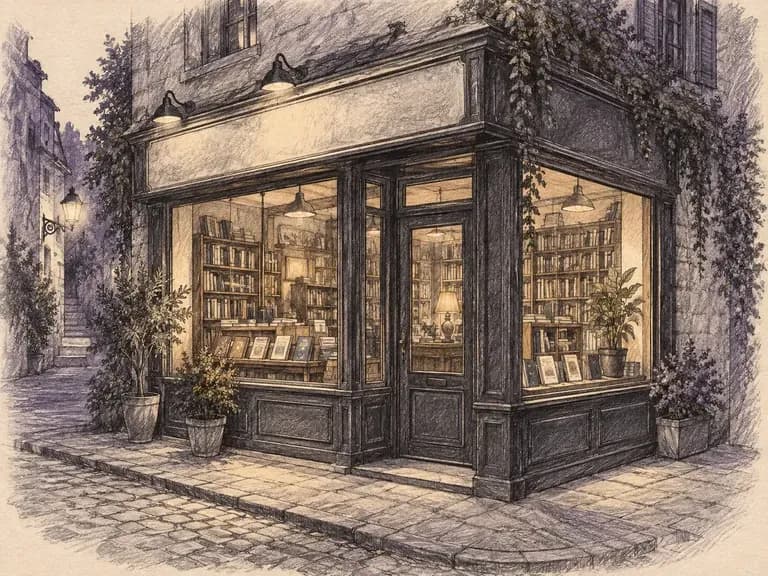
Ink drawing of a corner building with a blank signboard
Ink Architecture: clear contours and hatching for buildings and street scenes
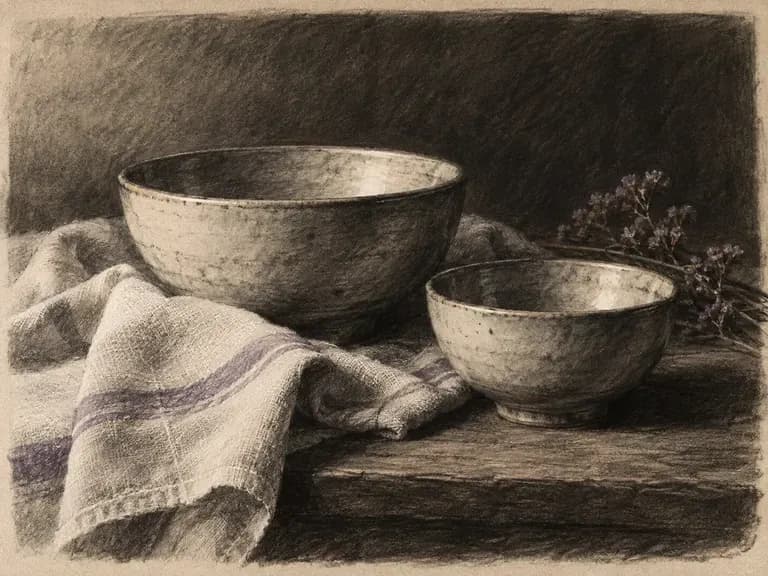
Charcoal still life of ceramic bowls and linen
Charcoal Still Lifes: deep shadows around simple objects and folded fabric
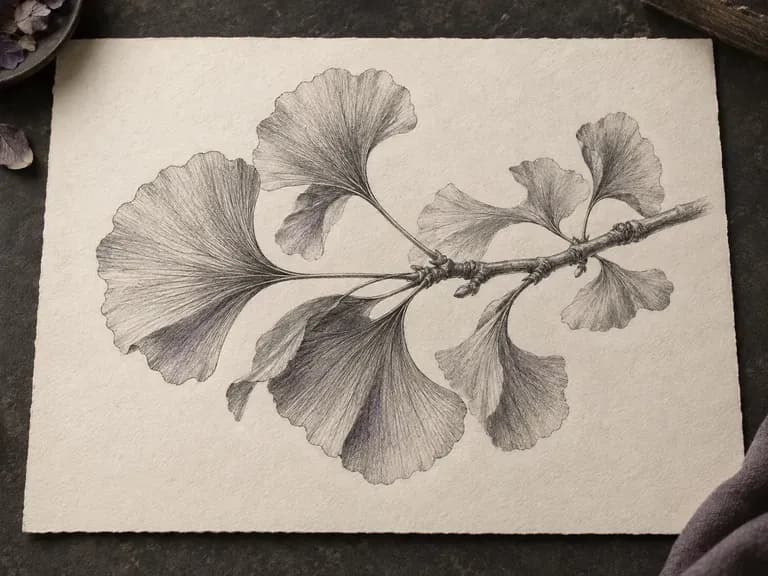
Botanical pencil study of a ginkgo branch
Botanical Studies: fine lines for leaf shapes, stems and petals
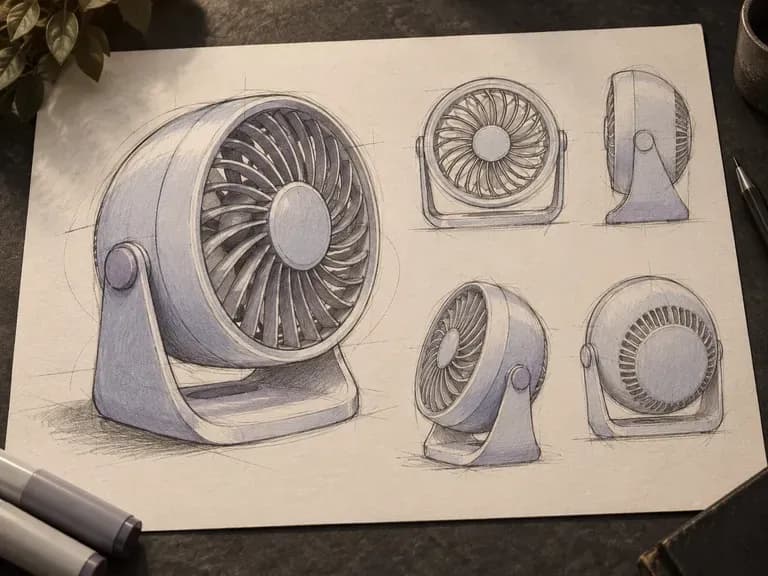
Marker concept sketch of a portable desk fan
Product Concept Sketches: marker shading around a proposed object's form
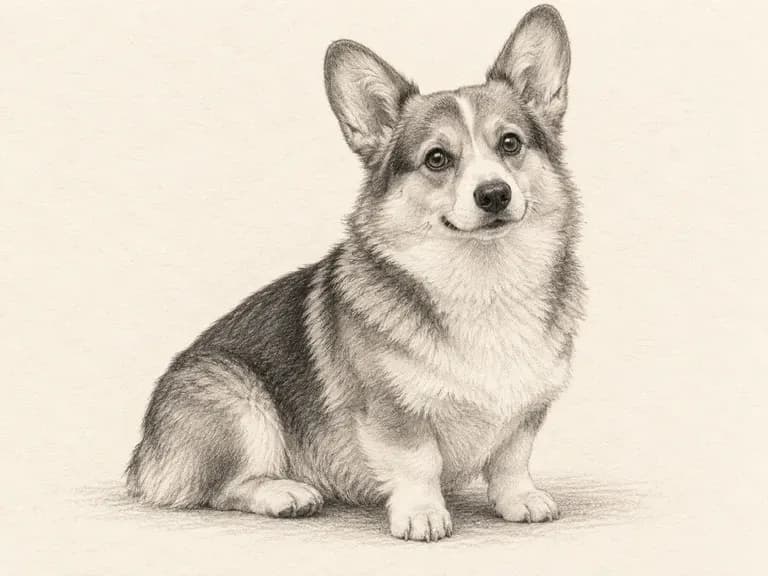
Pencil drawing of a seated dog
Pet Drawings: soft pencil texture around fur, ears and familiar poses

Frequently Asked Questions

Can I generate a sketch from text?
Yes. Describe the subject, viewpoint and drawing medium. A brief such as “a lighthouse seen from the rocks, pencil, light shading” gives the generator more direction than a subject name alone.
Can I turn a photo into a sketch?
Yes. Add a clear photo and describe the pencil, ink or charcoal treatment you want. The drawing is an AI interpretation, so check important features against the original before using it.
How do I get a pencil sketch instead of an ink drawing?
Name pencil or graphite in the description and explain the marks you want, such as fine lines and soft shading. For ink, ask for clear contours or crosshatching. The wording guides the rendering rather than editing individual strokes.
Will small details and text stay exact?
They may change. A sketch treatment can simplify fine features, signs and lettering. Use a clear source image and check the result at a useful size. Add essential text separately if it must be exact.
Does the tool export SVG or editable drawing strokes?
No. This tool creates a raster sketch image. It does not produce vector paths, a layered drawing file or a brush editor for changing individual marks.
What is the difference between a sketch and extracted line art?
A sketch can include texture, hatching and areas of light and shade. Line art focuses on outlines. Use this page to explore a drawn medium; choose the line art extraction tool when your main task is to pull outlines from an existing image.

Turn Your Idea into a Sketch

Choose a subject, name the drawing medium and see how the idea looks on paper. Keep the versions together in Virse while you decide which one to develop.