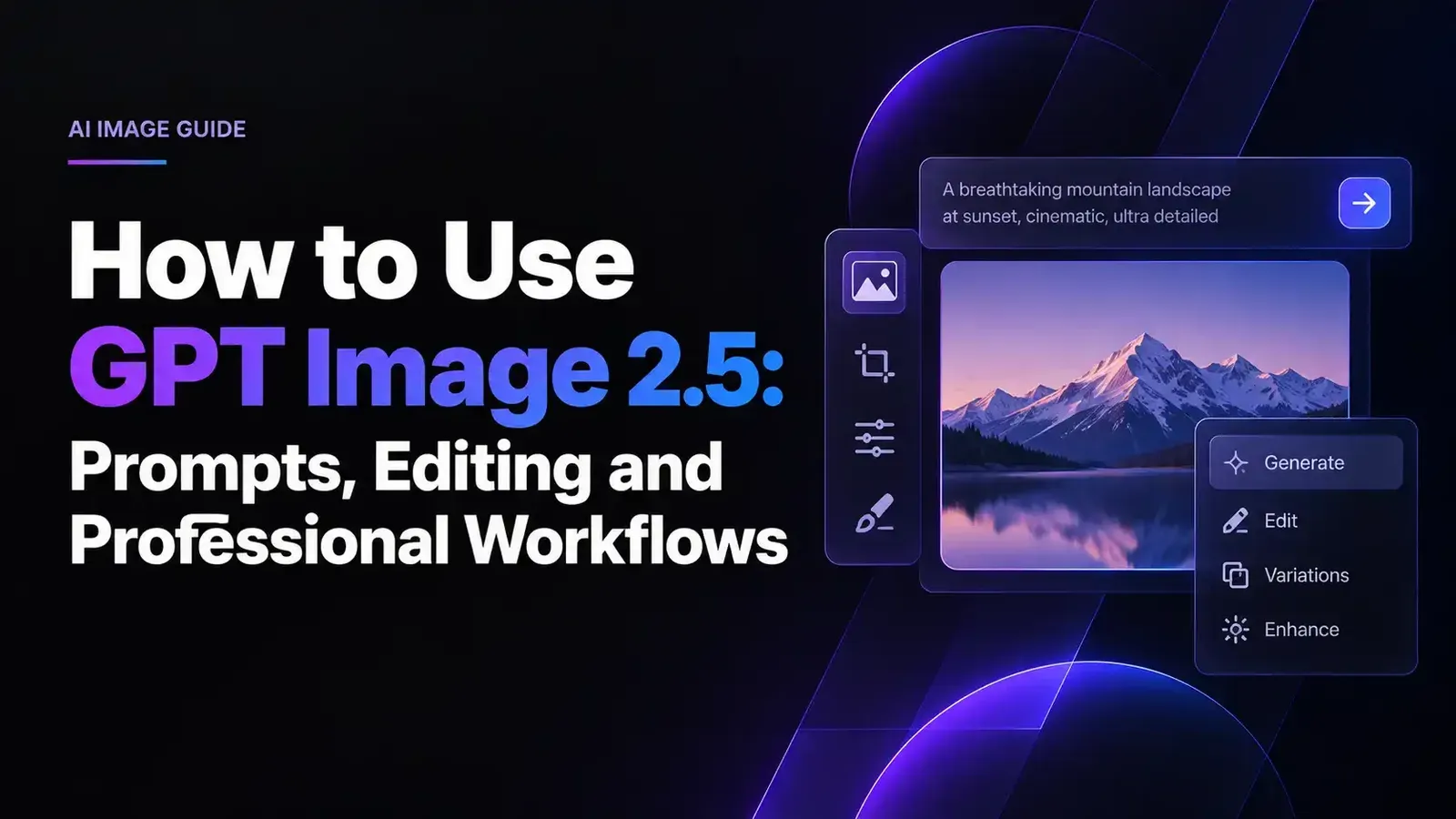
How to Use GPT Image 2.5: Prompts, Editing and Professional Workflows
 Yifan Zhao10 min read ·
The best way to use GPT Image 2.5 is to create a strong first image, review it, then make focused edits while clearly defining what must stay unchanged. This iterative approach works especially well for product visuals, campaign assets, UI concepts, consistent characters, reference-based generation, and multi-round editing.
The challenge is that professional AI design rarely depends on one prompt or one model. Designers need to compare directions, preserve approved details, control text and composition, and move from rapid exploration to precise production. When those steps are fragmented across separate tools, iteration slows down and maintaining visual consistency becomes harder.
Virse brings these workflows into one infinite-canvas environment with AI design agents and shared project context. Its paid plan includes unlimited use of more than 40 models, including Nano Banana 2 and GPT Image 2, plus unlimited seats. New users receive free credits that can generate about 10 Nano Banana 2 images or one Seedance 2.0 video, while Seedance 2.5, Seedance 2.0, and MiniMax H3 are already available on the Virse model page.
How to Use GPT Image 2.5 in ChatGPT
GPT Image 2.5 launched on September 8, 2026 and is available across supported ChatGPT, ChatGPT Work, and Codex experiences on desktop, mobile, and web. OpenAI’s launch announcement also introduced Sketch, Templates, image comments, improved reference fidelity, and more reliable multi-turn editing.
Start with the deliverable, not a list of style words
First define what you want to make: a product photo, campaign poster, UI concept, packaging visualization, infographic, editorial image, or social asset.
Then specify the subject, environment, composition, lighting, text, and essential constraints. A product brief, for example, might request a red technical running shoe on a concrete pedestal, front three-quarter view, controlled studio lighting, dark neutral background, and negative space for a headline.
This gives GPT Image 2.5 a visual hierarchy to solve instead of asking it to interpret vague instructions such as “make it premium.”
Choose format and quality before refining the image
For API workflows, GPT Image 2.5 supports custom resolutions and six quality settings: auto, low, medium, high, xhigh, and max. OpenAI’s current image guide lists common outputs from 1024 × 1024 through 3840 × 2160 and 2160 × 3840.
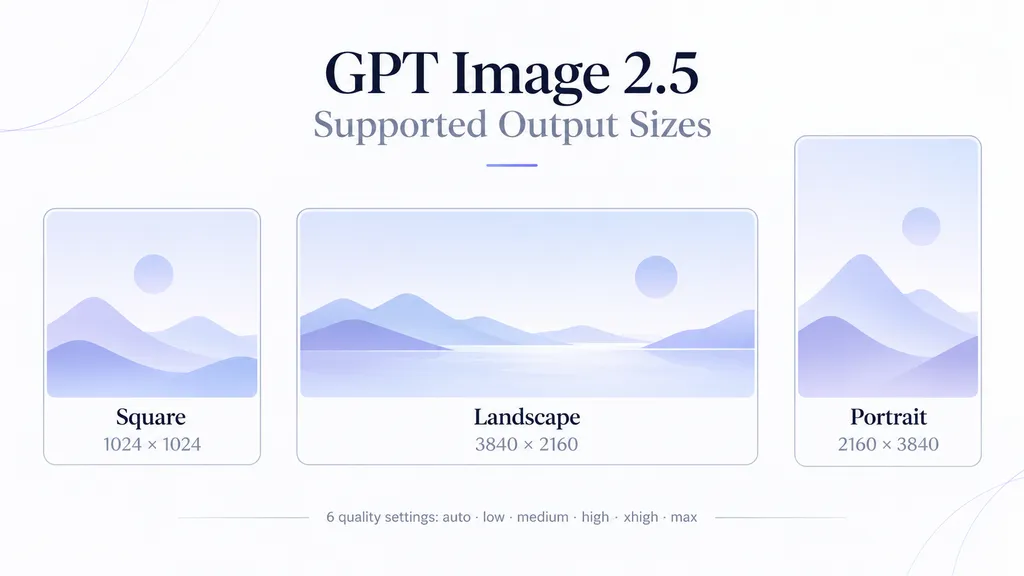
Choose the intended format early. A vertical campaign asset, square product image, and landscape presentation visual require different composition decisions. Increasing quality later cannot always repair a composition designed for the wrong frame.
Sketch can also help when spatial relationships are easier to draw than describe, while Templates provide starting structures for formats such as posters and merchandise.
How to Write Better GPT Image 2.5 Prompts
A strong GPT Image 2.5 prompt should work like a concise creative brief rather than an oversized collection of keywords.
Use six elements in your GPT Image 2.5 prompt
A practical prompt structure includes:
- Deliverable: What are you creating?
- Subject: What must appear?
- Composition: Where should important elements sit?
- Visual direction: What lighting, material, color, and camera characteristics matter?
- Text: What exact wording must appear and where?
- Constraints: What must not appear or change?
For a campaign image, that could mean defining a running-shoe advertisement, identifying the shoe and pedestal, reserving negative space on the right, specifying soft directional light, providing the exact headline “RUN FASTER,” and prohibiting additional copy or objects.
Treat text and reference images as separate design inputs
When typography matters, specify the exact wording and its visual role. For example: Headline: RUN FASTER. Upper-right position. Bold condensed sans serif. White. No additional text.
When using several images, assign each reference one job. One can control product geometry, another can define lighting, and a third can establish the visual style. OpenAI’s prompting guidance similarly recommends giving references specific roles rather than leaving the model to decide how they should interact.
This is especially valuable for brand, ecommerce, fashion, and product-design workflows where the model should explore the environment without redesigning the core asset.
How to Edit GPT Image 2.5 Without Visual Drift
Precise editing is one of GPT Image 2.5’s most useful improvements. OpenAI says the model is better at changing only the requested element while preserving surrounding subjects, composition, and brand treatment.
Separate the change from the elements you want to preserve
For every important edit, use two instructions:
Change: Make the shoe red.
Keep unchanged: Product geometry, camera angle, pedestal, background, lighting direction, typography, composition, and every object not mentioned.
OpenAI’s own editing examples use this same principle when replacing an object while preserving camera angle, lighting, shadows, and surrounding elements.
The practical rule is simple: if a detail has already been approved, name it as something to preserve.
Case study: five editing rounds with less visual drift
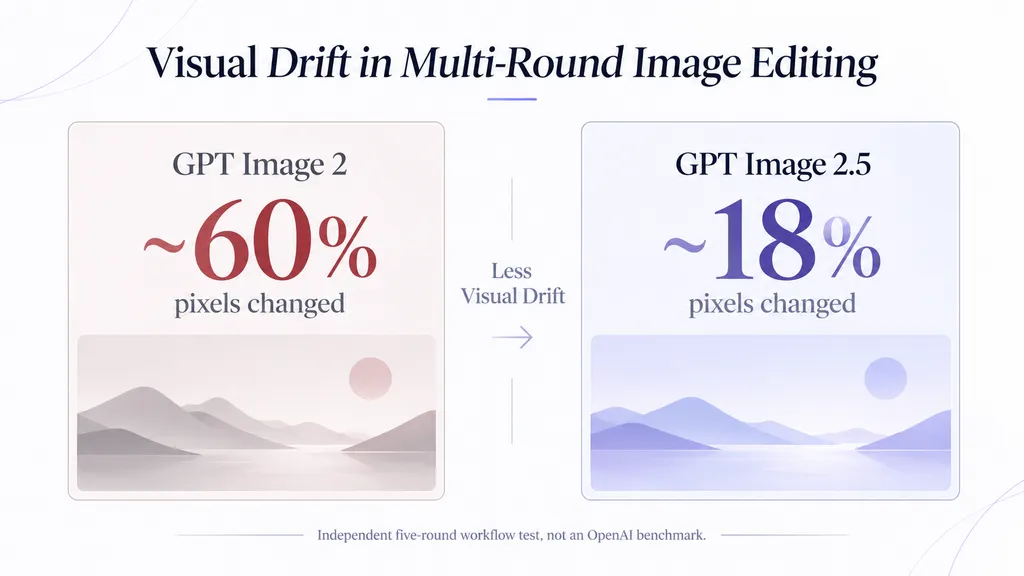
In one independent five-round workflow test reviewed for this article , GPT Image 2 changed about 60% of the pixels in a later edit and reframed the scene, while GPT Image 2.5 Flare and Sunburst changed about 18% and maintained the camera position.
These figures are not an OpenAI benchmark and should not be generalized to every image. They illustrate an important production lesson: targeted editing becomes far more useful when approved areas survive later revisions.
How to Keep Characters and Products Consistent With GPT Image 2.5
Consistency improves when the workflow moves from text-only prompting to reference-led generation.
Build an approved reference before scaling variations
For a character, preserve facial features, hairstyle, body proportions, clothing, and palette. For a product, preserve silhouette, geometry, material, logo placement, and distinctive details.
OpenAI’s GPT Image 2.5 guidance recommends creating a reusable character reference for multi-scene projects and repeating defining characteristics as the environment changes.
Our research also reviewed a 12-image Zodiac fashion series that used repeated visual characteristics to maintain similar framing, color treatment, and overall visual language. The lesson is useful beyond character art: explore broadly at the beginning, then turn the approved direction into a constrained reference system before scaling production.
GPT Image 2.5 Flare vs Sunburst: Which Should You Use?
GPT Image 2.5 has two API models. OpenAI describes Flare as its fastest model for high-quality everyday image generation, while Sunburst is its most capable model for image generation and editing when precision matters most.
Use Case | Start With | Why |
|---|---|---|
Concept exploration | Flare | Faster iteration |
UI drafts | Flare | Efficient variation |
Social assets | Flare | Better for volume |
Product imagery | Sunburst | More precision |
Complex edits | Sunburst | Stronger control |
Final assets | Compare both | Test against requirements |
A useful production strategy is to start with the model most likely to meet the required quality, then compare the other model using the same prompt, references, size, and quality setting. OpenAI specifically recommends measuring quality and latency on your own workload rather than assuming one model always performs better.
GPT Image 2.5 Case Studies: Speed, Cost and Consistency
Real workflow data helps explain where GPT Image 2.5 can change design production rather than simply improve image quality.
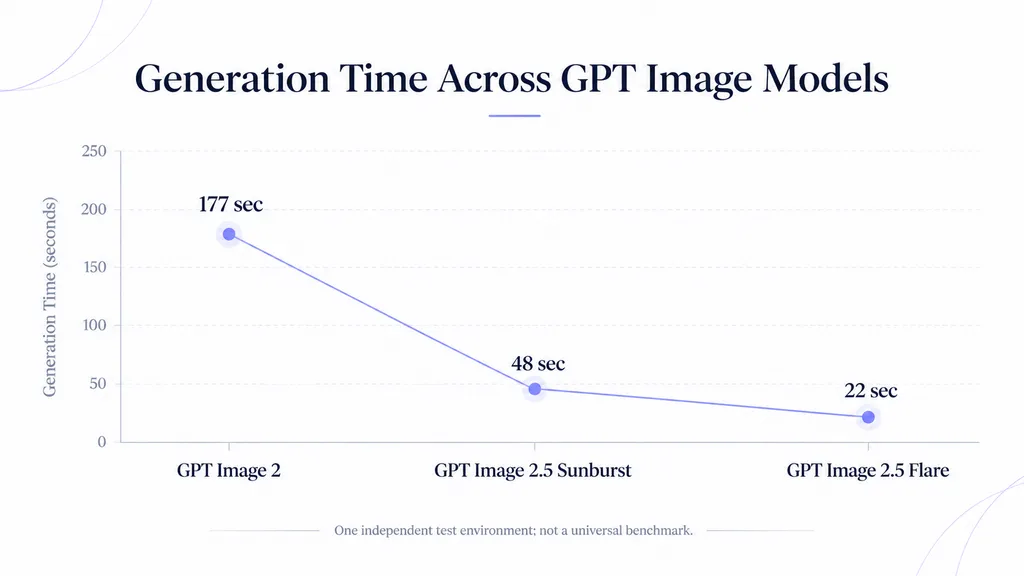
Case study: Flare High completed a test in 22 seconds versus 177 seconds
One independent test reviewed for this article used the same high-quality text-to-image workflow at 1024-pixel width. GPT Image 2 High took 177 seconds, GPT Image 2.5 Flare High took 22 seconds, and Sunburst High took 48 seconds.
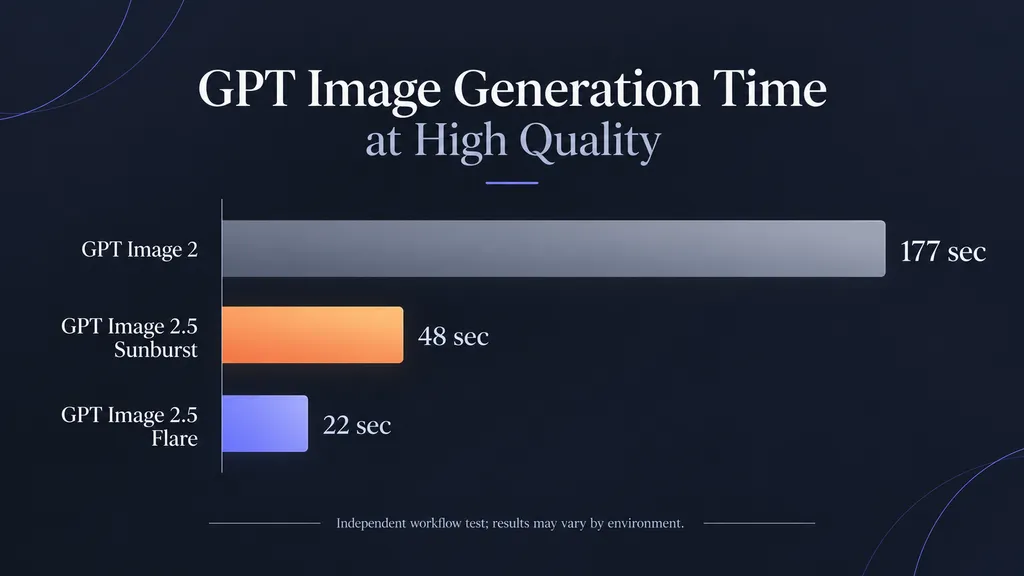
These timings come from one external test environment, not a universal benchmark. They nevertheless show why iteration speed matters: a designer comparing ten directions experiences the benefit repeatedly, not just once.
OpenAI separately reports that GPT Image 2.5 can reduce image-generation latency by up to 50% compared with Images 2.0, providing official support for the broader speed improvement.
Case study: UI draft generation was about 2× faster at roughly half the cost
A separate production workflow reviewed during our research compared GPT Image 2 with Flare and Sunburst for UI generation. In that implementation, Flare Medium was reported to be about 2× faster and roughly half the cost of the previous GPT Image 2 Medium workflow, leading the team to adopt GPT Image 2.5 for draft generation.
The strategic lesson is more important than the exact ratio: use faster generation to explore the design space, then invest additional compute only in directions that survive design review.
How to Use GPT Image 2.5 in Professional Design Workflows
GPT Image 2.5 becomes more valuable when it supports an existing design process instead of being treated as a one-shot generator.
Explore broadly, then progressively lock decisions
During ideation, compare alternative compositions, lighting approaches, environments, materials, UI directions, and campaign concepts.
Once a direction works, reduce variation. Lock the reference, camera position, product geometry, typography, color system, and composition. Change one variable at a time.
This transition from exploration to constraint is one of the most important habits for reliable AI-assisted design.
Keep human review at the production stage
Our review of user questions found recurring concerns around small details, photorealistic micro-textures, character consistency over long series, typography, and confusion between apparent sharpness and actual output resolution.
For final assets, designers should therefore verify anatomy, logos, text, product geometry, factual information, transparent backgrounds, and exported dimensions. GPT Image 2.5 can accelerate production, but design judgment and quality control remain essential.
GPT Image 2.5 FAQ
How do I know if I am using GPT Image 2.5?
ChatGPT Images 2.5 began rolling out on September 8, 2026 across ChatGPT, ChatGPT Work, and Codex on desktop, mobile, and web. In the API, the model choice is explicit: GPT-Image-2.5 Flare or GPT-Image-2.5 Sunburst. You do not need to identify the model from image appearance alone.
Can GPT Image 2.5 generate 4K images and transparent backgrounds?
Yes. The current API documentation supports custom output sizes including 3840 × 2160 and 2160 × 3840, as well as transparent backgrounds. For transparent assets, preserve the alpha channel in a compatible format. Production teams should verify actual exported dimensions instead of assuming that writing “4K” in a prompt guarantees a specific resolution.
How do I keep the same character across multiple GPT Image 2.5 images?
Create one approved reference image and reuse it across scenes. Repeat the character’s defining facial features, proportions, clothing, and colors, while changing only the environment or action. For longer projects, a neutral reference sheet with multiple poses and expressions can provide more consistent visual information than a single stylized scene.
Can I choose GPT Image 2.5 quality settings?
Yes in the API. Flare and Sunburst support auto, low, medium, high, xhigh, and max quality settings. Higher settings should be used only when they solve a real quality problem because higher quality does not guarantee a better result for every prompt. ChatGPT’s consumer interface does not expose every API control in the same way.
Conclusion
GPT Image 2.5 works best as an iterative design system rather than a one-shot prompt generator. Define the deliverable, control the composition and text, generate a first direction, make one targeted revision at a time, and explicitly preserve approved details. Use references when consistency matters, choose Flare or Sunburst based on real workflow requirements, and verify final details before production. The combination of faster generation, improved reference fidelity, more precise editing, 4K-capable API output, and stronger multi-turn consistency makes GPT Image 2.5 particularly useful for product visualization, UI exploration, campaign production, character systems, and other creative workflows where repeatable control matters as much as the quality of a single image.