AI Color Palette Extractor
Input · OriginalOutput · Result

Color Palette From Image

Drop in any image. It clusters the colors deterministically and renders a palette sheet with hex values and the share of the picture each color takes up. The same image always gives the same palette.

Input
Reference image · RequiredPalette layout · OptionalNumber of colors · Optional
Output
Palette sheet annotated with hex values × 1

Reference image

Required

Drop an image

Your image is uploaded on the canvas — this form carries the settings.

Palette layoutOptional
Number of colorsOptional

What extracting a color palette from an image gives you

Extracting a color palette from an image means finding the colours that actually carry the picture and putting numbers on them. This one clusters rather than guesses, so the palette is repeatable, and every swatch arrives labelled with its hex value.

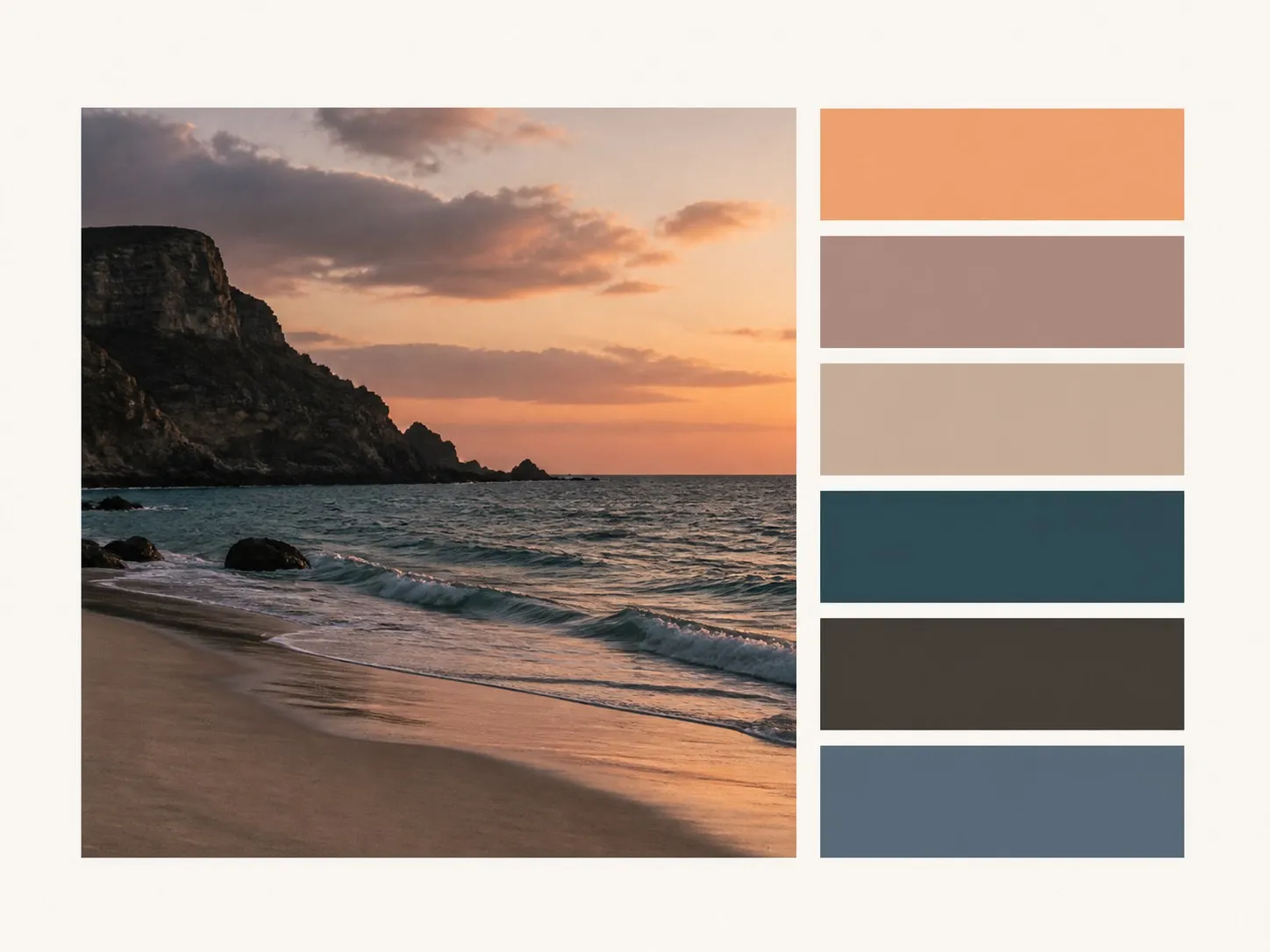
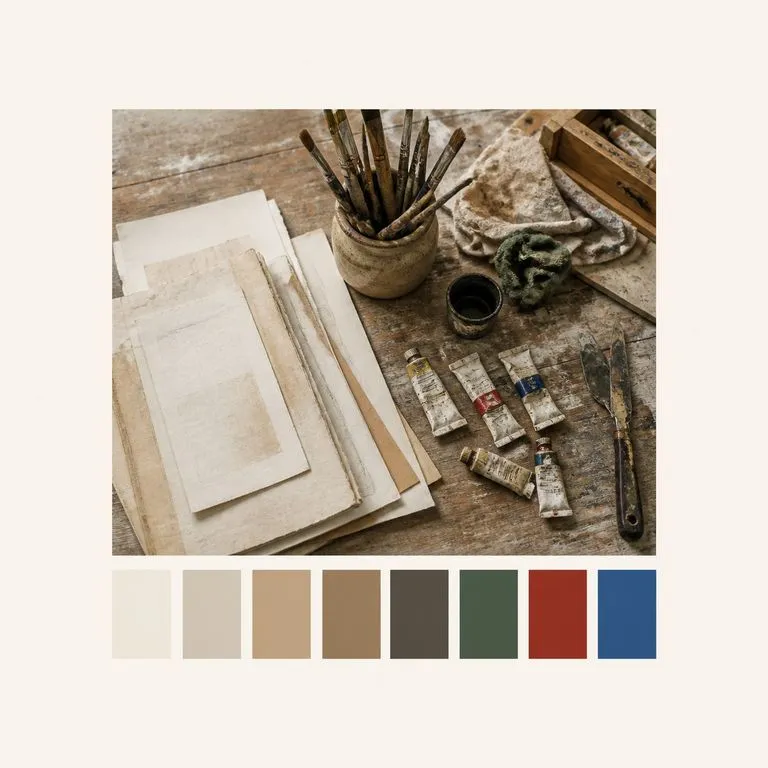
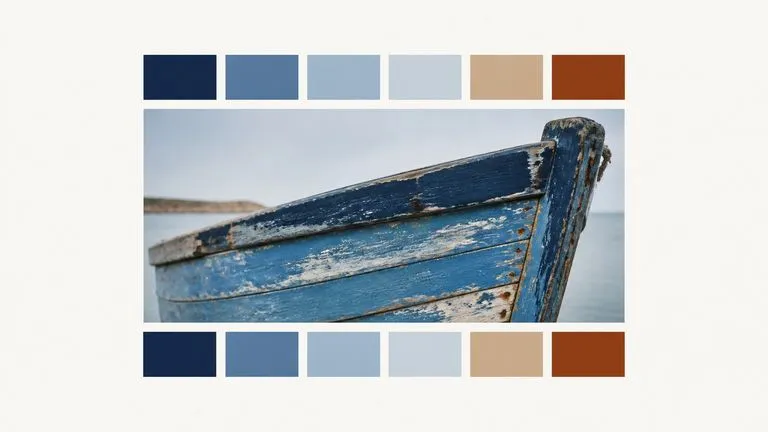
A photograph on the left and the six-swatch palette pulled from it on the right
A photograph and the palette sheet extracted from it

Three things the color palette extractor gives you back

One image in. What comes back is a sheet you can read, copy from, and get again tomorrow.

A palette sheet of six equal swatches laid out cleanly beneath its source image
Copyable

Hex values on every swatch

Each colour is labelled with its hex value, so it goes straight into a design file, a stylesheet or a spec without anyone sampling it by eye first.
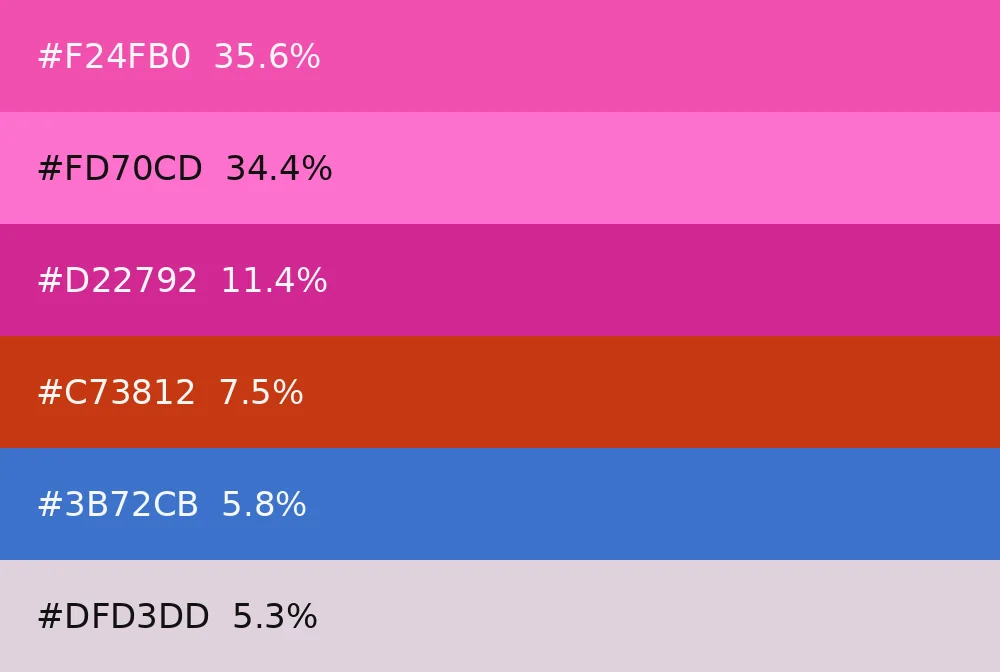
A proportional palette bar where each colour's width matches its share of the image
Share of image

Proportions, not just colours

Every swatch carries how much of the picture it occupies. That is the difference between a colour that is in the image and a colour the image is actually made of.
Two extractions from one image producing identical swatch rows
Deterministic

The same image gives the same palette

The extraction is clustering, not a generative guess. Run it again next month on the same file and you get the same six colours, which is what makes it usable as a reference rather than a one-off.

How to get a color palette from a photo in four steps

  1. Drop in the image

    A photograph, a screenshot, a logo, a piece of artwork. Anything with colour in it works, and nothing needs preparing first.

  2. Choose how many colours

    Four for a quick read, six for a working palette, eight when the image is busy and you need the long tail.

  3. Pick the layout

    Bars and Grid are for reading the colours. Proportional is for seeing which ones the image is actually built from.

  4. Extract, then keep working

    The palette sheet lands on a fresh Virse canvas beside the image. Copy the hex values out, re-run at a different count, or take the sheet into a document.

Who needs a brand color palette from an image

People who have to name a colour before anyone can build with it.
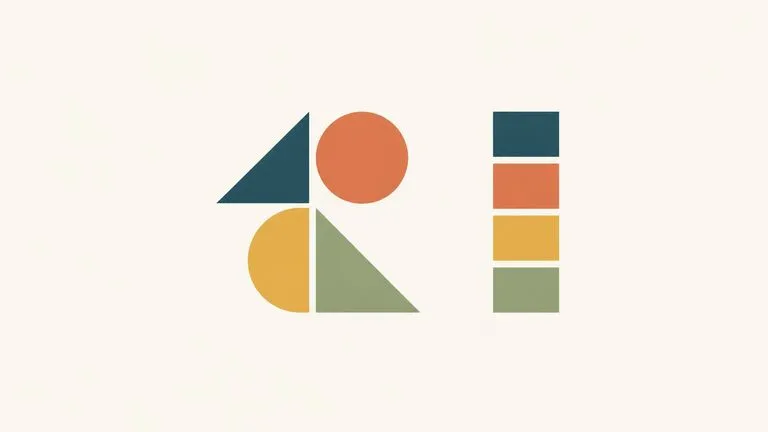
A simple abstract brand mark beside the palette recovered from it

Brand & Identity Designers

Recover the working palette from a logo or an old brand asset when the original spec is gone and only the artwork survives.
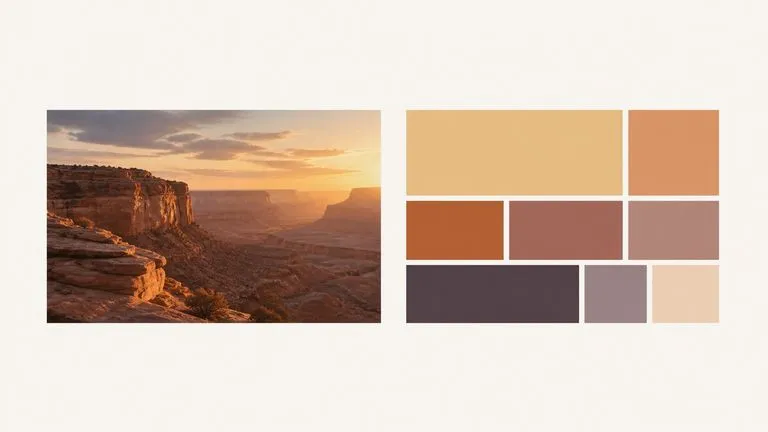
A reference photograph beside abstract blocks arranged in its palette

UI & Web Designers

Pull a starting palette off a reference image, with hex values ready to drop into tokens rather than sampled by eye.
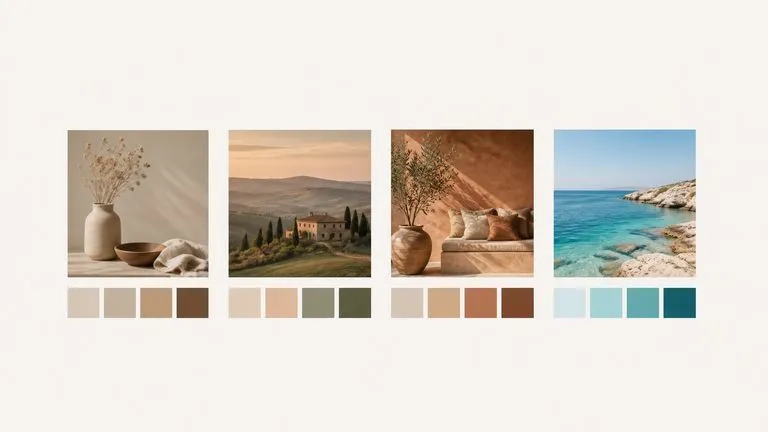
Four campaign images each shown above its own extracted palette row

Content & Social Teams

Check whether a set of images is actually on-brand by looking at what colours they are made of, not what colours they feel like.
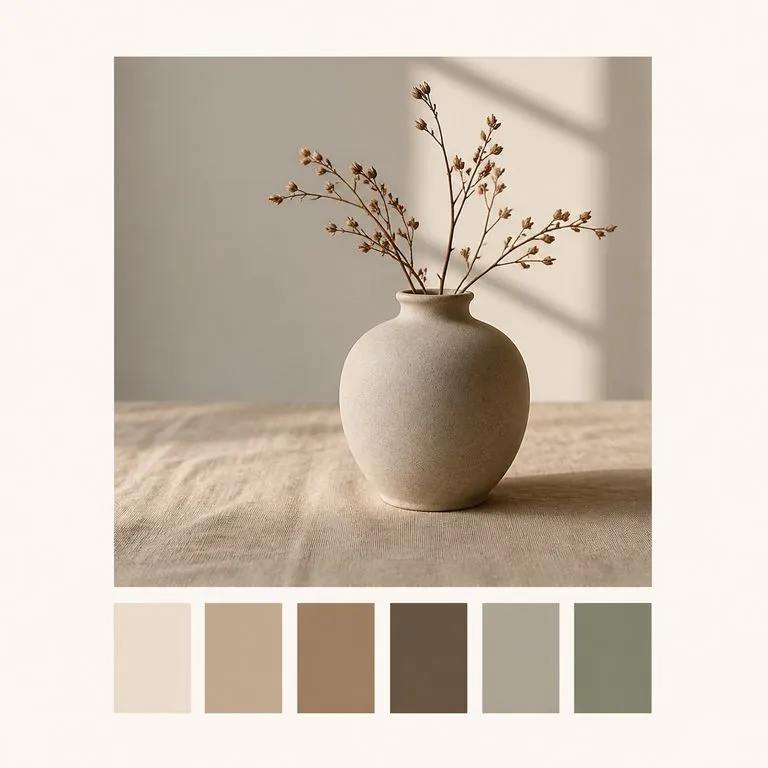
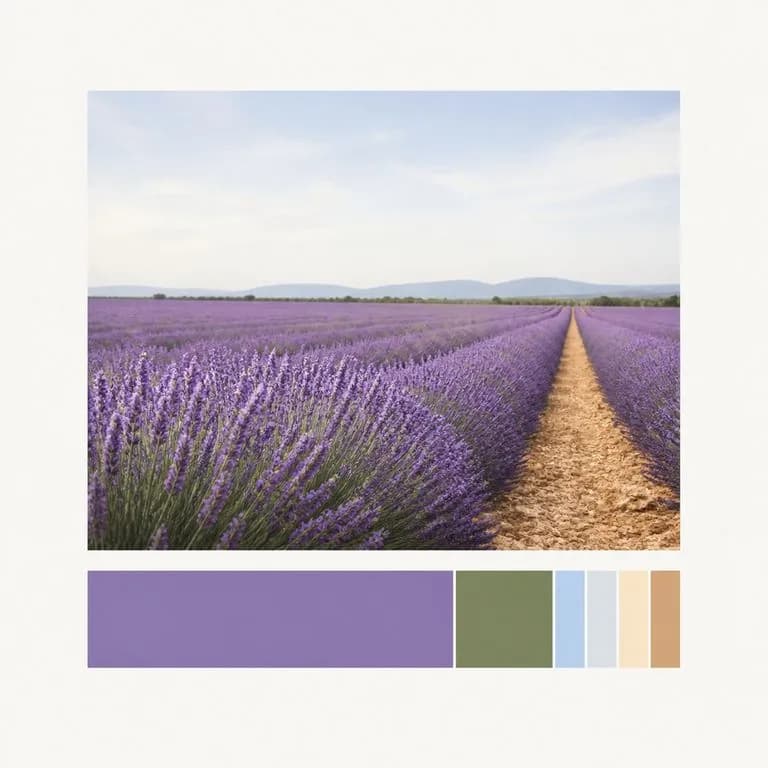
What an image to color palette sheet looks like

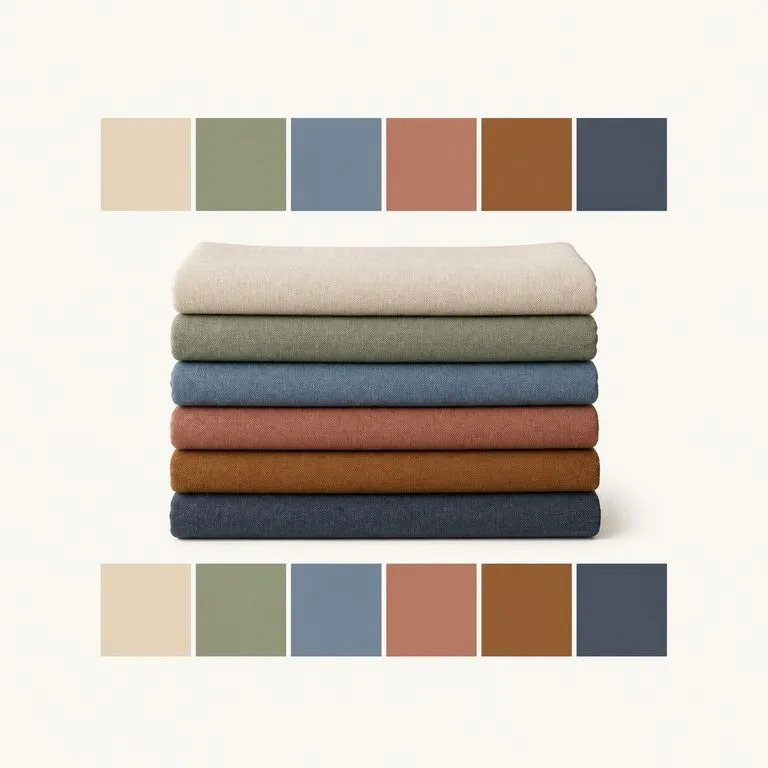
A product photograph above its six-swatch palette
Six Colours, Hex Labelled: a working palette pulled from a product photograph
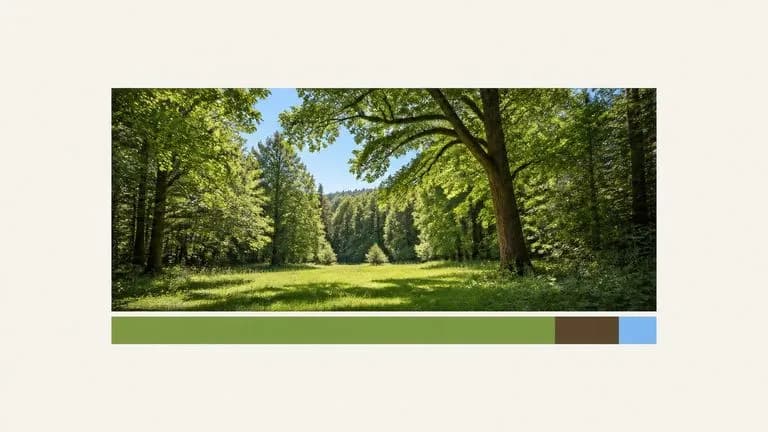
A proportional palette bar under a photograph, widths matching dominance
Proportional Layout: swatch widths showing what the image is mostly made of
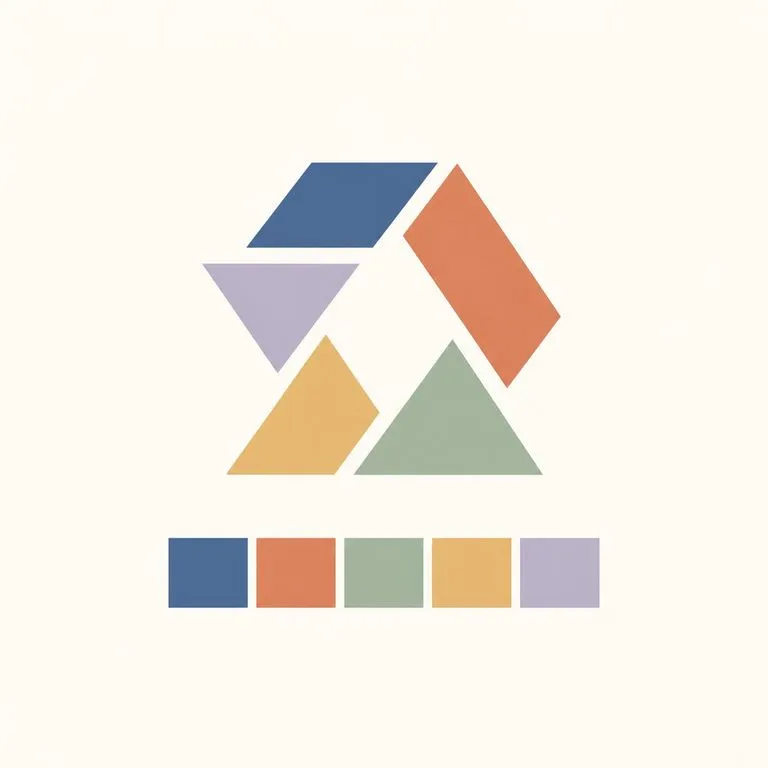
An abstract geometric mark above the palette recovered from it
Palette From a Logo: brand colours recovered from artwork with no spec file
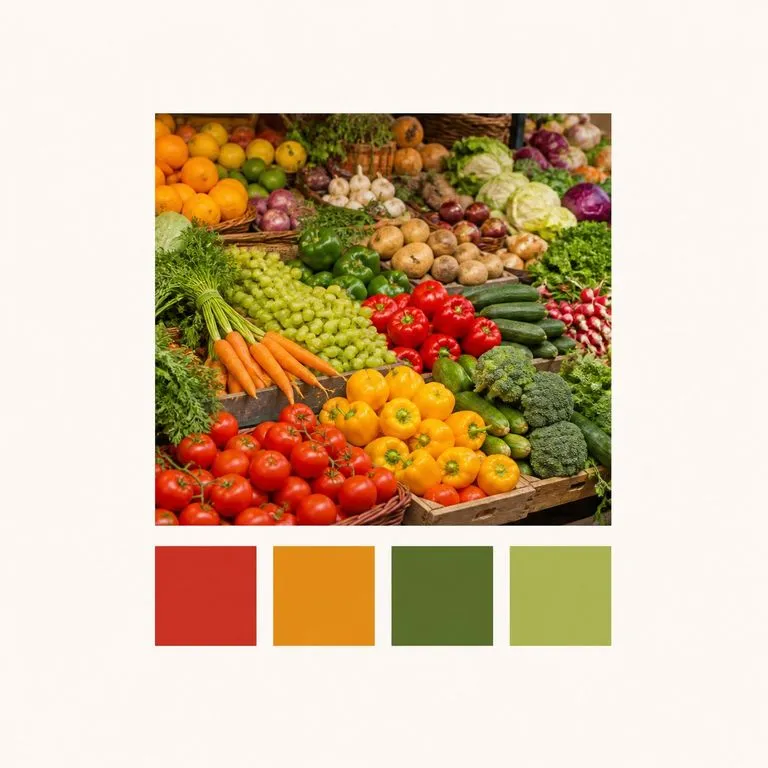
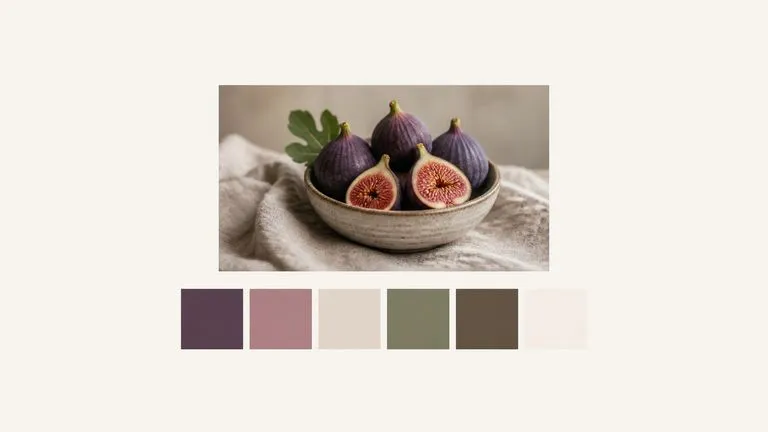
A busy photograph reduced to just four dominant swatches
Four-Colour Quick Read: the shortest useful version of a busy photograph
Eight swatches showing accent colours alongside the dominant ones
Eight Colours, Long Tail: accent colours surfaced alongside the dominant ones
Two identical swatch rows extracted from the same photograph
Same File, Same Result: two runs a month apart, identical swatches

Why a deterministic extractor beats an eyedropper

Sampling by hand works until you have to do it twice and get the same answer.

Picking colours by eye

  • Where you click decides the colour, so two people get two palettes from one image
  • Nothing tells you whether a colour covers half the image or a corner of it
  • Repeating the exercise next month gives a different set
  • Values get written down by hand, which is where the typos come from

The Virse extractor

  • The image is clustered, so the palette comes from the whole picture rather than from a click
  • Each swatch carries its share of the image alongside its hex value
  • The same file gives the same palette every time it is run
  • The sheet lands on a canvas with the values already labelled and ready to copy
FAQ

Questions

Is the palette stable if I run it twice?
Yes. The extraction is deterministic clustering rather than a generative guess, so the same image gives the same palette every time.
Are the hex values usable directly?
Yes. Each swatch is labelled with its hex value and its share of the image, so you can copy them straight into a design file.
Does it change my image?
No. Nothing is done to the picture you upload. What comes back is a separate palette sheet, and the original sits beside it on the canvas untouched.
Can it suggest a palette that goes with these colours?
No. It reports what is in the image rather than proposing what should be. Harmony rules, complementary schemes and generated palettes are a different kind of tool, and this one deliberately does not guess.
Does pressing Create run the tool straight away?
No. Your inputs travel into a fresh canvas and land on the tool already filled in, but nothing runs until you press Start there. A link can never spend your credits on your behalf.
Can I keep working on the result afterwards?
Yes. Everything the tool produces arrives on a normal Virse canvas, so you can re-run a single output, adjust it, or take it into an edit without exporting and re-importing.

Get the palette behind an image

Start here. Drop an image in and the palette opens on a fresh Virse canvas next to it, with nothing running until you press Start.