Fancy Text Image Generator

Fancy Text Image Generator

Give a short phrase a visual treatment: glowing neon, painted brushwork or sculpted lettering. Write the words and describe their appearance in Virse. This fancy text generator creates an image of the lettering for design exploration; it does not produce copy-and-paste Unicode characters.

Input
Text content · RequiredFancy style brief · OptionalStyle reference · OptionalLetterform direction · OptionalBackdrop · OptionalNumber of variants · Optional
Output
Multiple fancy lettering images with distinct letterform treatments, wording kept exactly as given (3 by default, each generated independently)
Style referenceOptional

Your image is uploaded on the canvas — this form carries the settings.

Letterform directionOptional
BackdropOptional
Number of variantsOptional

How Fancy Text Image Generator Works

A fancy text image generator renders short words as visual artwork. Virse uses your wording and style description to create a lettering concept. The result is an image, rather than a font file or styled characters you can paste into a bio.

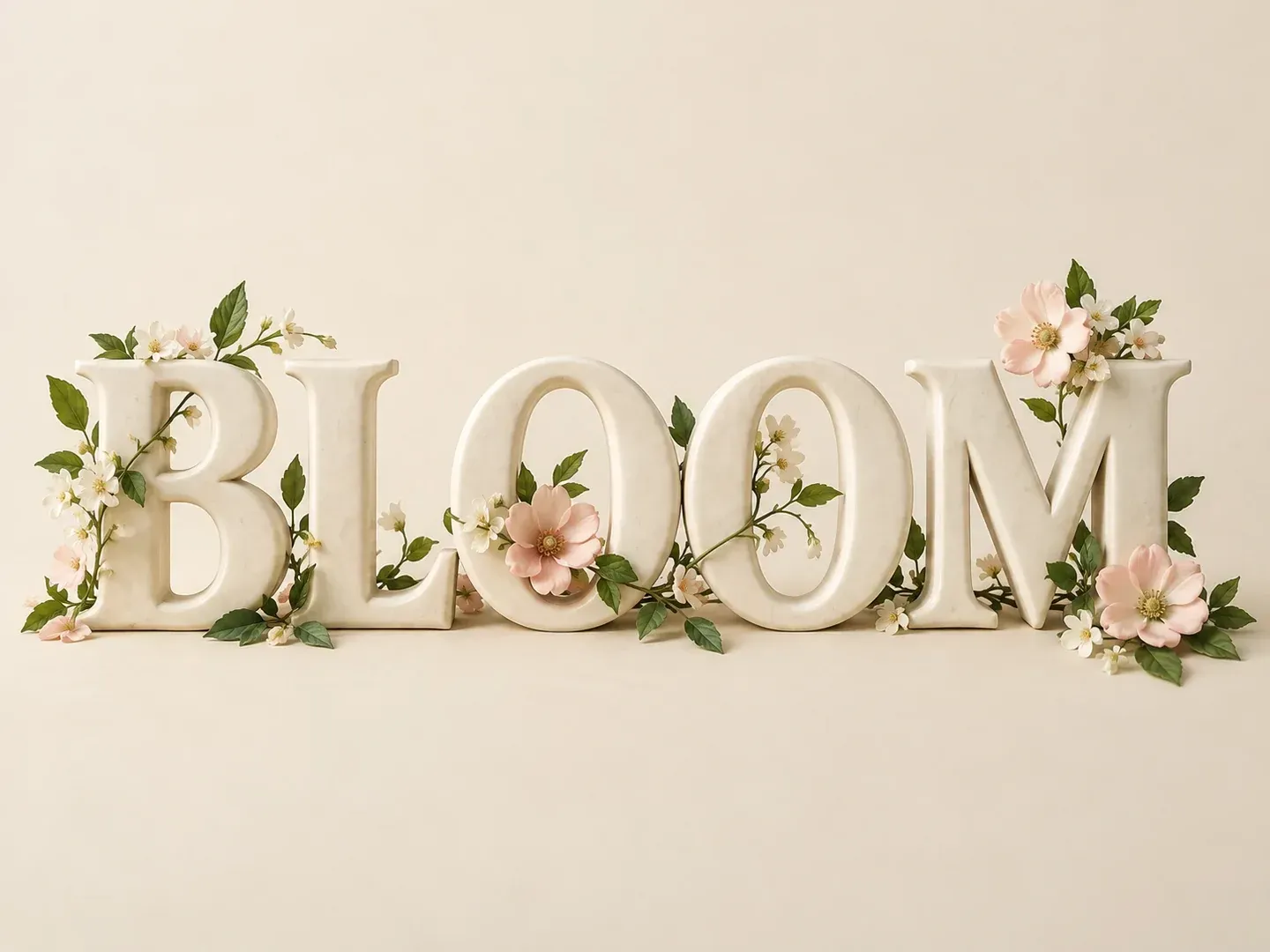
The exact word BLOOM in sculpted ivory lettering on a warm cream background
Illustrative concept: the exact word BLOOM in sculpted ivory lettering on a warm cream background

What You Can Explore in Virse

Treat the letters as part of the composition. Keep the phrase short enough to inspect, then explore its material, shape and surroundings.

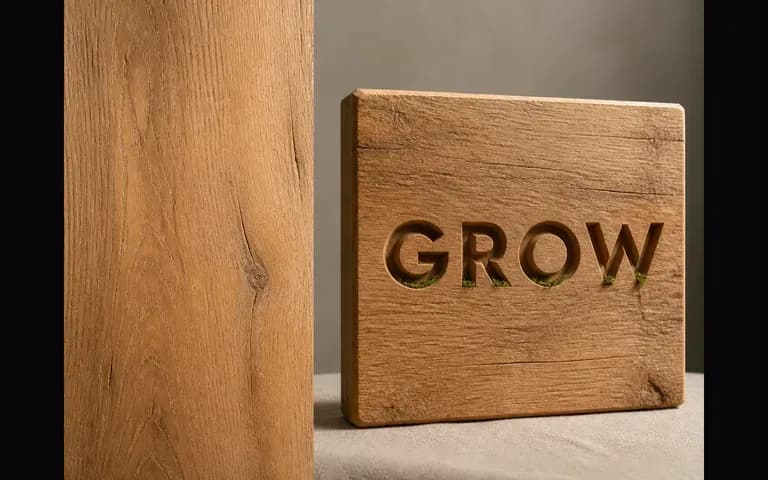
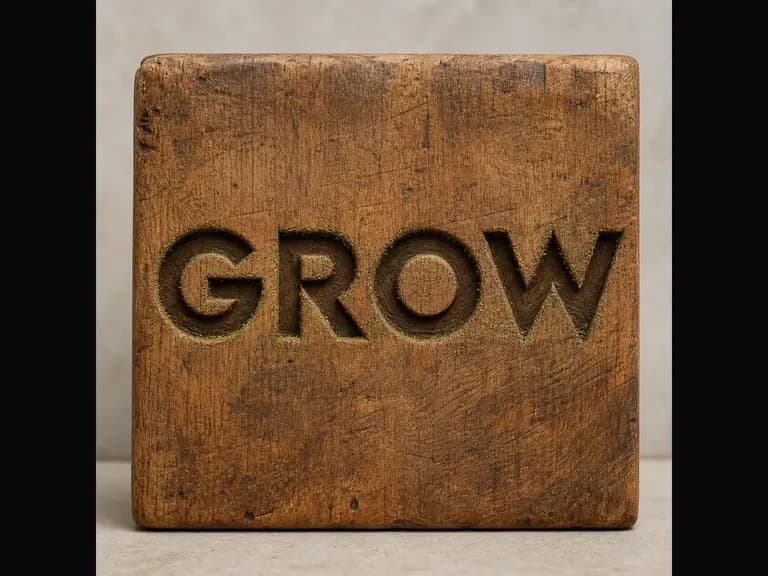
A wood reference beside the word GROW in carved lettering

Name the Words and the Treatment

Write the exact phrase separately from the style direction. Describe the letter shape, material and background so the brief has a clear visual focus.
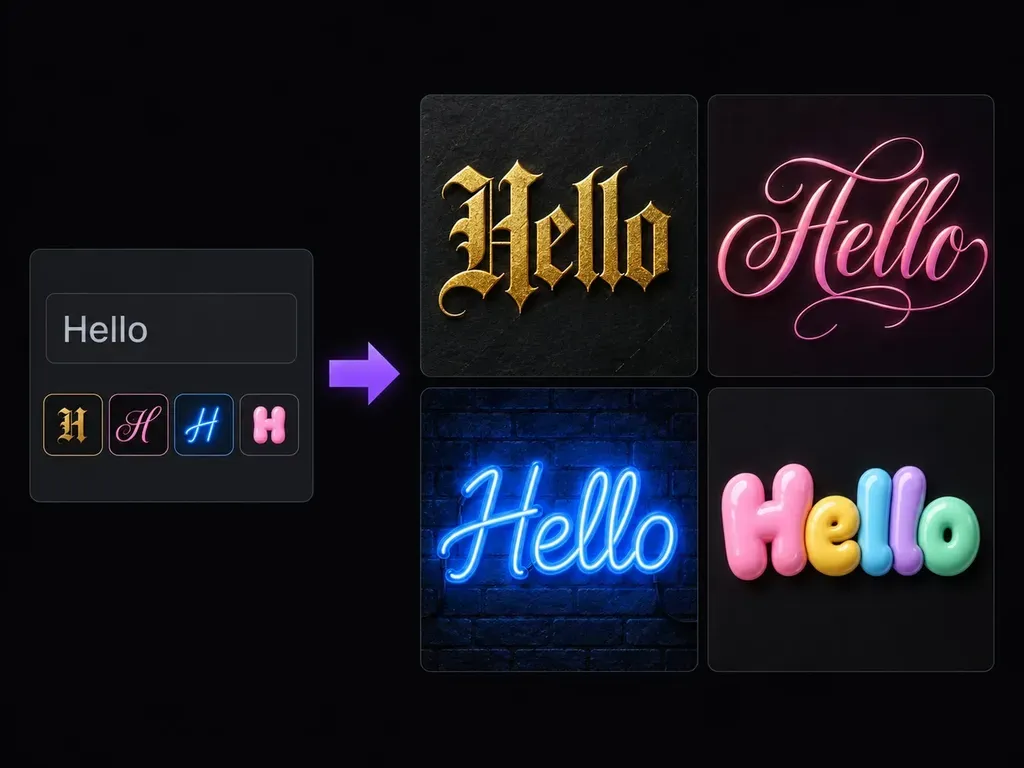
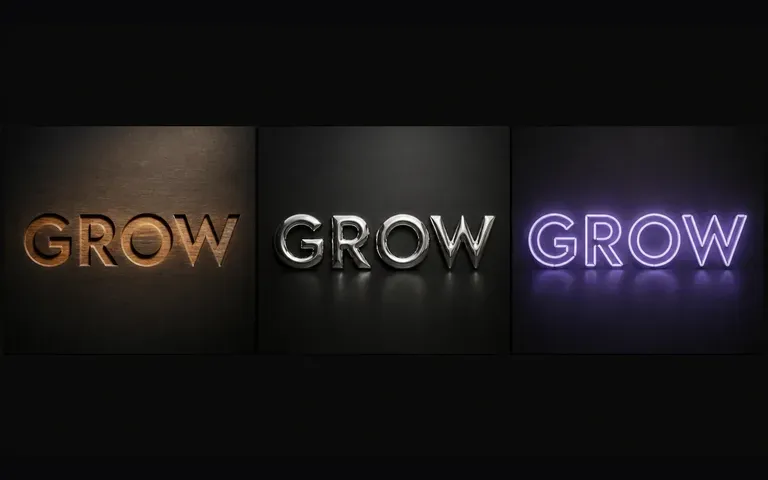
The word GROW explored in wood metal and neon styles

Compare Different Lettering Ideas

Try a painted, dimensional or illuminated treatment for the same short phrase. Check which direction suits the surrounding design instead of choosing an effect on its own.
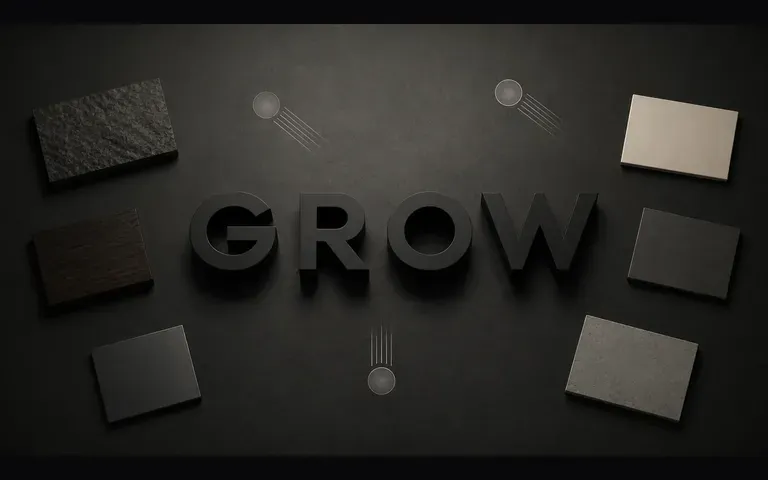
A lettering concept using GROW alongside material references

Keep the Artwork in Your Design Context

Review the lettering alongside your other images on the canvas. Check spacing and spelling before adding it to a finished composition.

How to Get Started

  1. Write a Short Phrase

    Start with one or two words. Check the spelling before adding the style description.

  2. Describe the Lettering

    Name the shapes, material, color and background. Add a reference only when it clarifies a specific visual direction.

  3. Generate the Image

    Continue in Virse and compare the lettering concepts. Read every character rather than judging only the overall effect.

  4. Check It in the Layout

    Review legibility at the intended size. Use a separate typography tool when you need exact editable text for the final design.

Who Uses This Tool?

Lettering concepts are useful when the appearance of a word is itself part of the visual idea.

The word GROW in a graphic poster treatment

Poster Designers

Explore a short headline as artwork. Keep important dates, addresses and other exact information in editable text elsewhere.
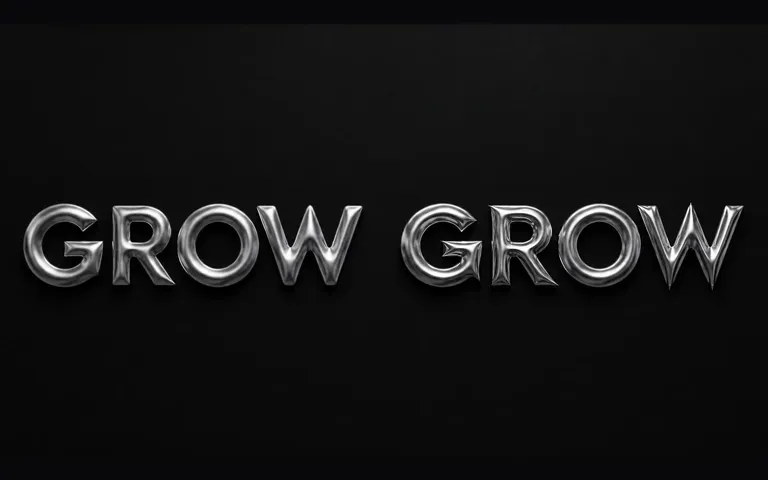
Two liquid-metal lettering concepts using the word GROW

Cover Artists

Try a visual treatment for a title before final typography. Check every letter and judge whether it remains clear as a thumbnail.
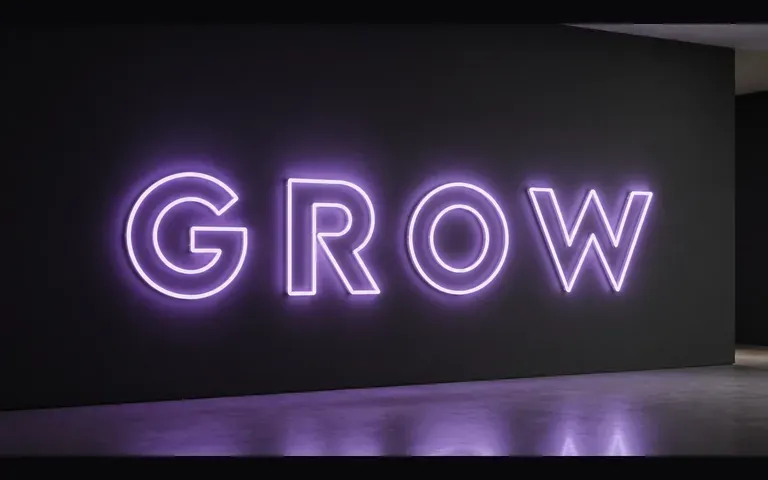
The word GROW in glowing neon lettering

Social Creators

Develop a short phrase as a graphic element. Choose a treatment that reads clearly at the size people will see it.
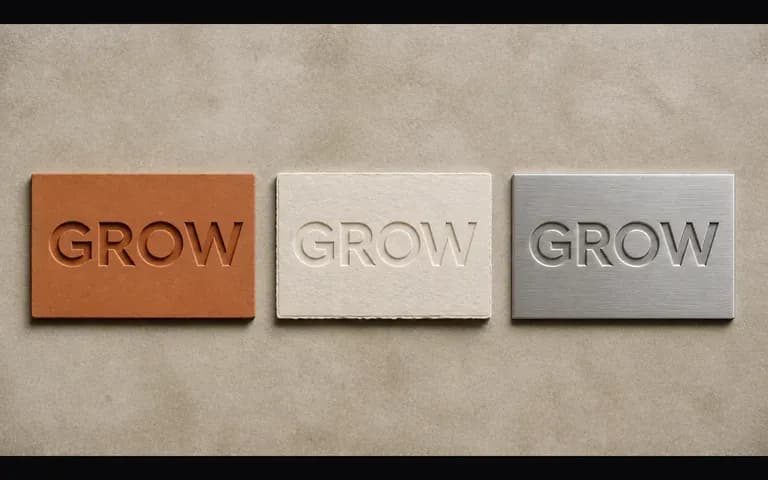
Several material studies of the word GROW

Brand Concept Teams

Explore a wordmark direction without treating it as a finished logo. Refine the selected idea in a suitable design workflow.
Ideas to Try

The word GROW carved into a wooden panel
Wood Lettering: Illustrative concept: the word GROW carved into a wooden panel
The word GROW in reflective liquid-metal lettering
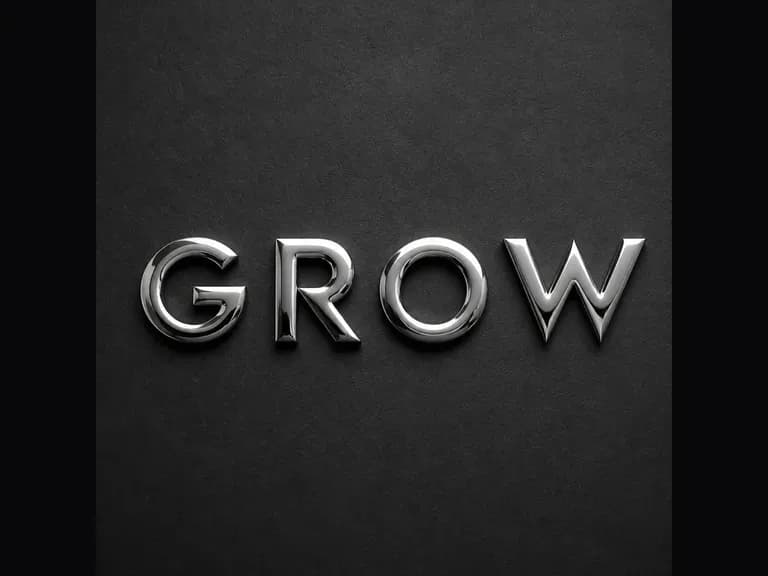
Liquid Metal: Illustrative concept: the word GROW in reflective liquid-metal lettering
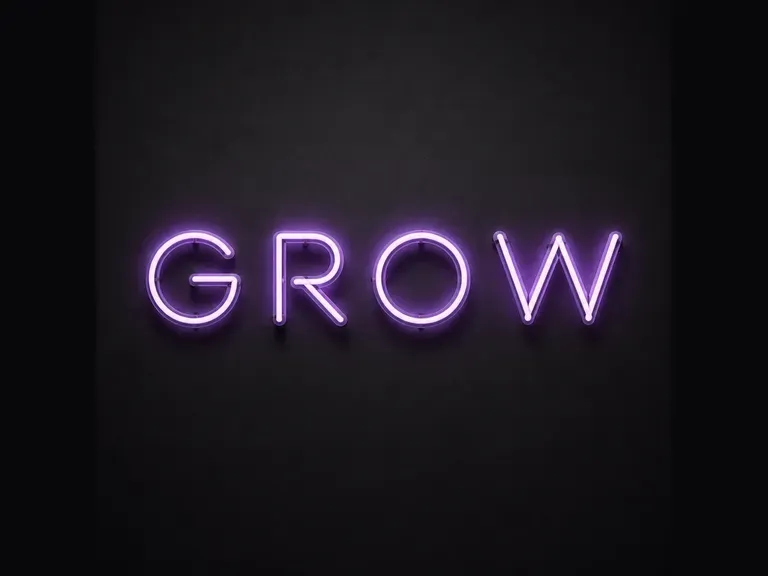
The word GROW in glowing neon
Neon Words: Illustrative concept: the word GROW in glowing neon
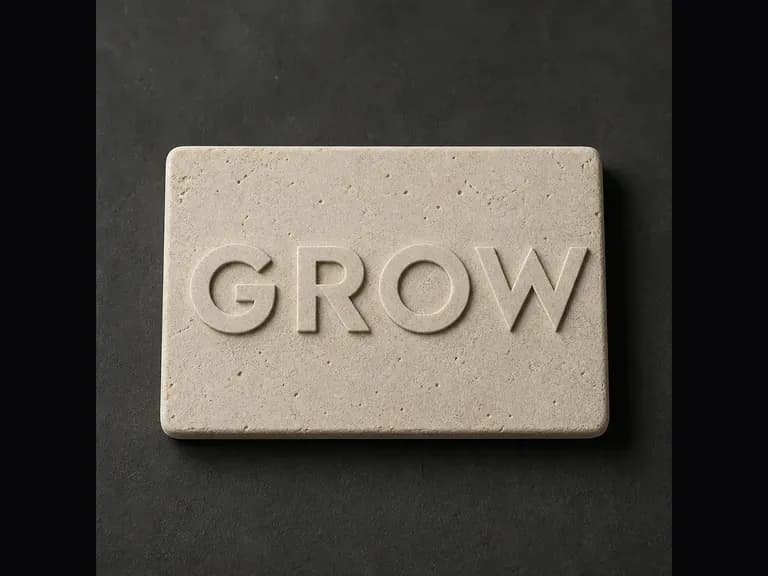
The word GROW as carved stone relief
Stone Lettering: Illustrative concept: the word GROW as carved stone relief
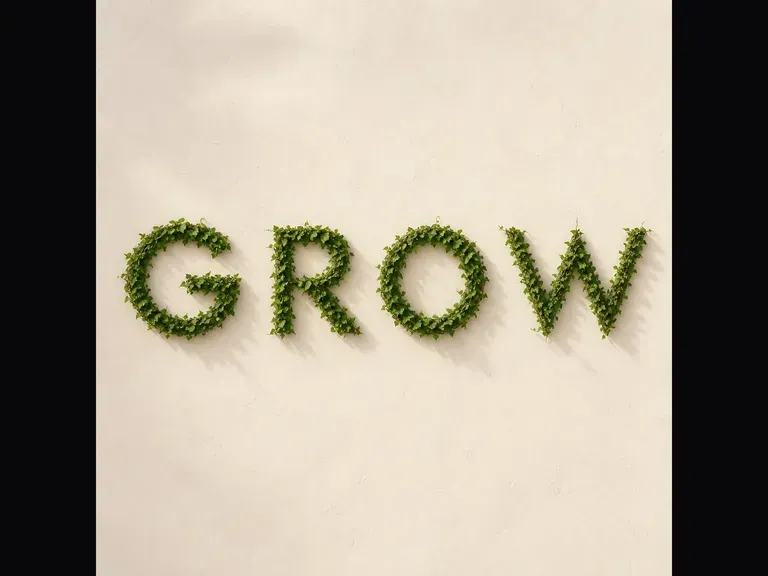
The word GROW formed from vines
Organic Letters: Illustrative concept: the word GROW formed from vines
The word GROW in a graphic poster treatment
Graphic Headlines: Illustrative concept: the word GROW in a graphic poster treatment

Frequently Asked Questions

Can I copy and paste the fancy letters into a bio?
No. This page creates a lettering image. It does not convert text into Unicode symbols for copying into usernames, comments or profile bios.
Does this create a font I can install?
No. It generates an image of the supplied wording, not a complete alphabet or an installable font file.
How much text should I use?
Start with one or two words or a short phrase. Long paragraphs make it harder to keep lettering clear and to check each character.
Will the spelling always be exact?
Check every result. Generated lettering can change, omit or distort characters. Use editable text in a dedicated design tool when exact wording is essential.
Can I describe a specific material?
Yes. Describe paint, glass, stone, neon or another visual treatment. Explain the background and light when they affect how the letters should look.
How is this different from choosing a font?
Choosing a font applies a typeface to editable text. This workflow explores the appearance of words as artwork, including texture, light and dimensional effects.

Give a Short Phrase a Visual Form

Write the words, describe the treatment and compare the lettering concepts. Check spelling and legibility before taking the idea into your final design.