AI Bottle Ad Nine-Grid

AI Bottle Mockup Generator

Upload one bottle photo. It comes back as nine distinct advertising scenes laid out in a three by three grid, with the bottle shape, the label artwork and the text on it exactly as they were.

Input
Bottle product photo · RequiredBrand tone & copy notes · Optional
Output
9 bottle-ad images in fixed scenes × 9

Bottle product photo

Required

Drop the bottle photo

Your image is uploaded on the canvas — this form carries the settings.

What an AI bottle mockup generator does with one photo

An AI bottle mockup generator builds advertising scenes around a bottle you have already photographed. This one holds the bottle completely still. The shape, the label and every word printed on it stay fixed, and only the world around them changes.

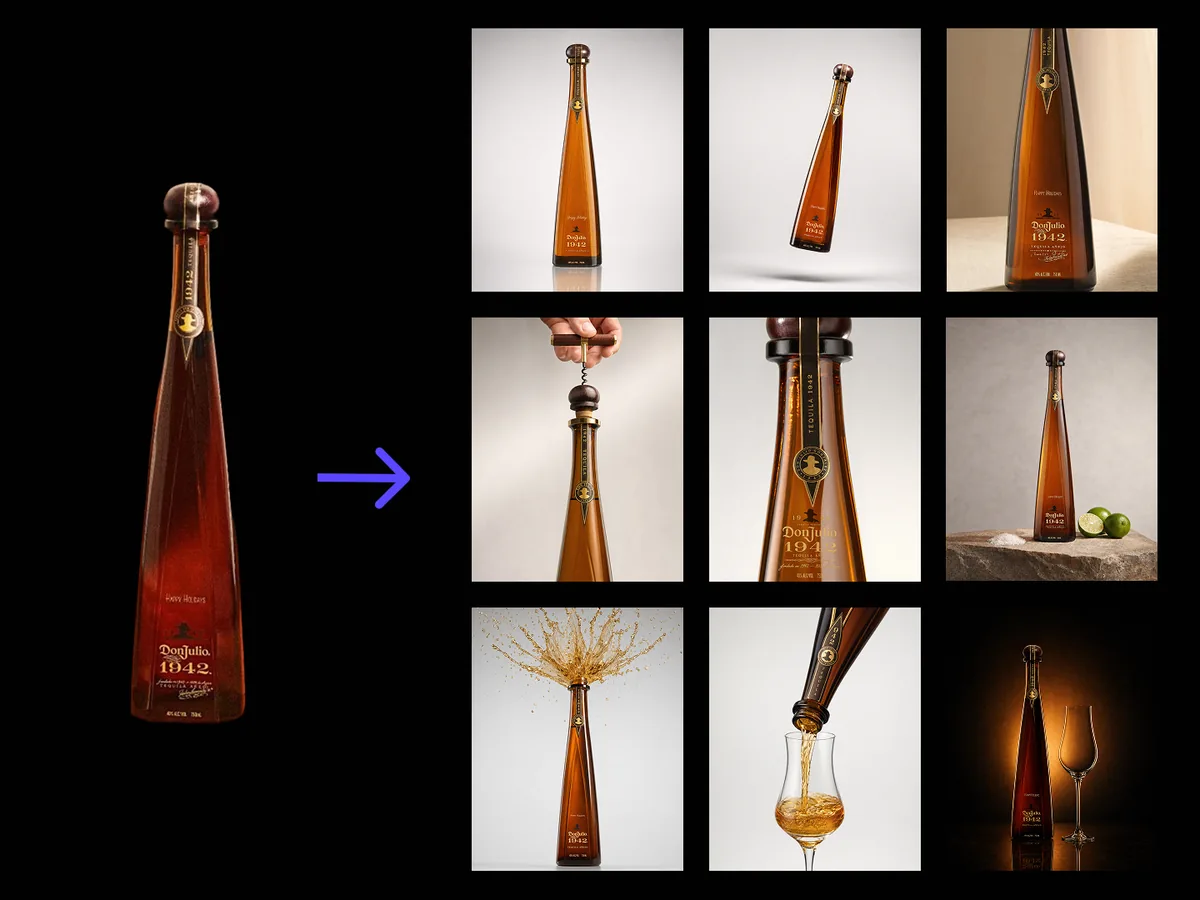
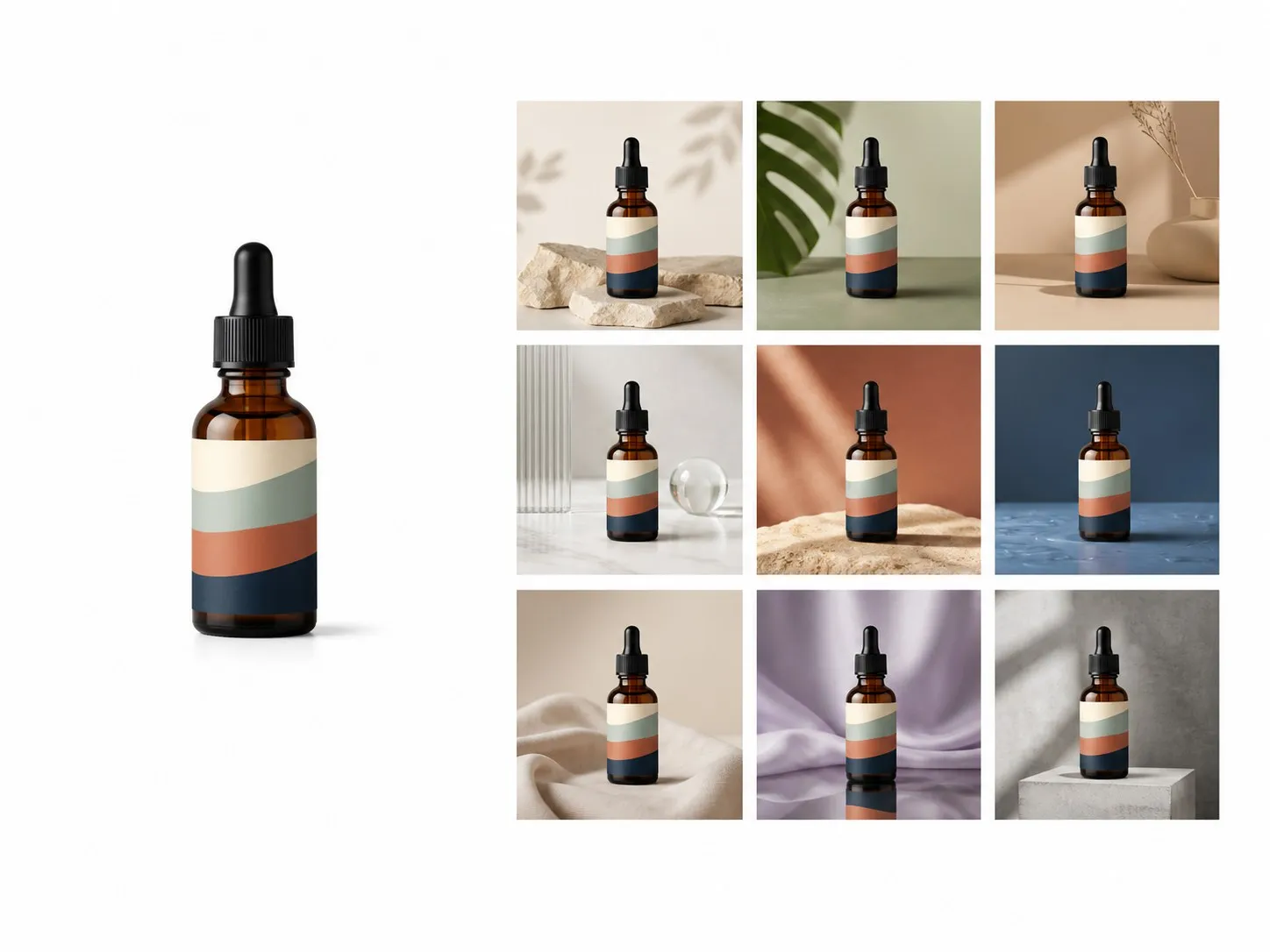
A single bottle photograph on the left and a three by three grid of nine advertising scenes on the right
One bottle photo and the nine scenes generated around it

What this AI product photoshoot keeps fixed

One required photo, one optional line of notes, nine images back. The value is in what does not move.

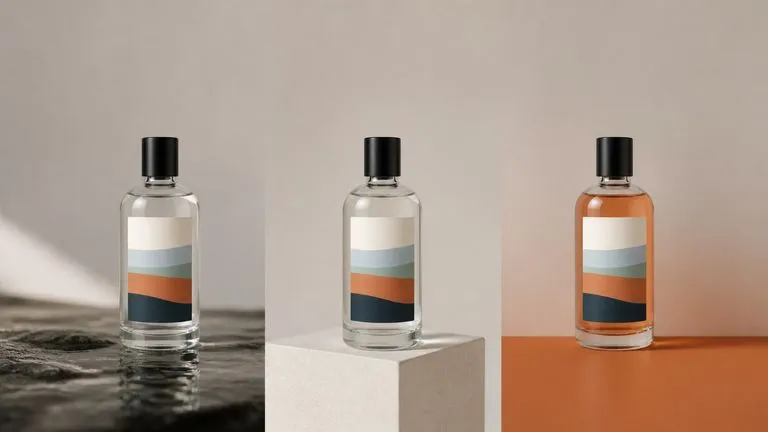
Three close-ups of one bottle in different scenes with the label graphic identical in all three
Fixed

The label is treated as artwork, not as texture

Type, logo lockup and the exact colours of the label carry through all nine scenes. A label that gets re-rendered nine slightly different ways is nine images you cannot use, so it is held rather than regenerated.
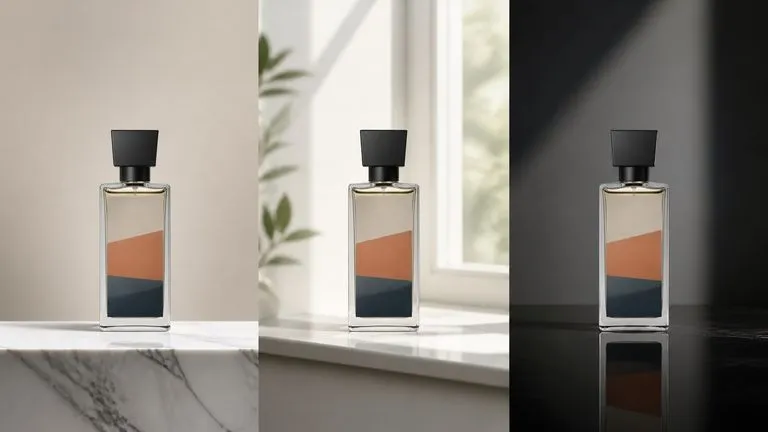
One distinctive bottle silhouette shown in three scenes with its shoulder and cap unchanged
Fixed

The bottle shape stays the bottle

Silhouette, shoulder, neck and cap proportions come from your photo. This matters most for the shapes people recognise without reading the label, which is usually the whole point of the packaging.

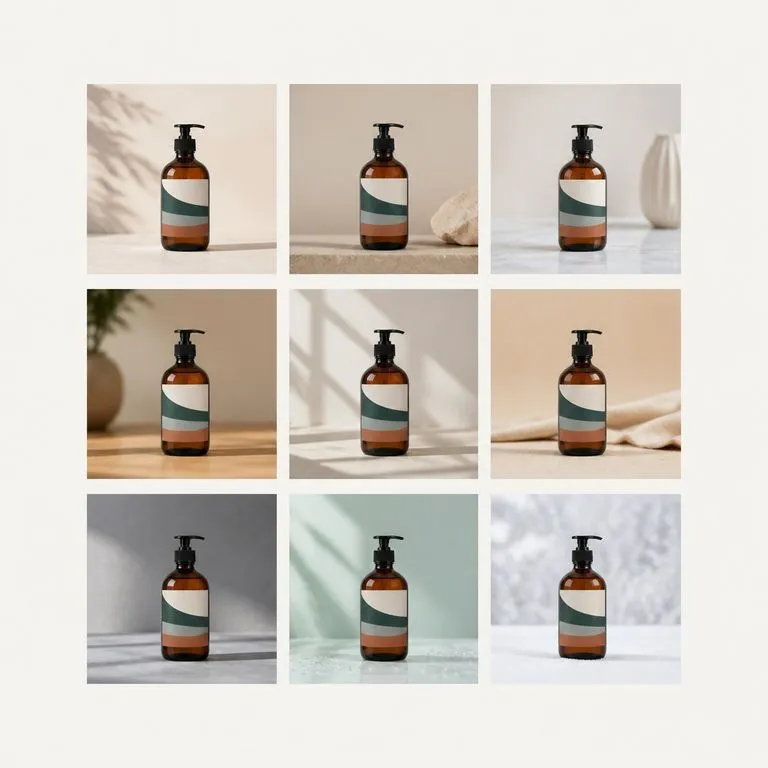
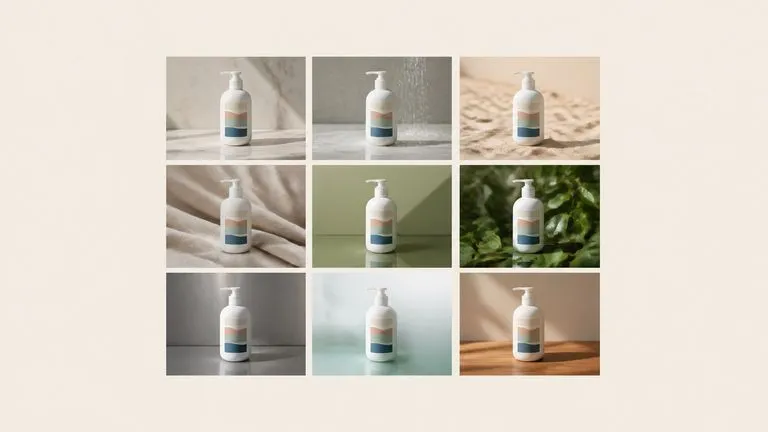
A three by three grid of nine genuinely different scenes built around one bottle
Nine, generated

The scenes are genuinely different

Surfaces, backdrops, colour and light change scene to scene rather than nine variations on one set. Brand tone notes steer the whole set, so you can ask for premium and neutral, or bright and graphic, and get nine of that.

How to run a bottle product photoshoot with AI in four steps

  1. Photograph the bottle once

    A clean shot with the label facing camera. Studio, desk or windowsill all work, because the background is replaced anyway.

  2. Set the brand tone

    One line. Premium, playful, clinical, outdoorsy. This is what stops the nine scenes coming back as generic stock settings.

  3. Create the grid

    Nine scenes arrive together as a three by three sheet, which is the format for judging a set rather than judging one image.

  4. Take the good ones further

    Every scene is a separate shot on the canvas. Re-run the two that missed, crop one for a banner, or take another into an edit without exporting.

Who uses an AI bottle mockup generator

Brands with the packaging finished and a content calendar that will not wait for a shoot.

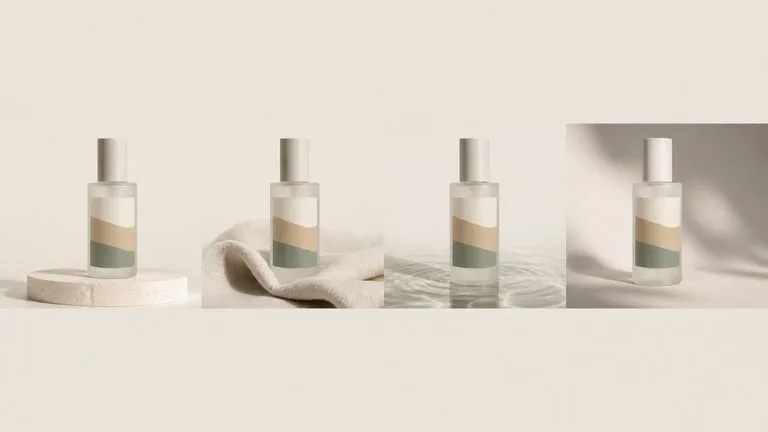
One skincare bottle shown across four calm campaign scenes in a row

Beauty & Skincare Brands

Fill a month of posts and a category page from one packshot, with the label reading correctly in every frame.

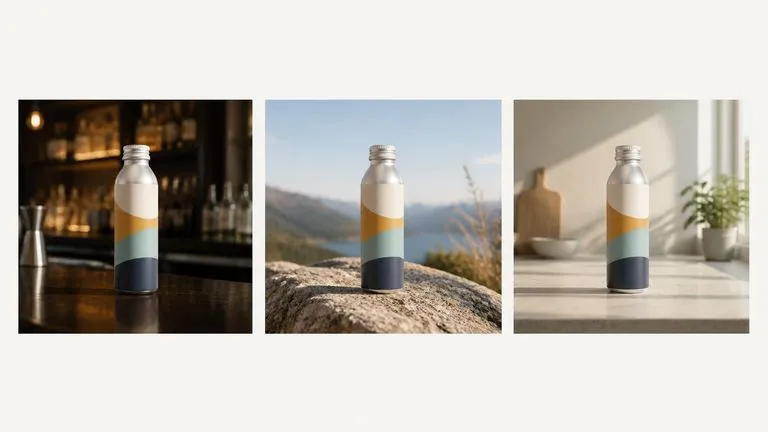
One drink bottle photographed on a bar, on a rock and on a kitchen counter

Beverage & Supplement Brands

Show the same bottle on a bar, on a rock, on a kitchen counter and against colour, and pick the two that suit the campaign.

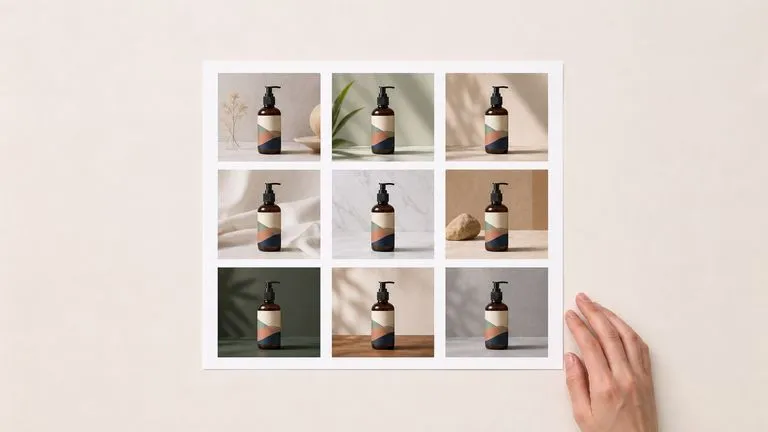
A printed nine-scene sheet lying on a table as a campaign direction pitch

Agencies Pitching a Direction

Put nine directions in front of a client in one sheet, and let them point at the set rather than describing a mood.

What a perfume bottle mockup AI set returns

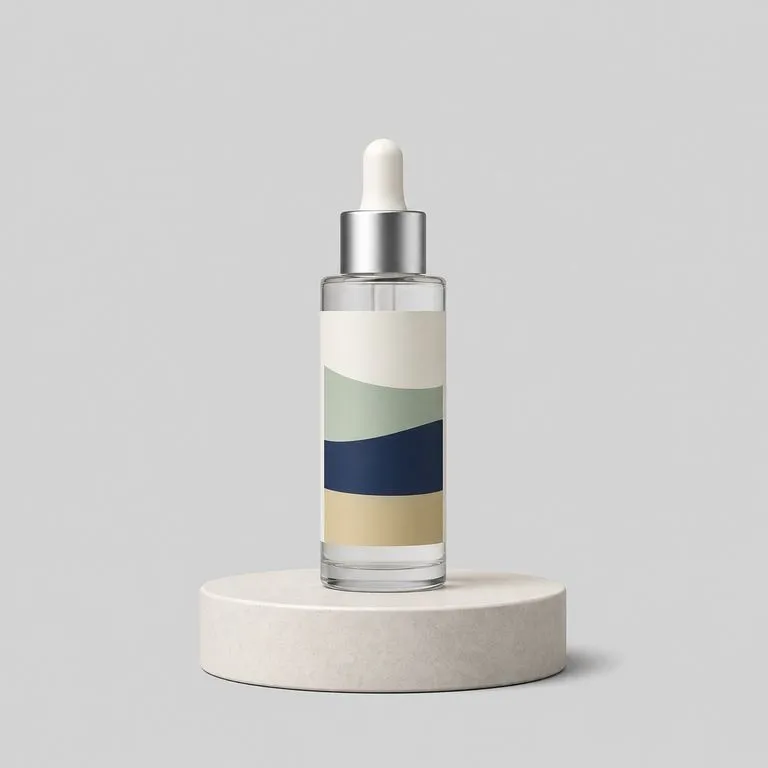
A bottle on a pale studio plinth under cool even light
Studio Plinth, Cool Light: neutral surfaces with the label reading straight to camera
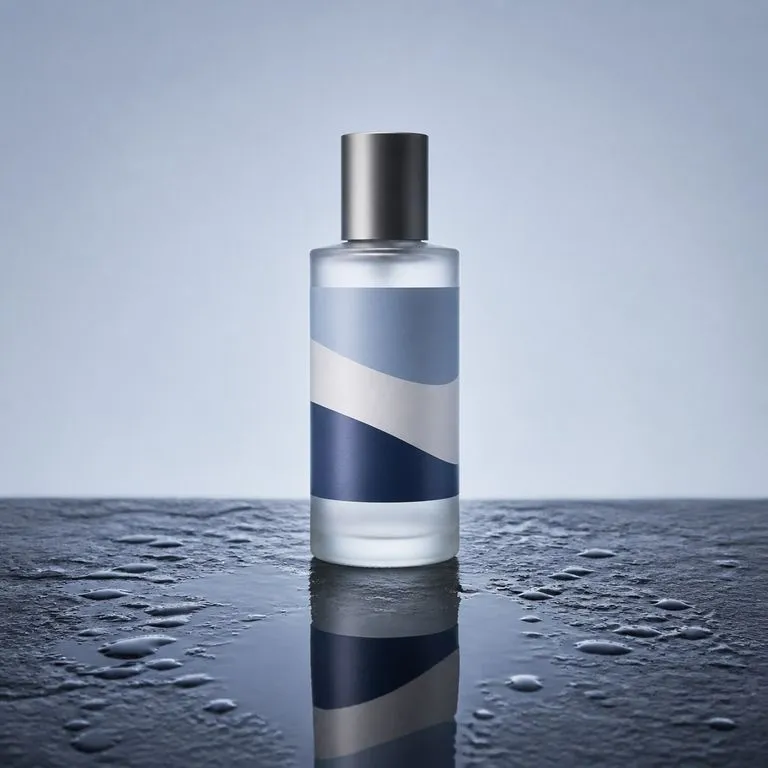
A bottle standing on wet dark stone with water droplets around it
Wet Stone and Water: a fresh-category scene with the bottle shape untouched
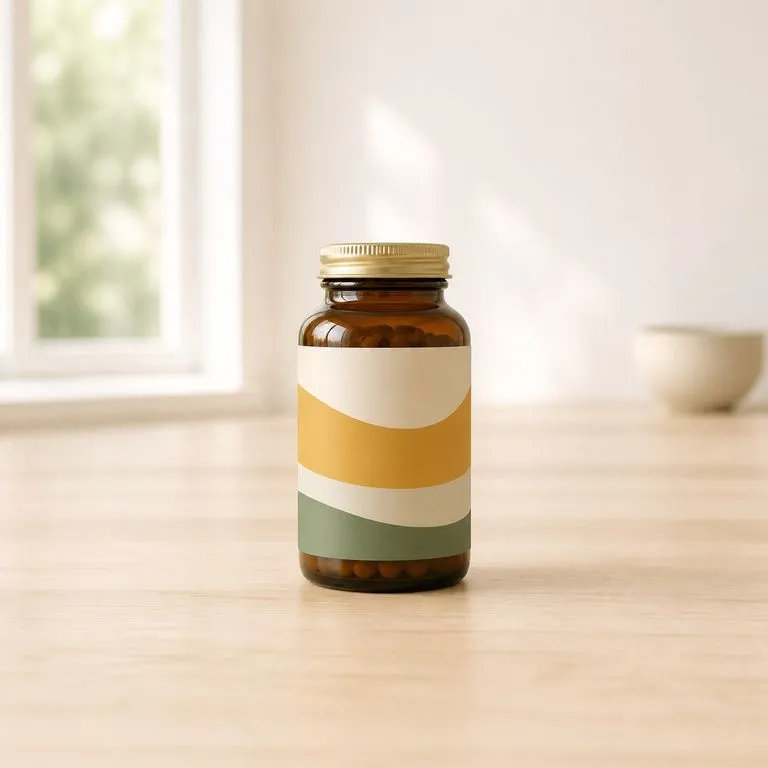
A supplement bottle on a warm kitchen counter in domestic daylight
Warm Kitchen Counter: domestic setting for a supplement or a wellness product
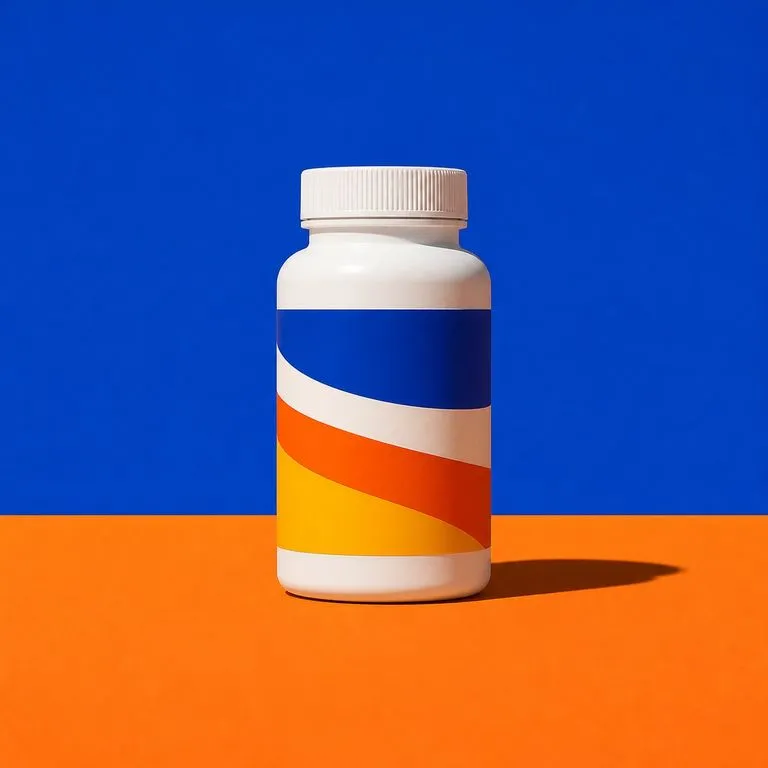
A bottle against a saturated colour-block backdrop with a hard shadow
Graphic Colour Block: saturated backdrop for a campaign banner crop
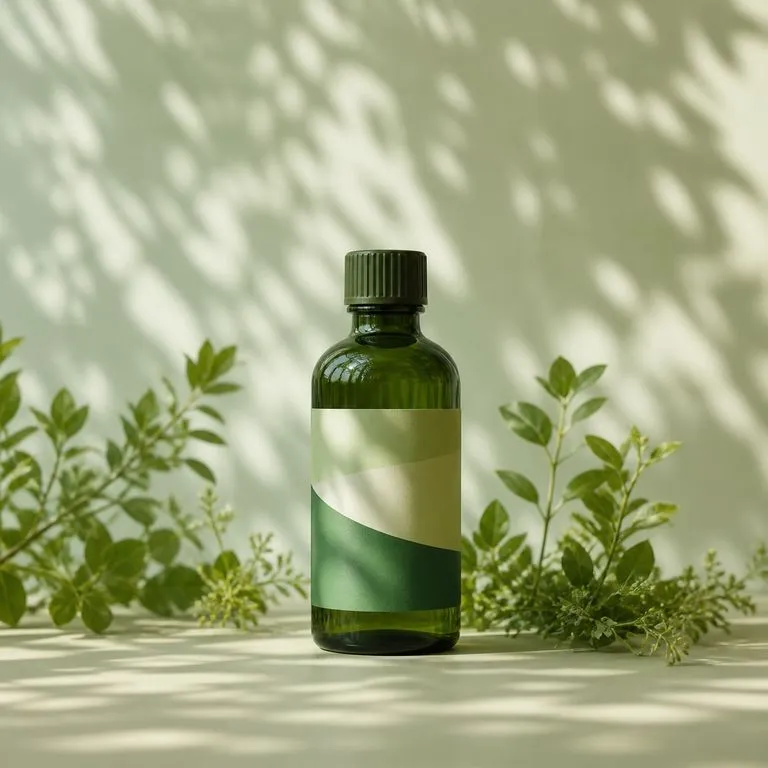
A bottle among green foliage with morning sun dappling across it
Foliage and Morning Sun: natural-category framing with the cap proportions intact
The full three by three grid of nine scenes laid out as one review sheet
Nine Scenes as One Sheet: the full grid laid out for a direction review

Bottle mockup AI compared with a blank-bottle template

Two different jobs share the phrase. This is the one where you already have the bottle.

Applying a label to a blank bottle template

  • You start from an empty 3D bottle and hope your die line wraps convincingly
  • The bottle is somebody else's shape, so it is close to your packaging rather than being it
  • One template gives one scene, and the next scene is another purchase
  • Type on a curved surface is re-rendered, so small print goes soft

The Virse nine-grid

  • You start from a photo of the real bottle, already made and already photographed
  • Shape, cap, shoulder and label are yours, carried through untouched
  • One upload returns nine scenes, laid out together so a set can be judged as a set
  • The label is held as artwork, so the small print stays as sharp as your original
FAQ

Questions

Will the label survive nine regenerations?
Yes. The bottle shape, the label artwork and the text on it are treated as fixed. Only the scene around them changes.
Can I use the nine shots separately?
Yes. They arrive as a grid for review, but each scene is a distinct shot you can take further on the canvas.
Can I apply my label to a blank bottle template?
No. This tool needs a photograph of a bottle that already exists with its label on it, and it builds scenes around that. Wrapping a flat label design onto an empty 3D bottle is a different job, and a packaging mockup template is the right thing for it.
Does it work for products that are not bottles?
It is tuned for bottles, jars and similar upright containers, so a tube or a boxed product will come back less reliably. If your product is a folded carton, the AI Dieline to Packaging Render tool is built for that shape instead.
Does pressing Create run the tool straight away?
No. Your inputs travel into a fresh canvas and land on the tool already filled in, but nothing runs until you press Start there. A link can never spend your credits on your behalf.
Can I keep working on the result afterwards?
Yes. Everything the tool produces arrives on a normal Virse canvas, so you can re-run a single output, adjust it, or take it into an edit without exporting and re-importing.

Nine campaign scenes from one bottle shot

Start here. Drop the bottle photo in and the grid opens on a fresh Virse canvas, with nothing running until you press Start.